
In addition to the folder password function to protect your folder (you could read it about: Set folder passwords), Eagle also provides an "Application Lock" to prevent your Eagle content from being accessed without your authorization. The detailed application lock function is as shown below:
How to Enable Password Protection
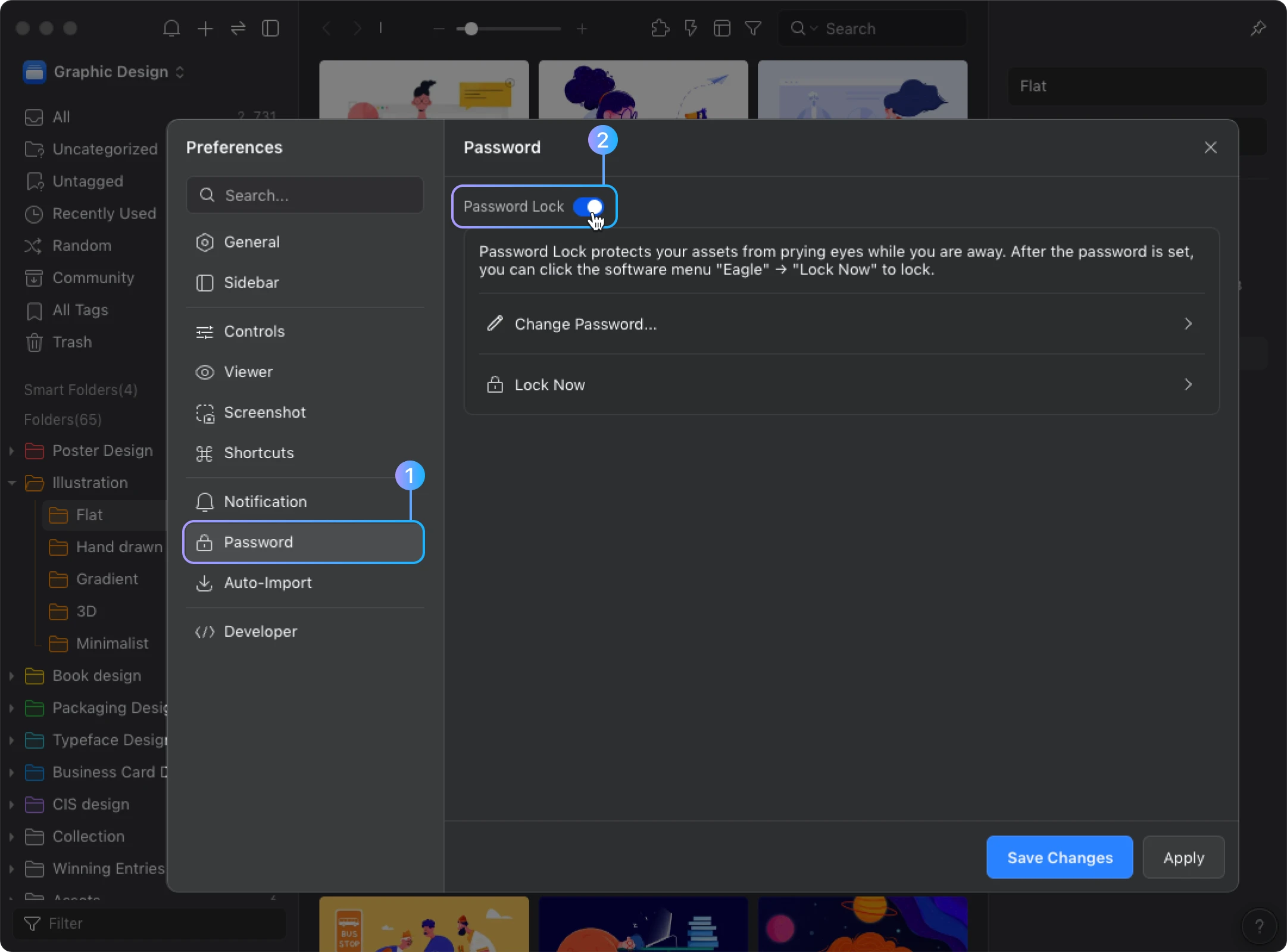
- Open “Preferences”, click “Password” > “Password Lock”
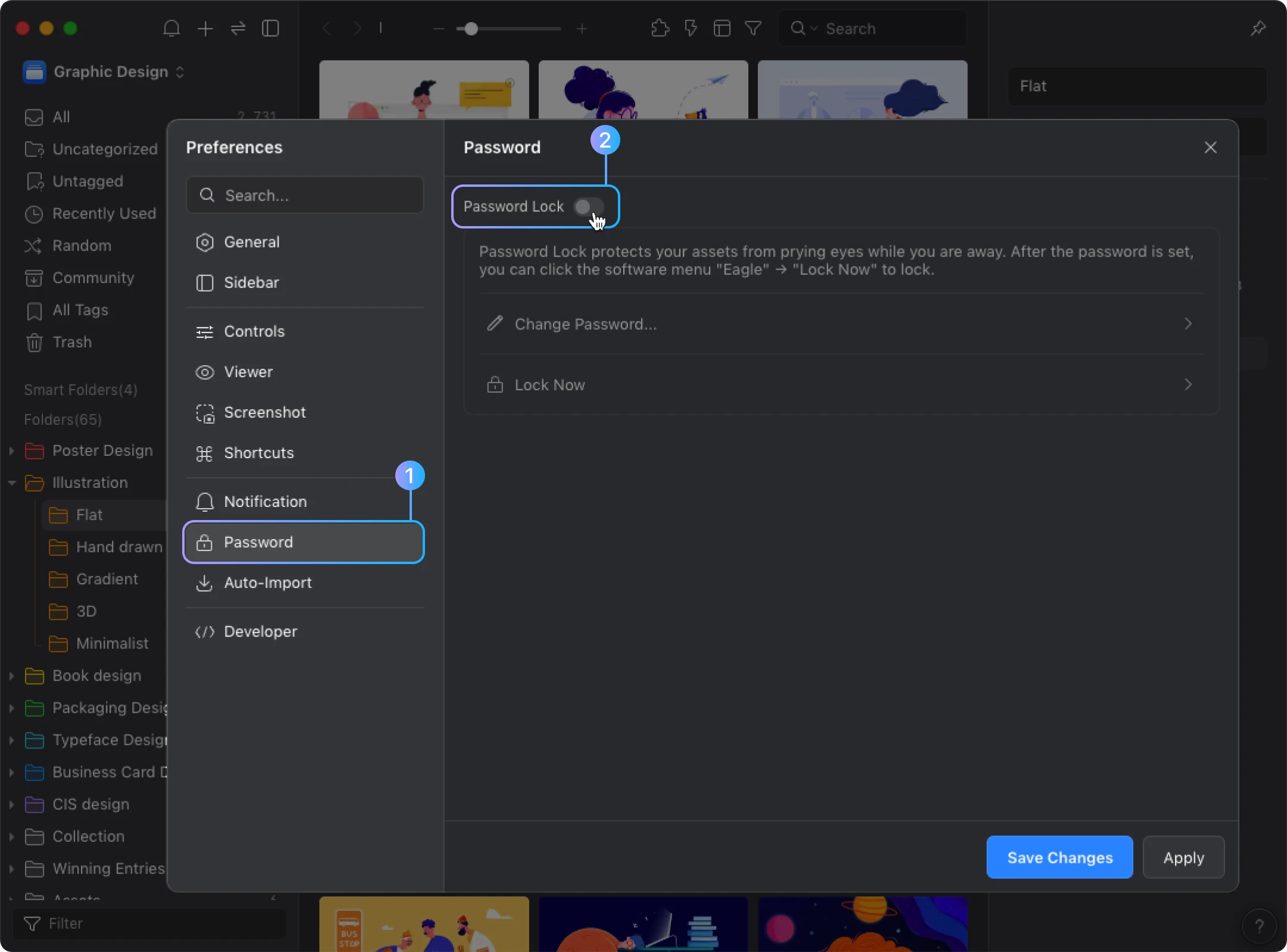
- Enter the password and click "Save Changes" button
How to Lock Eagle
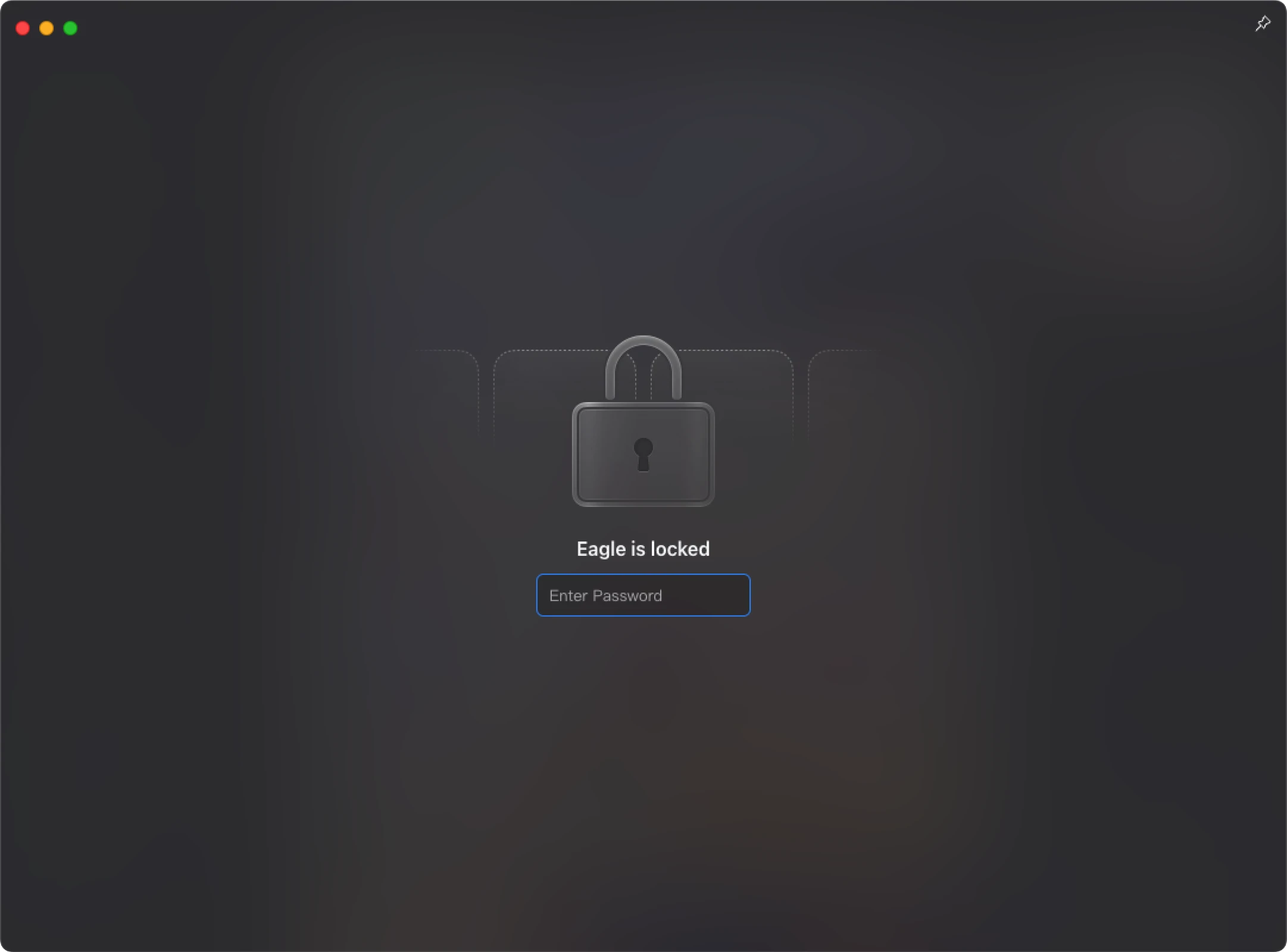
After you enable password lock, the lock screen as shown below:
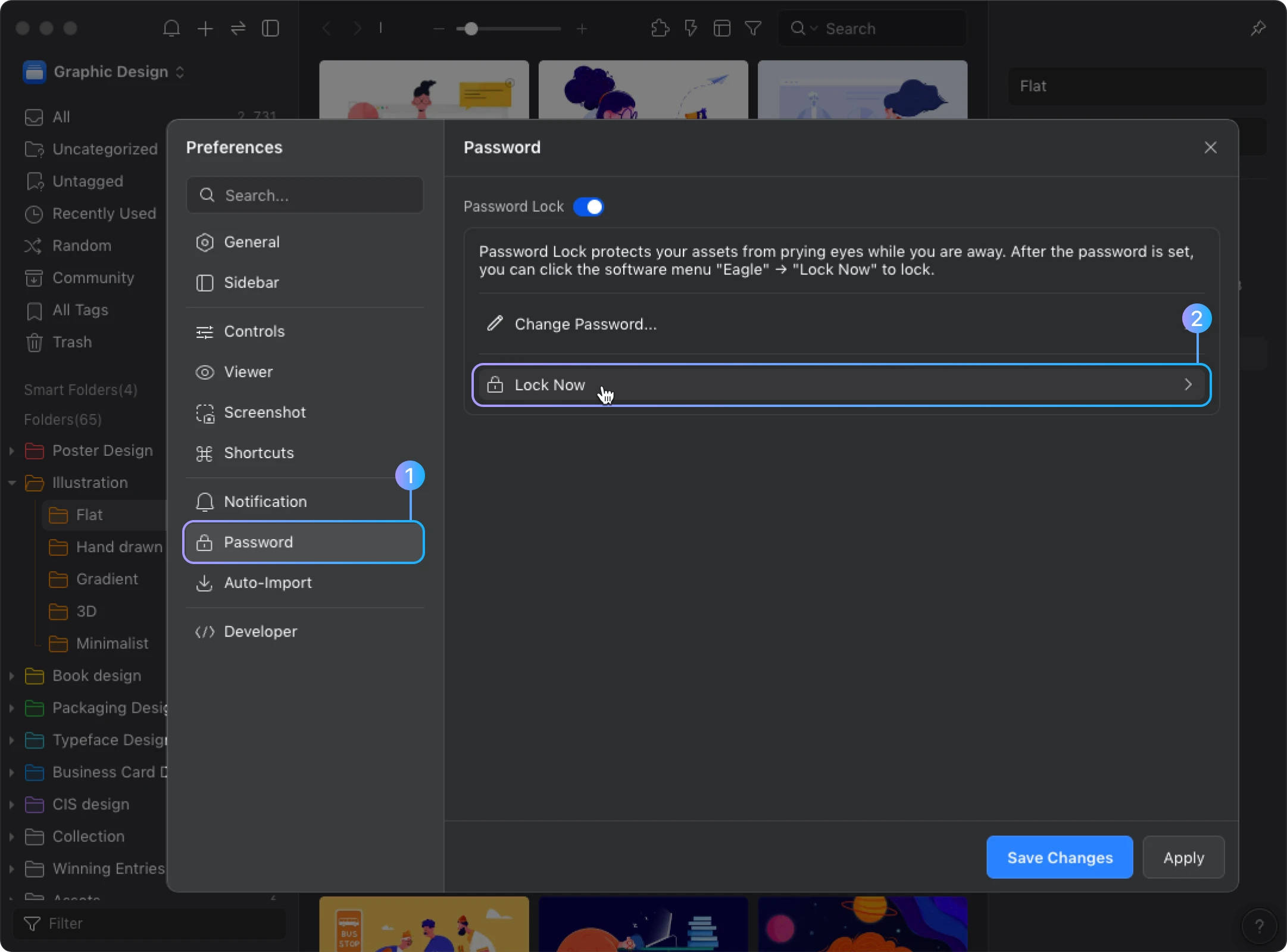
The locking method is as follows:
- Open “Preferences”, click “Privacy” > “Lock Now”
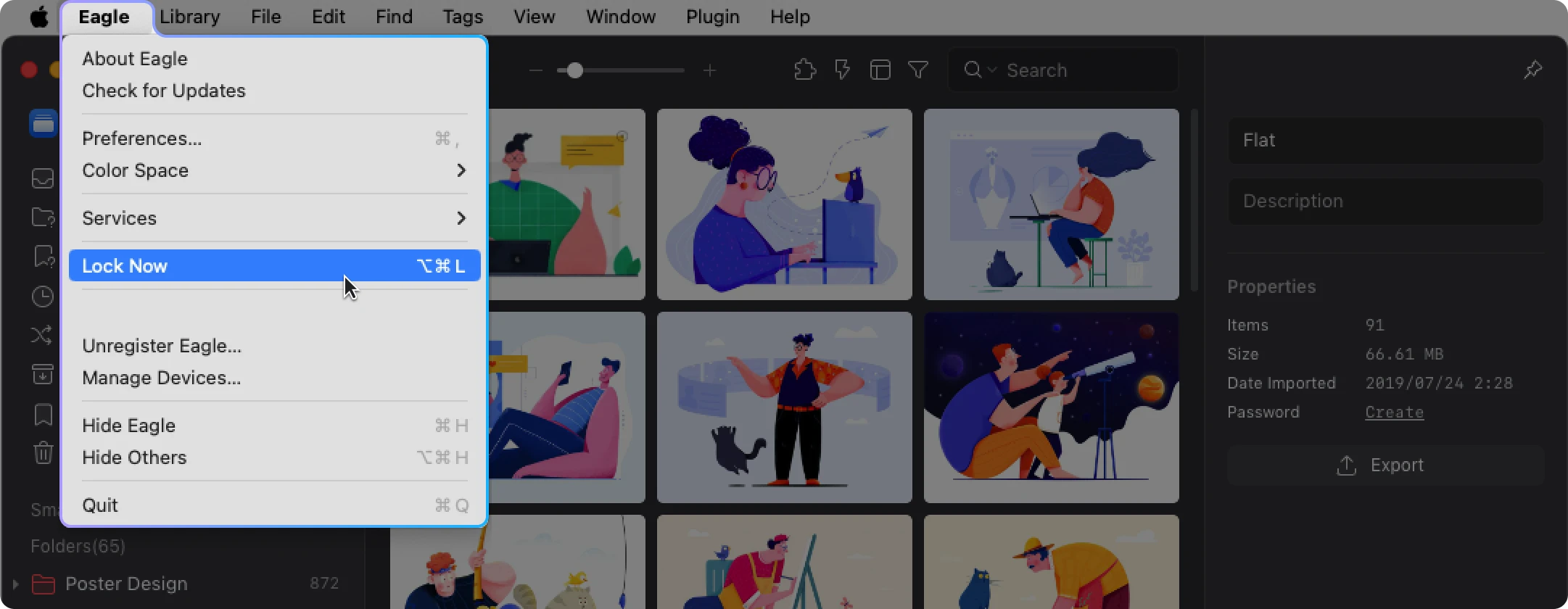
- Click on the left corner “Eagle” > “Lock Now”
- Click shortcuts:⌘ / Ctrl + ⌥ / Alt + L
How to Unlock
- Enter your password to unlock
- Use Touch ID to unlock. For details, see “Enable Touch ID for Quick Unlock of Application Lock and Folder Passwords” (macOS only)
How to disable Application Lock
- Open “Preferences”, click “Password”
- Turn off “Password Lock”, click “Save Changes” button
What should I do if I forget the "Password Lock" password?
Just like forgetting the folder password, you can use the activation license key of the current software to unlock it. After unlocking, you can change the password again to perform a reset operation.