
After importing GLB format 3D models into Eagle, you may find that environment maps cannot display properly. This is because Eagle's default preview function supports basic model display for GLB files, but does not include the functionality for rendering textures or materials.
Solution: Install 3D Format Extension Plugin
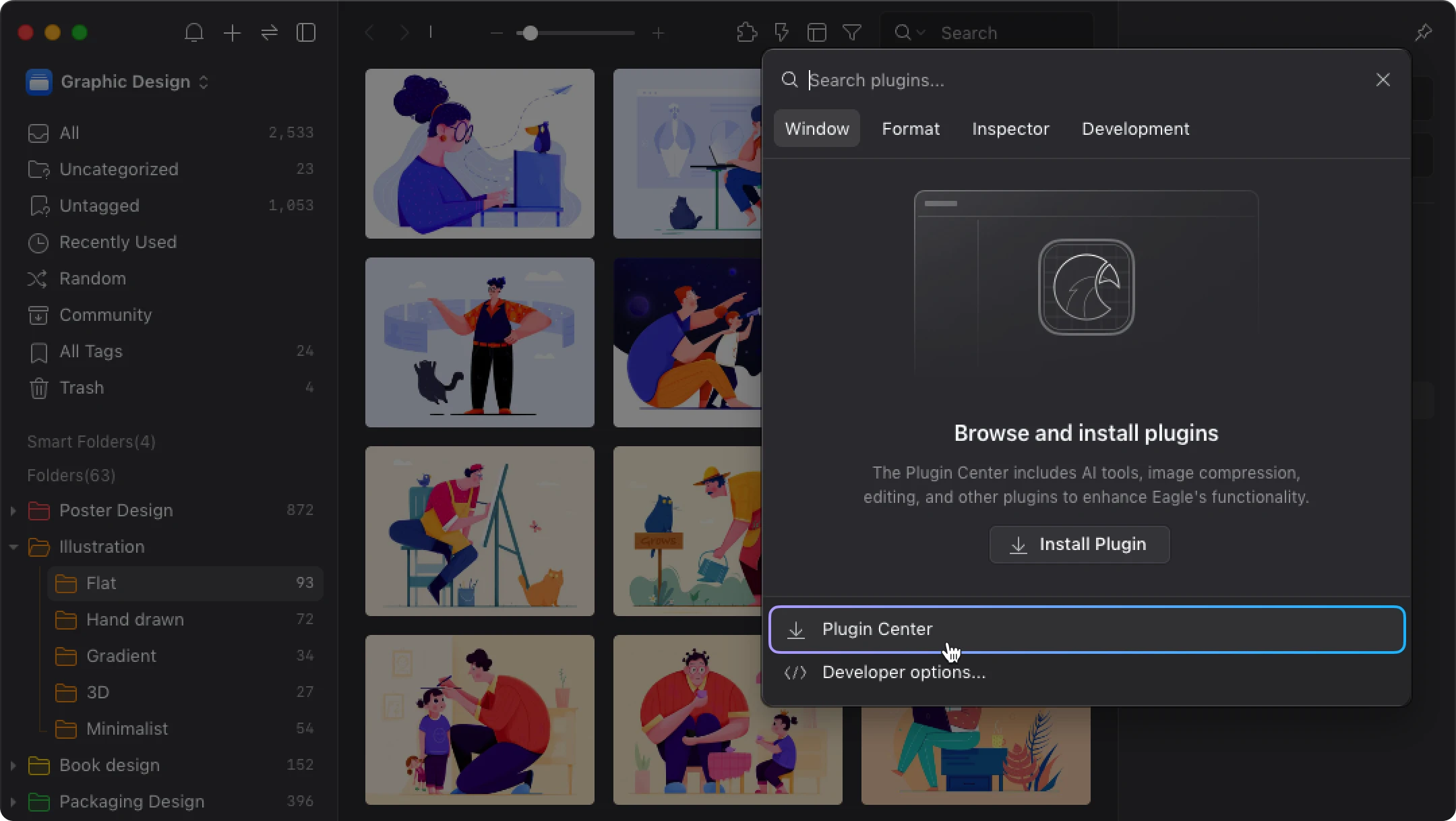
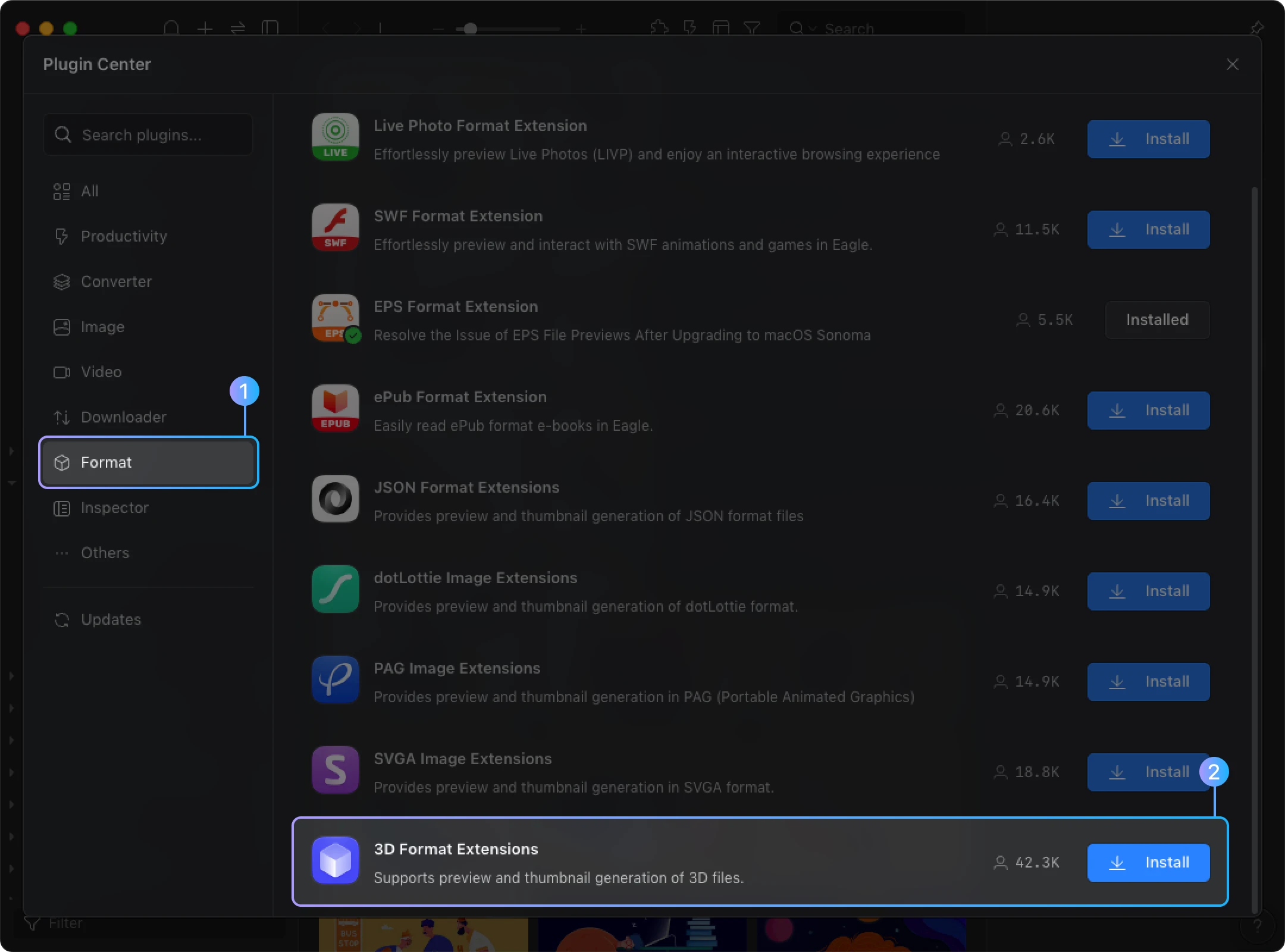
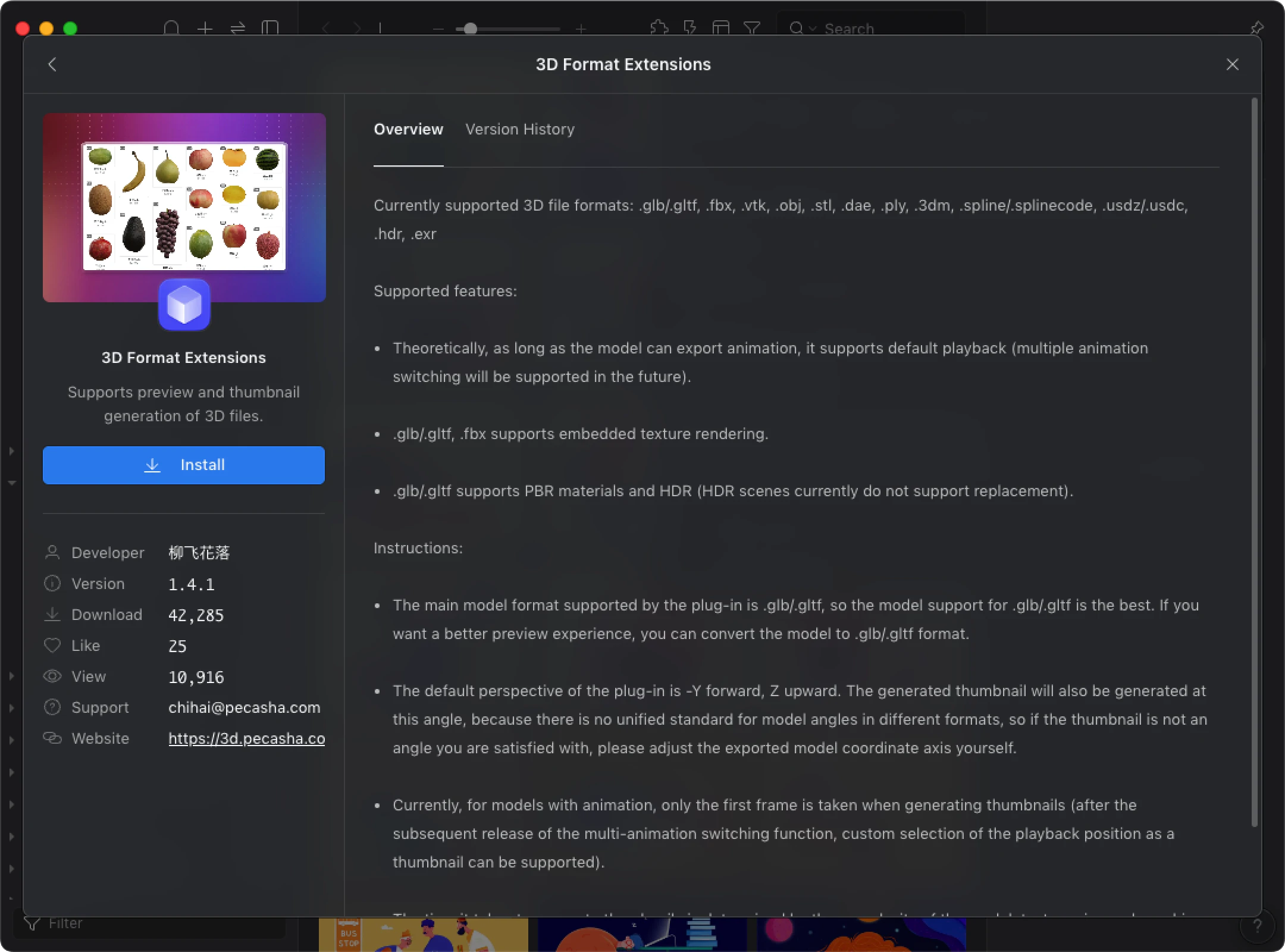
To resolve this issue, Eagle provides a dedicated "3D Format Extension" plugin that supports embedded texture rendering for GLB files. Installation steps are as follows:
- Visit the Eagle Plugin Center
- Download and install the "3D Format Extension" plugin
- Restart the Eagle application
- Preview your GLB files again to view texture and material effects

Important Notes
If you can still only see the base model (without textures) after installing the plugin, it may be because:
- Textures and materials in the GLB file were not properly embedded
- The model itself does not contain environment map information
In this case, we recommend using professional 3D editing software (such as Blender) to properly embed textures and materials into the GLB file, then import it into Eagle again.