
Eagle is a local application that stores all its operation files on your computer's system drive. When you reinstall your system, these files may be deleted, causing your previous activation status and usage records to be cleared. This requires you to manually reactivate the software using your existing license.
How to Reactivate Eagle After System Reinstallation
If Eagle shows as a trial version after reinstalling your system, follow these steps to restore your full license:
- Click the Eagle menu in the upper left corner
- Locate and select "Remove Activation Status"
- Exit Eagle completely
- Restart the application
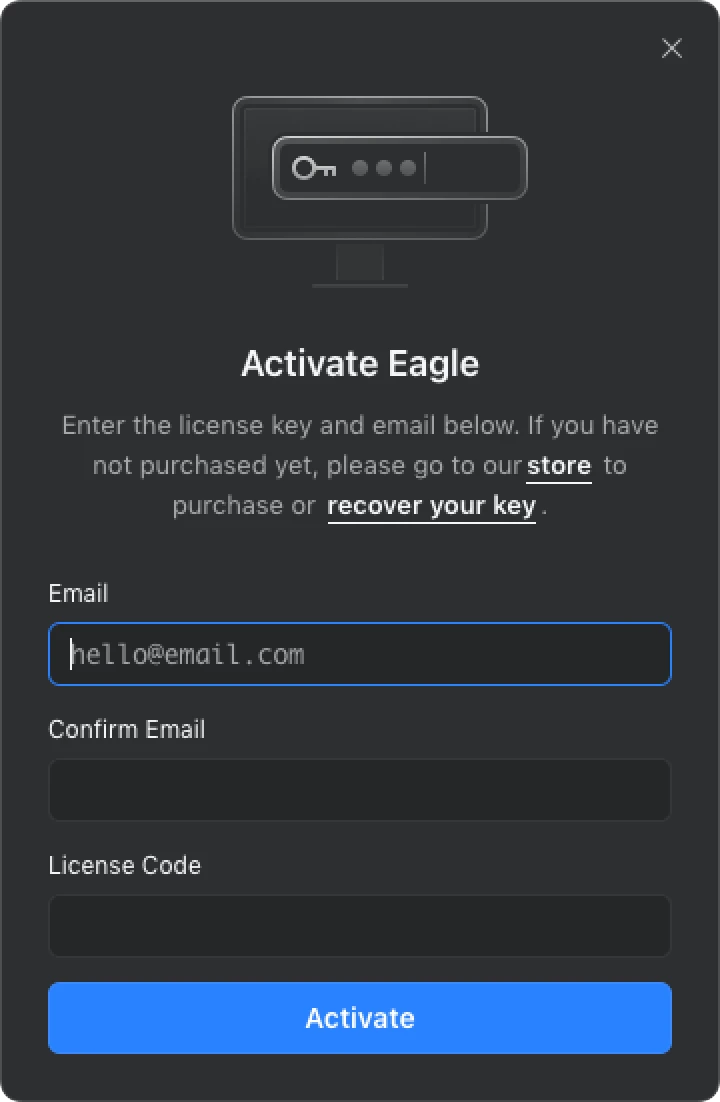
- Enter your serial number when prompted
- After identity verification, you'll see "Activation Successful"
- Click "Start Using" to resume normal use of the software
Important Notes
- This situation only occurs after system reinstallation that affects Eagle's operation files
- Your license is still valid; you simply need to reactivate it
- This process does not consume an additional activation slot
- If you encounter any issues during reactivation, please contact customer support