
In Eagle, you may find that some images appear very small when previewing with the spacebar. This is because by default, the software displays images at their original dimensions. Here are three methods to help you adjust image preview size so they automatically fit the window dimensions.
Adjust through Preferences
- Open the software menu and select Preferences > Viewer
- Check [Smart Zoom] as the default viewing ratio
- Save the settings
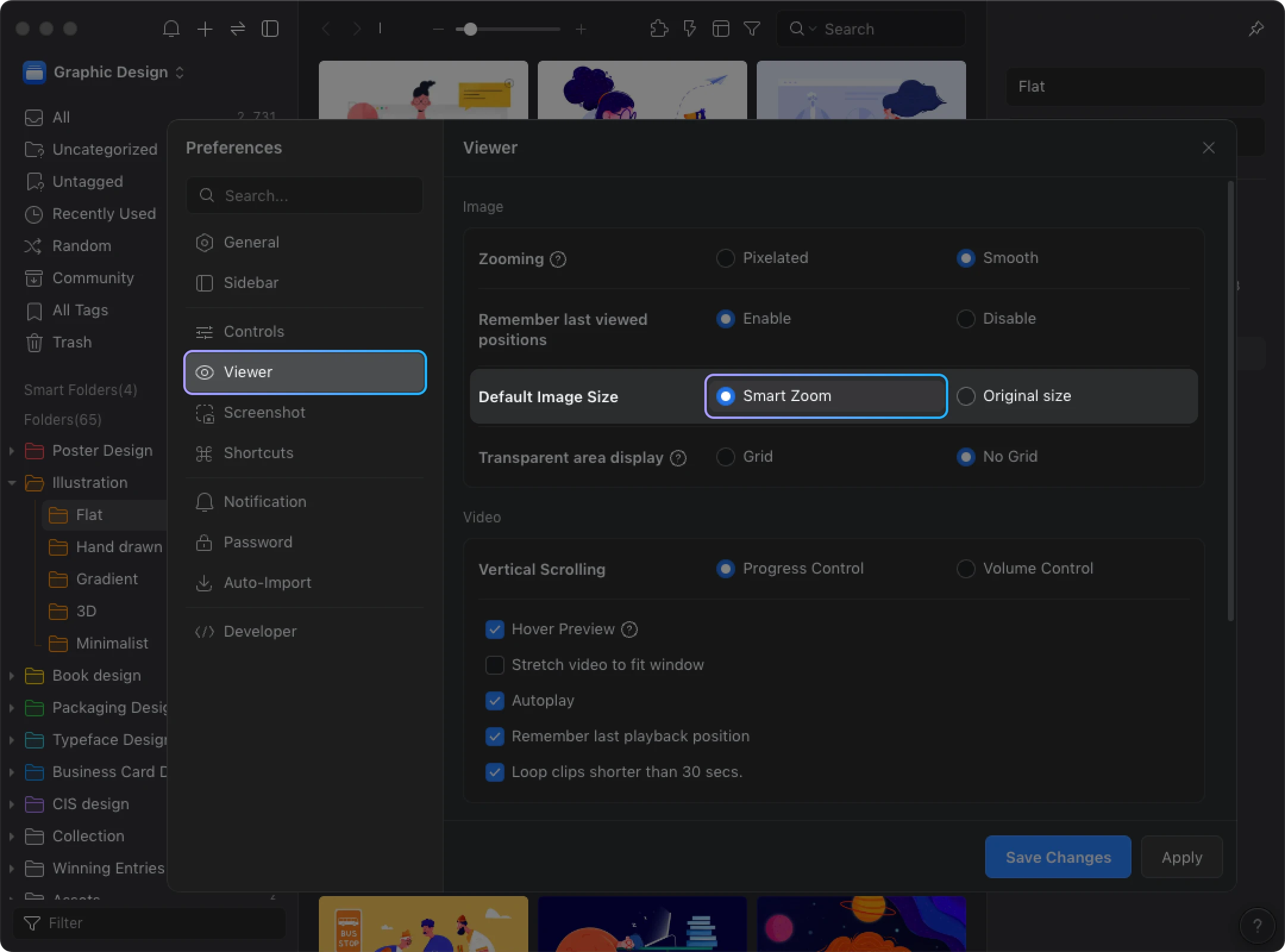
After completing the setup, when you use "Space Preview" or double-click an image to enter "Large Image Mode", the software will automatically adjust the image size for optimal display effect.
Set through Detail Mode
- Double-click an image to enter "Detail Mode"
- Click the "Fit to Window" icon in the top toolbar

After completing this setting, images will automatically scale to the most suitable size in both "Detail Mode" and "Space Preview".
Using Keyboard Shortcuts
In "Space Preview" mode, press the ` key (above the Tab key on your keyboard) to quickly enable or disable the smart fit function.
Important Notes
- The smart fit function automatically calculates the optimal display ratio based on image dimensions and window size
- This setting applies to all images, including regular images, vector graphics, and GIF animations
- You can temporarily switch display modes using keyboard shortcuts at any time without having to access preferences each time