
Introduction
When you're unable to drag and drop files from other applications to the Eagle window, this issue is typically caused by insufficient user permissions. By modifying registry settings, you can resolve this problem. This operation adjusts your system's User Account Control (UAC) settings.
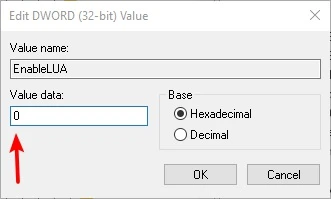
UAC (User Account Control) is a security feature in Windows operating systems designed to prevent unauthorized changes. EnableLUA (User Account Control: Run all administrators in Admin Approval Mode) is part of UAC. When set to 1, the system restricts certain high-privilege operations, such as dragging files from a low-privilege window to a high-privilege window. Setting EnableLUA to 0 removes this restriction, allowing more freedom in file drag-and-drop operations, thus solving the issue of being unable to drag files to the Eagle window.
Steps to Resolve
Open Registry Editor:
- Click the Windows button in the bottom left corner and search for "regedit"
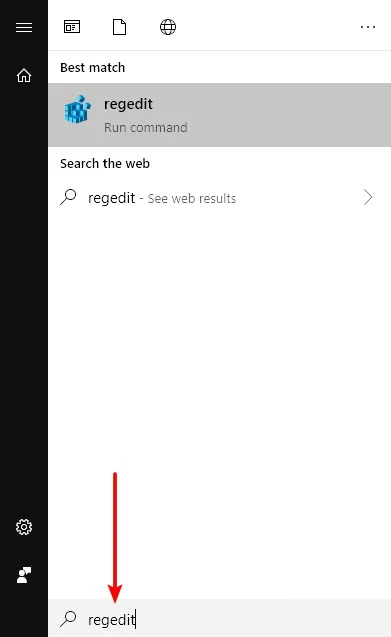
- Click on regedit to run the registry editing tool
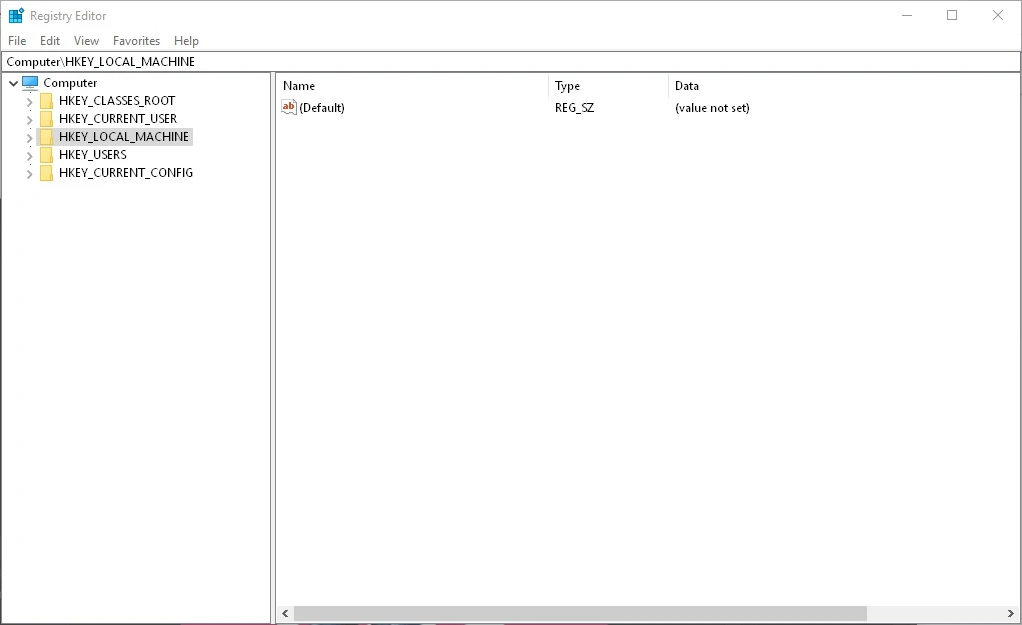
Navigate to the EnableLUA Setting Directory:
-
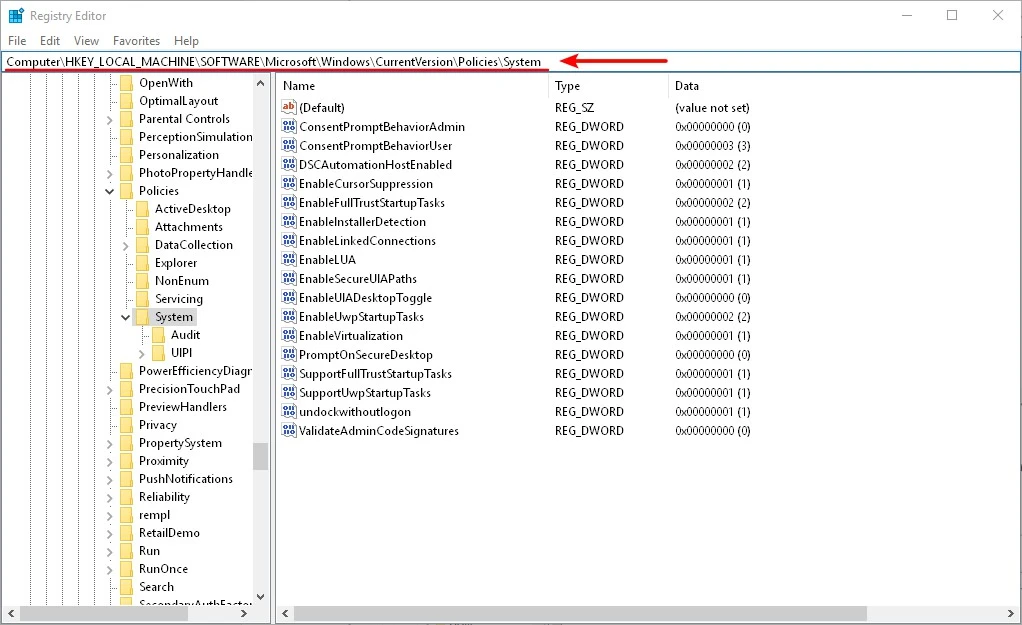
In the left directory, navigate through HKEYLOCALMACHINE > SOFTWARE > Microsoft > Windows > CurrentVersion > Policies > System, or directly enter "Computer\HKEYLOCALMACHINE\SOFTWARE\Microsoft\Windows\CurrentVersion\Policies\System" in the path bar
Modify the EnableLUA Setting:
-
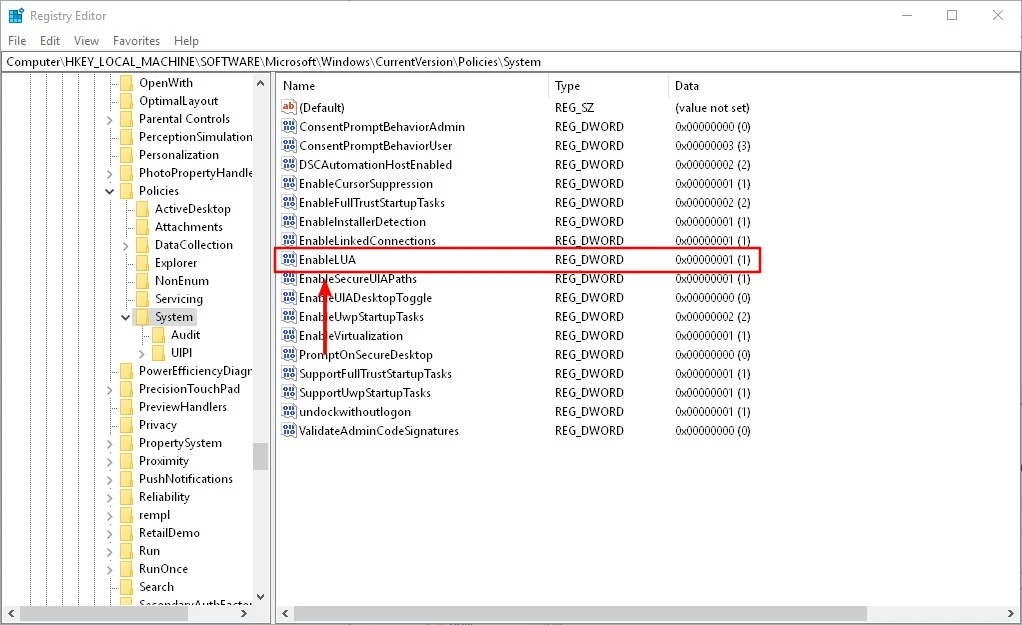
Find EnableLUA in the list and double-click to open it
-
Change the value data from 1 to 0
-
Restart your device
-
Reopen Eagle and try dragging files to see if the issue is resolved
Important Notes
- Modifying the registry is a sensitive operation. It's recommended to back up your registry before making changes
- Disabling UAC may reduce system security, so make sure you understand the associated risks