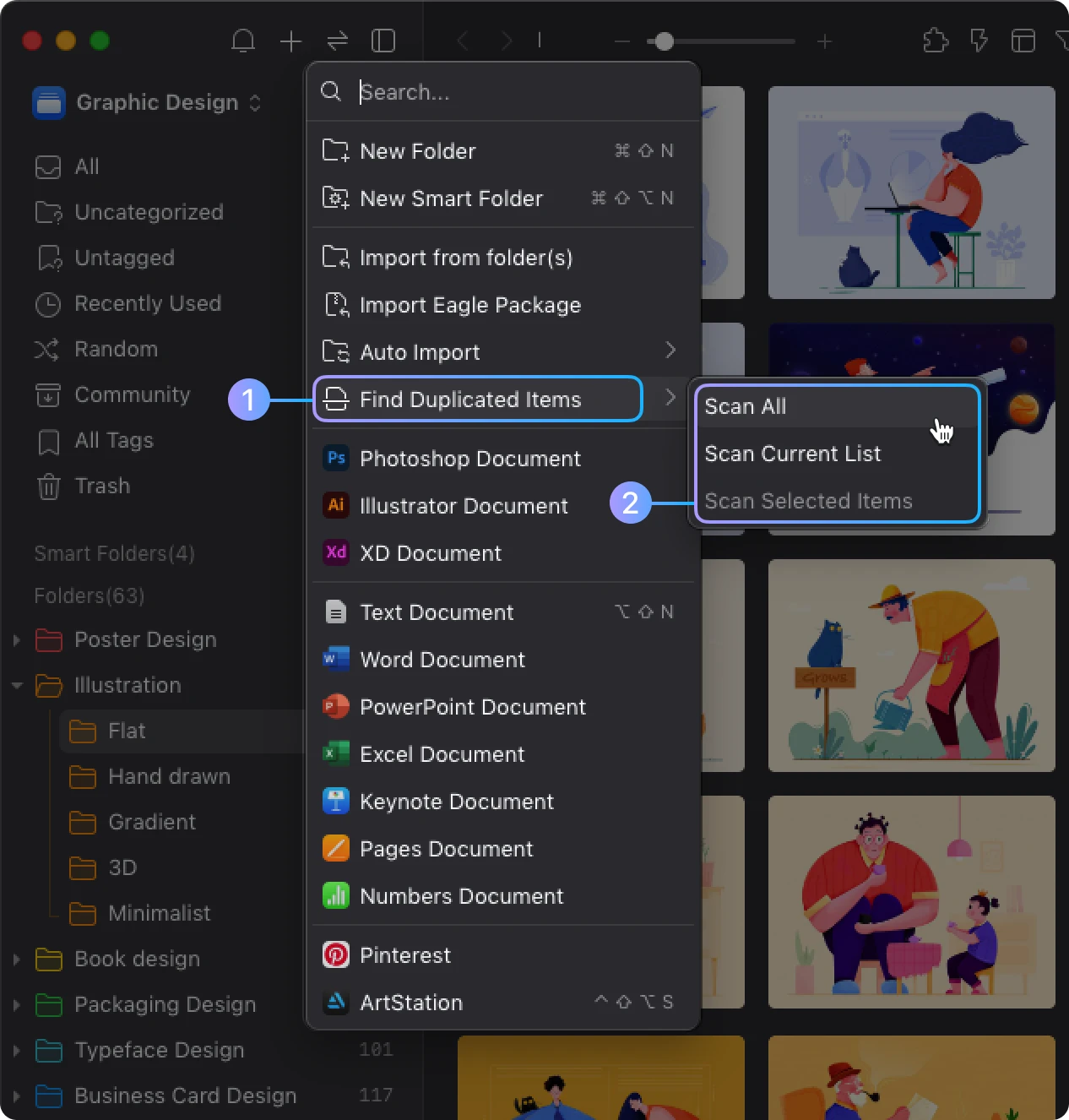
In Eagle, each added file is assigned a unique ID for internal software identification. You can view the info folder and ID of any material by right-clicking on it and selecting "Open in File Manager".
When you perform file addition or library merging operations, if a file ID from the original library A matches a file ID in the target library B, the software will recognize them as the same file. Therefore, only files with unique IDs will be imported, which is why the actual number of imported files may be less than expected.
Possible reasons for identical IDs appearing in two libraries:
- One library was once a copy of the other
- These two libraries have previously undergone merging or file addition operations
Solution
If you want to import all files first and then manually deduplicate, you can follow these steps:
-
Export the folders and files from library B as eaglepack.
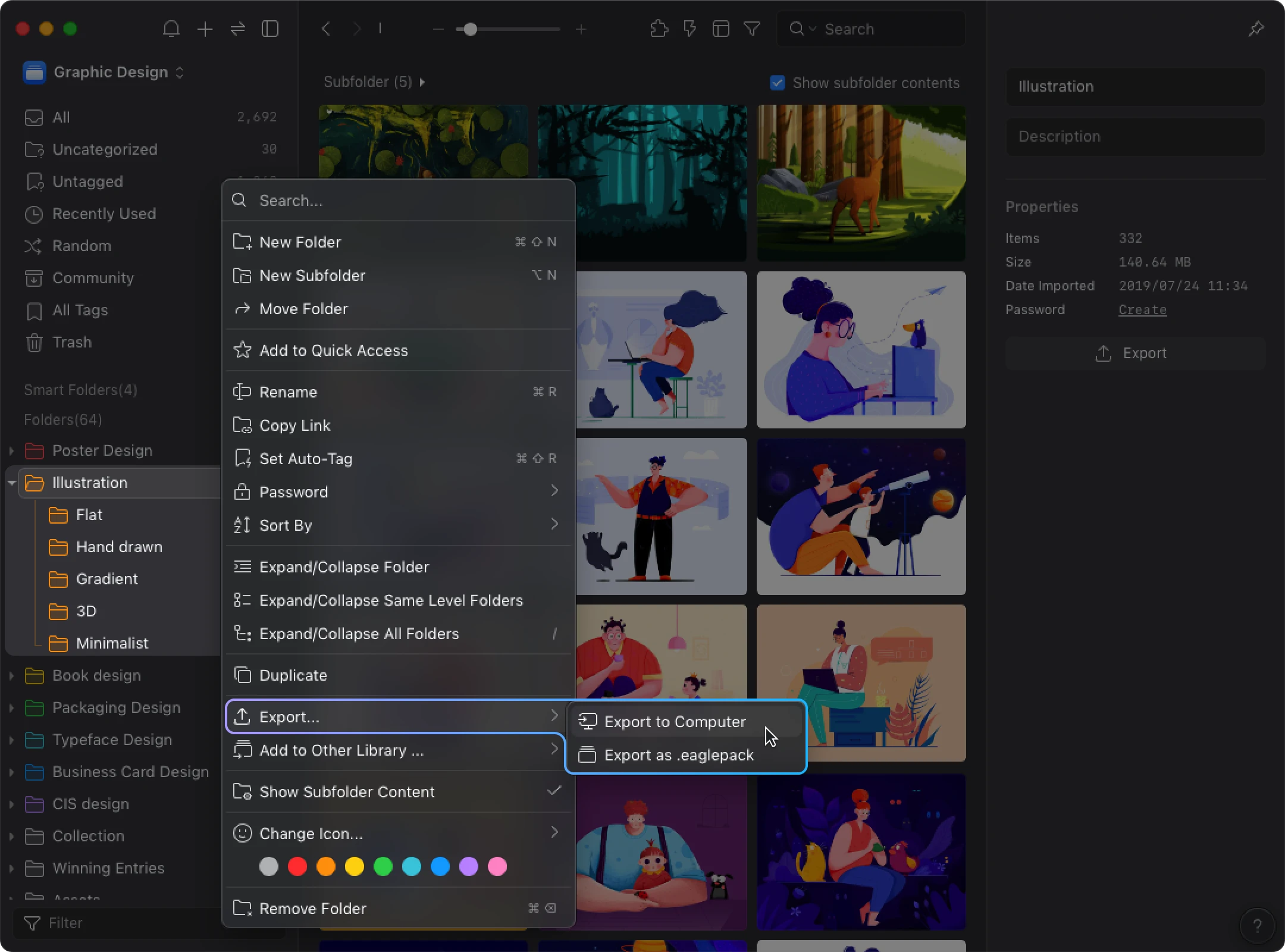
-
Then import all exported eaglepack into library A. At this point, the software will handle them with the new addition mechanism, assigning new IDs to the imported files.
-
After the import is complete, decide whether to perform duplicate scanning and removal operations based on your usage needs.