
Library Merge Mechanism Explanation
In Eagle, each added file is assigned a unique ID that helps the software identify and manage files internally. You can view a file's ID by right-clicking on any material and selecting "Open in File Manager" to see the info folder and its ID.
When you perform a library merge operation, if files with the same ID exist in both the source and target libraries, Eagle treats them as the same file. Therefore, the system will only import files with unique IDs, which explains why the actual number of imported files may be fewer than expected.
Common Causes of ID Duplication
The occurrence of identical IDs in two libraries typically happens for the following reasons:
- One library was once a copy of the other
- These two libraries have previously undergone merge or file addition operations
How to Ensure All Files Are Imported
If you want to import all files completely before manually removing duplicates, you can follow these steps:
-
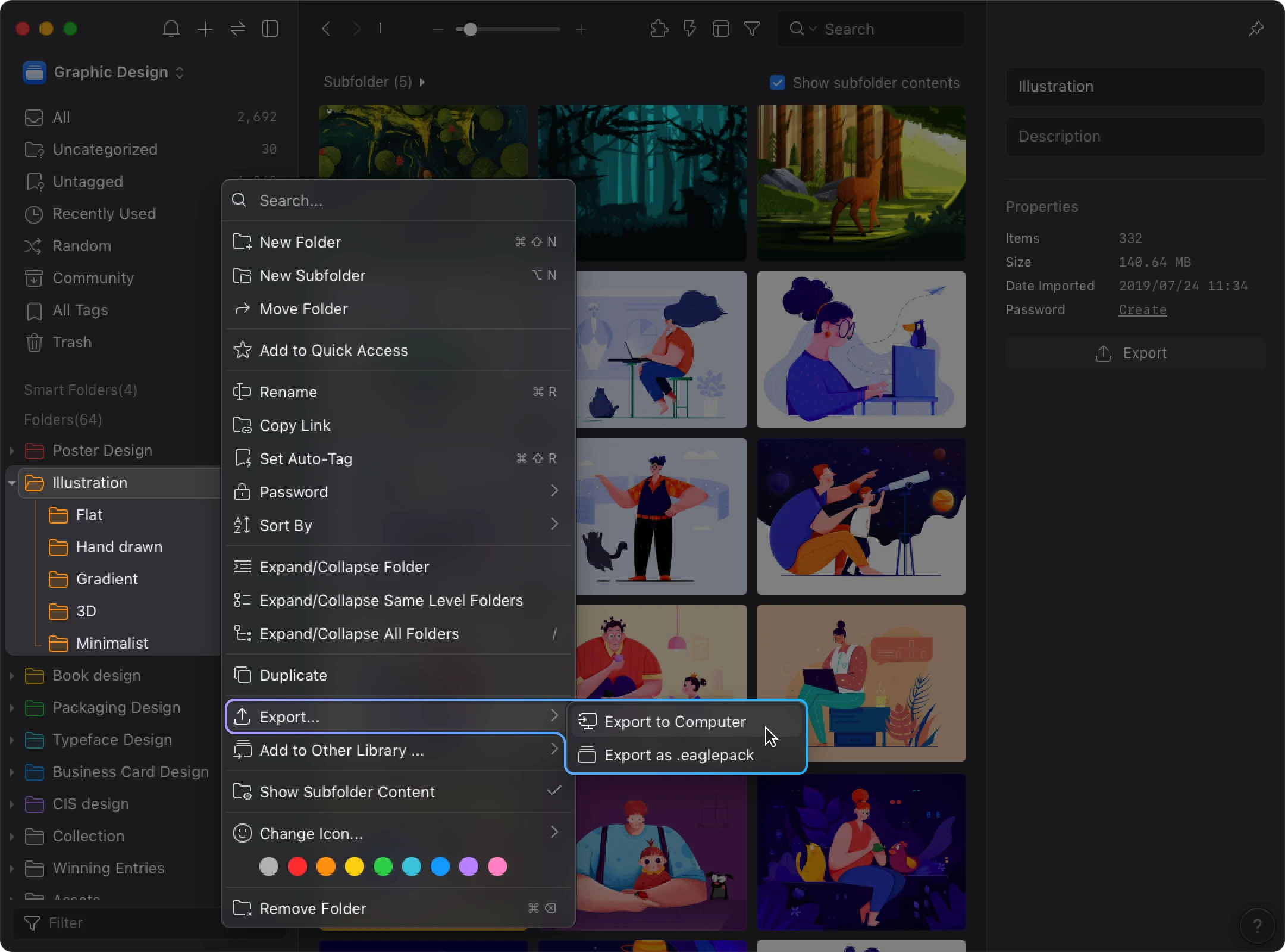
Export the library to be merged (B) as a material package format
-
Import the exported material package into the target library (A). At this point, Eagle will assign completely new IDs to the imported files
-
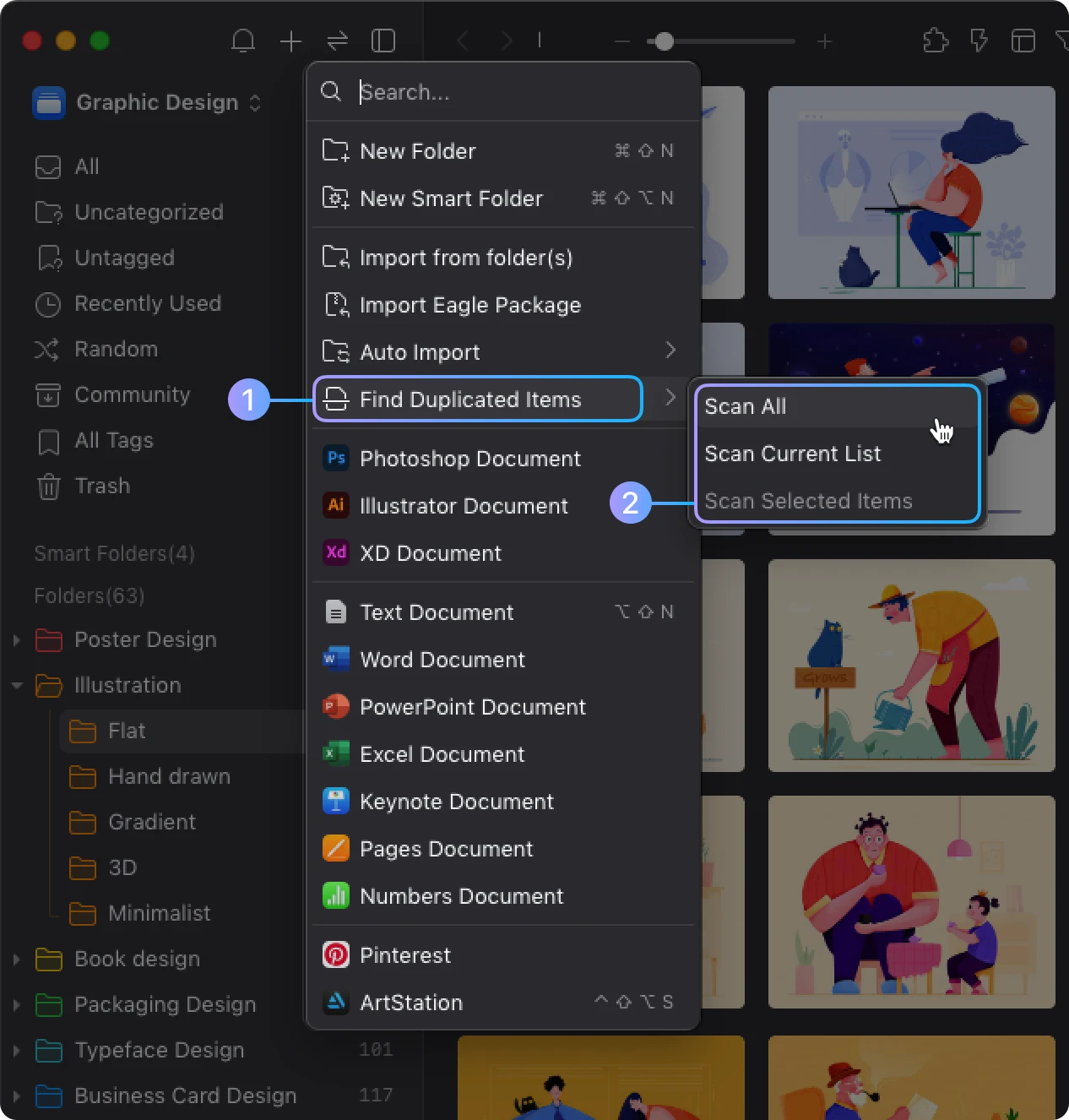
After import is complete, decide whether to perform duplicate detection and removal operations based on your needs
Important Notes
- The ID mechanism is Eagle's core function for preventing duplicate imports
- Exporting as a material package and then importing can bypass ID checking, ensuring all files are imported
- This method will cause identical files to appear multiple times in the library, so it's recommended to use Eagle's duplicate detection feature for cleanup afterwards