
Office documents (such as .pptx, .docx, .xlsx files) cannot be previewed or do not display thumbnails in Eagle, usually caused by the following reasons:
- The device has not yet installed Office 2019/365 version, or the currently installed version is too old
- The device has previously installed multiple versions of Office or WPS, causing registry confusion due to incomplete upgrades or uninstalls
Solutions
Method 1: Confirm Office 2019/365 version is installed
If your device does not have Office installed yet, please follow these steps to install:
- Go to the Office 365 website
- After logging into your account, click download
- Wait for the download confirmation window to pop up, select "Other options"
- Select "Office - 64-bit"
- Click "Install"
- Download the installation file
- Double-click the installation file and wait for automatic installation to complete
Method 2: Use Office 365/2019 Built-in Repair Tool
This method fixes registry information issues:
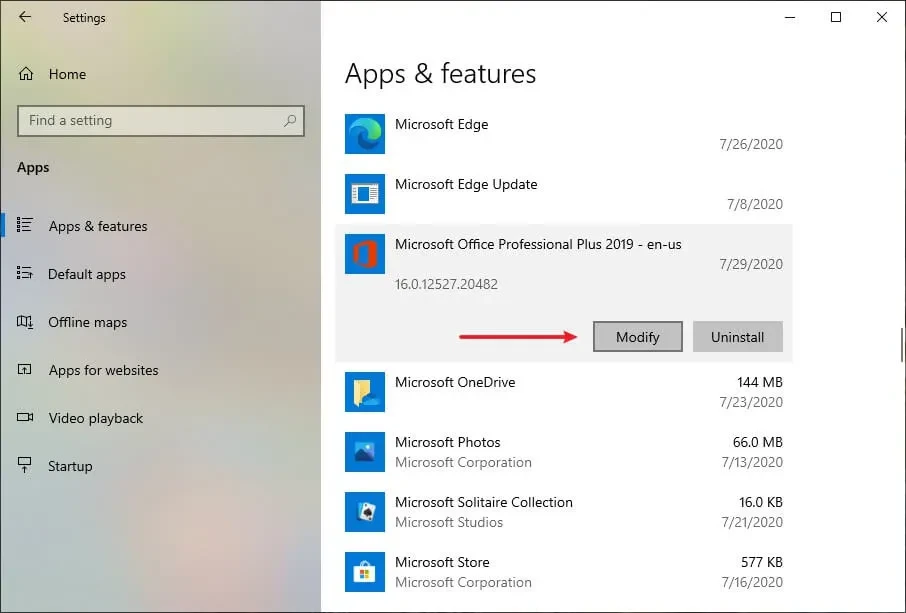
- Open "Settings > Apps"
- Find "Microsoft Office" in the application list
- Click and select "Modify"
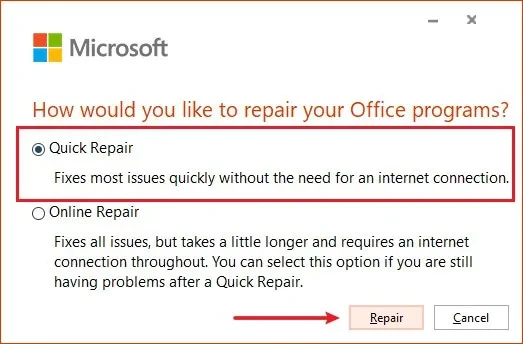
- Choose "Quick Repair" and click "Repair"
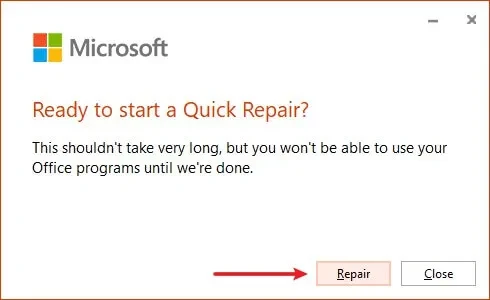
- Click "Repair" to confirm
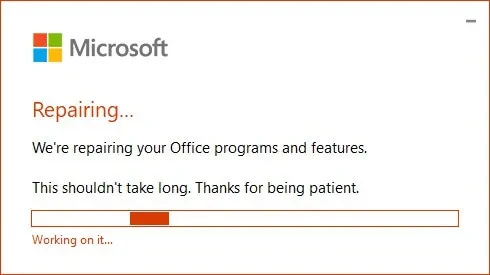
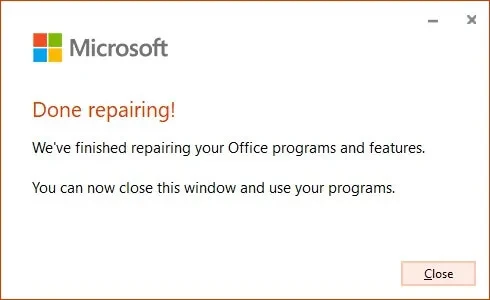
- Wait approximately three minutes for the repair to complete
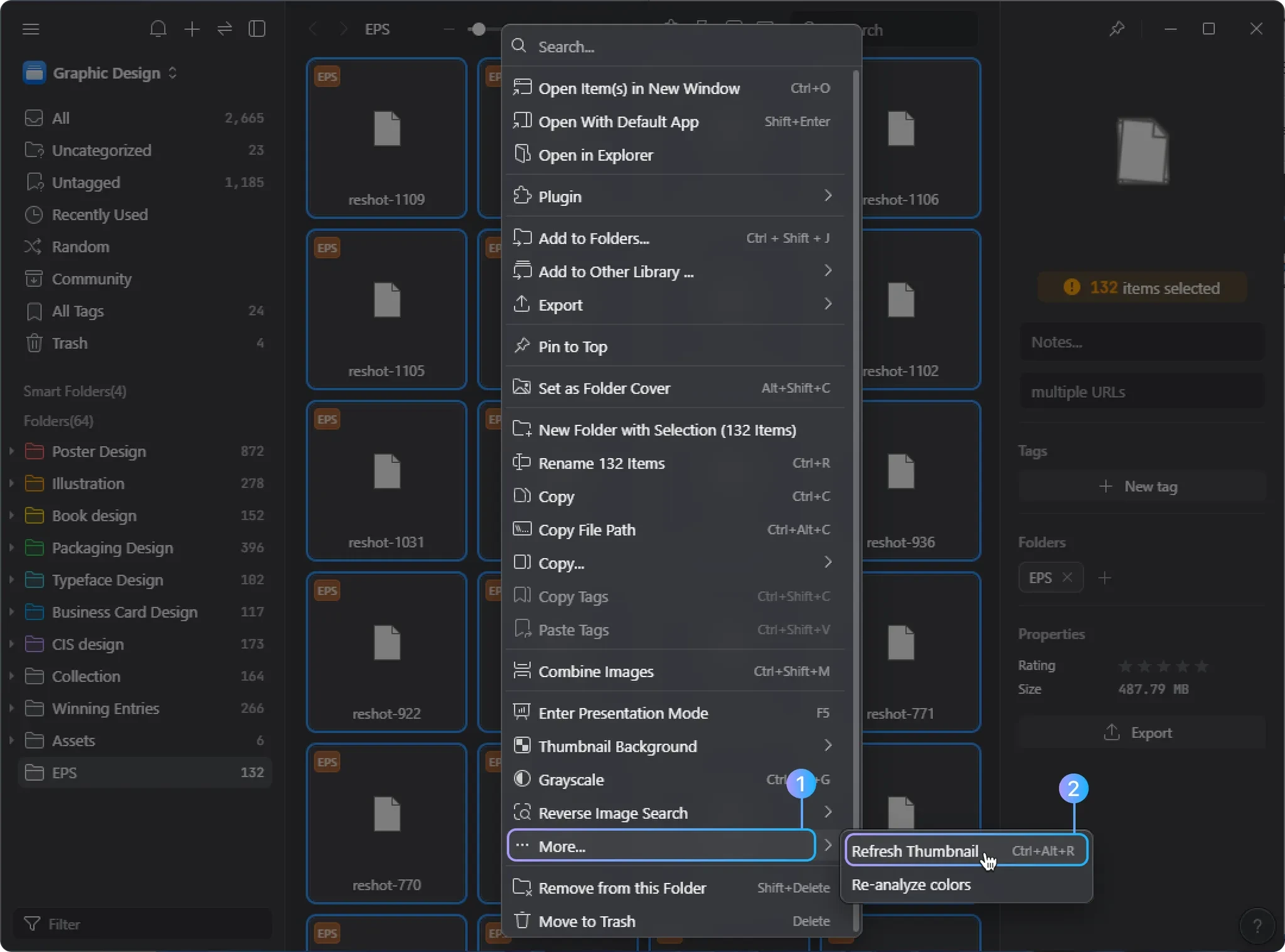
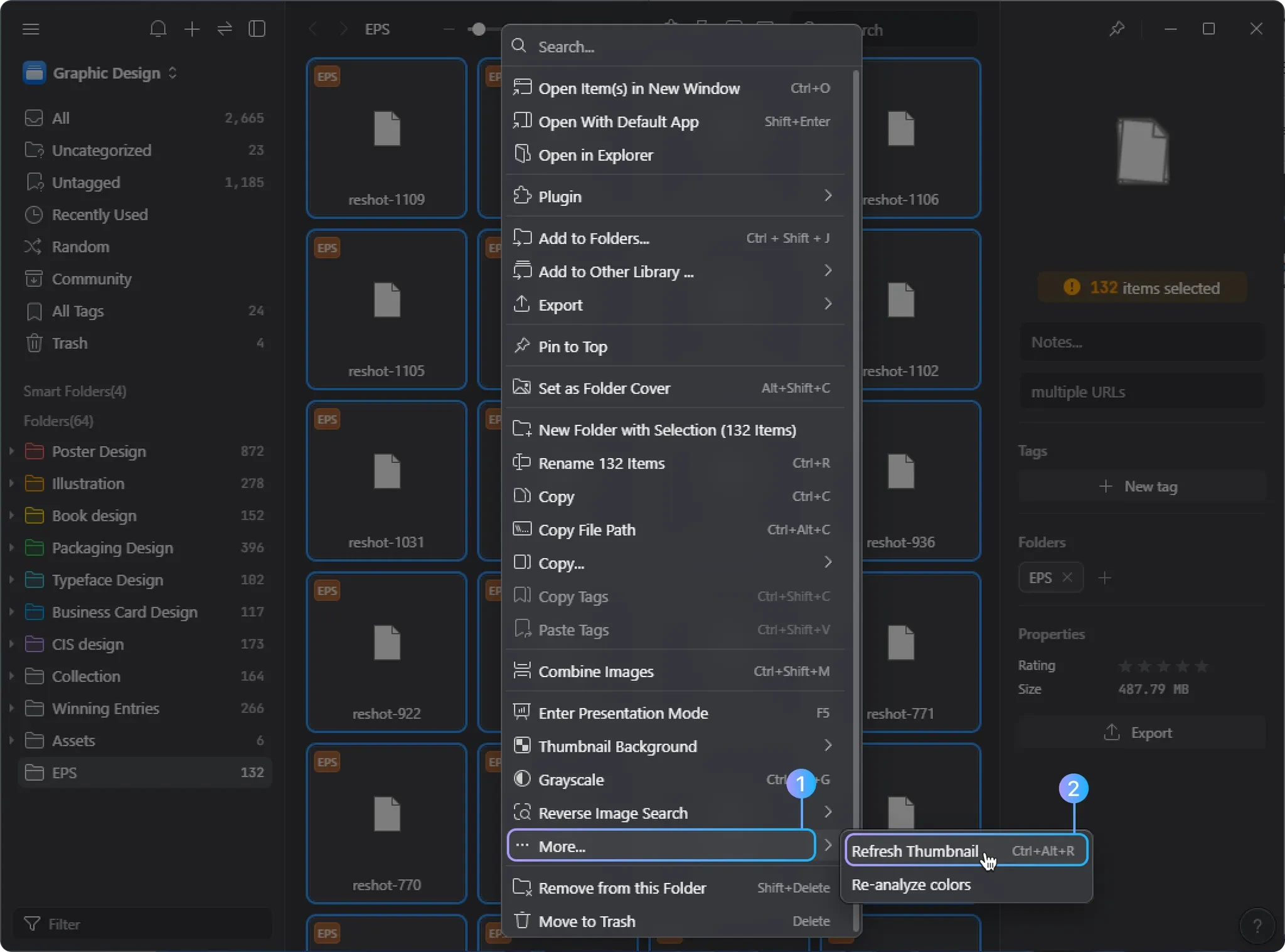
- Right-click on the problematic file, select "More > Refresh Thumbnail" to check if the issue is resolved
Method 3: Manually Delete Office Registry Remnants
If the methods above don't work, try manually fixing the registry:
- Click the Windows button in the lower left corner and search for "regedit"
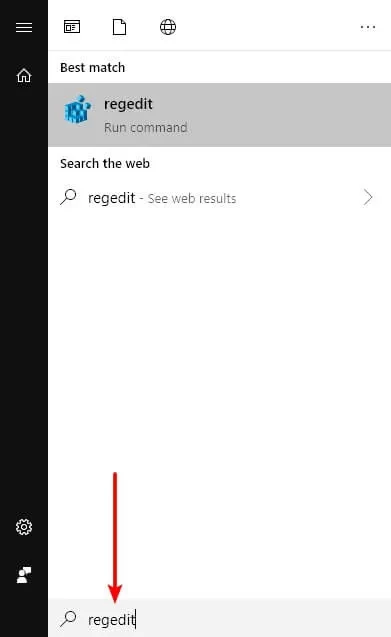
- Click on regedit to run the Registry Editor
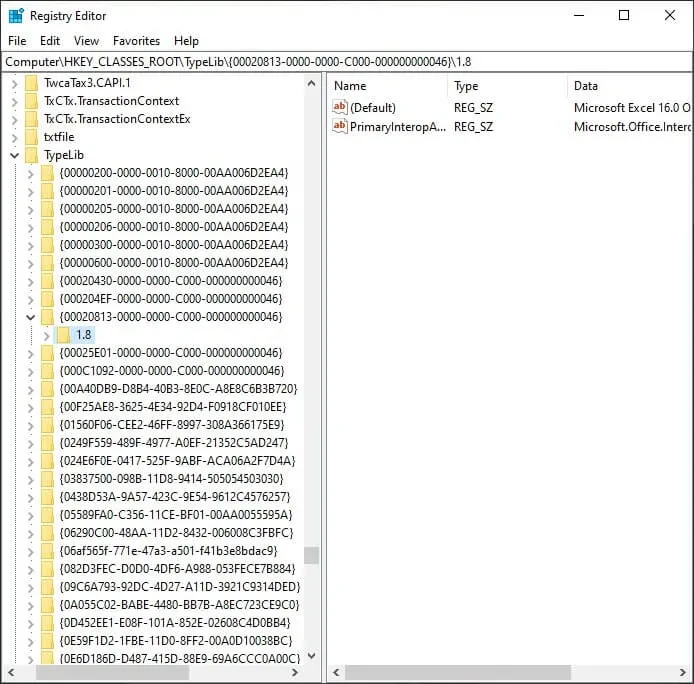
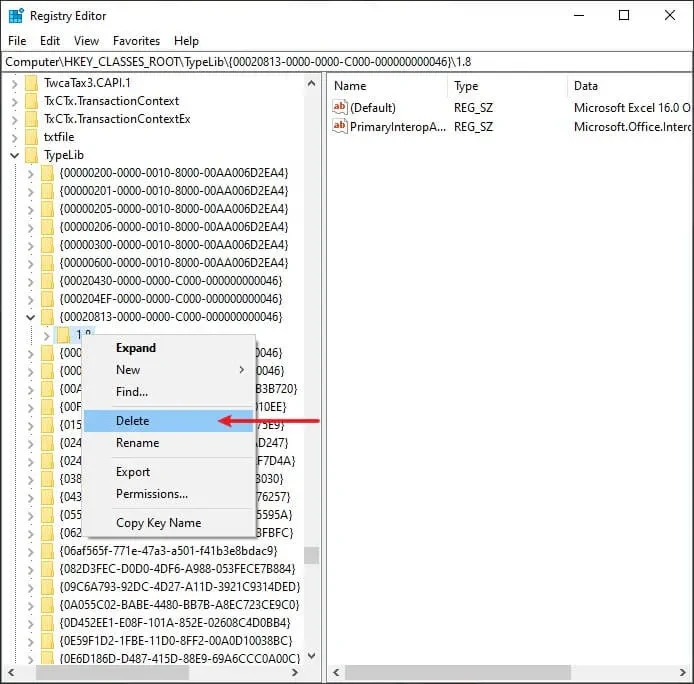
- Enter "Computer\HKEY_CLASSES_ROOT\TypeLib{00020813-0000-0000-C000-000000000046}" in the path field and press Enter
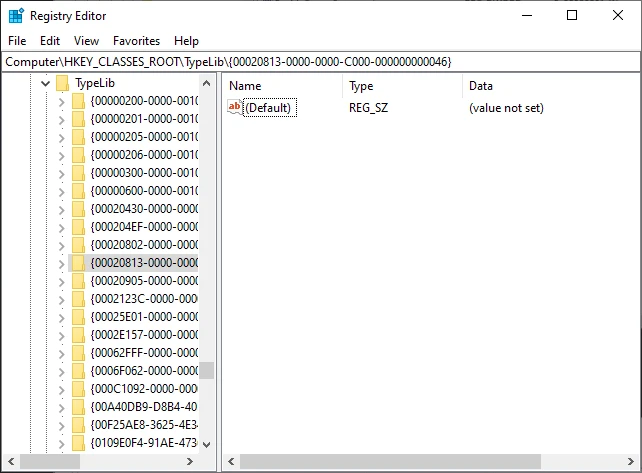
- In the "00020813-0000-0000-C000-000000000046" folder, find folders named 1.8 and 1.7 (keep 1.9 and above) and right-click to delete them
- Right-click on the problematic file, select "More > Refresh Thumbnail" to check if the issue is resolved
Regardless of whether Office is activated, as long as Office is properly installed, Eagle will be able to normally add and preview doc, ppt and other files.