
In the file list, besides using left mouse button double-click or Enter key to enter detail mode for carefully viewing files, adding notes, or flipping through views, you can also use the Space bar to quickly preview file content.
Open / Close Quick Preview
In the file list, you can press the space bar to open the quick preview window, and press the space bar again to close the preview. This feature can effectively improve your efficiency when browsing or searching files.
Mouse Wheel Zoom In/Out
When you first use the mouse wheel in quick preview mode, the system will automatically pop up the wheel behavior settings window.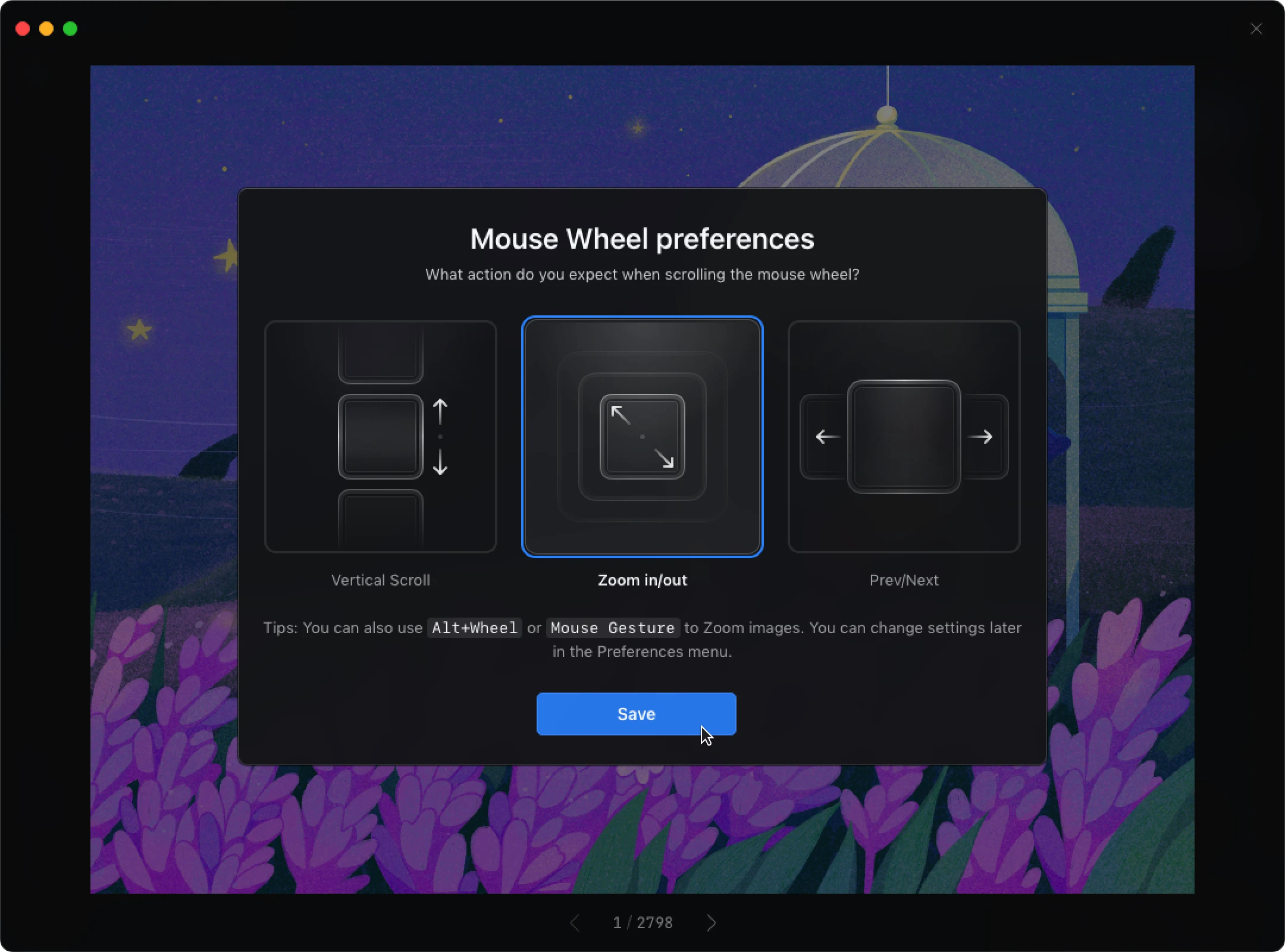 If you want to change this setting later, you can go to "Preferences" to adjust the default behavior of the space bar. You can refer to this article Adjust Spacebar Default Behavior.
Quick Switch Between Previous and Next Items
In quick preview mode, besides using mouse clicks to navigate previous and next items, you can also use keyboard shortcuts ← and → to switch between previous and next items.