
In the Windows version of Eagle, you may encounter issues where .cr3 files cannot be previewed properly or are missing thumbnails. This is mainly due to system environment support issues for the CR3 format.
Solution
Eagle's thumbnail functionality relies on thumbnail data pre-parsed by the Windows operating system. If your computer cannot directly preview CR3 files, please follow these steps:
- Install Microsoft's "Raw Image Extension" program specifically developed for CR3 files
- You can download and install this tool through the following link: Raw Image Extension
- After installation is complete, restart the Eagle software
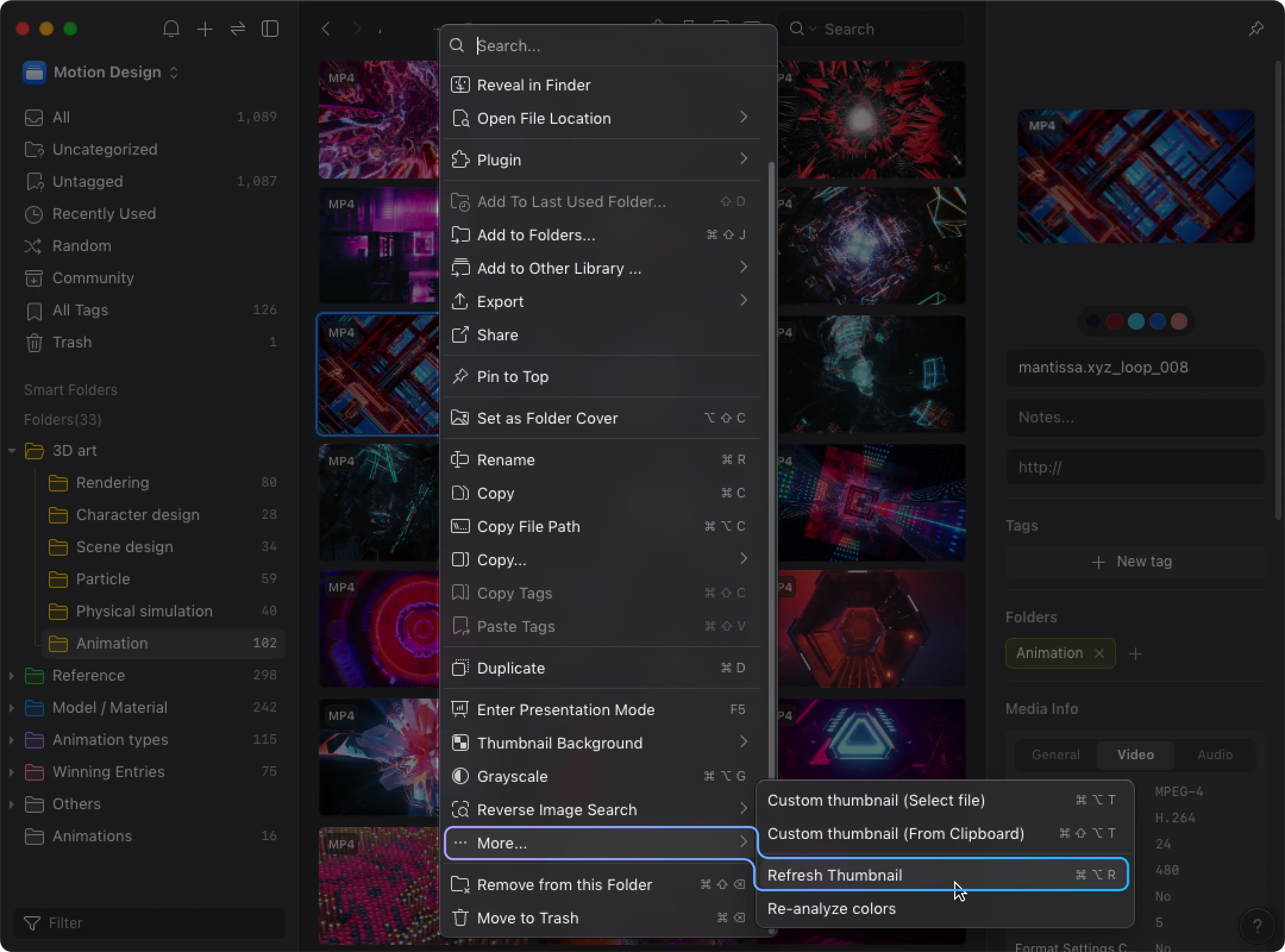
- For CR3 files with preview issues, right-click and select "More" > "Refresh Thumbnail"
Notes
- Currently, Eagle software only supports basic preview functionality for CR3 format files
- High-resolution detailed preview functionality is not yet available
- We are working hard to improve the software and plan to add more features in future versions, including support for high-resolution detailed preview
CR3 is a RAW image file format used by Canon cameras. In macOS Big Sur 11.2 (released February 2, 2021), Apple began supporting CR3 files from Canon EOS R5 cameras.
However, CR3 file support is not universal, as CR3 files from different cameras may vary. Therefore, it's important to ensure that your macOS version supports CR3 files from your specific camera model. You can find a list of supported camera models on Apple's official support page.
When you want to preview CR3 files, first try previewing the file in Finder using the spacebar. If you can preview it, Eagle should also be able to preview it. If you can preview it in Finder but still cannot preview it in Eagle, right-click on the file in Eagle and select "More" > "Refresh Thumbnail". If you cannot preview the CR3 file with the spacebar in Finder, this indicates that your macOS version does not support this format, so it cannot be previewed in Eagle either.