
Introduction
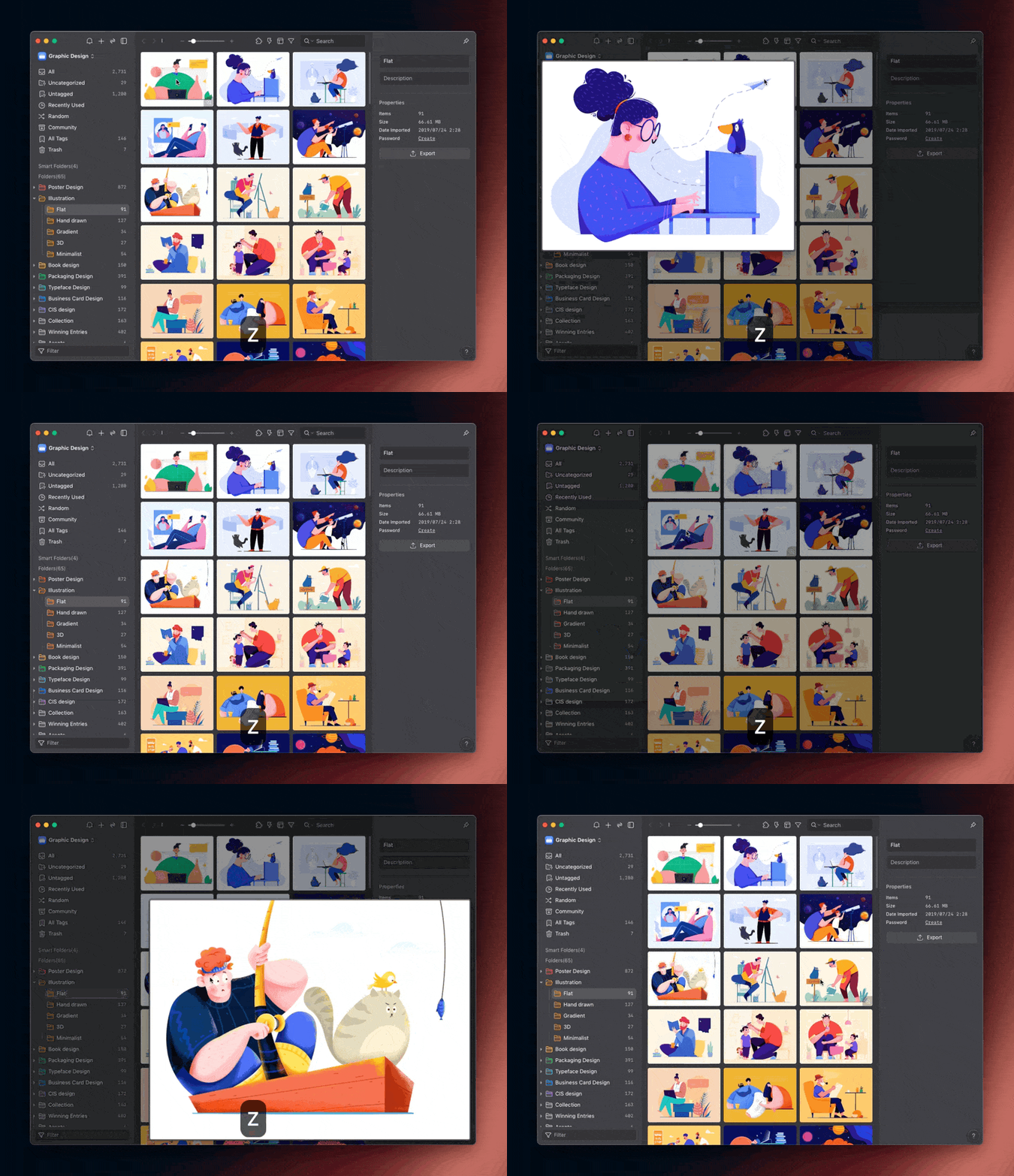
Eagle provides multiple ways to help you quickly preview images. Besides using the magnifying glass icon in the bottom right corner of the interface, you can also use keyboard shortcuts for more convenient hover preview operations.
Methods for Hover Preview
You can preview images in the following two ways:
- Using the magnifying glass icon: Click the magnifying glass icon in the bottom right corner of the image to preview
- Using keyboard shortcuts: Hold down the
Zkey on your keyboard while hovering your mouse over the image you want to magnify to view its enlarged effect
Notes
- When using the keyboard shortcut
Zfor hover preview, you need to operate both keyboard and mouse simultaneously - This feature applies to all image files in your library
- The hover preview feature helps you quickly view image details without opening the image details
Supported Formats
The hover thumbnail zoom to display HD images feature currently only supports the following formats: avif, gif, webp, png, jpg, jpeg, bmp, ico, jfif. Other image formats (such as HEIC or other design software formats) are not supported.