When using Eagle with a dark theme, transparent PNG images may appear black or difficult to see clearly. Here are three effective methods to improve the visibility of transparent images.
Adjust "Viewing Preferences" Settings
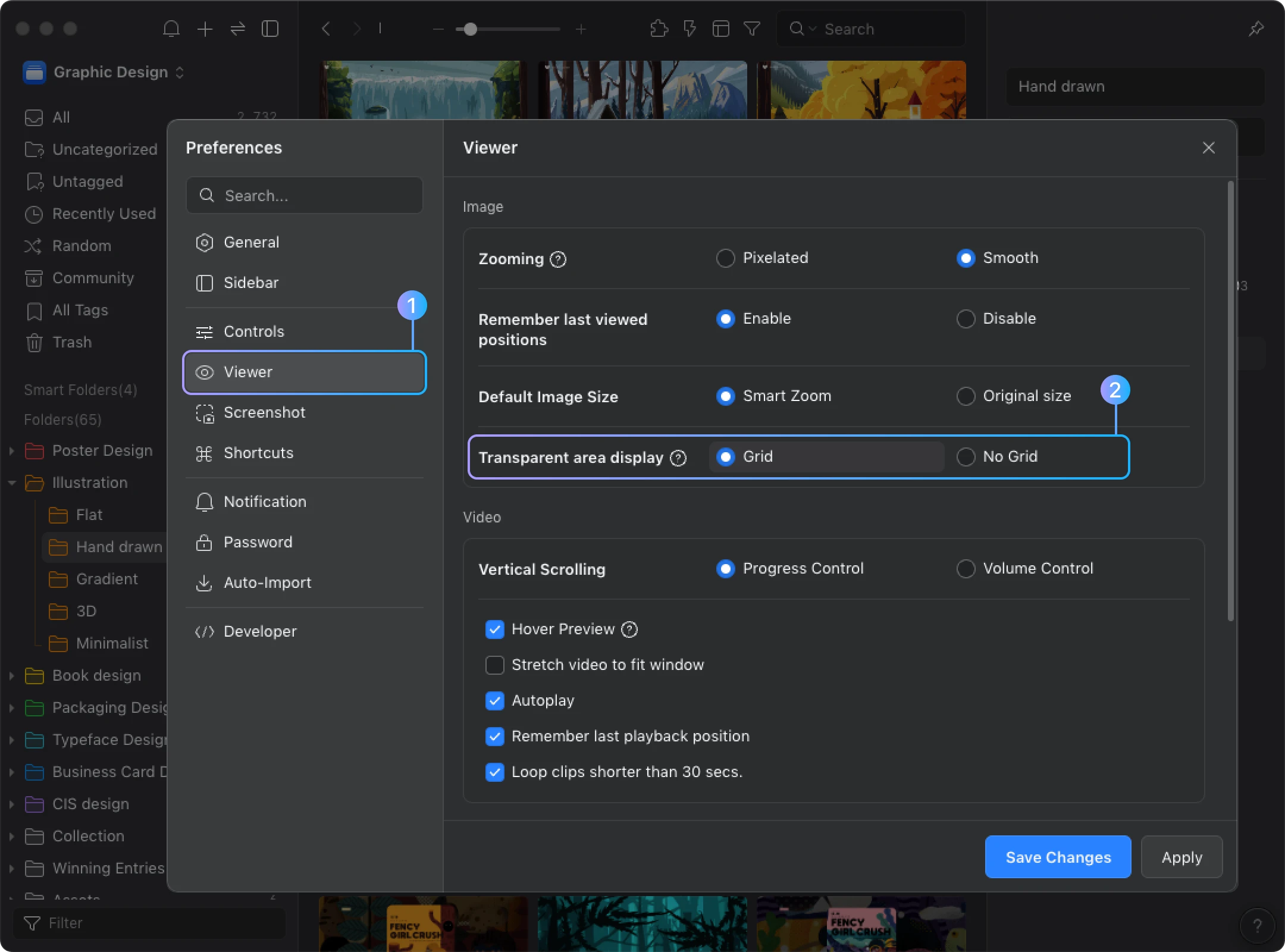
- Open Eagle's "Preferences" and click on "Viewer" in the left sidebar
- Change the "Transparent area display" from the default "no grid" state to "grid"
- After enabling this option, all transparent background images will display with a checkered pattern background, making them easier to identify
Change "Thumbnail Background" Color
- Select the transparent PNG images that are difficult to recognize in the file list
- Right-click to open the context menu
- Locate "Thumbnail Background" and change it to your preferred background color

Switch Eagle's Theme Color
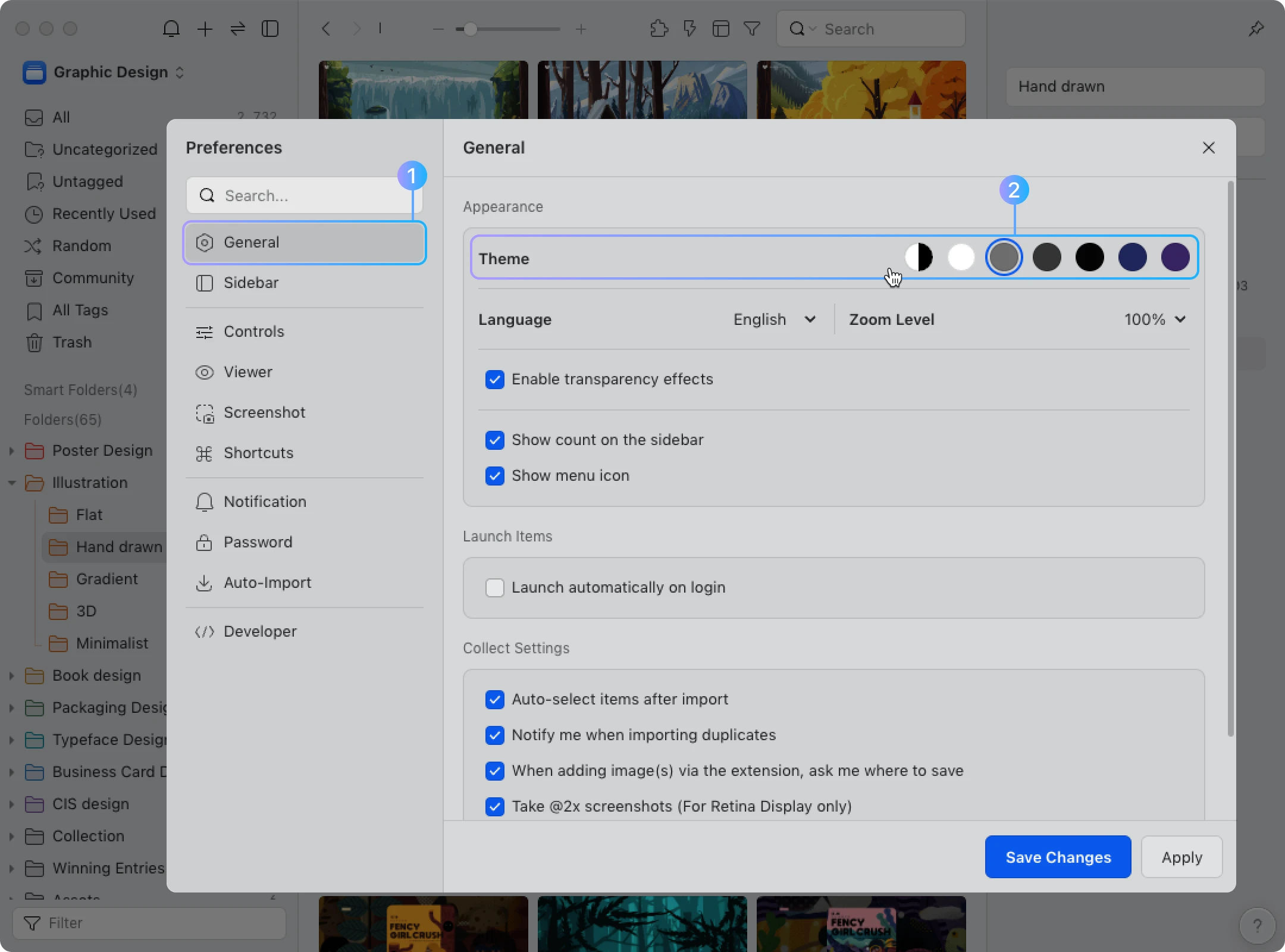
- Open Eagle's "Preferences" and click on "General" in the left sidebar
- Under the Appearance section, select a lighter theme color scheme to provide better contrast for transparent images