
The "Save Board Images" feature in Eagle extension allows you to save all images on an entire board with one click, automatically detecting and scrolling through the page without manual selection. This is particularly useful for users who need to batch download image resources.
Supported Website Platforms
Currently supports batch saving from the following websites:
- Huaban
- Dribbble
- Meiye
- Xiaohongshu
- GameUI
Usage Steps
- Ensure you have installed and updated to the latest version of the Eagle app (click here to download)
- Install and update the Eagle browser extension (download installer)
- Open the board URL you want to import in your browser (e.g.,
https://www.pinterest.com/NJinG0/c4d/) - Click the Eagle extension icon in the top-right corner of your browser
- Select "Save Board's Images" from the popup menu
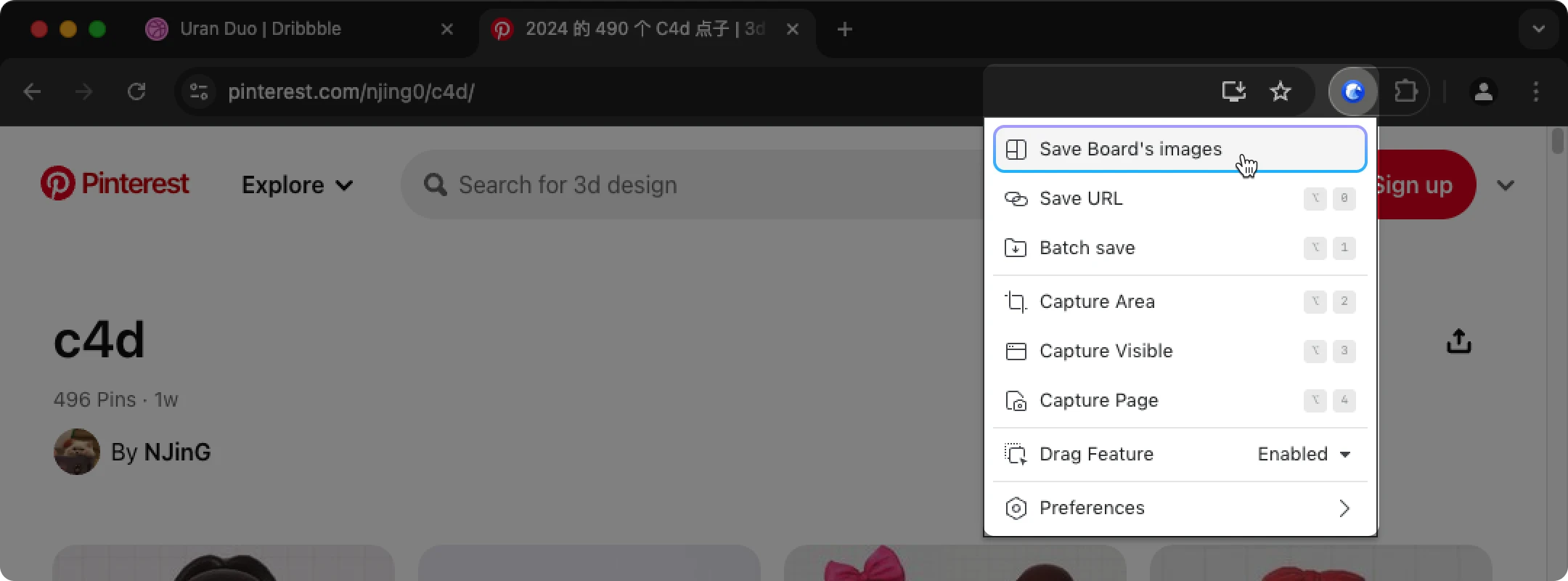
- The Eagle extension will automatically scroll through the page and capture all visible images

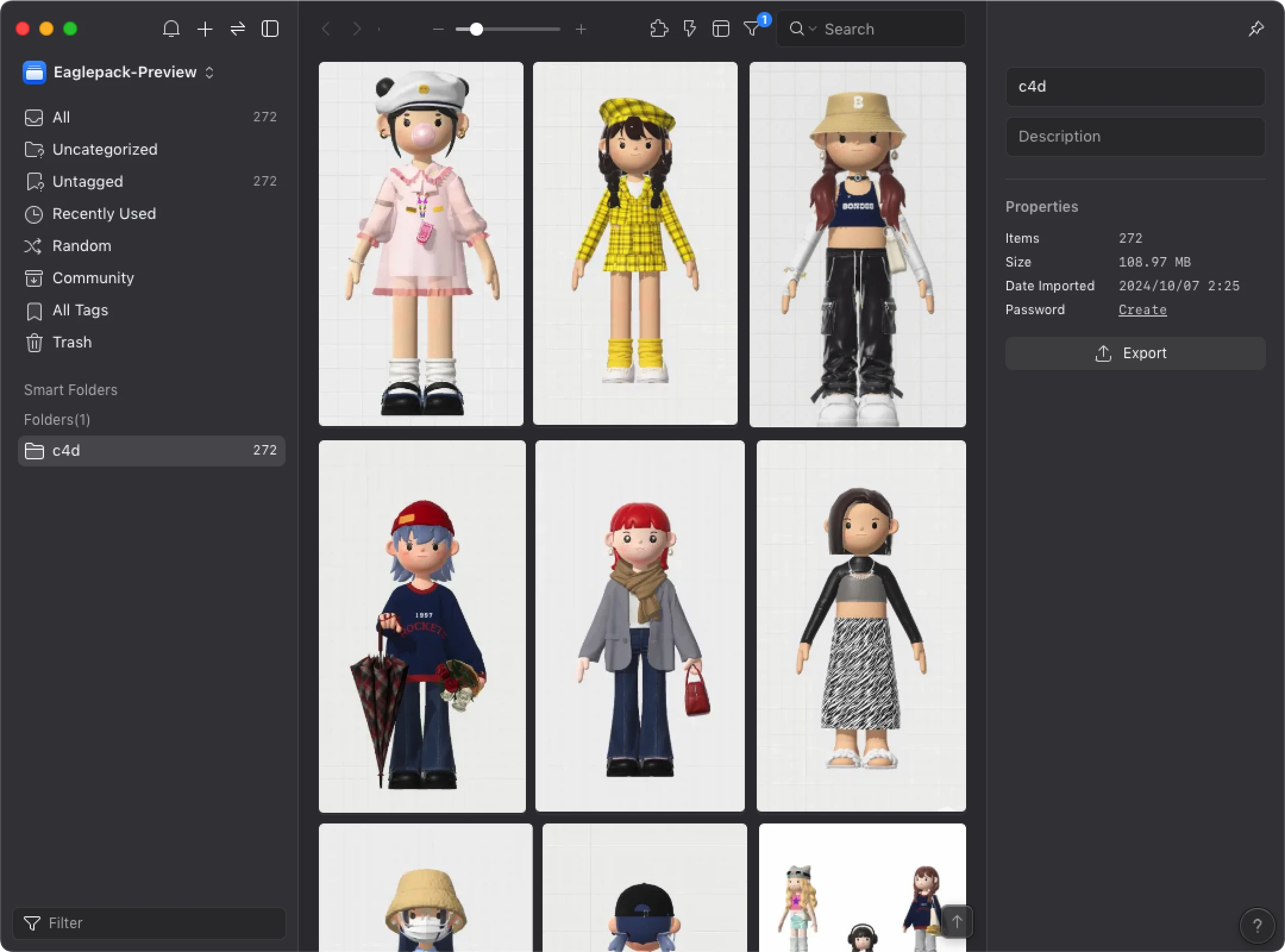
- Once capturing is complete, all images will be automatically imported to your Eagle library in original size, with a corresponding folder created using the board name
Important Notes
- This feature automatically detects all images on the page without requiring manual selection
- During batch import, Eagle automatically scrolls through the page to ensure all images are captured
- Imported images will maintain their original size for your convenience
- This feature is especially suitable for designers, researchers, and other users who need to batch collect visual materials