
When you encounter software issues or want to ensure you're using the latest features, it's recommended to check and update to the latest build version. While Eagle automatically checks for major version updates, minor updates (builds) may require manual checking.
Why do you need to manually check for updates?
Eagle software regularly releases minor fixes and upgrades, which are indicated through build version numbers. The built-in "Check for Updates" feature primarily checks for major version numbers (such as Eagle 4.0.0) and doesn't prompt for all build version updates. To get the best experience and latest features, it's recommended to manually check build versions regularly.
How to check and manually update Eagle
Step 1: Visit the official website
Open your browser and visit the Eagle official website: https://eagle.cool/
Step 2: Check the latest version
On the download page or version history page of the official website, check the latest version information currently released, including the major version number and build version number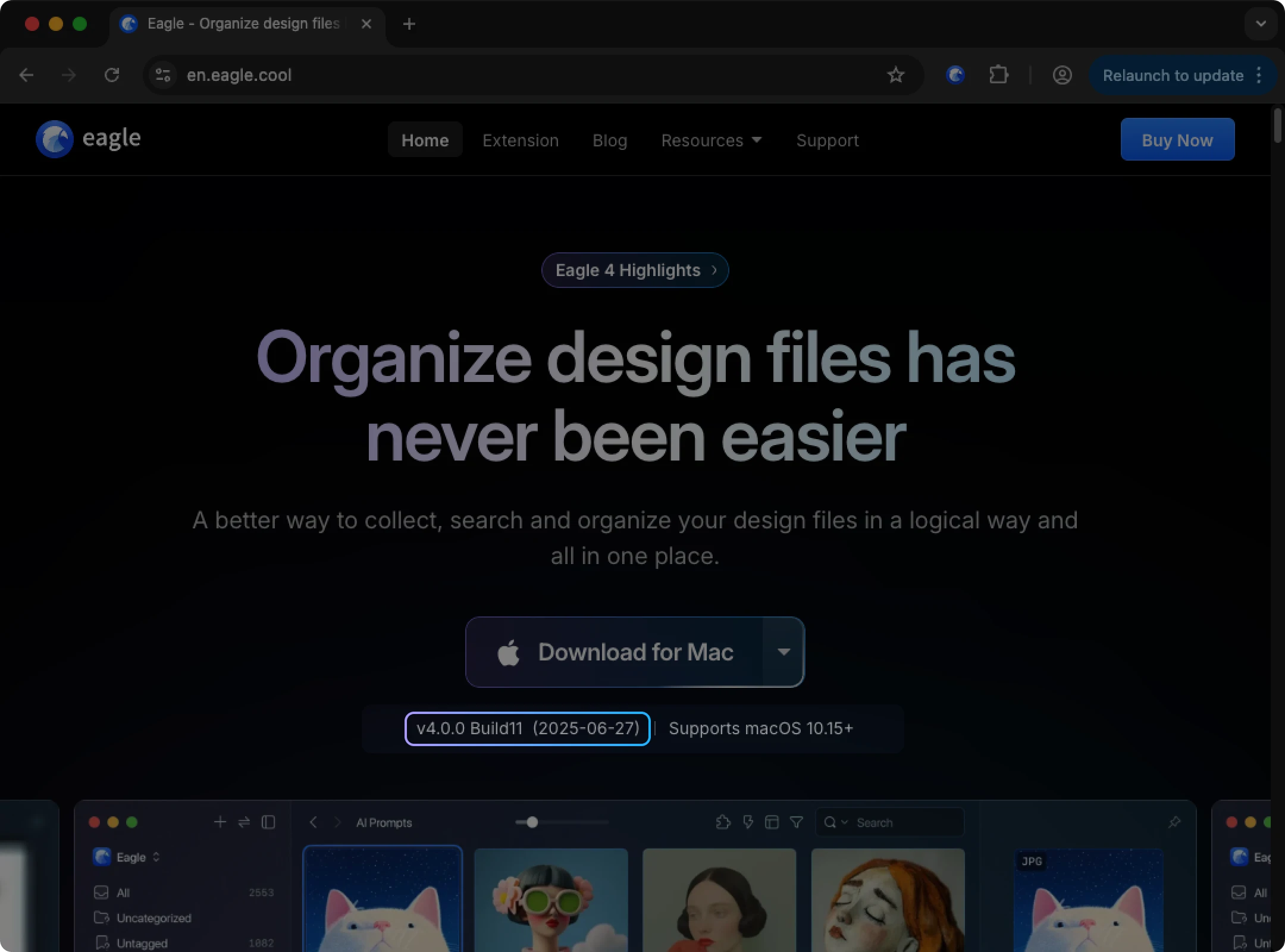
Step 3: Compare with current version
Open Eagle software, go to the "About" page or "Check for Updates" feature to view the currently installed version number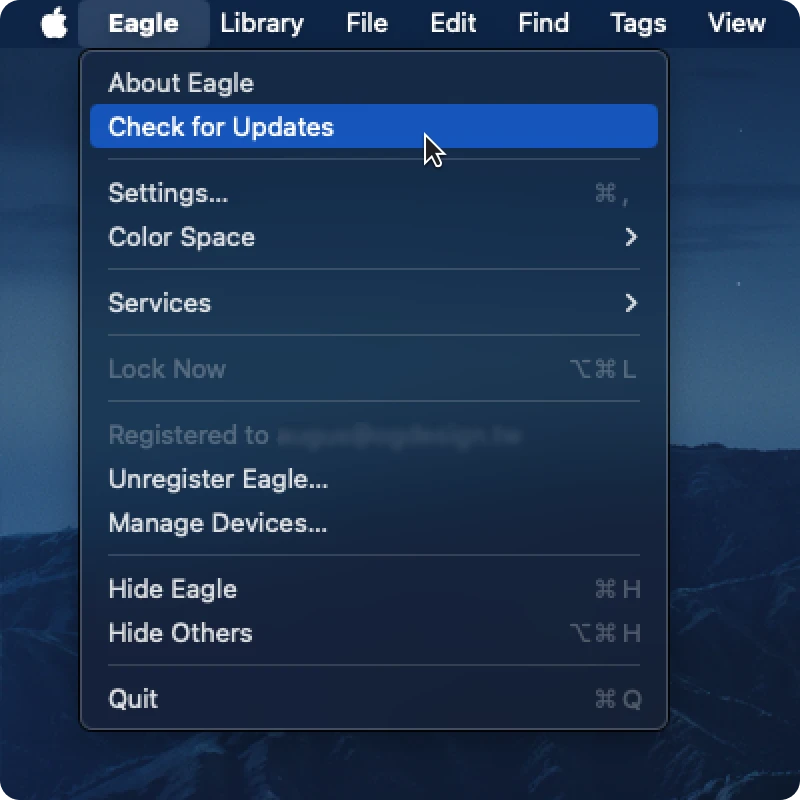
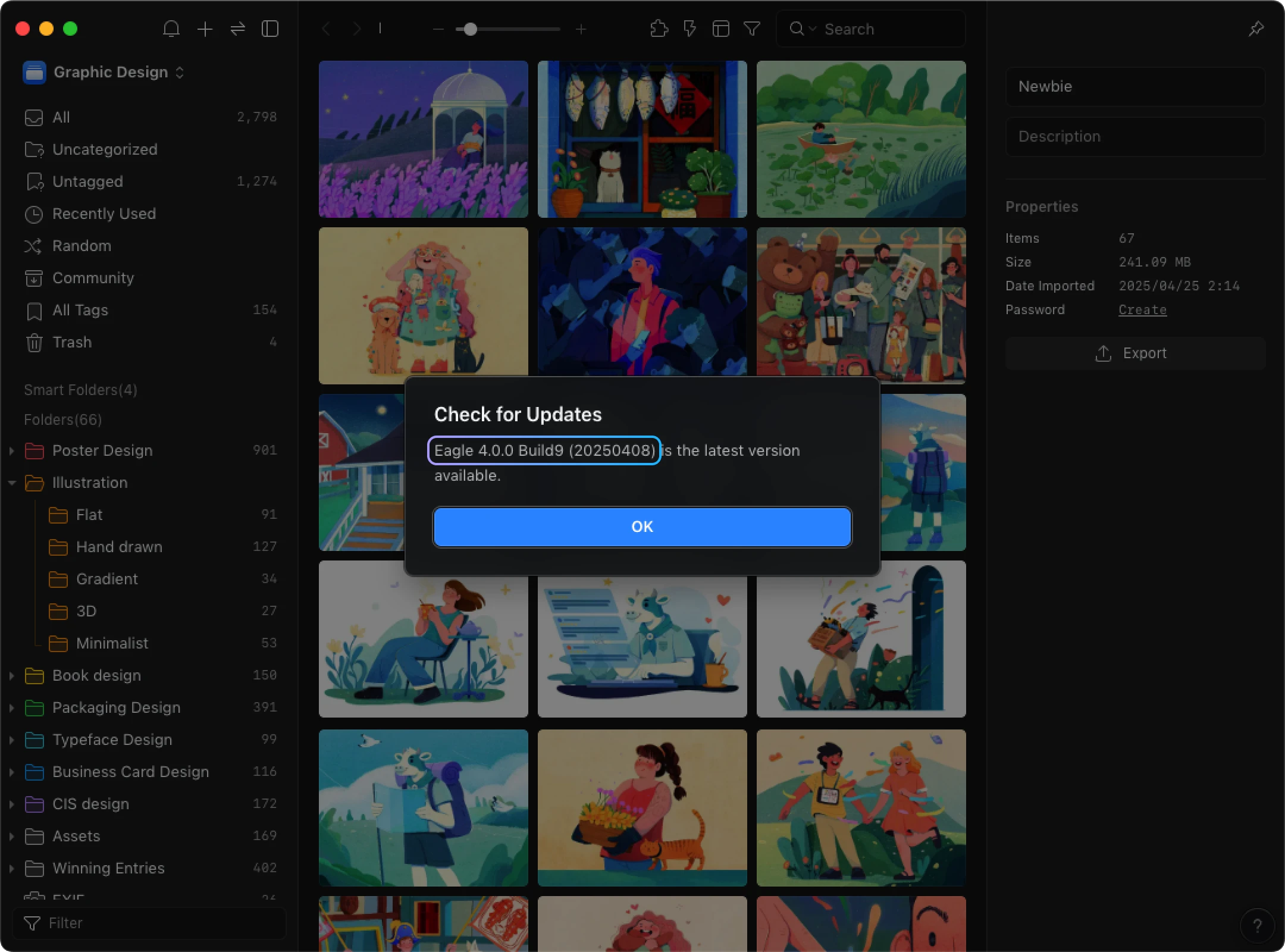
Compare the latest version number on the official website with your current software version number to confirm whether an update is needed
The official team will continue to push minor version updates, which mainly focus on fixing small issues and debugging, without affecting the main functionality of the software. Therefore, the software will not actively remind users to update, nor will it force all users to update. Users can decide whether to update based on their personal habits and preferences, referring to the update logs published on the official website blog.
Step 4: Download the update
If the official website shows an updated version available, click the download link to download the latest version installation file
Step 5: Install the latest version
After the download is complete, locate the downloaded installation file and double-click to run it, then follow the prompts to complete the installation process
Important Notes
- It's recommended to close the Eagle application before updating
- Updates will not affect your library data and settings