
PDF Browser in Eagle includes a keyword search function that helps you quickly locate specific information within your documents. This article explains how to use this feature.
Using PDF Keyword Search
- Double-click to open the PDF file in Eagle
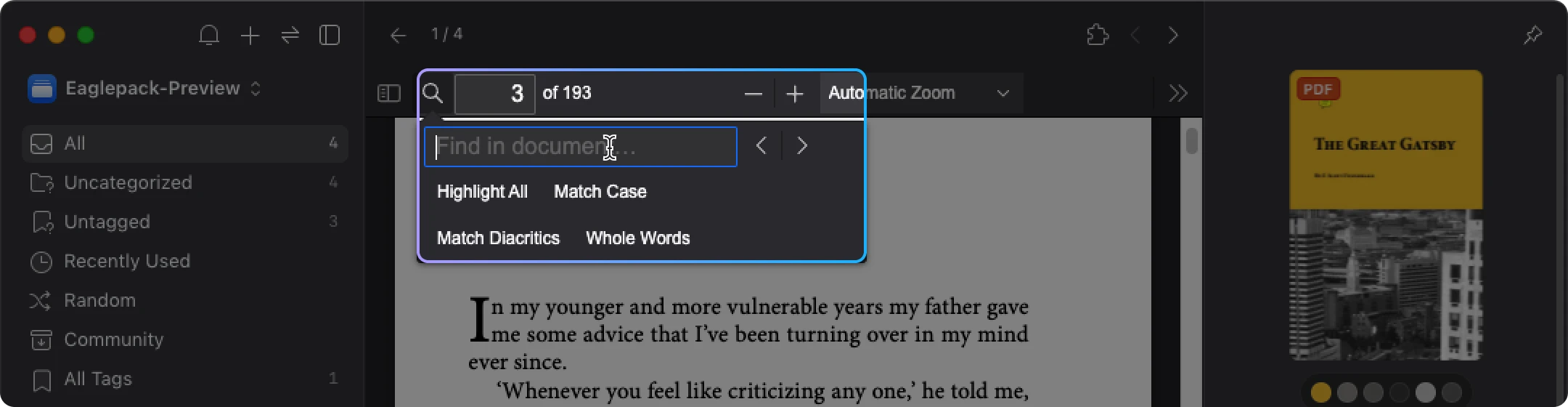
- Look for the "Search" icon in the upper left corner of the preview tool
- Click the search icon
- Enter your keyword to begin searching through the document
Key Points
- The search function works with all PDF files in your Eagle library
- Search results will highlight matching keywords within the document
- You can navigate between search results using the up and down arrows