
When you try to launch the Eagle software and encounter the "system clock error" message, this is usually caused by incorrect date and time settings on your computer system. Inaccurate system time can affect the software's normal operation and license verification.
Solution
- Check if your computer's system time and date are correct
- Set the system time to automatically sync with internet time
- Restart the Eagle software
Detailed Steps
- Right-click on the time in the taskbar
- Select "Adjust date/time"
- Turn on the "Set time automatically" option
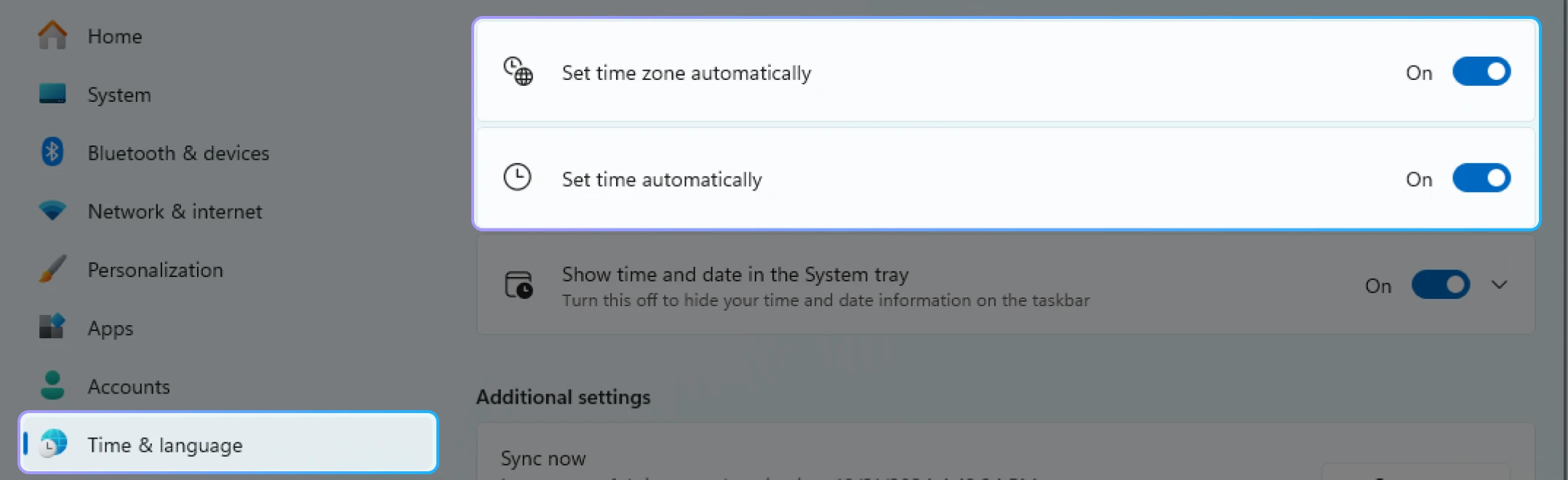
- Click the "Sync now" button
- Restart Eagle
- Click on the time in the upper-right corner of the screen
- Select "System Preferences" > "Date & Time"
- Check the "Set date and time automatically" option
- Restart Eagle
Important Notes
- If your system time cannot sync automatically, it may be due to network connection issues or firewall settings
- In some corporate environments, you may need to contact your IT administrator for permission to modify system time
- Make sure your system timezone setting is also correct