
When the system Hosts file is tampered with, it may cause important software functions to fail to operate normally, or even prevent the device from accessing related services. This article will guide you on how to check and reset the system's Hosts file to resolve potential issues.
Problem Symptoms
When your Hosts file has been tampered with, you may encounter the following prompts:
- The host file has been tampered with and the software cannot be opened.
- Warning! Your software may be an illegal copy
These prompts usually indicate that the device's system Hosts file has been modified, which not only causes software functions to fail but may also prevent your device from properly accessing related services.
Reset Method
-
Open File Explorer
-
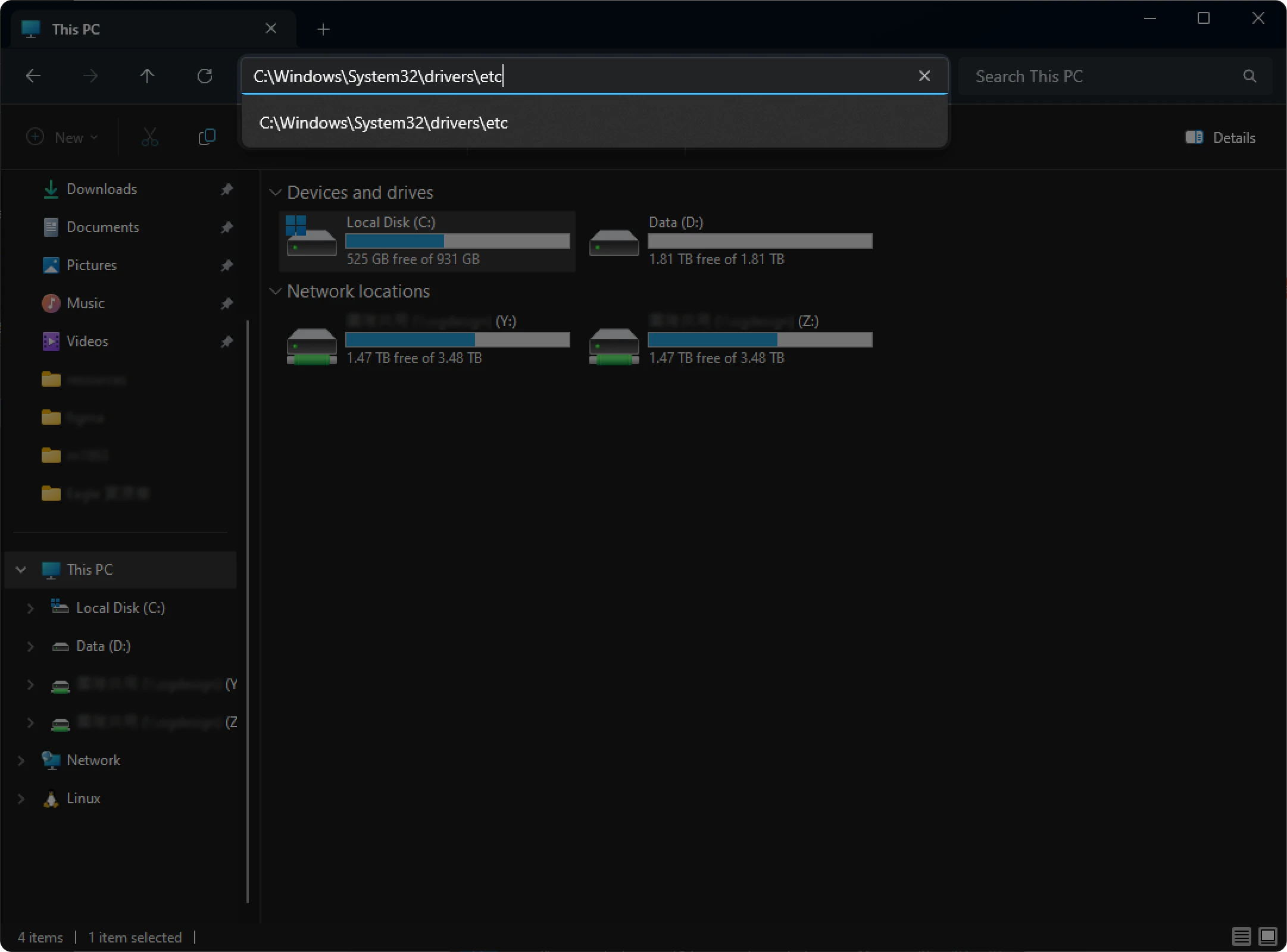
Navigate to the system drive path C:\Windows\System32\drivers\etc
-
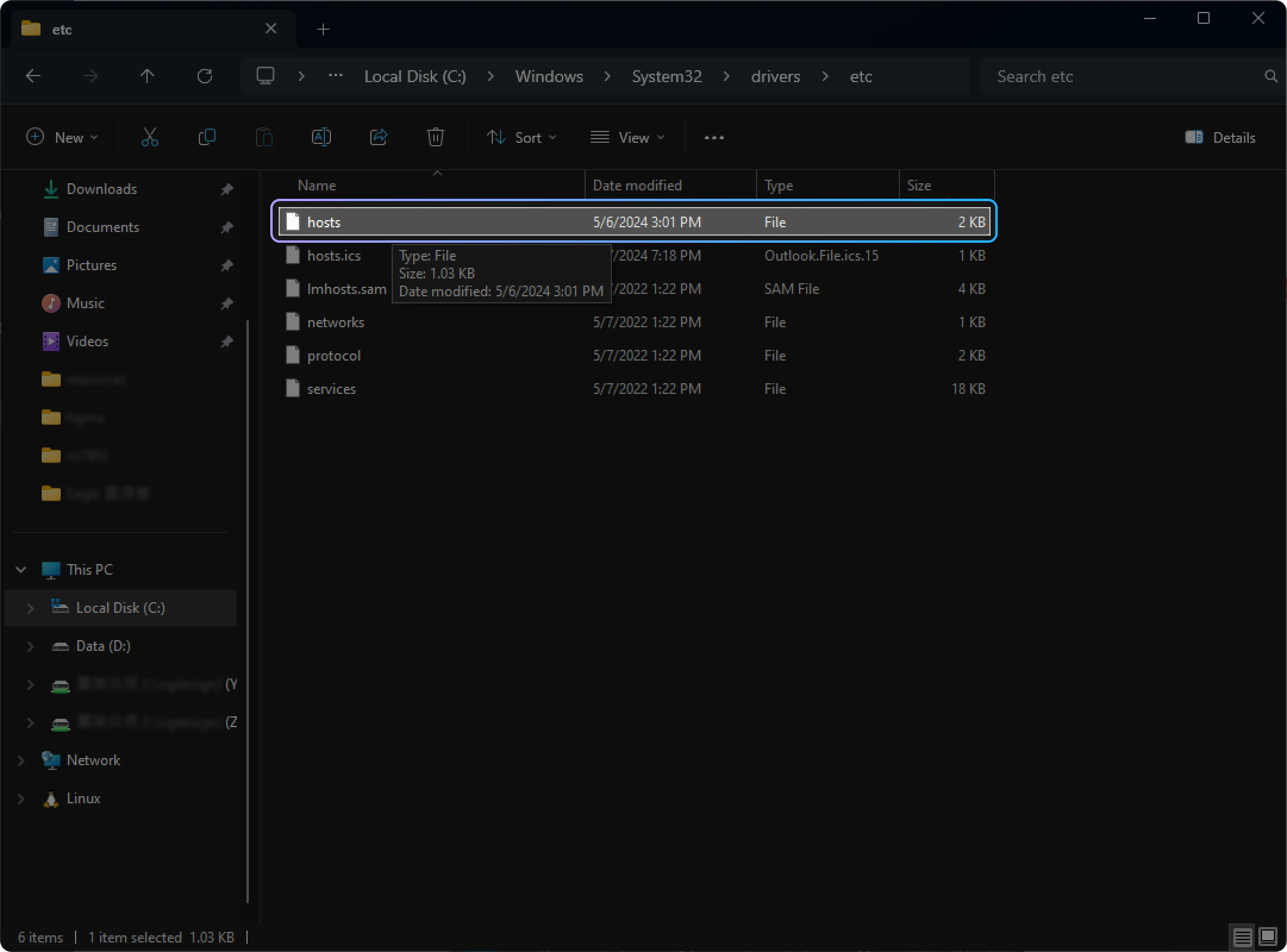
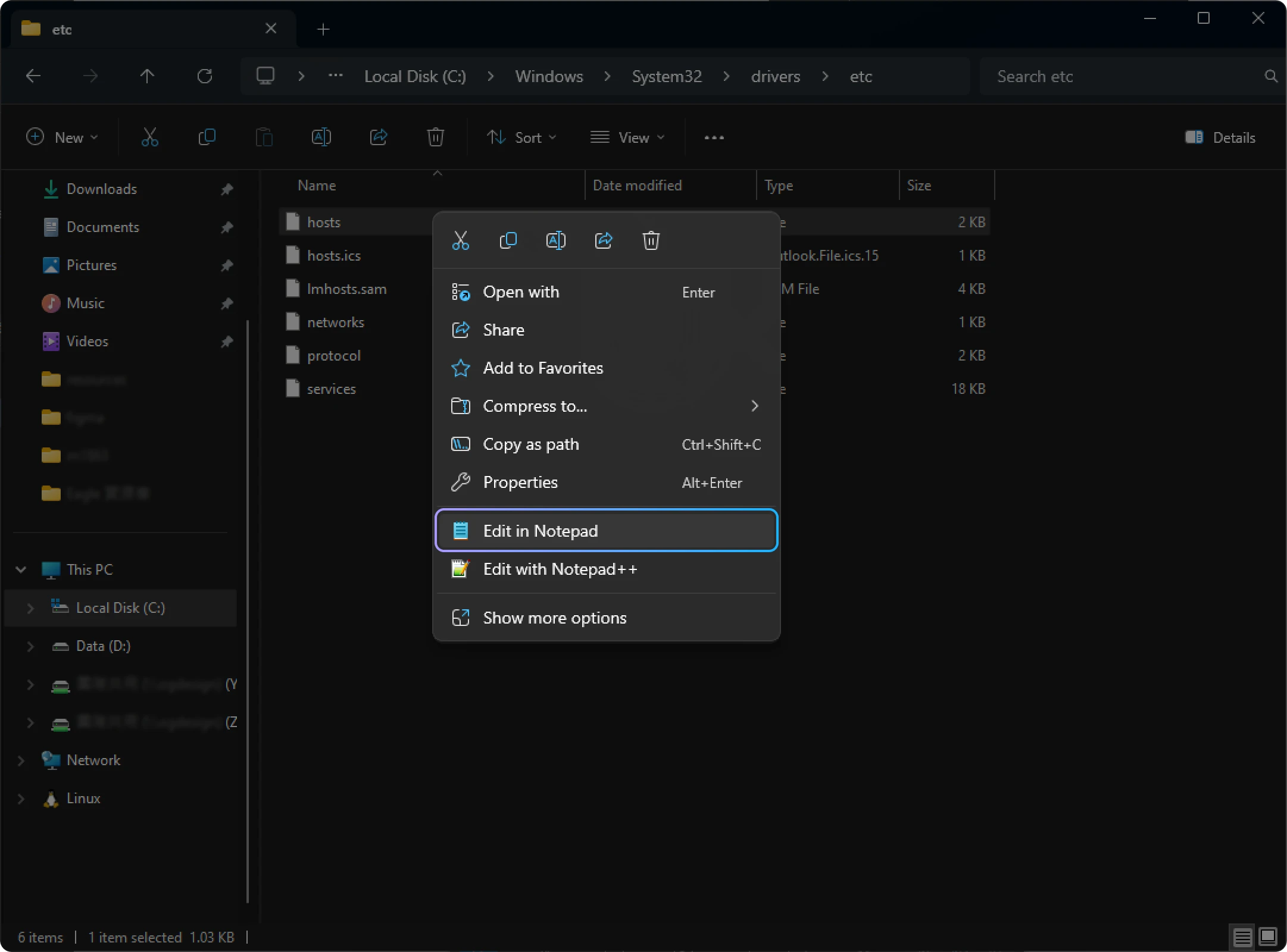
Find the "hosts" file and open it with "Notepad"
-
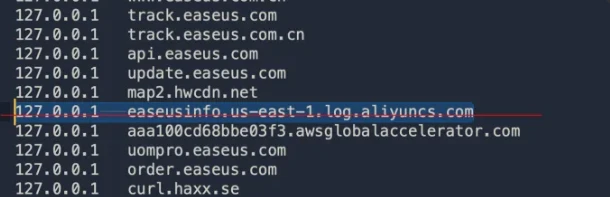
Delete the lines containing eagle.cool and aliyuncs.com from the file, then save
-
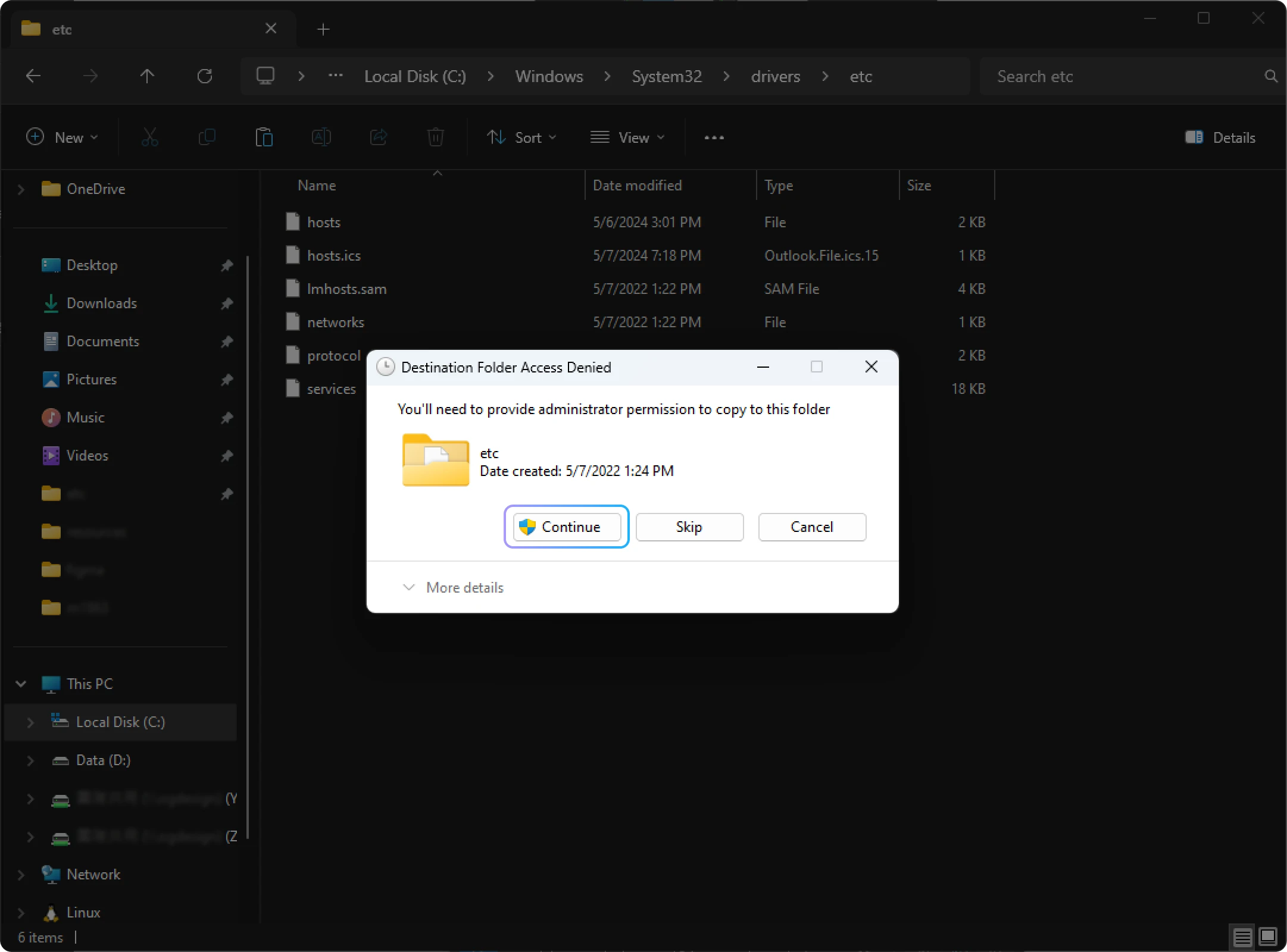
Since Hosts is a system file, regular users may not have direct modification permissions, and the following prompt will appear
-
Save the modified Hosts file to another location first, then drag it to the original directory
-
Click "Continue" to provide administrator privileges and allow file replacement
-
Complete the Windows Hosts file repair
-
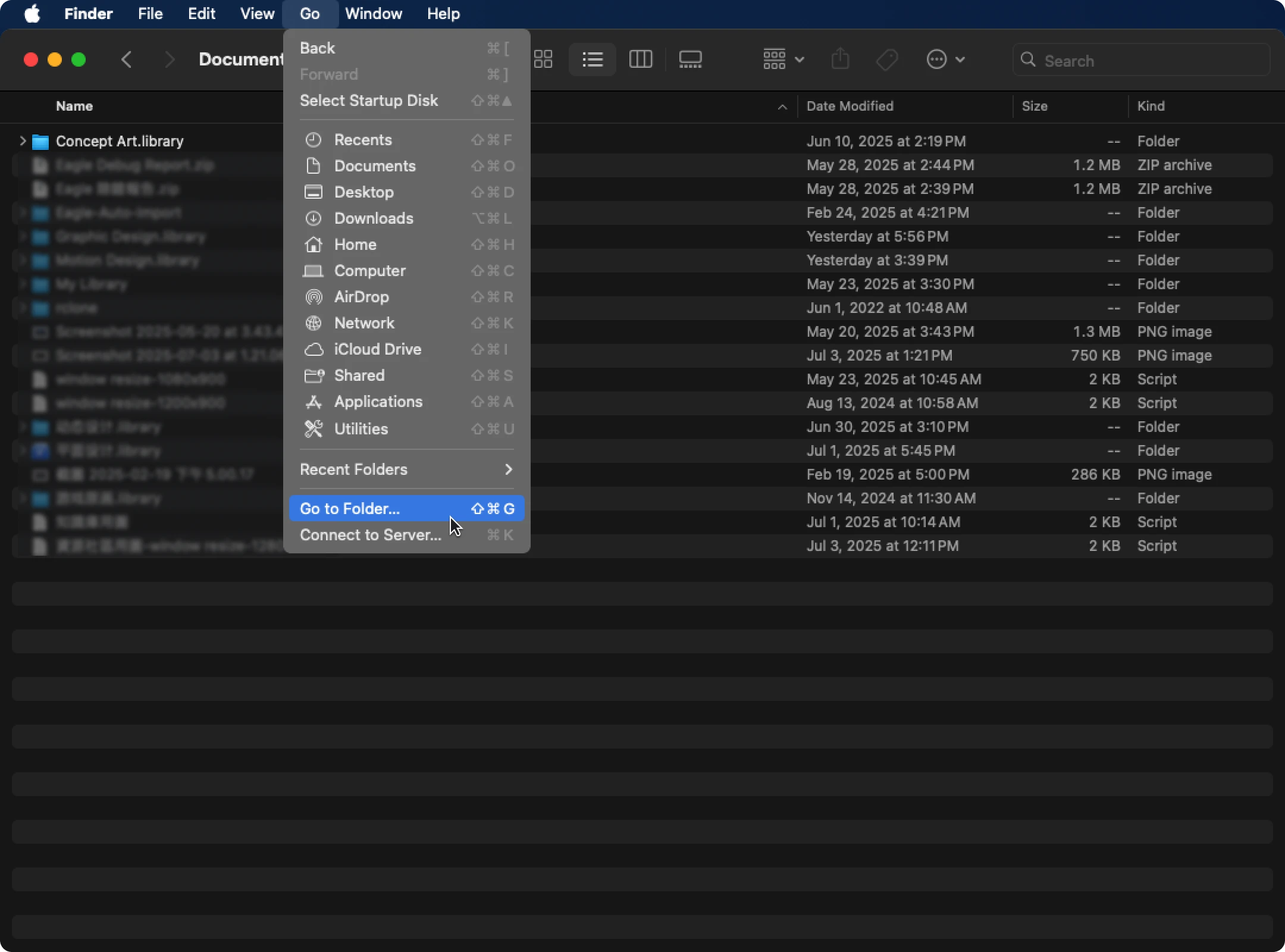
Open Finder, clicking the top menu "Go" > "Go to Folder"
-
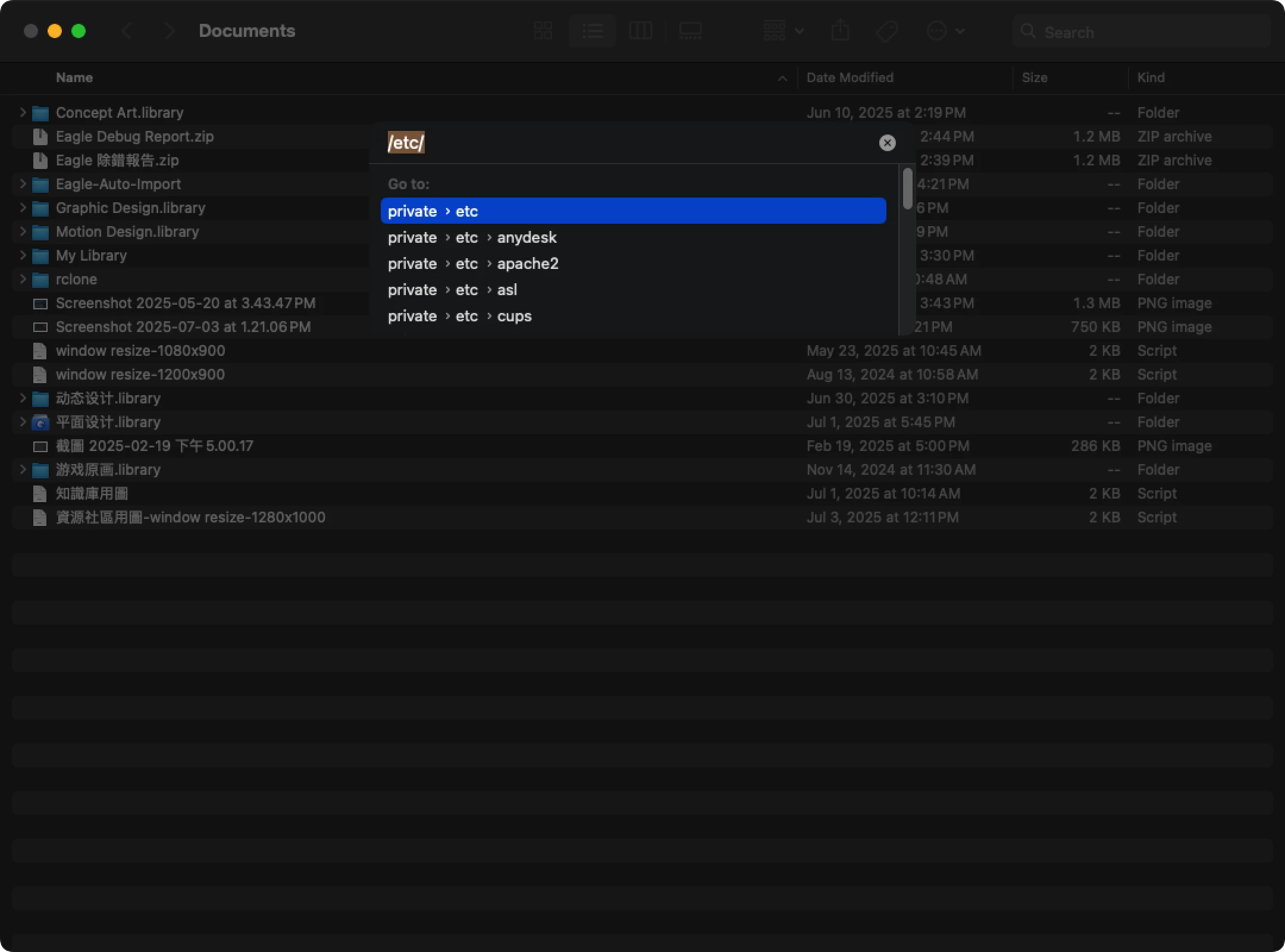
Enter the path /etc/ and click Go
-
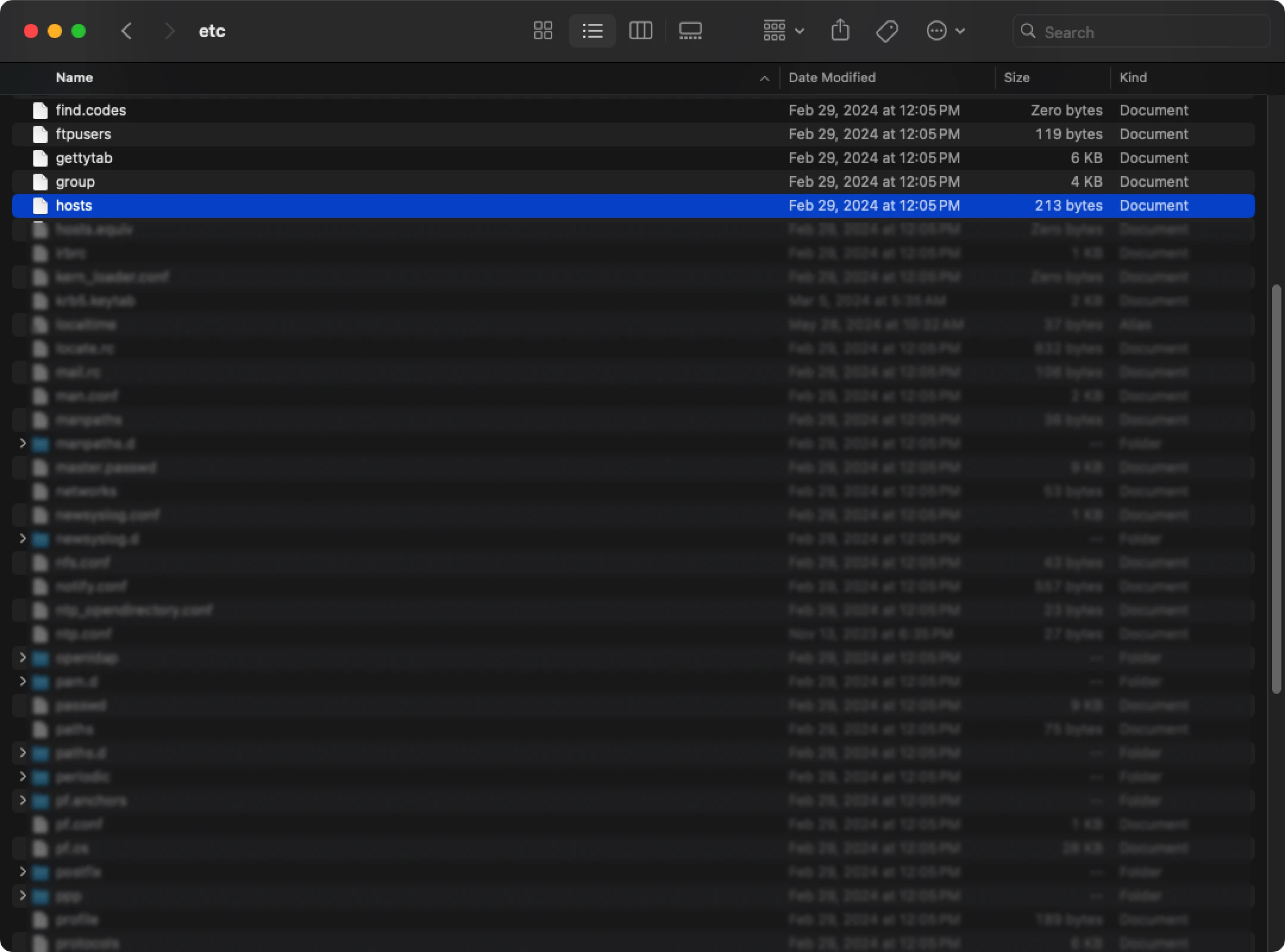
Find the "hosts" file and copy it to the desktop
-
Use "TextEdit" or another text editor to open the hosts file on the desktop
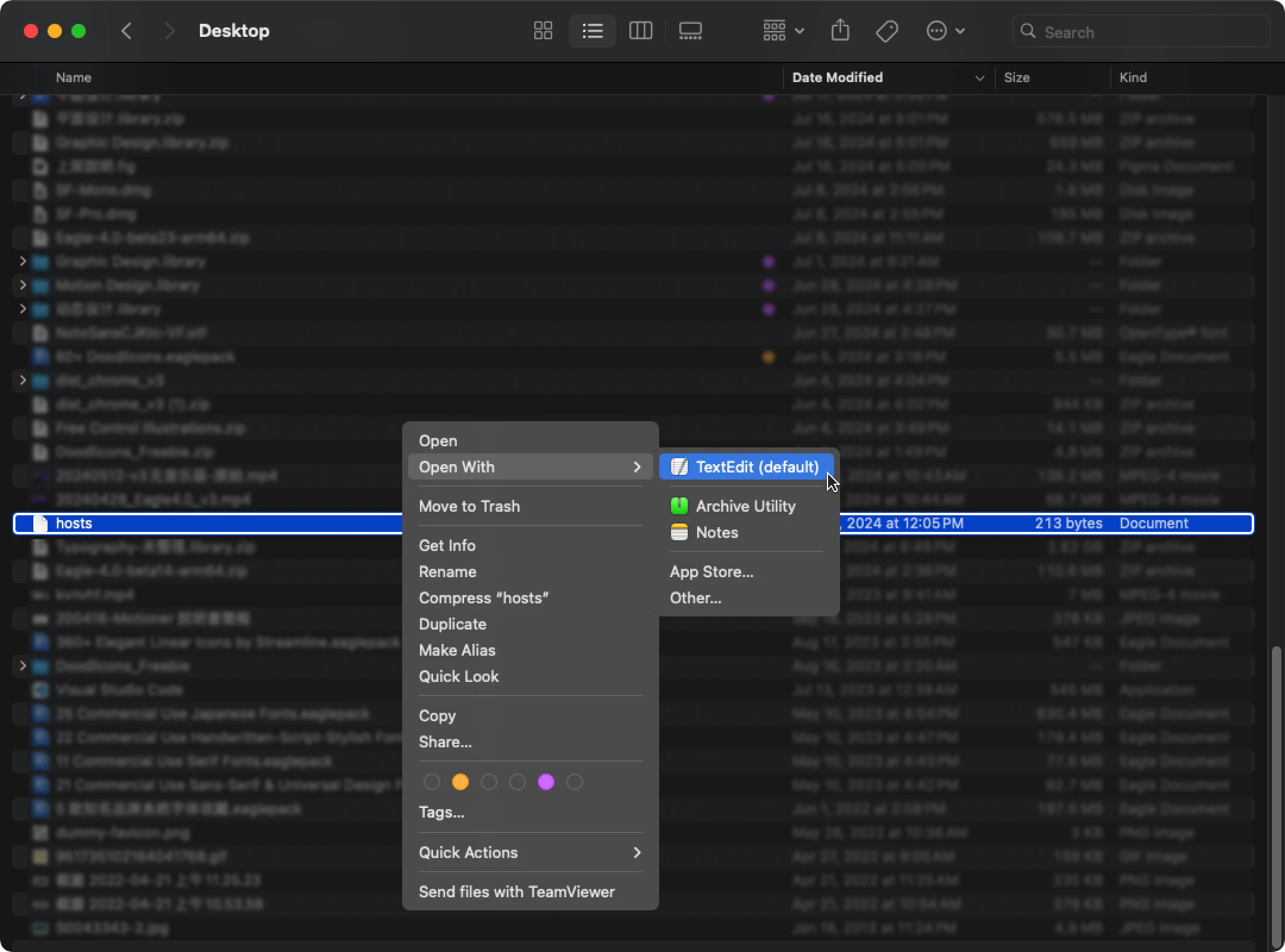
-
Delete the lines containing eagle.cool and aliyuncs.com from the file, then save
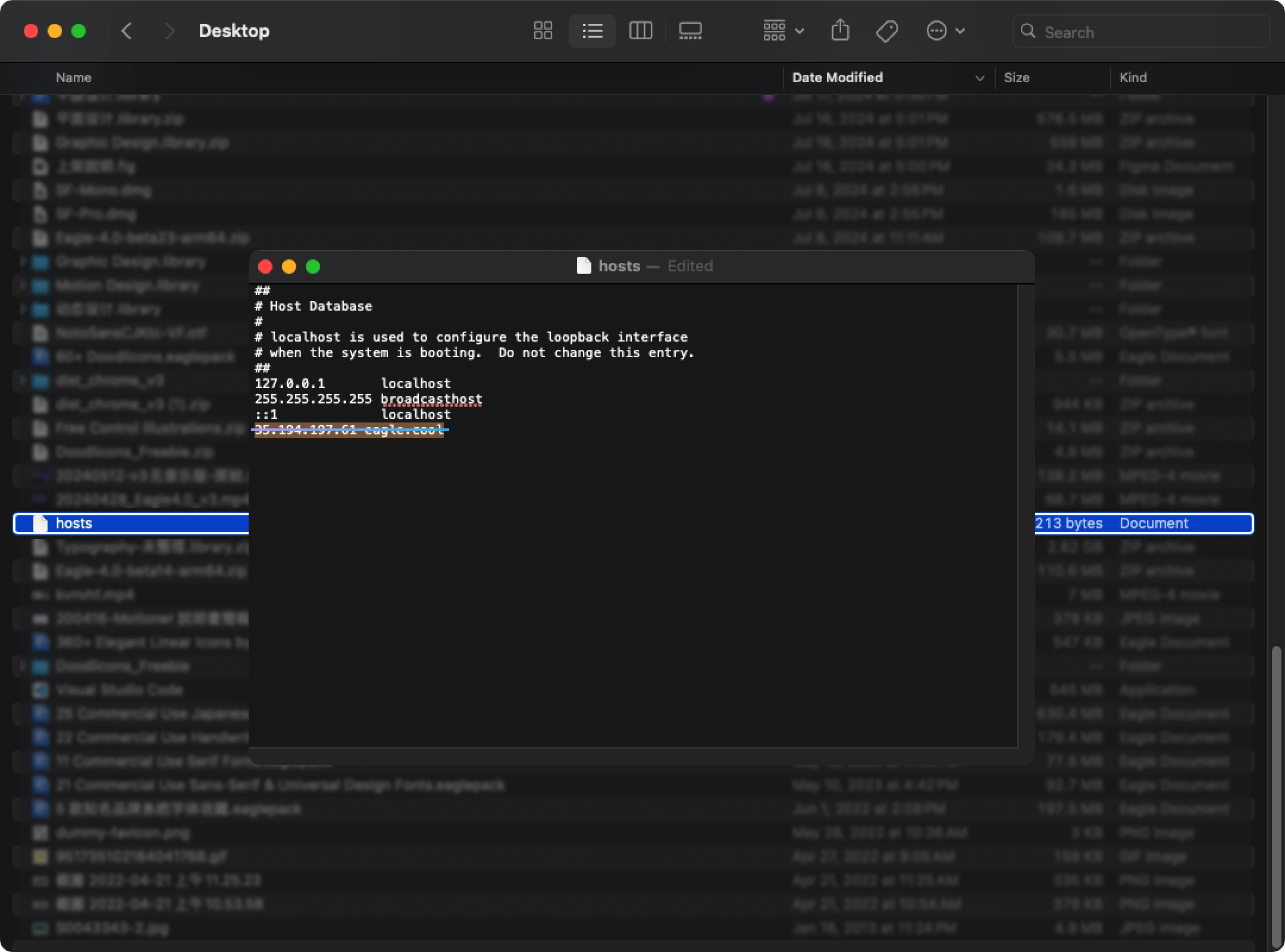
-
Copy the modified hosts file back to the /etc/ directory, select "Replace", and enter your system password for authorization
-
Restart the software, and the problem should be resolved
Important Notes
- Modifying system files requires administrator privileges, please ensure you have sufficient permissions
- Only delete lines related to eagle.cool and aliyuncs.com, do not modify other content arbitrarily
- If you are unsure how to proceed, it is recommended to seek technical support