
When the .NET Framework environment in your system encounters errors, it might be due to important system files being corrupted or missing, causing applications to malfunction. The System File Checker (SFC) is a built-in Windows tool that can scan and repair these damaged or missing system files, restoring your system to normal operation.
Steps to Run SFC Command
-
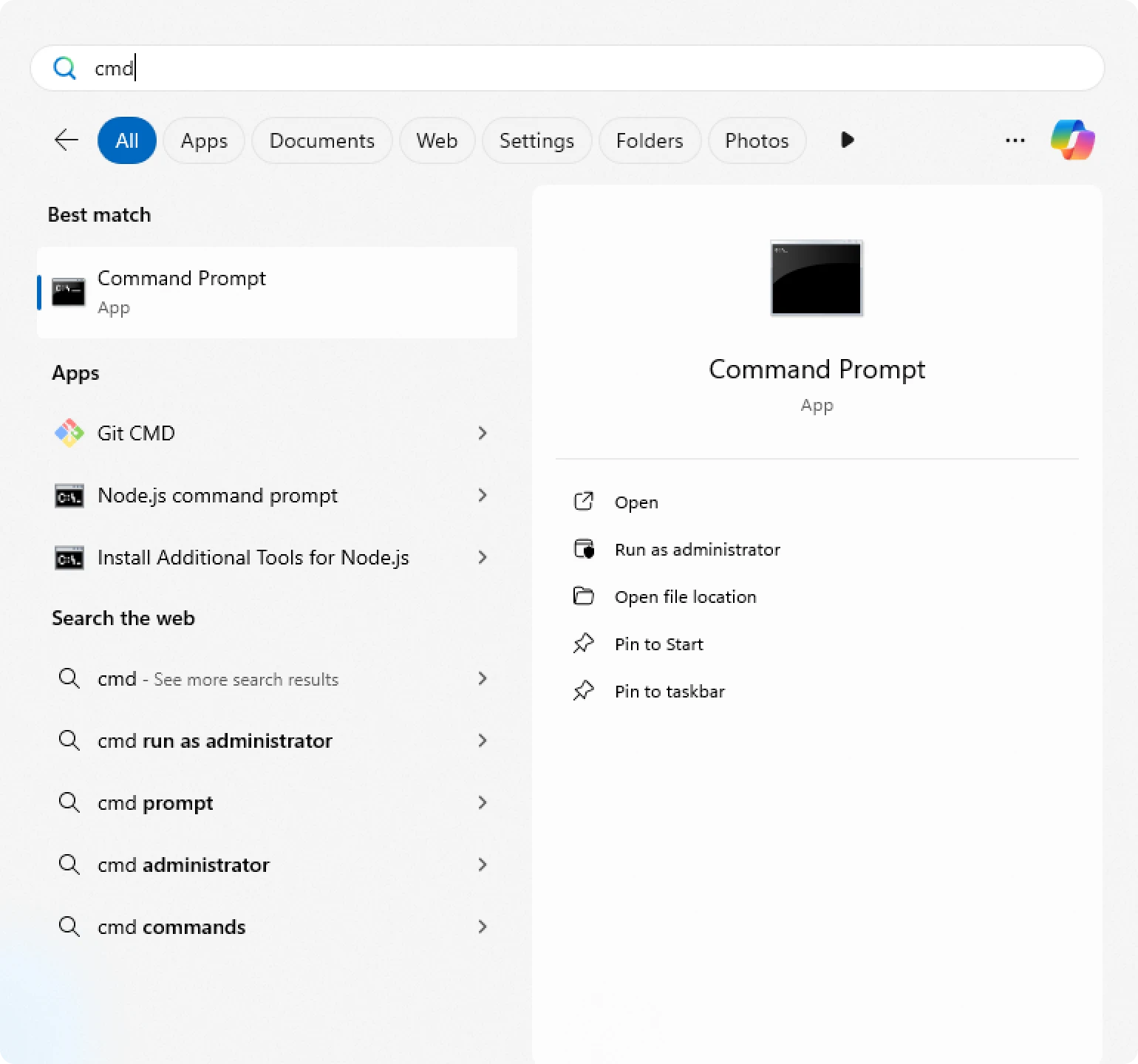
Click the Win button in the lower left corner, type "cmd" in the search bar, then right-click on "Command Prompt" and select "Run as administrator".
-
In the Command Prompt window, enter the following command and press Enter:
sfc /scannow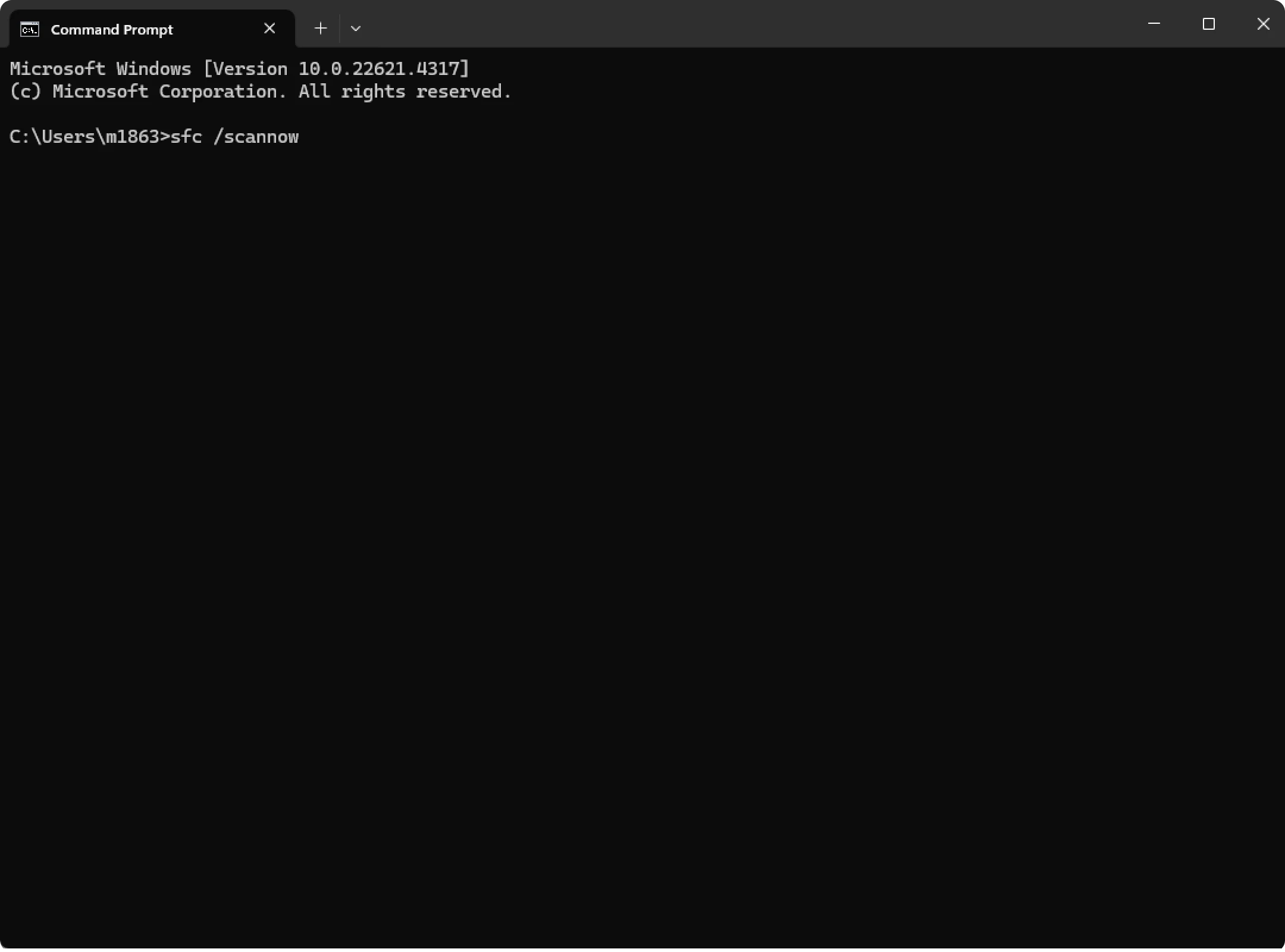
-
Wait for the SFC command to complete. This process may take some time, depending on the number of system files and your computer's performance.
-
After the scan and repair are complete, restart your computer. After restarting, try opening Eagle.exe again to see if the issue has been resolved.
Key Notes
- The SFC command effectively repairs corrupted or missing files in your system, helping to resolve issues caused by .NET Framework environment errors.
- Always run Command Prompt as administrator when executing system repair commands.
- A complete system scan may take some time to finish, so be patient during the process.