
Managing and organizing subfolders in Eagle is an important part of keeping your asset library tidy. While the current version doesn't support directly dragging subfolders from the file list to the sidebar for categorized movement, you can easily achieve folder movement through other methods.
Steps to Move Folders
To move subfolders in Eagle, follow these simple steps:
-
Right-click the folder: Locate the folder you want to move in the left sidebar, then right-click on it
-
Select "Move Folder": Choose the "Move Folder" option from the context menu that appears

-
Select target location: In the popup window, choose the destination where you want to move the folder, then click the "Move Folder" button
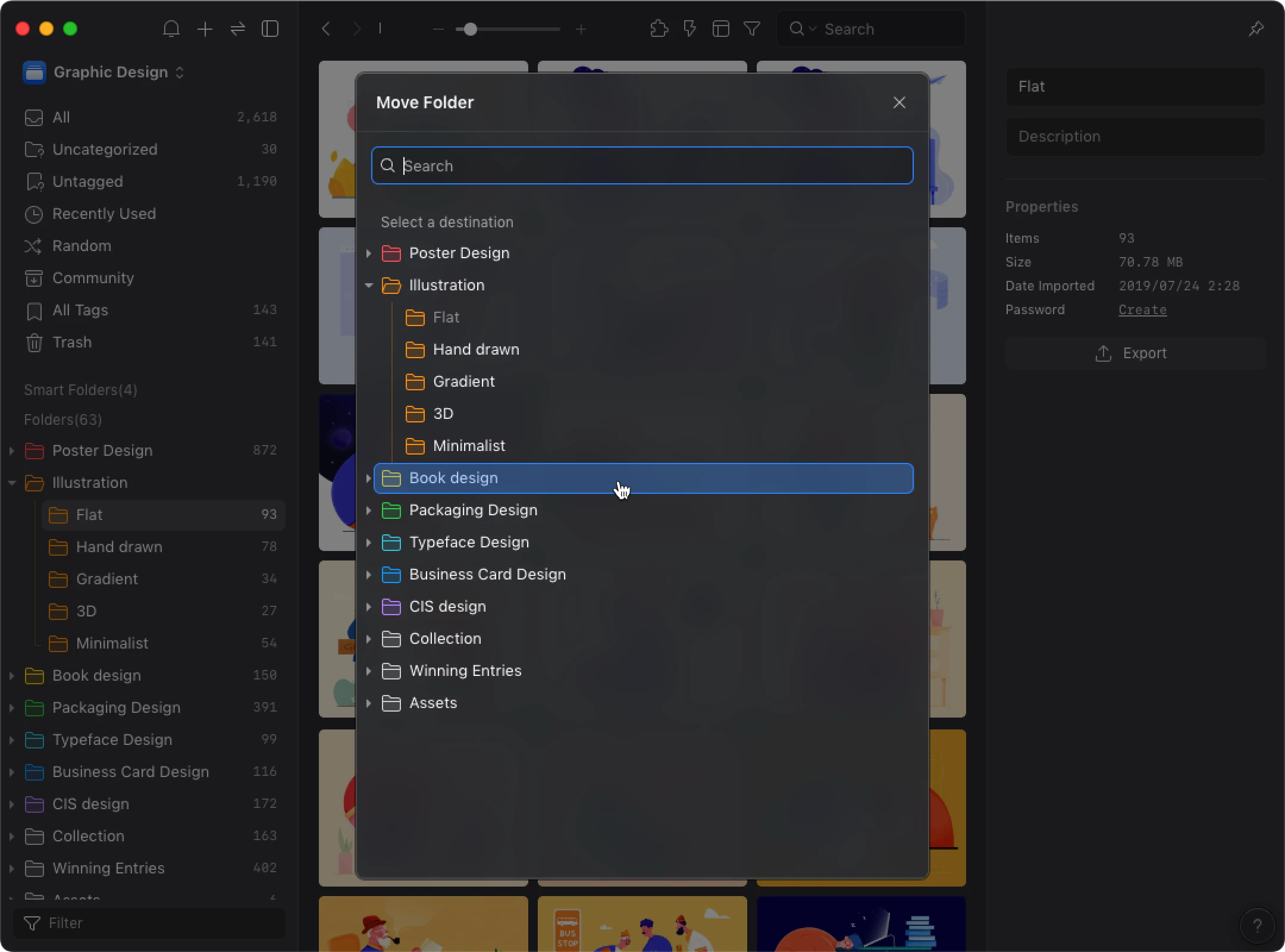
-
After completing the operation, verify that the folder has been successfully moved to the target location
Important Notes
- Currently, Eagle doesn't support directly dragging subfolders from the main interface file list to the sidebar for movement
- When moving a folder, all assets and subfolders within it will also be moved together
- Move operations cannot be undone, so please confirm the target location before moving important folders