
Eagle provides a built-in feature to help you identify and manage duplicate files in your library, which helps keep your collection organized and saves storage space.
Scanning for Duplicates
- Start the scanning process
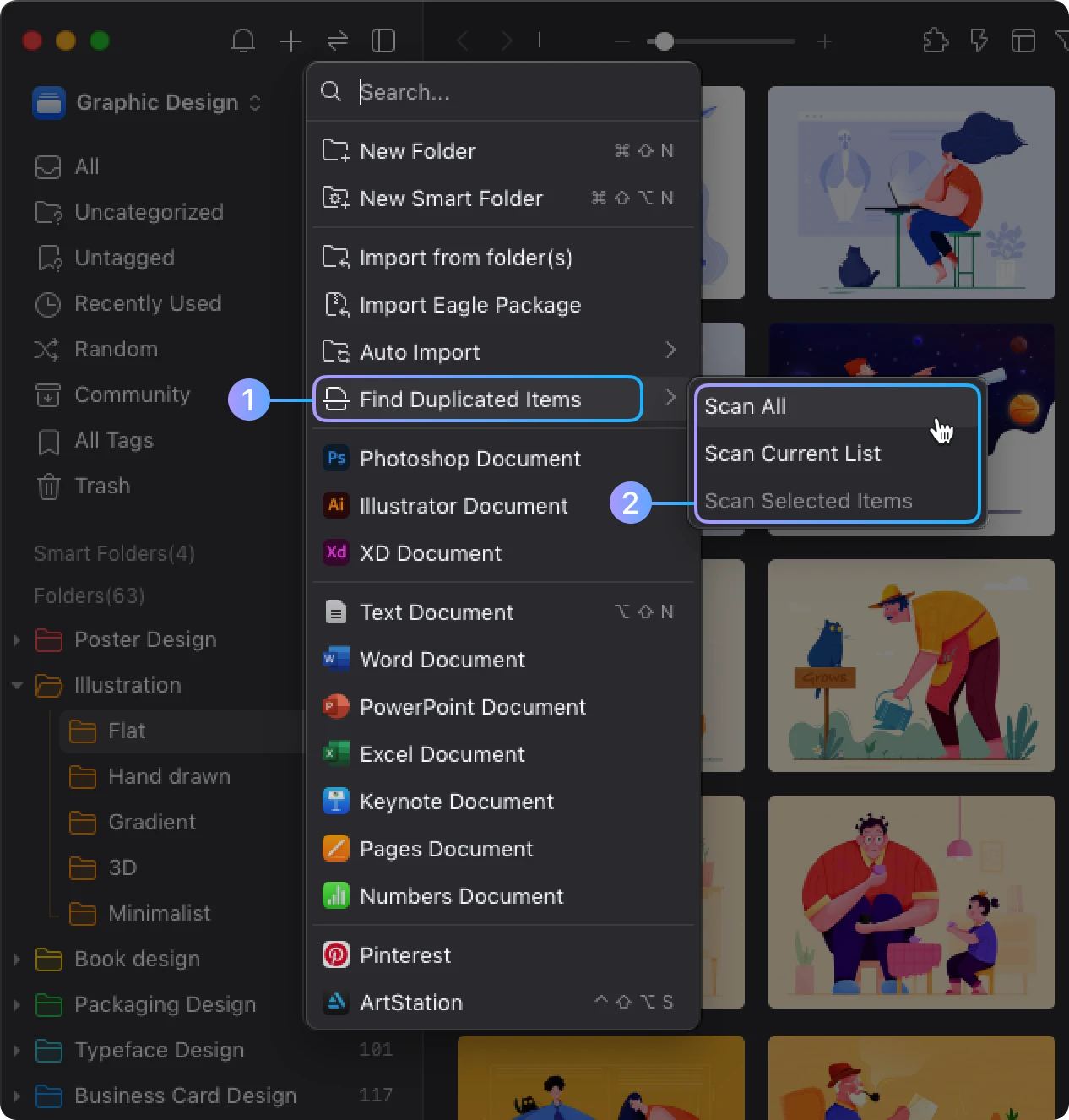
- Click the "+" button at the top of the sidebar
- Select "Find Duplicated Items" from the dropdown menu
- Choose either "Scan All" or "Scan Current List" based on your needs
- Configure scan settings
- Select "Scan for Identical Files" to find exact duplicates
- If you want to find visually similar images instead, select "Scan Similar Images"
- Review and merge duplicates
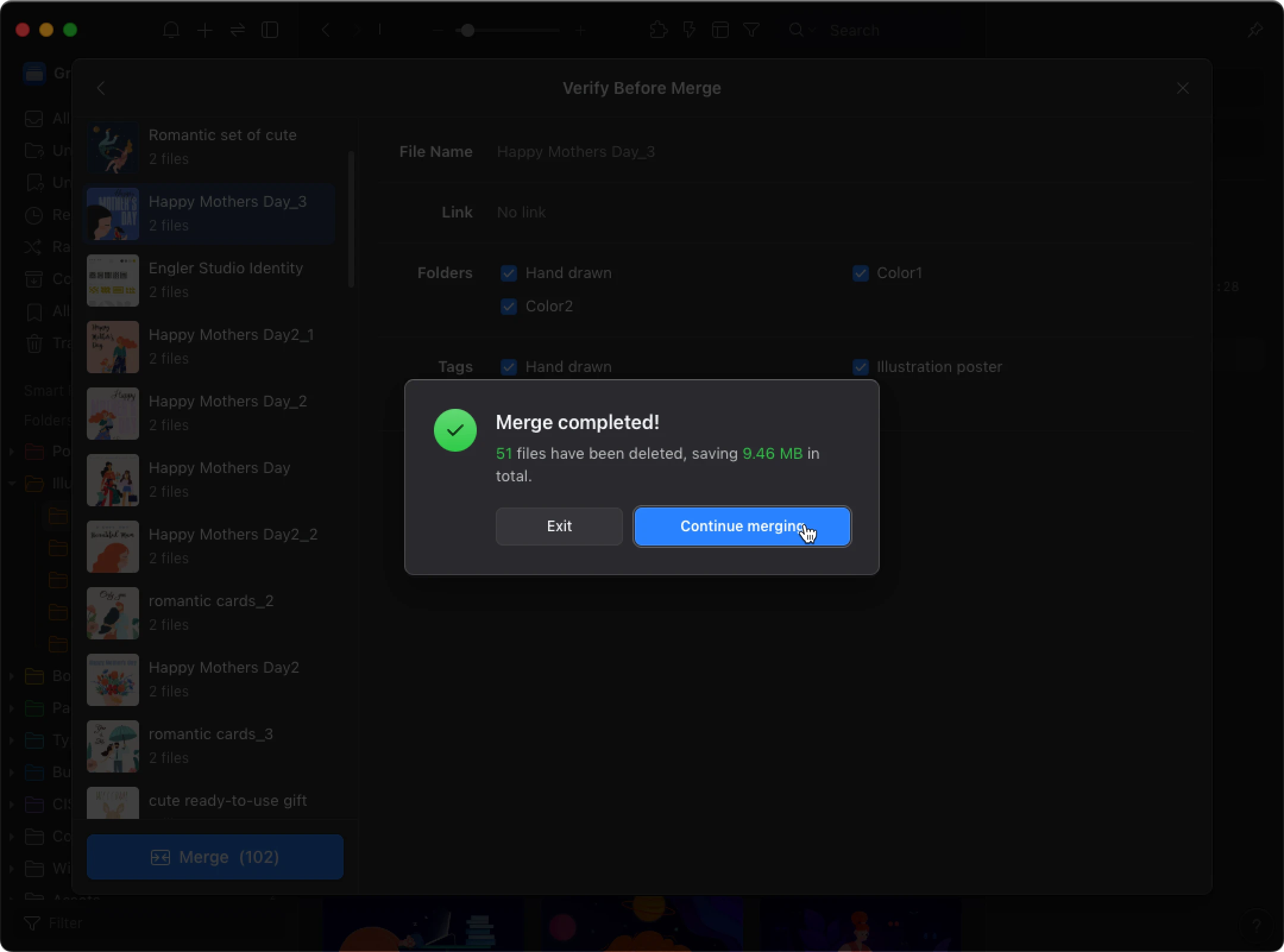
- After scanning completes, click the "Merge" button
- The system will display detailed information for all duplicate items, including filenames, paths, folder locations, tags, and notes
- Carefully review the information and select which images to keep before merging
Important Notes
- The "Scan Identical Files" function can only identify completely identical image files. If images differ in format or size, even if they appear visually similar, the system will not recognize them as duplicate files.
- If you need to identify visually similar but not completely identical images, please select "Scan Similar Images" in the scan options.
- Merge operations cannot be undone. Please carefully check the file information you want to keep before confirming.
By regularly using this function, you can effectively manage your Eagle library, reduce storage space usage, and make your material organization more structured and clear.