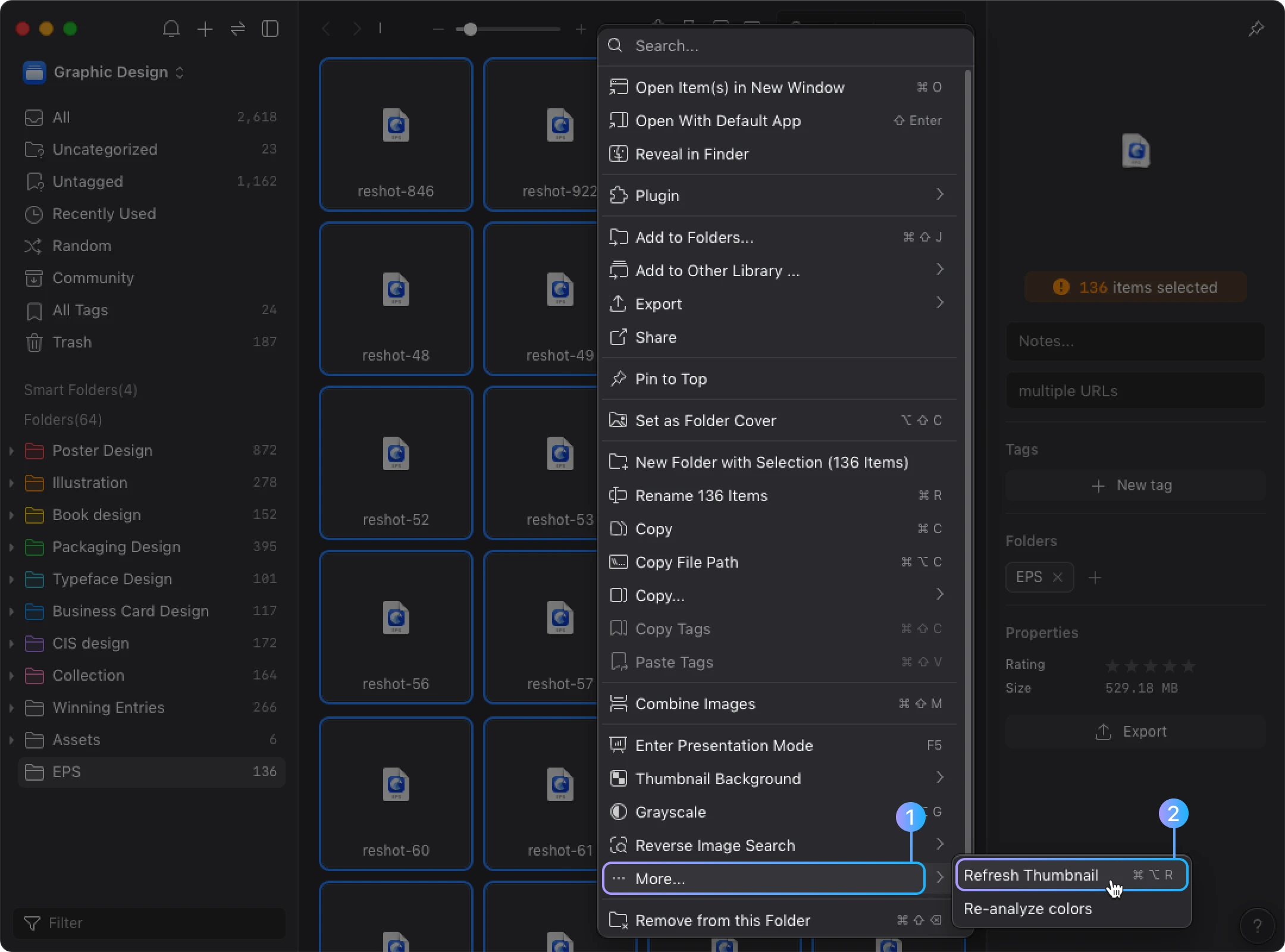
File thumbnails imported in Eagle sometimes display as application icons instead of actual content previews. This occurs due to issues with macOS QuickLook functionality, which fails to properly generate file preview images.
Detection and Repair Methods
First, you can confirm whether the file preview function is working properly through the following steps:
-
In Eagle, select the file with abnormal thumbnail display, right-click and choose "Open in Finder"

-
In the Finder window, select the file and press the "Space" key to check if the file content can be previewed normally
If you can only see the application icon instead of file content, please try the following repair methods:
Repair Methods
Method 1: Reset QuickLook Service
- Open the system "Terminal" application
- Enter the following command and press Enter to execute:
qlmanage -r cache
Method 2: Reinstall Related Applications
Visit the official website of the related application to download and install the latest version. This can resolve issues with .qlgenerator files that are not properly installed or are outdated.
Method 3: Re-save Files
Open the problematic file using an application installed on your computer, then re-save or export it to update the file's thumbnail information.
Refresh Thumbnails in Eagle
After completing the above repair steps, return to Eagle software, select the problematic file, right-click and choose "More - Refresh Thumbnail" to have Eagle regenerate the thumbnail.