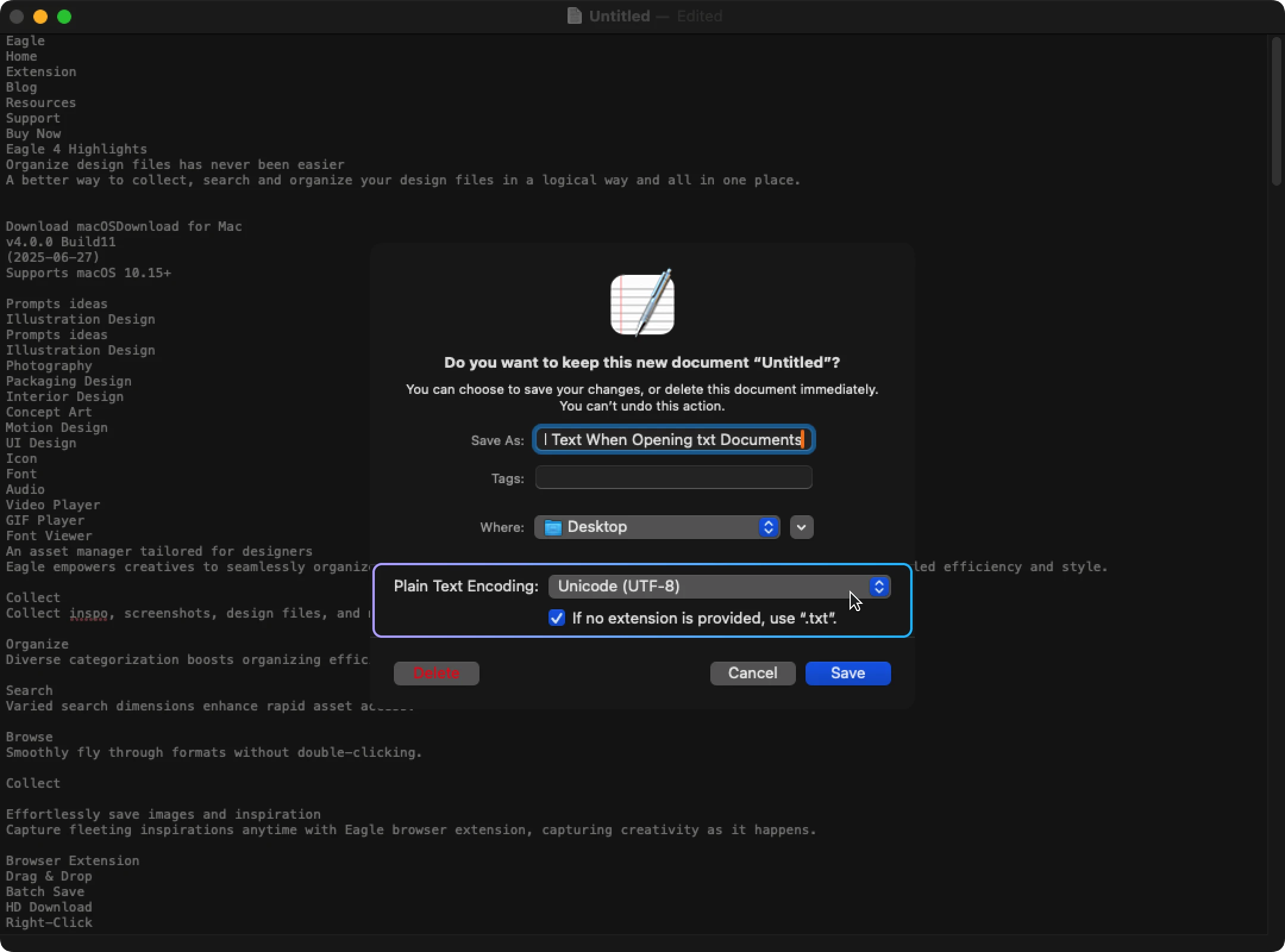
If text (.txt) files display as garbled characters when added to Eagle, it's typically because the file uses an encoding other than UTF-8. Converting the file to UTF-8 encoding will resolve this issue.
Below are two methods to fix text file encoding problems:
Method 1: Install the "Batch UTF-8 Encoder" Plugin
-
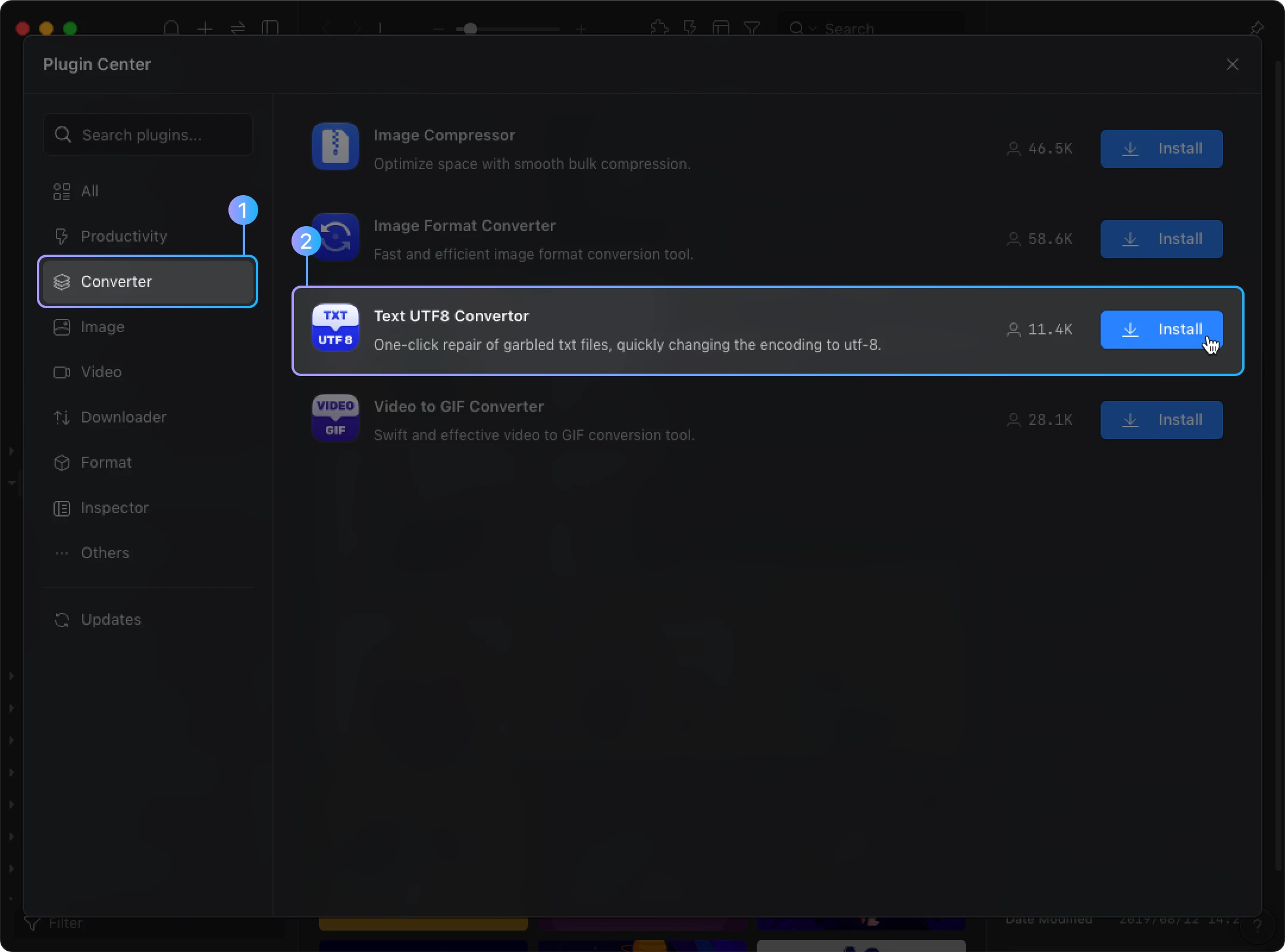
Click the puzzle icon at the top of the list, then select "Plugin Center."


-
Find the "Text UTF8 Convertor" item in the "Conversion & Compression" category and click the "Install" button.
-
After installation, close the Plugin Center window.
-
Select the .txt file that shows abnormal characters.
-
Press the "P" key on your keyboard, or right-click and select "Plugins," then choose the "Batch UTF-8 Encoder" plugin.
-
Click the "Convert Encoding" button, then click the "Confirm" button.
-
Complete.
Method 2: Use Third-Party Text Editors to Save as UTF-8
You can use third-party text editors to open your text files and save them with UTF-8 encoding before adding them to Eagle.