
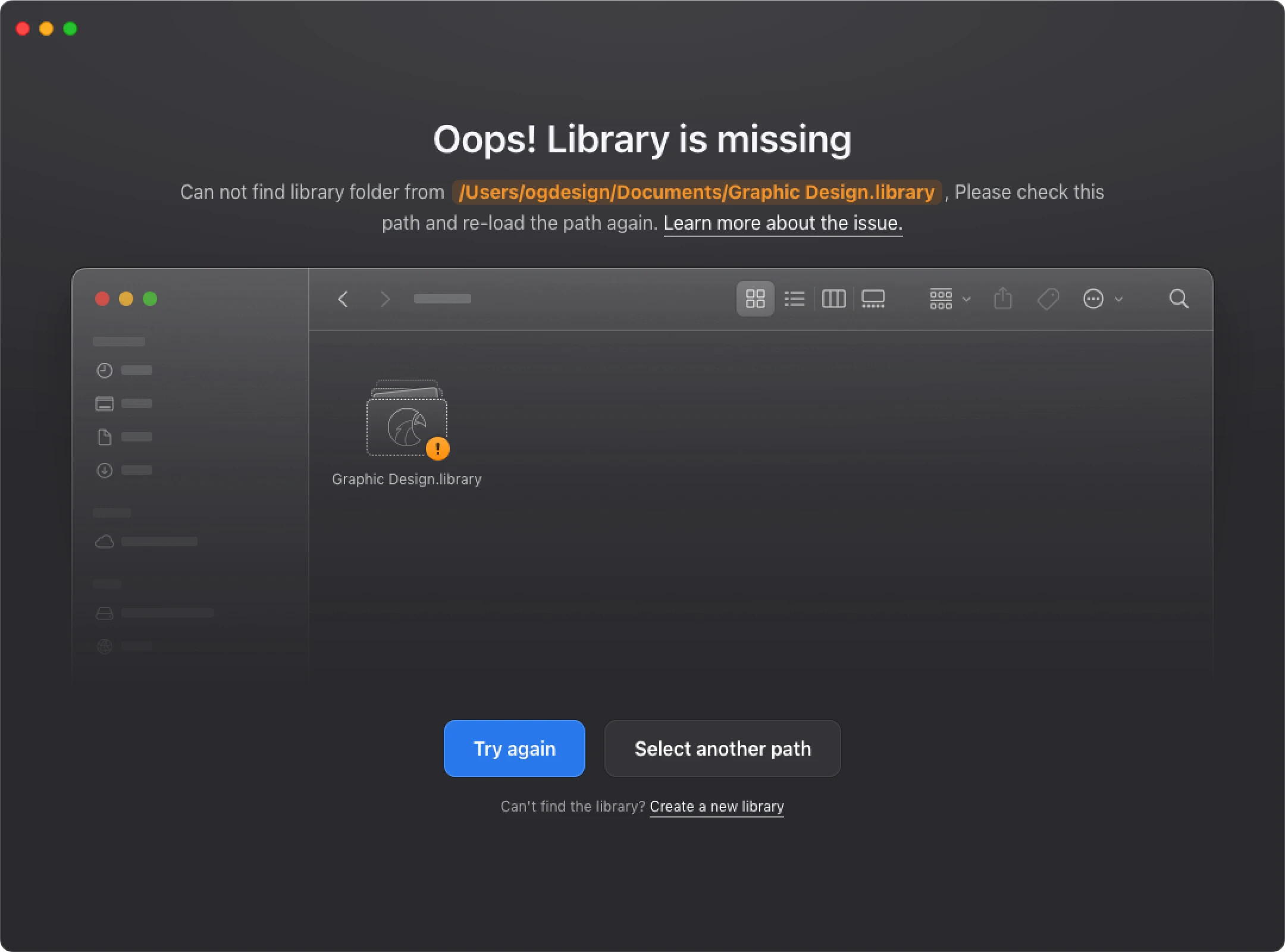
When you migrate your Eagle library to a different local network and cannot access it normally, the system will prompt "Resource path not found". This article will introduce possible causes and solutions.
Problem Causes
Eagle's inability to read libraries located in different local networks mainly has two causes:
- Network access permission restrictions: The new local network settings may not allow Eagle software to access the library, which could be caused by network firewall settings, IP address changes, or other network configurations.
- Path invalidation issues: Eagle software may still be trying to access the library through the old path, which is no longer valid in the new local network environment.
Solutions
You can resolve this issue through the following steps:
-
Check network settings: Confirm whether the new local network allows Eagle software to access the library. You may need to adjust network firewall or other network settings to allow access.
-
Map the network resource to local and update the path:
- Eagle software's mechanism for accessing libraries is the same as your file manager - as long as your computer's file manager can access the library, Eagle can also access the same library
- Since the library is located in a different local network, you need to map the library path to your local hard drive so that Eagle can read the library
-
Note path changes: The mapped path may change due to network changes. Once the path has changed, you need to reload the new path in Eagle software to ensure Eagle can successfully access the library.
Key Considerations
- Eagle can only access paths that your computer's file manager can access
- After network environment changes, you need to recheck and update the library path
- Ensure you have sufficient permissions to access shared resources in the new local network