
When using Eagle on Windows systems, you may sometimes encounter issues where interface icons fail to display properly. This problem is typically caused by other software installations that incorrectly modify the Content Type attribute of SVG files. This article will guide you through resolving this issue by modifying the registry.
Repair Steps
Please follow these steps to fix the SVG icon display issue:
- Open Registry Editor
-
Click the Windows Start menu in the bottom-left corner
-
Type
regeditand press Enter to open Registry Editor
-
- Navigate to SVG File Registry Entry
-
In the address bar at the top of Registry Editor, enter
Computer\HKEY_CLASSES_ROOT\.svgand press Enter
-
- Select SVG Folder
-
Click on the
.svgfolder in the left tree structure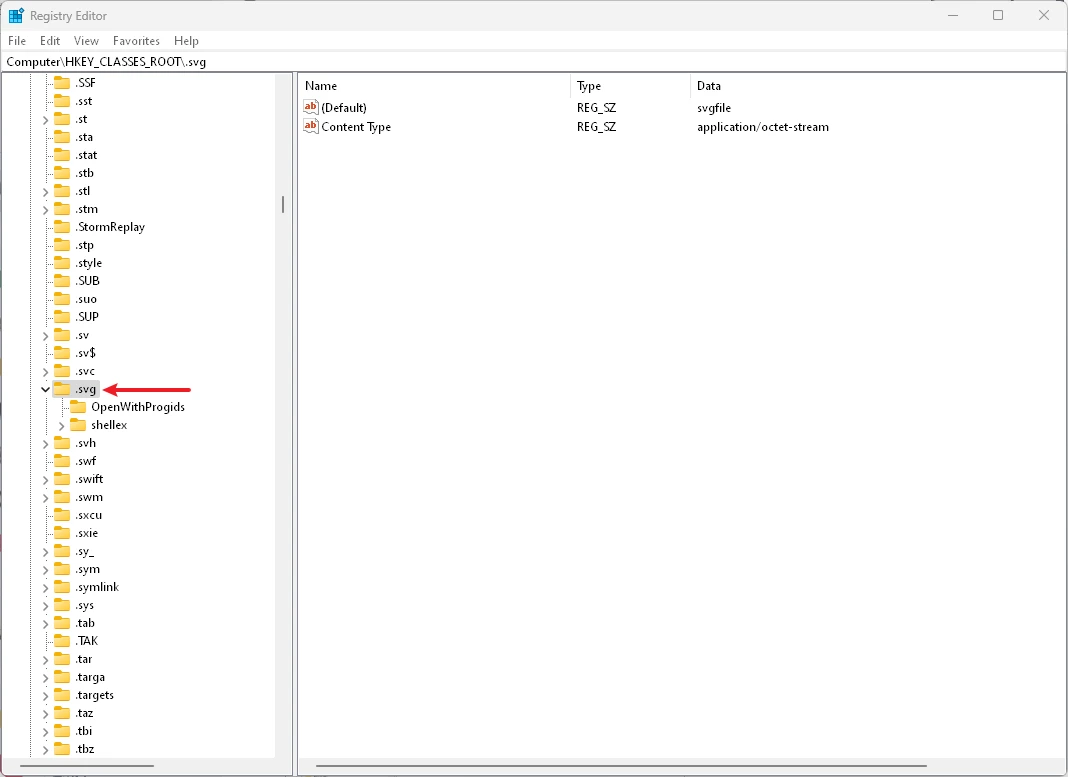
-
- Modify Content Type Property
-
In the right details pane, double-click the
Content Typeproperty -
Change the value to
image/svg+xmland click OK to save the changes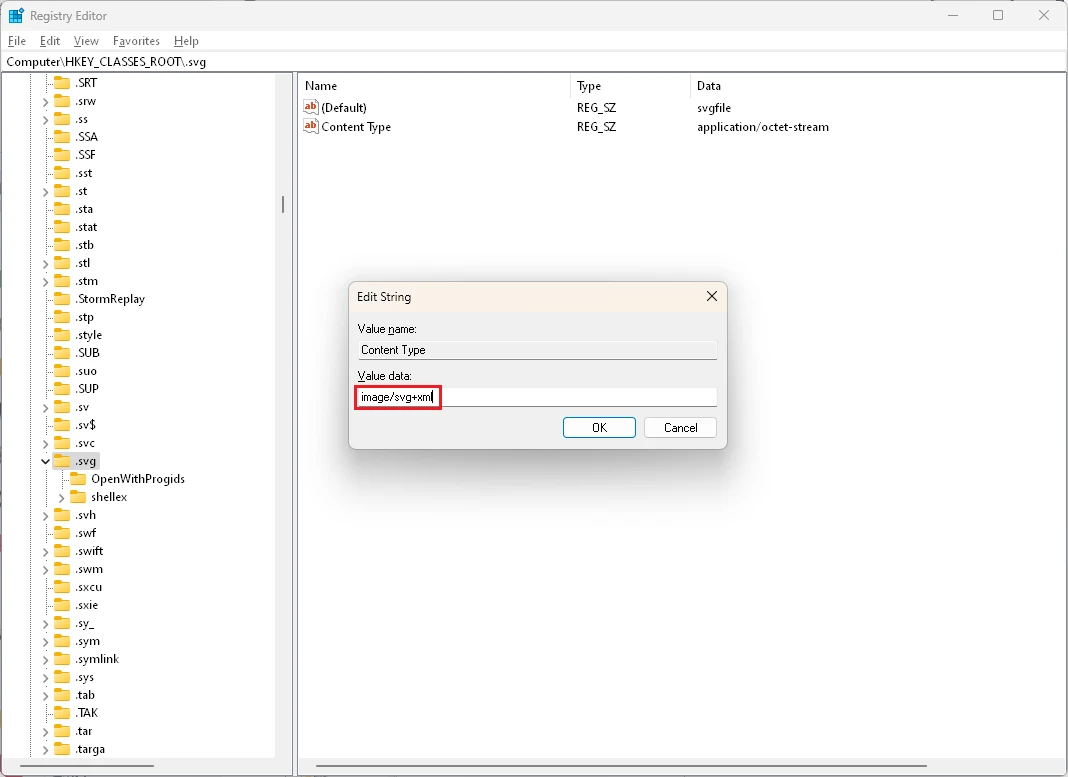
-
- Restart Eagle Software
-
After completing the above steps, close Registry Editor
-
Restart Eagle software, and the icon display issue should be resolved
-
Important Notes
- It is recommended to backup important data before modifying the registry
- This solution only applies to Windows operating systems