Solution 1: Update to the Latest Version
Eagle regularly releases minor fixes and upgrades that may not trigger automatic update notifications. After a major version release, several minor corrections including bug fixes and feature improvements are rolled out through build version updates. The "Check for Updates" function only verifies if your major version (like Eagle 4.0.0) matches the latest release. If you're experiencing display issues with EXR/HDR files, it's recommended to manually check for the latest build version.
How to manually update Eagle:
-
Visit the Official Website
- Open your browser and go to Eagle's official website: https://en.eagle.cool/
-
Check the Latest Version
-
Navigate to the download page or version history to verify the current latest version, including both major version and build number.

-
-
Compare with Your Current Version
-
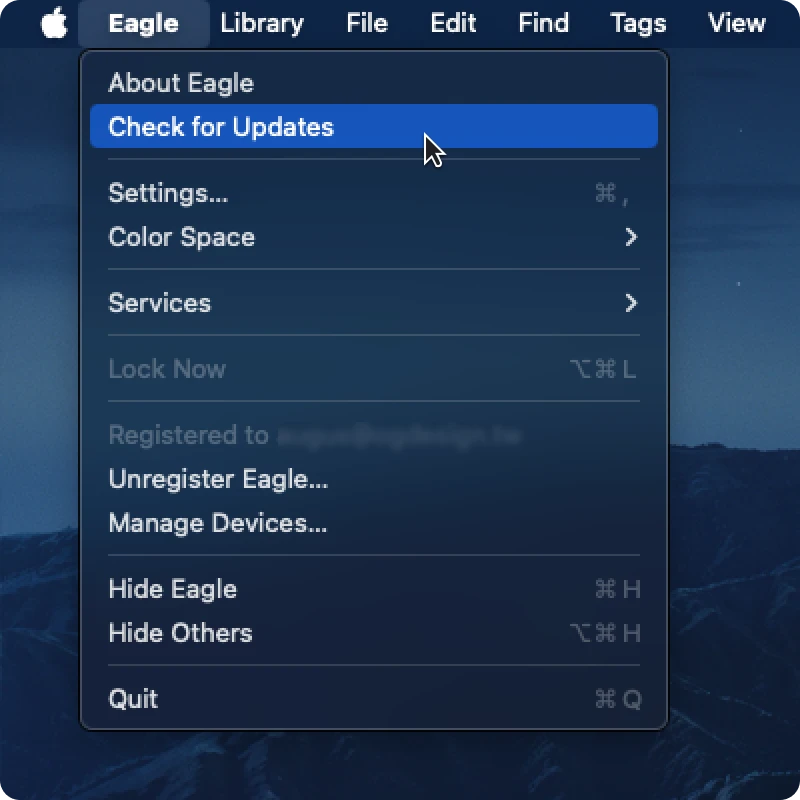
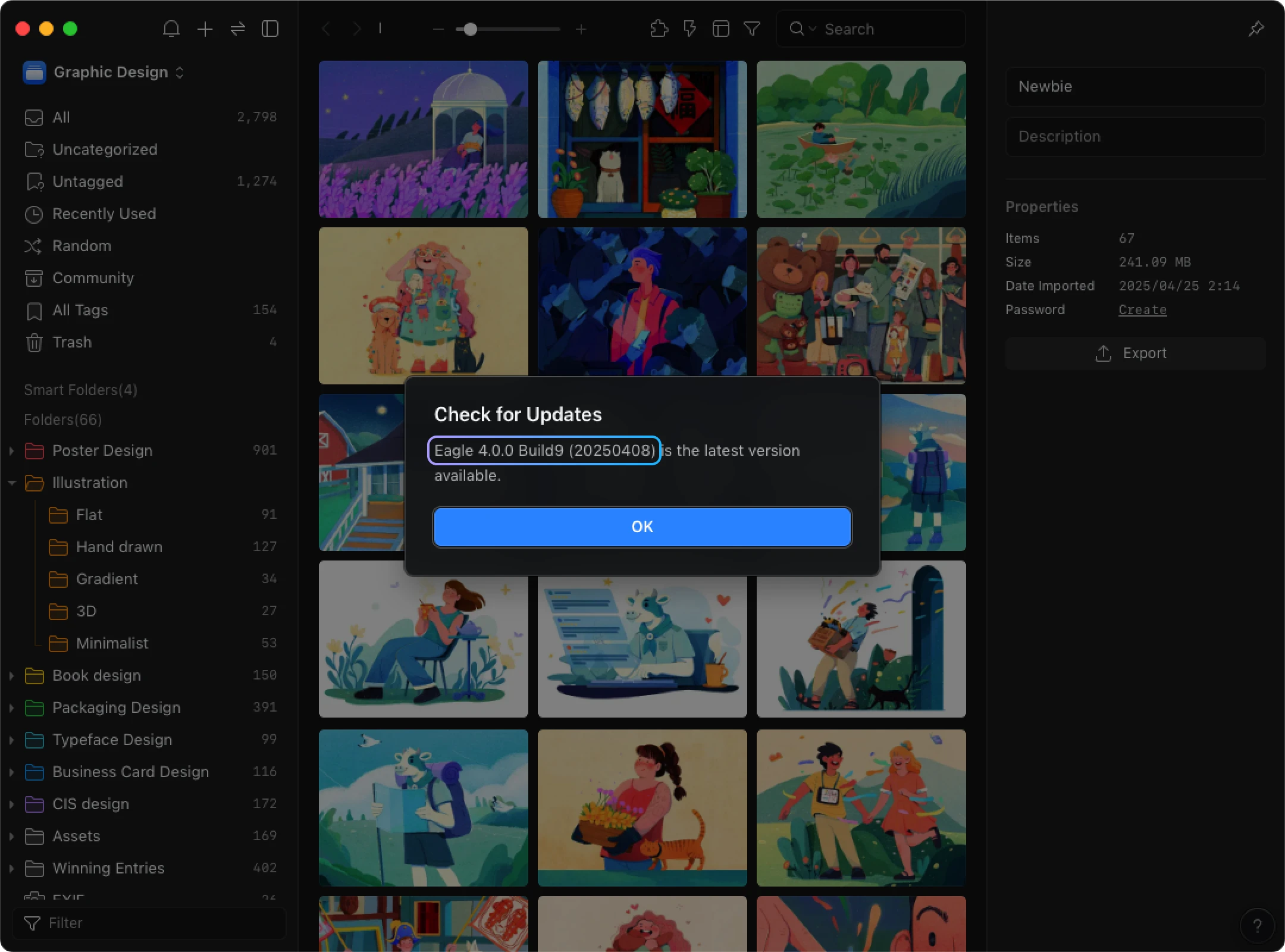
Open Eagle, go to "About" or "Check for Updates" to view your installed version.
-
Solution 2: Refresh File Thumbnails
Eagle typically updates file thumbnails automatically when files are modified. However, sometimes thumbnails may not reflect the current state of your files, especially with specialized formats like EXR or HDR. You can manually force a thumbnail update to resolve display issues.
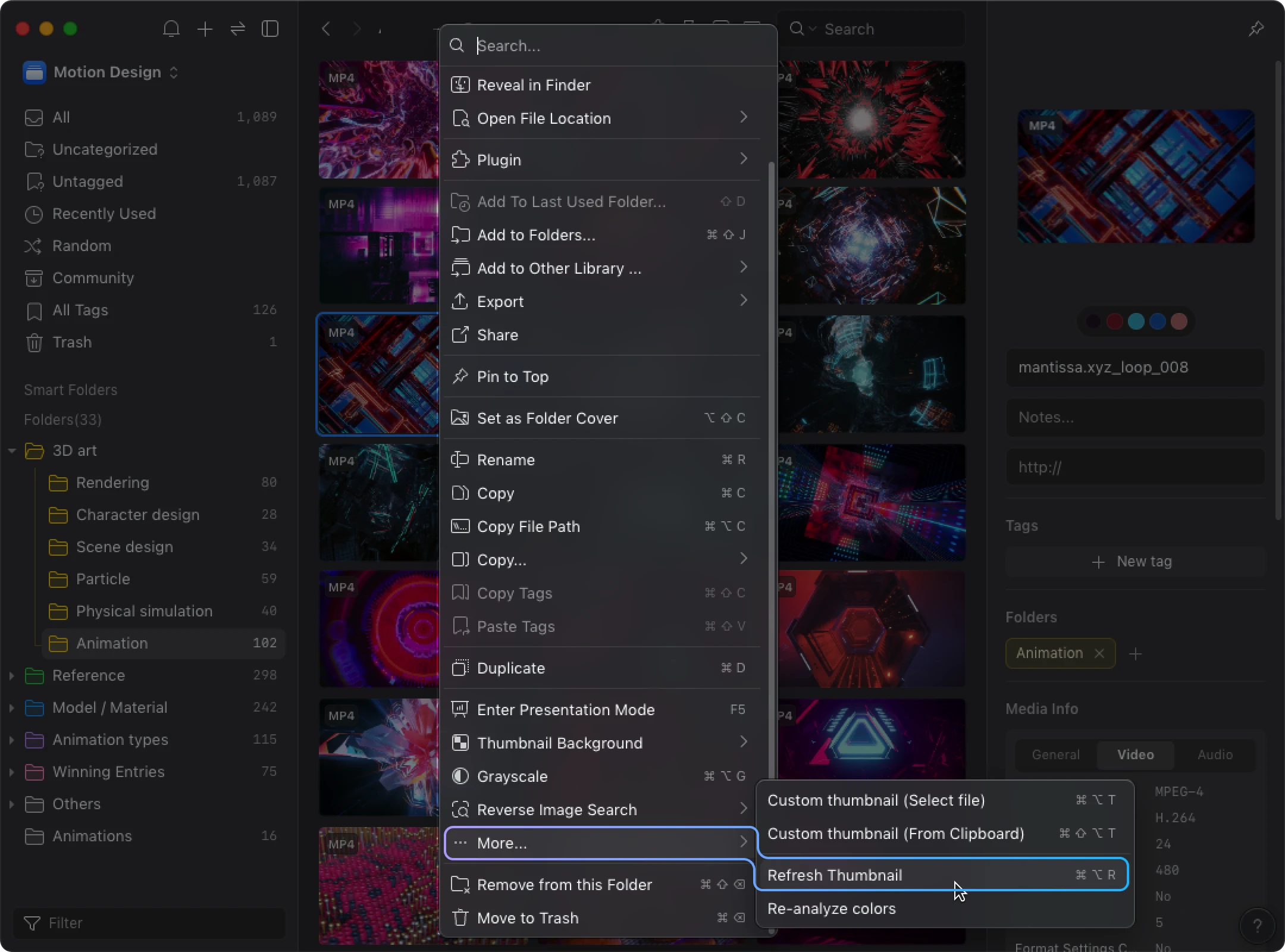
How to refresh thumbnails:
Right-click on the image that appears dark or incorrectly exposed, select "More" > "Refresh Thumbnail", and check if the issue has been resolved.