
When you're collecting images in Eagle, if you don't see the subfolder you need in the upper right area of the drop zone, you can use the following method to quickly find and select from the complete folder list.
Using the "Create or Select Folder" Feature
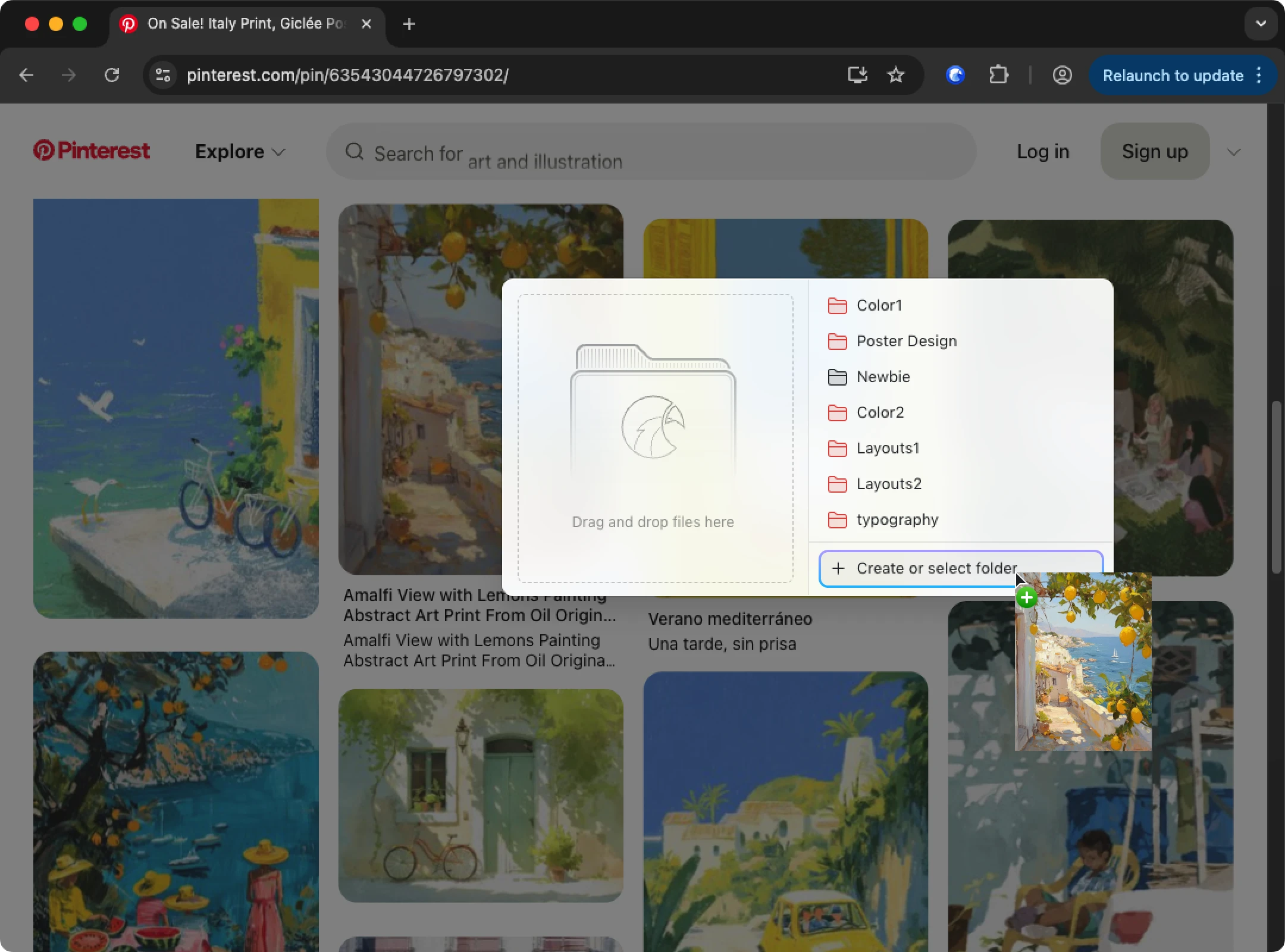
- Drag the image to the "Create or Select Folder" area in the lower right of the collection interface
- The system will pop up a complete folder list for you to choose from
- Select the folder you want from the list to complete the collection
Notes
- This method applies to all situations where you cannot directly find the target folder in the upper right area of the drop zone
- Through the "Create or Select Folder" feature, you can see all folders in the library, including deeply nested subfolders
- You can also create new folders directly in this interface