
If you have forgotten where your Eagle library is stored, there are simple methods to locate and recover it. Eagle libraries are stored with a ".library" suffix, making them easy to identify through a system search.
Finding and Importing Your Library
Step 1: Search for the Library File
- When Eagle creates a library, it automatically adds the suffix ".library" to the library name
- Perform a full system search using the keyword ".library" to locate your library folder
Step 2: Import the Existing Library
Once you've found your library folder, you can reload it using Eagle's "Import Existing Library" feature:
-
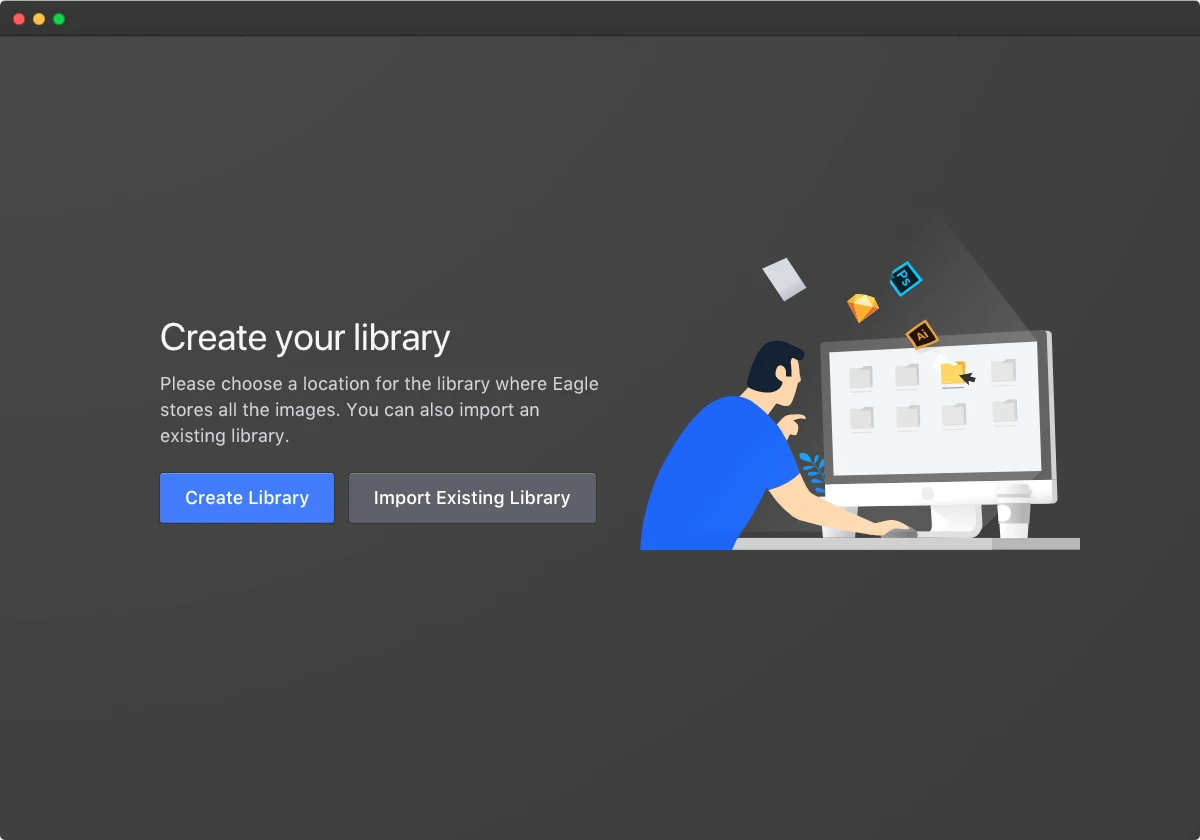
Open Eagle and click the "Import Library" button on the right side
-
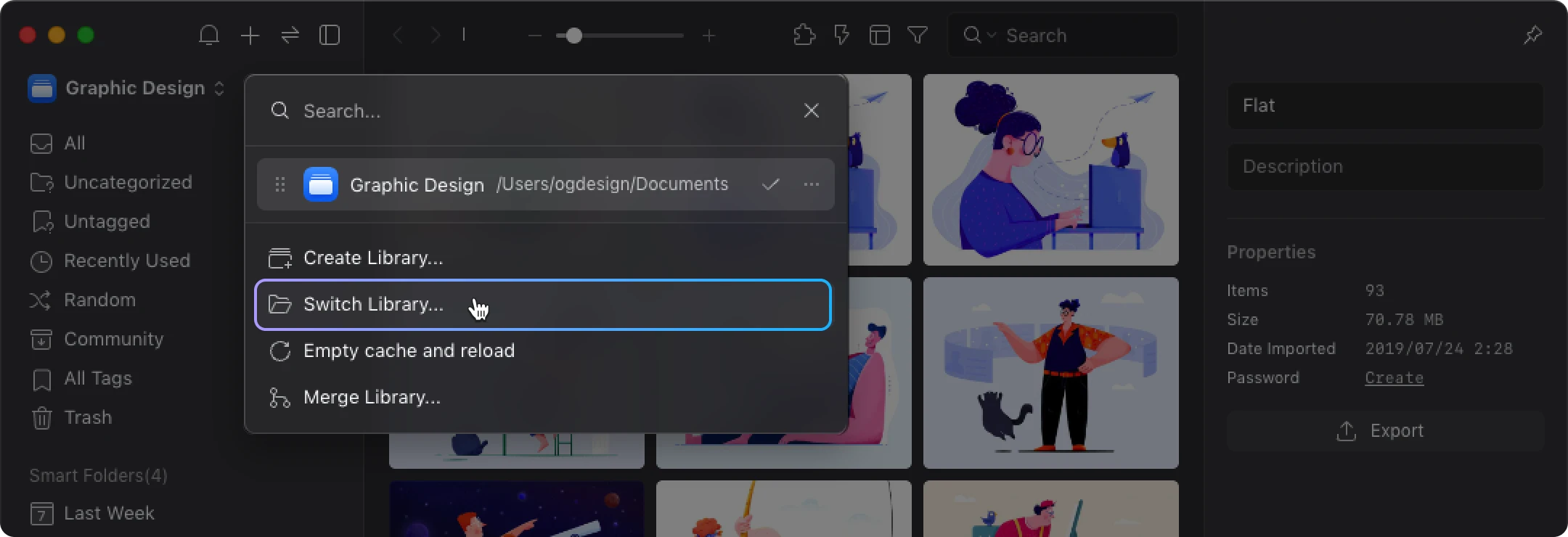
Alternatively, if Eagle is already open, click Library > Switch Library
-
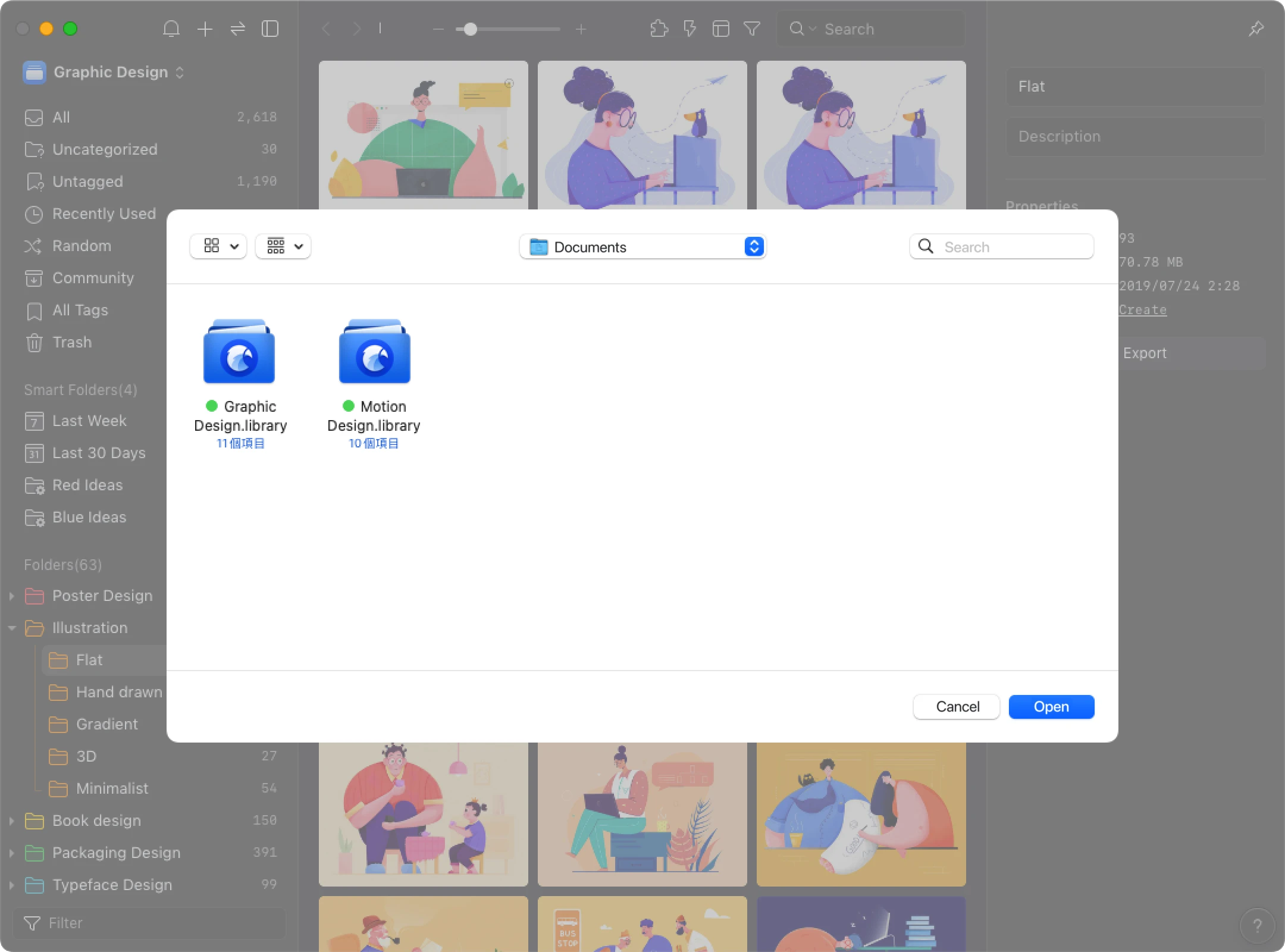
Navigate to the library path you found and click the "Open" button
-
Wait for the library to finish loading
Key Notes
- The ".library" suffix is unique to Eagle libraries, making it an effective search term
- For more details about importing existing libraries, see the Import Existing Library documentation