
In Eagle, you can exclude files containing specific tags through the smart folder feature to organize and filter your material library more precisely. Here are two methods for excluding multiple tags:
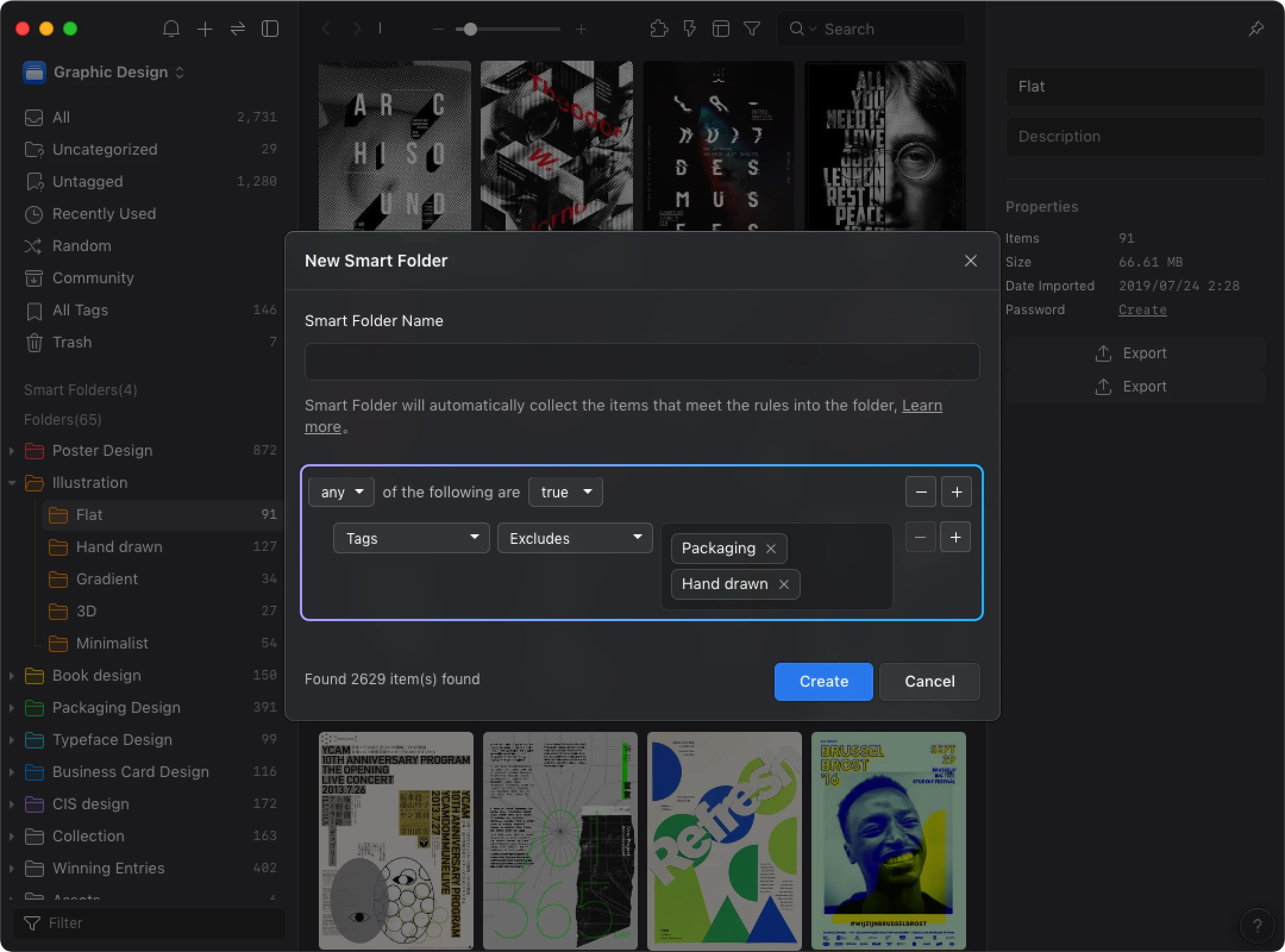
Setting up when creating a smart folder
When creating a new smart folder, you can directly set multiple tags to exclude in the configuration interface:
Modifying filter conditions of existing smart folders
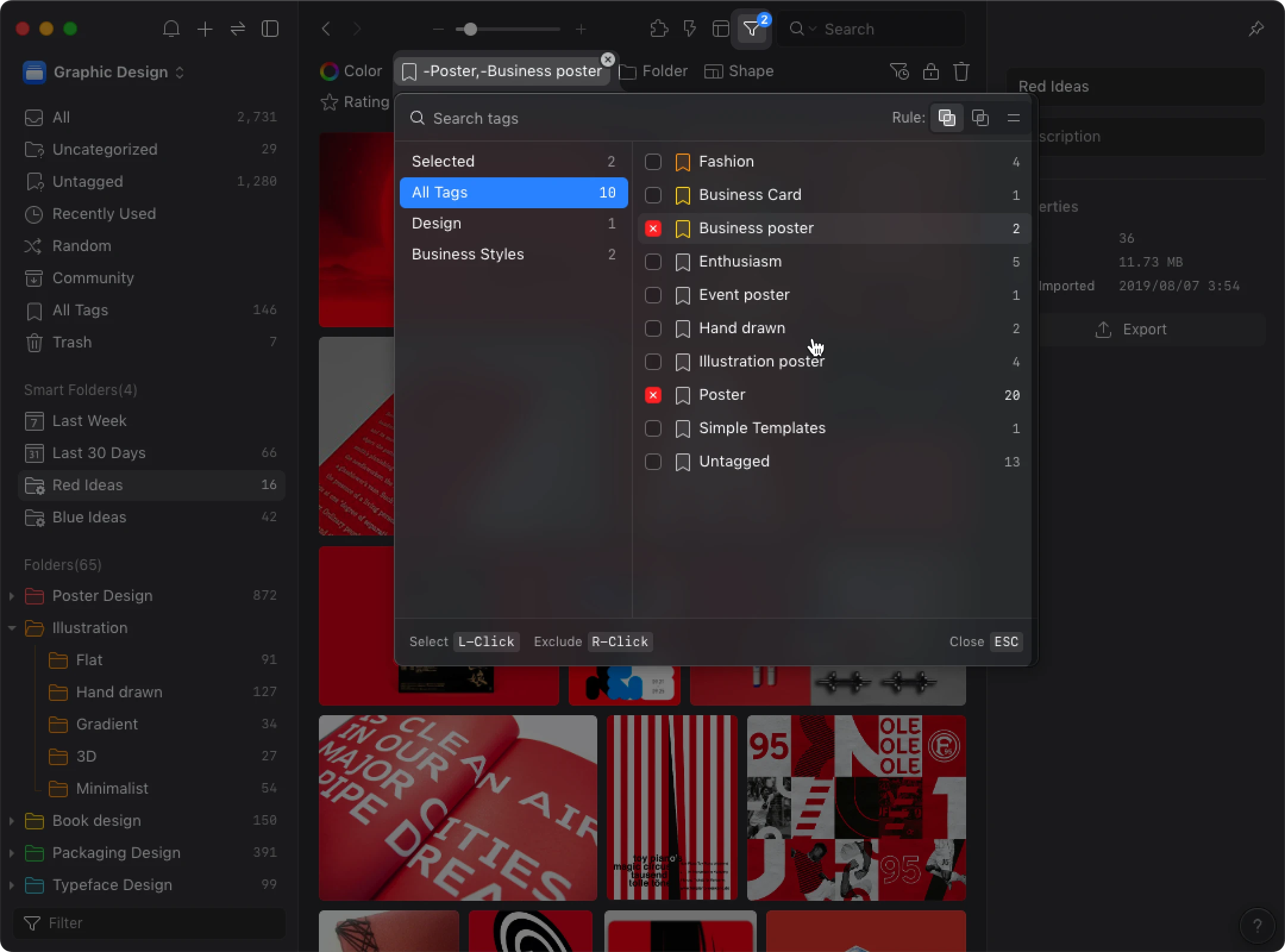
For smart folders that have already been created, you can exclude specific tags through the following steps:
- Open the existing smart folder
- Click the "Filter Tool" in the top toolbar
- Select the "Tags" category in the filter panel
- Right-click on the tags you want to exclude and select the exclude option
Important notes
- When excluding multiple tags, the smart folder will filter out files that do not contain any of these tags
- You can edit the filter conditions of smart folders at any time to adjust the list of excluded tags
- Smart folders are dynamically updated - when you add or remove tags from files, the smart folder content will automatically update