
In Eagle, folder covers can only display a single image by default. If you want to showcase multiple images in a folder cover, you can use the "Create Collage" feature to merge multiple images and set them as the cover. This guide will walk you through this process.
Steps
Create Image Collage
-
Select the multiple images you want to use as the folder cover
-
Right-click on the selected images and choose "Create Collage" from the context menu
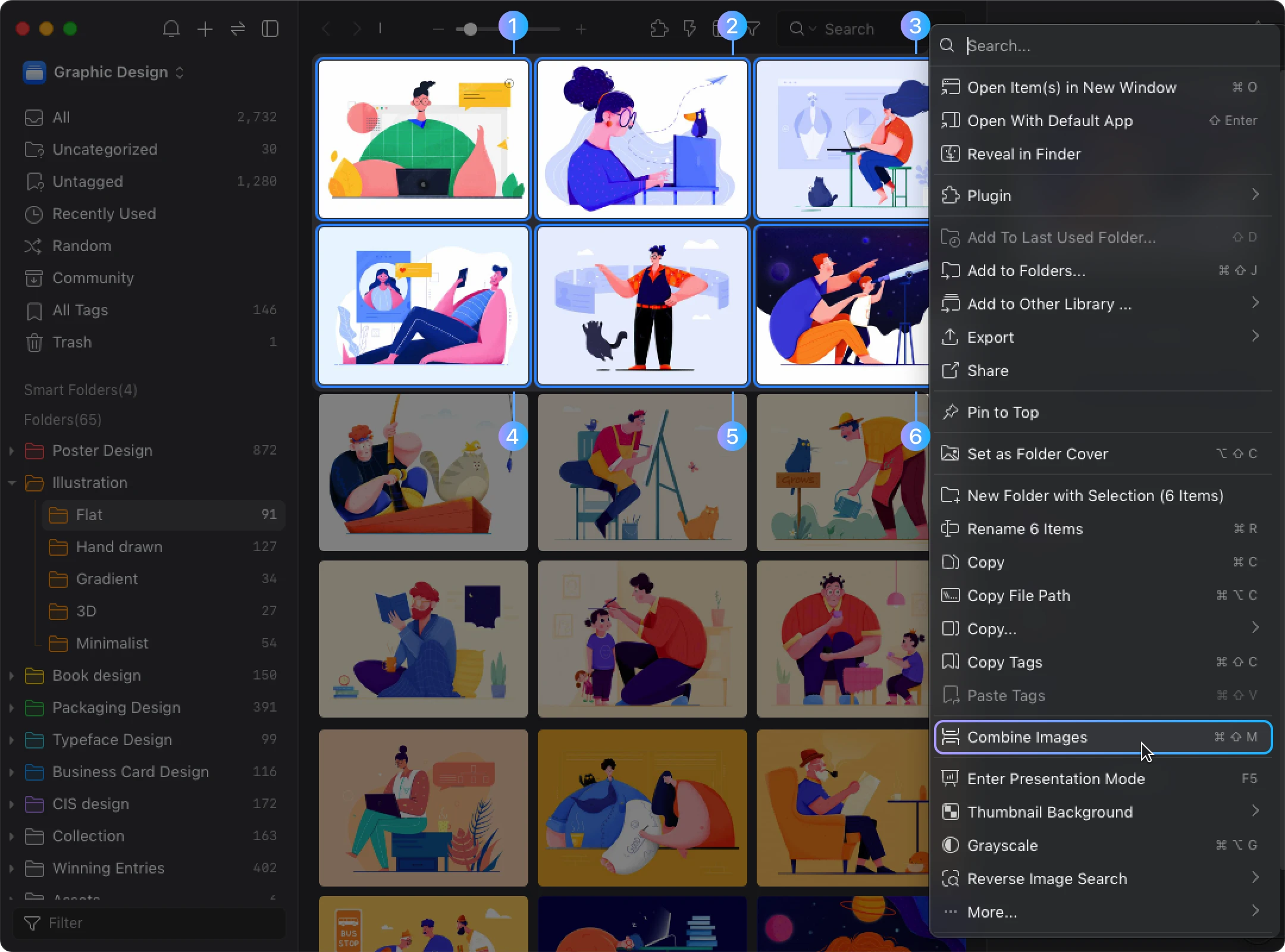
-
In the collage editor, adjust the image arrangement according to your needs, then click confirm

Set as Folder Cover
-
Return to the folder and locate the collage image you just created
-
Right-click on the collage image and select "Set as Folder Cover" from the menu, or use the shortcut
Alt/Option+Shift+C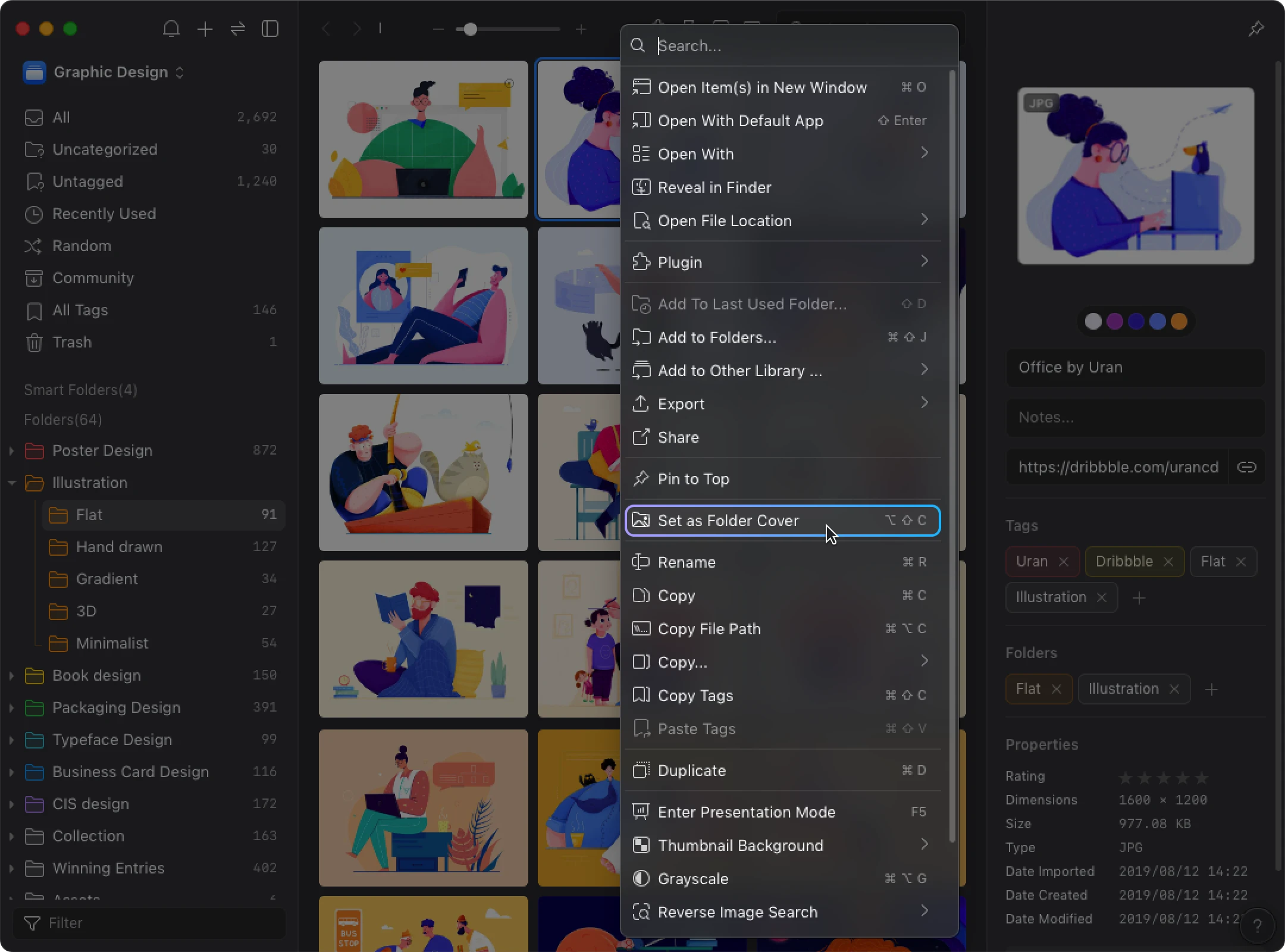
Important Notes
- After creating a collage, the system will generate a new image file without affecting the original images
- You can change the folder cover at any time by performing the "Set as Folder Cover" operation on another image or collage
- The collage feature supports various arrangement options, allowing you to freely adjust according to your aesthetic preferences