
When managing multiple libraries in Eagle, you may need to clean up your library list by removing records of libraries that are no longer in use or were temporarily opened. This article will explain how to remove unwanted records from your library list.
Steps to Remove Library List Records
- Switch to Another Library: First, ensure that you are not currently using the library whose record you want to delete (you must switch to another library first)
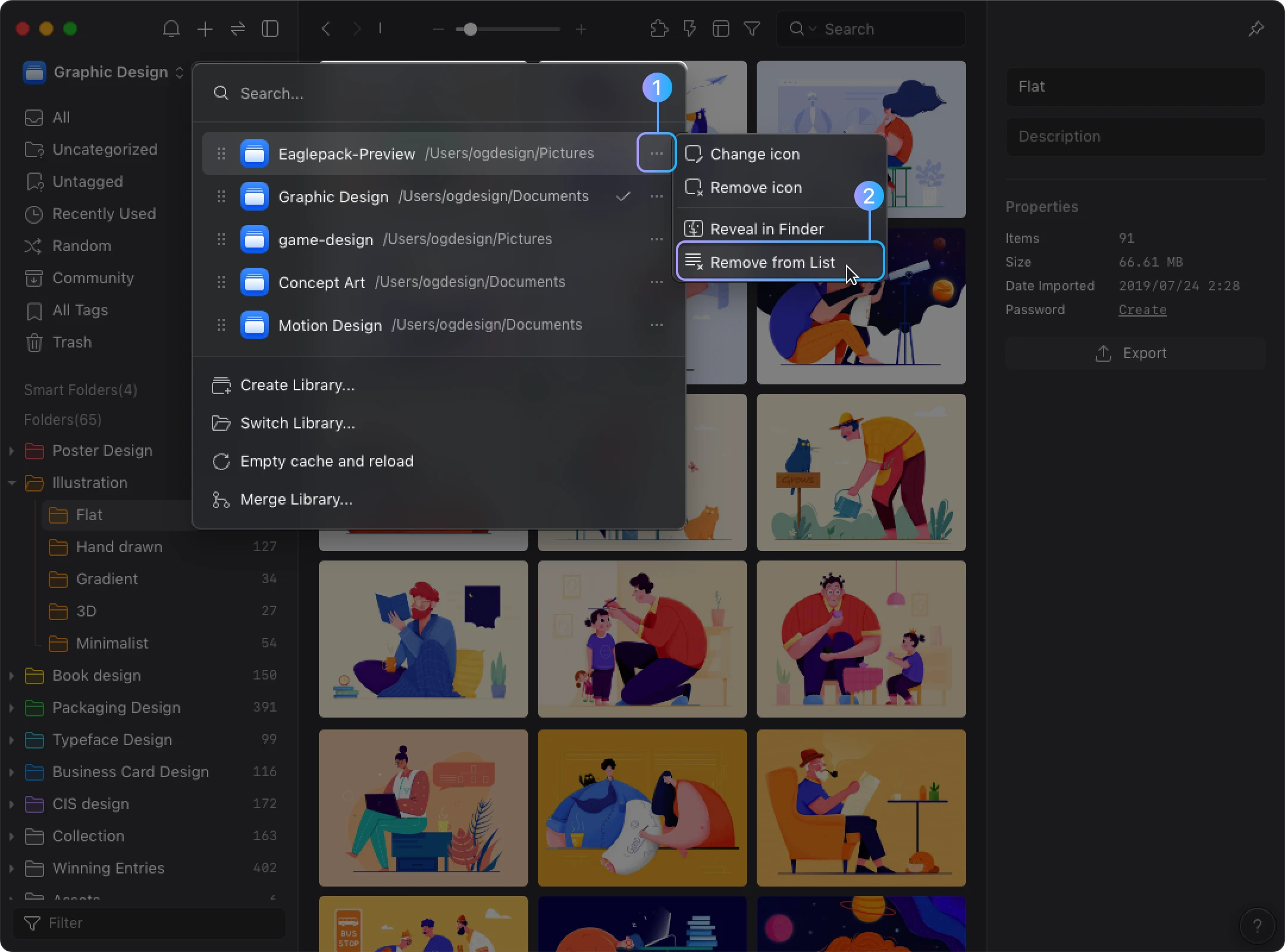
- Open the Library Panel: Click on the current library name at the top of the software
- Remove Unwanted Records: In the library list that appears, find the record you want to delete, click the "More" icon (⋮) on the right side, then select the "Remove from List" option
Important Notes
- This operation only removes the record from Eagle's library list and does not delete the actual library files
- If you need to completely delete a library and its contents, please delete the corresponding library folder through your file manager
- Removed libraries can still be re-added to the list using the "Switch Library" function