
Eagle allows you to easily convert images to different formats using the Image Format Converter plugin. This guide walks you through the installation and usage process.
Installation Steps
-
Ensure your Eagle software is upgraded to the latest version to access the newest plugins.
-
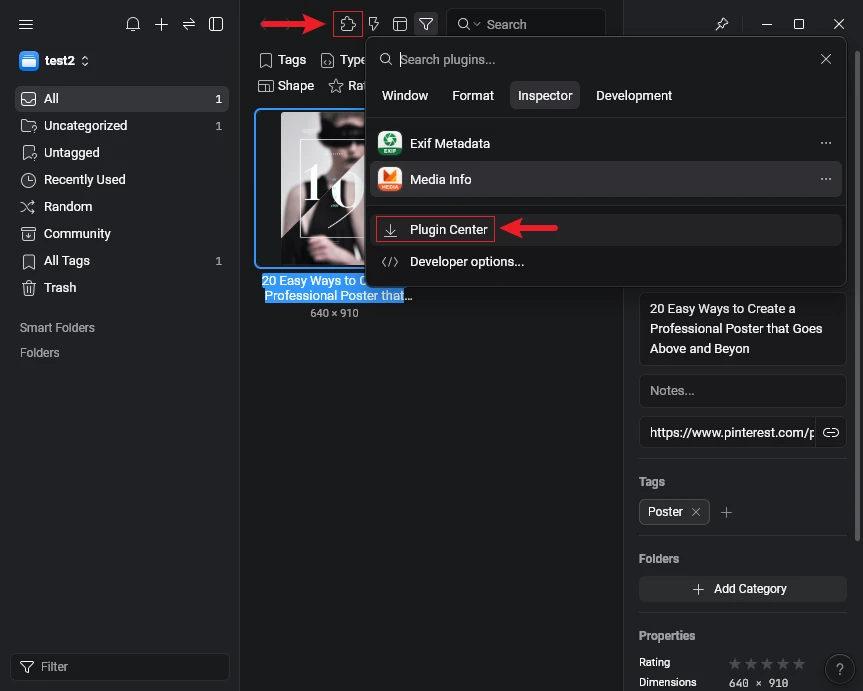
Open Eagle and click on the plugin icon in the interface, then select "Plugin Center."
-
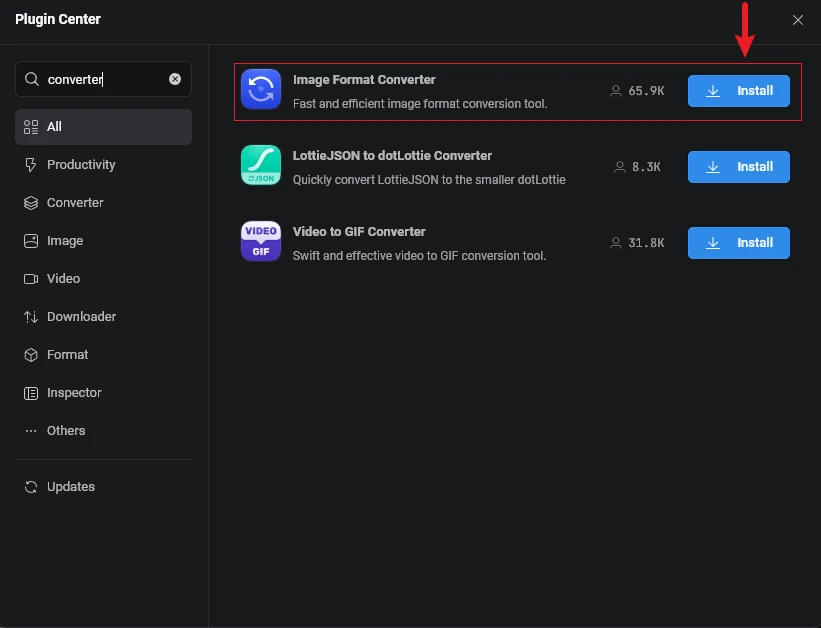
In the "Plugin Center," use the search box to find "Image Format Converter" and install it.
Converting Images
-
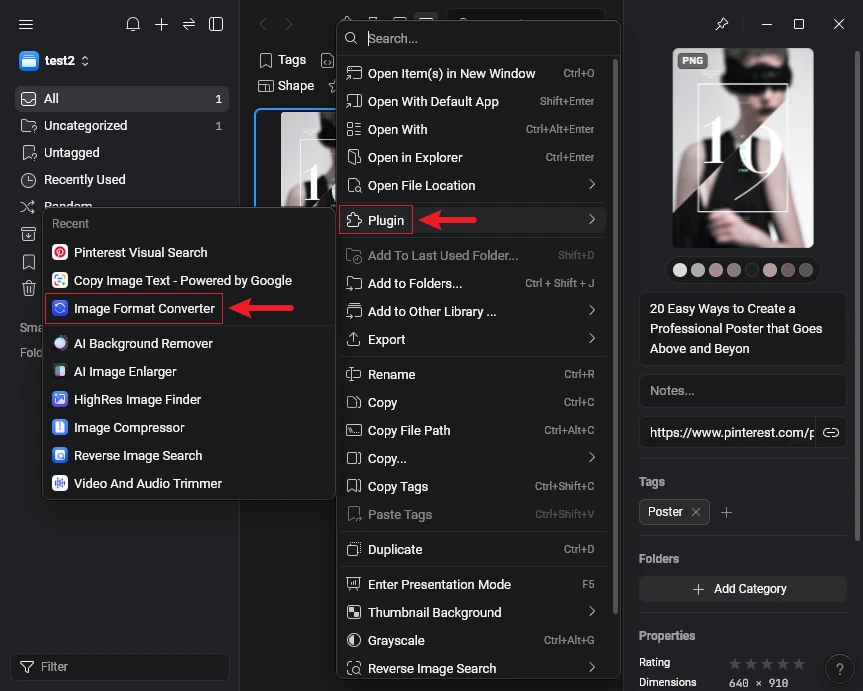
After installation, locate the image you need to convert, right-click on it, select "Plugin," and then choose "Image Format Converter."
-
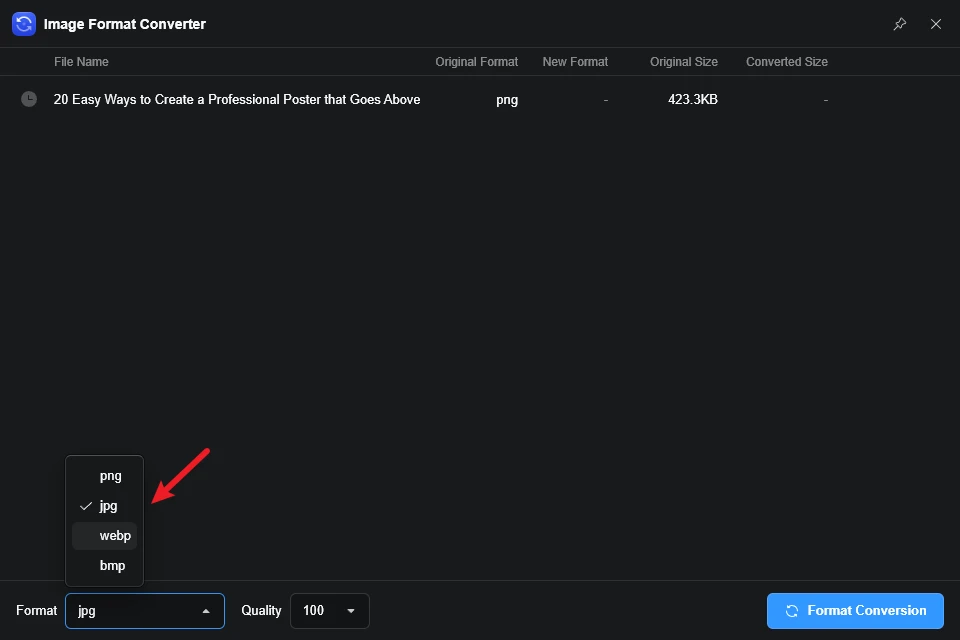
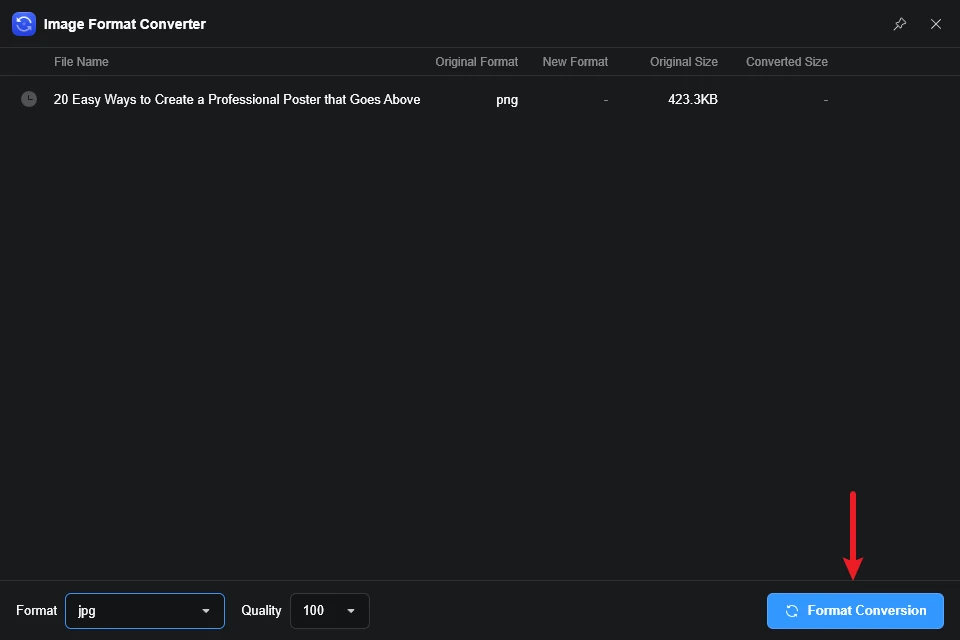
In the pop-up settings window, select the image format you wish to convert to.
-
After confirming your settings, click on the "Format Conversion" button.
-
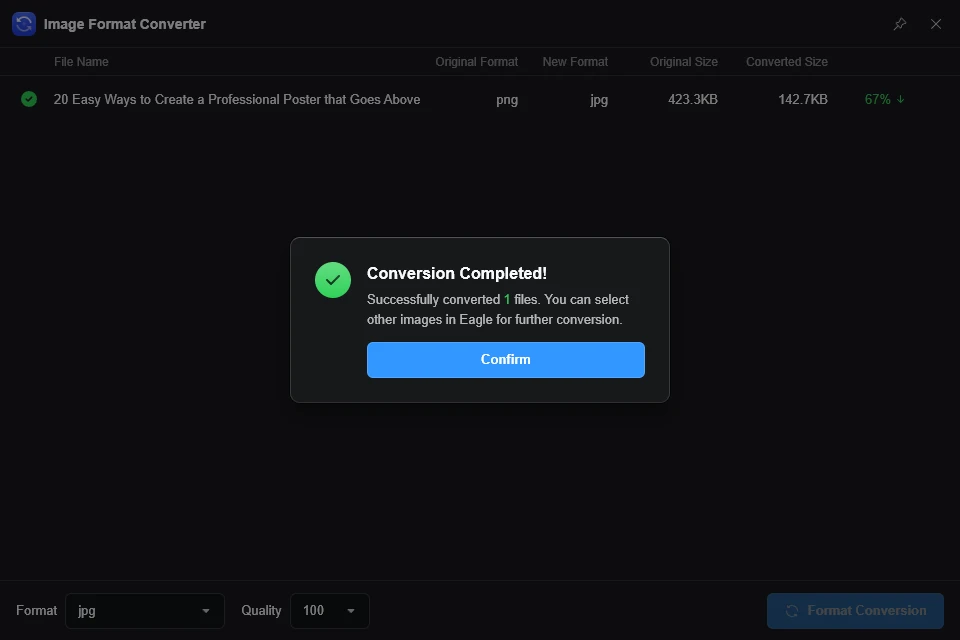
Once the conversion process is complete, the original image will be directly replaced by the new format image.
Important Notes
- The conversion process replaces the original image file with the new format
- Make sure to back up important images before conversion if you need to keep the original format
- Some conversions may result in quality changes depending on the format selected