
In some cases, you may need to completely remove a library from Eagle. This article will guide you on how to safely and thoroughly perform this operation.
Deletion Steps
-
Switch to another library: Make sure you are not currently in the library you want to delete. For example, if you want to delete a library named "Eagle.library", please switch to another library first.
-
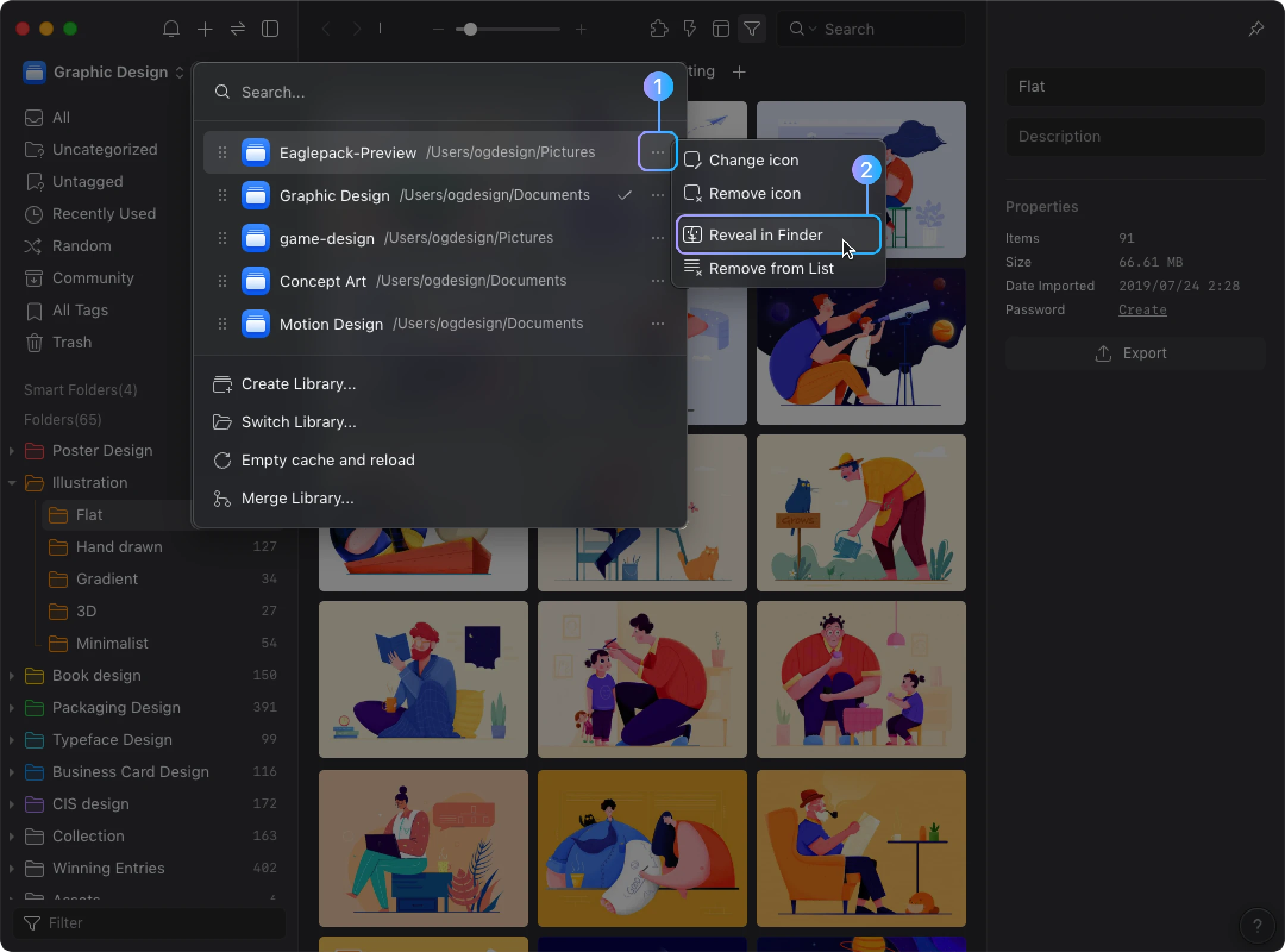
Locate the library file:
- Click the more icon (three-dot icon) next to the library name in the software
- Select "Reveal in Finder" option
-
Physically delete the file:
- In the opened file manager, find the target library folder
- Move the entire folder to the recycle bin
- Empty the recycle bin to completely delete the files
-
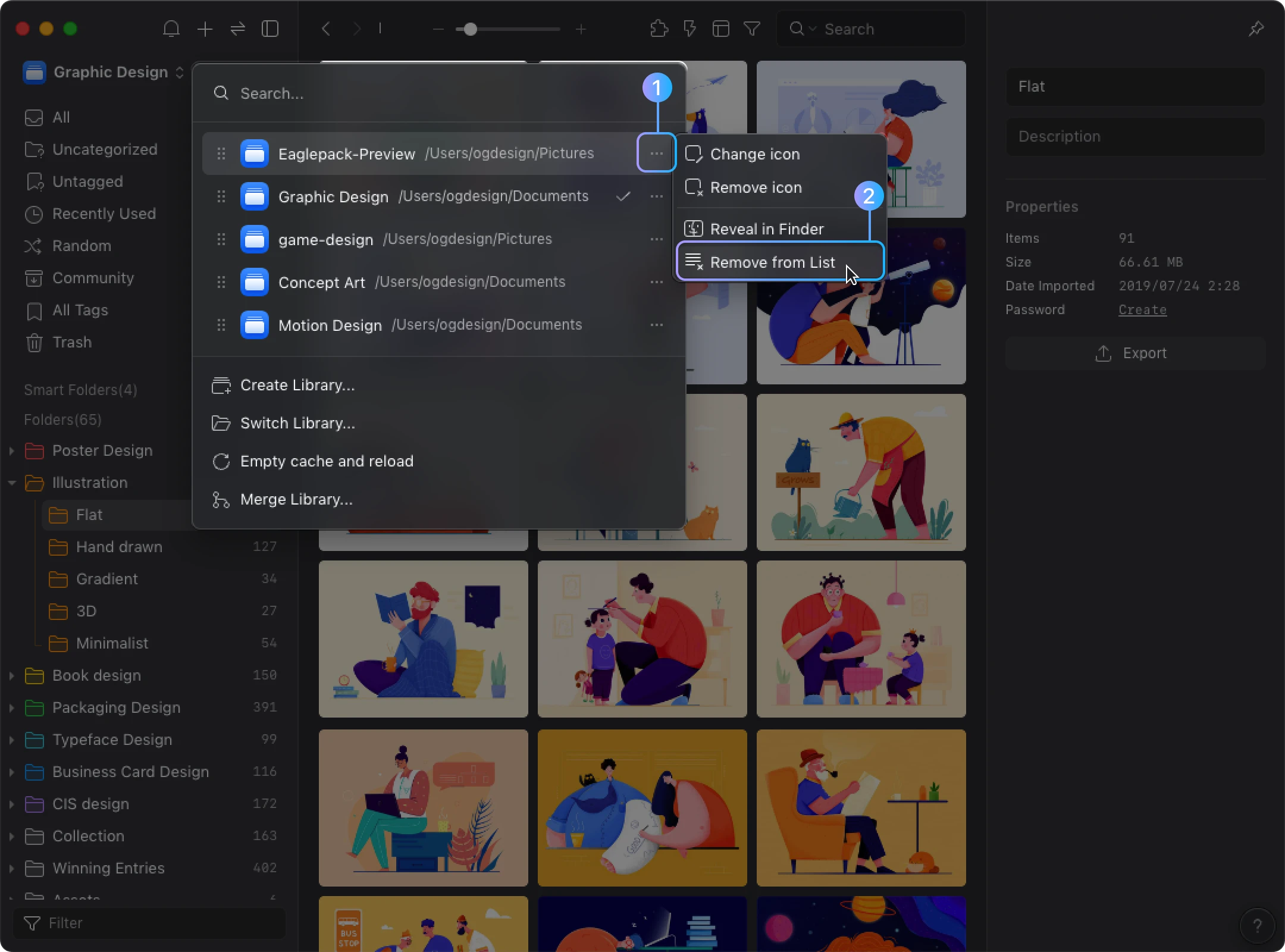
Clean up software records:
- Return to Eagle software
- Click the more icon next to the corresponding library in the library list again
- Select "Remove from List" to remove the record from the software
Important Notes
- Data cannot be recovered: This operation will permanently delete all materials and editing information in the library, which cannot be recovered through the software.
- Backup before deletion: If the library contains content that you might need in the future, please consider backing it up before deletion.
- Ensure completeness: Make sure to complete both physical file deletion and software record cleanup to thoroughly remove the library.