
When encountering display issues with your library, the clear cache and reload function can help resolve problems. This article will introduce how to use this feature.
Applicable Scenarios
When you have confirmed that all data and source files in your library are completely saved on your local hard drive, but encounter the following situations, you can try clearing the cache:
- Abnormal folder category display
- Thumbnails in the list cannot display correctly
- Tags display incorrectly
The clear cache operation will generate new cache files and rescan the entire library data, thereby fixing display issues.
Operation Steps
- Open the library function list and select the "Empty Cache and reload" option.
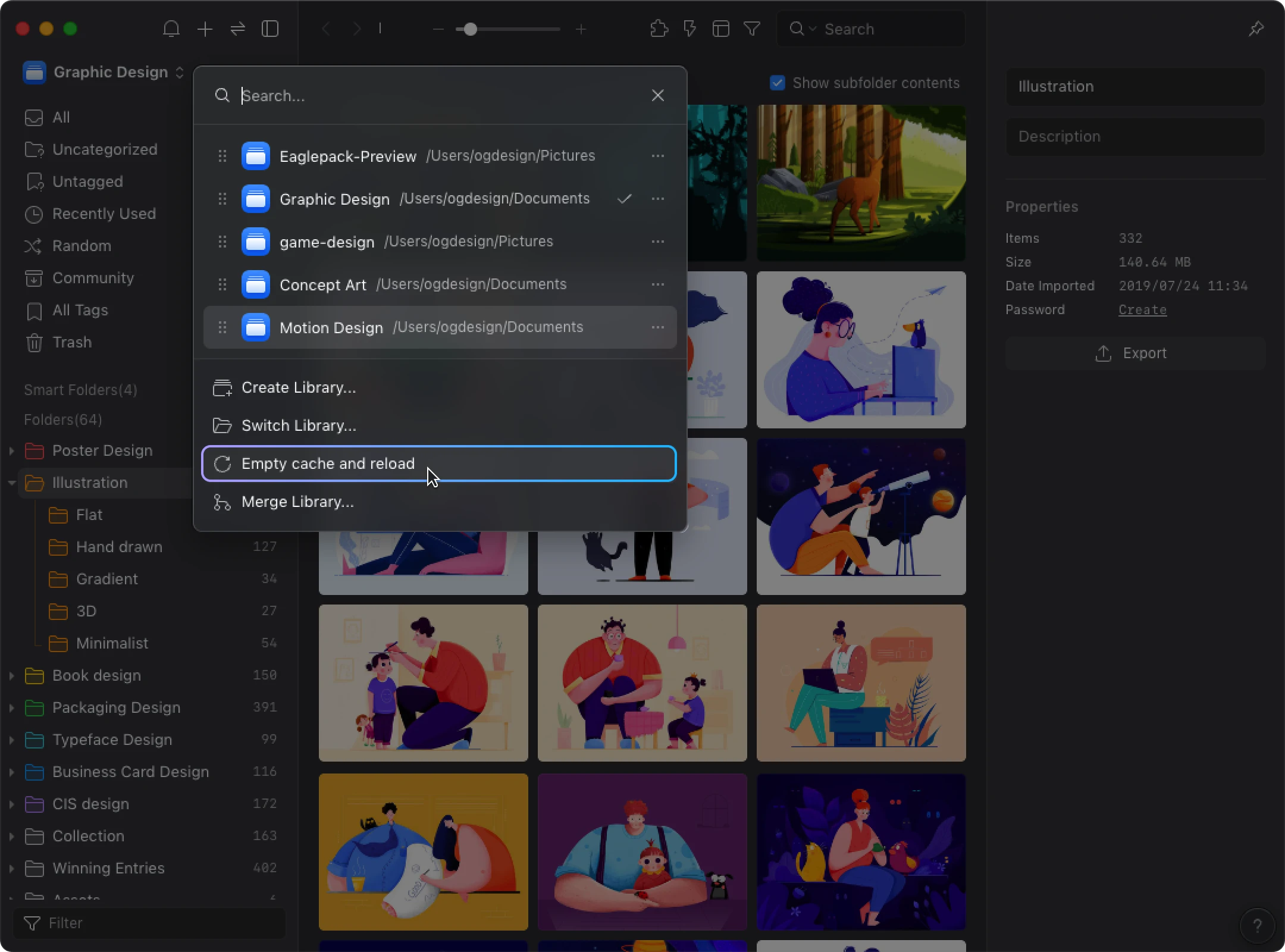
- The program will start clearing the cache and rebuilding the index. The time required for this process depends on the total number of files - when there are more files, the operation time will be correspondingly longer.
- After the loading task is completed, the software will automatically return to the operation interface.
Important Notes
- Clearing cache will not delete your original material files
- For large libraries, this process may take a considerable amount of time
- It is recommended to ensure that the software has no other ongoing import or export tasks before performing this operation