
Eagle browser extension communicates with the local Eagle application through specific ports. When the extension becomes unresponsive or displays a "Eagle is not open" message (even when the application is running), it's likely that there's an issue with port communication. This guide will help you check whether these communication ports are functioning correctly.
Cause of the Problem
When collecting images with the Eagle browser extension, if the extension becomes unresponsive or shows an "Eagle is not open" message (despite Eagle being running), it typically indicates that the browser extension cannot properly communicate with the local Eagle application through the designated ports. This may occur because ports "41595" and "41593" used by Eagle are being occupied by other applications.
Troubleshooting Steps
Check your system's hosts file
- Open the hosts file (typically located at
C:\Windows\System32\drivers\etc\hostsor/etc/hosts`) - Examine the entries in the file to ensure there are no incorrect mappings to localhost or modified records
Test port connections
- Make sure the Eagle application is running
- Enter the following addresses in your browser's address bar to test if Eagle responds:
- http://localhost:41593/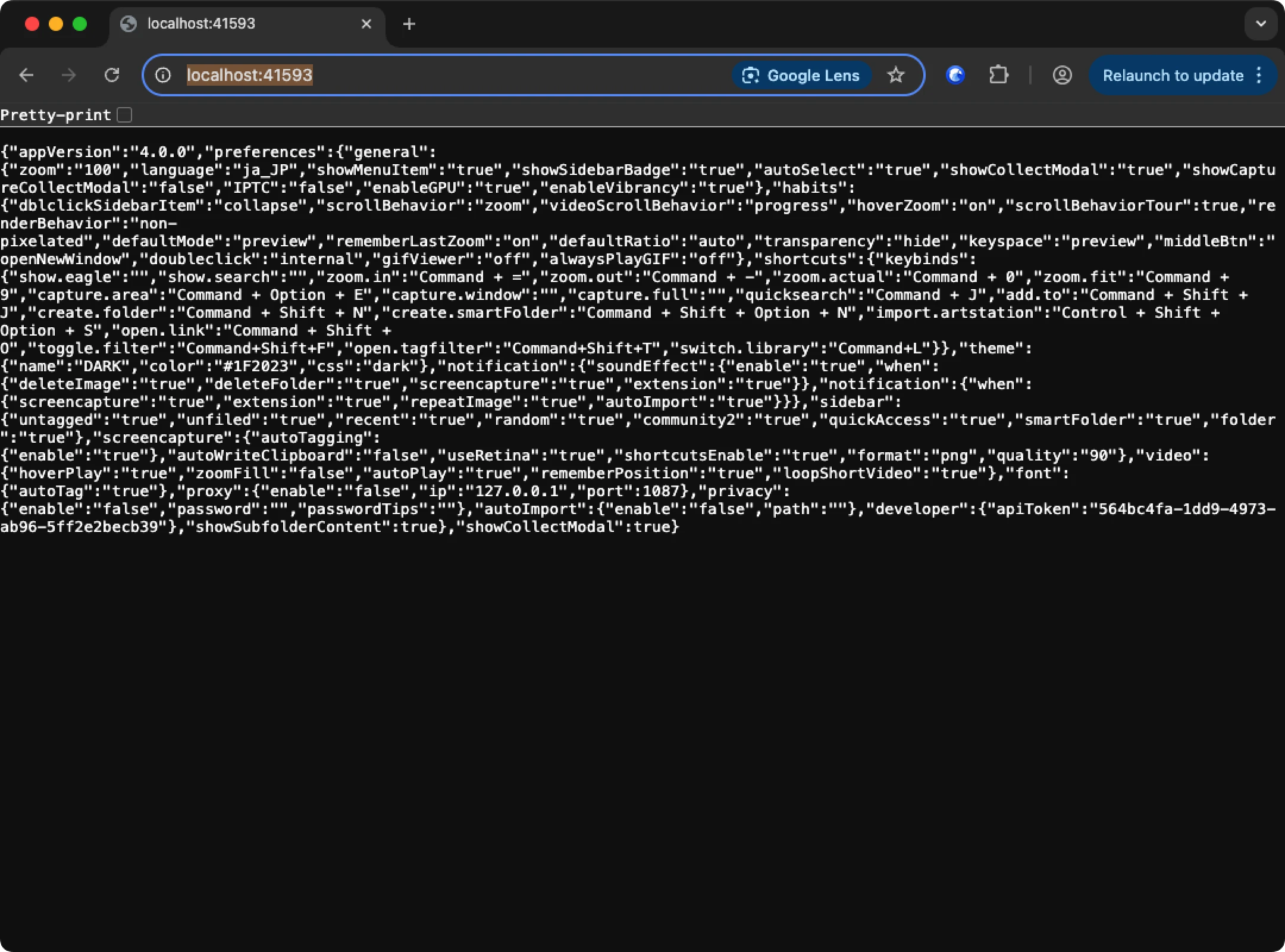
- http://localhost:41595/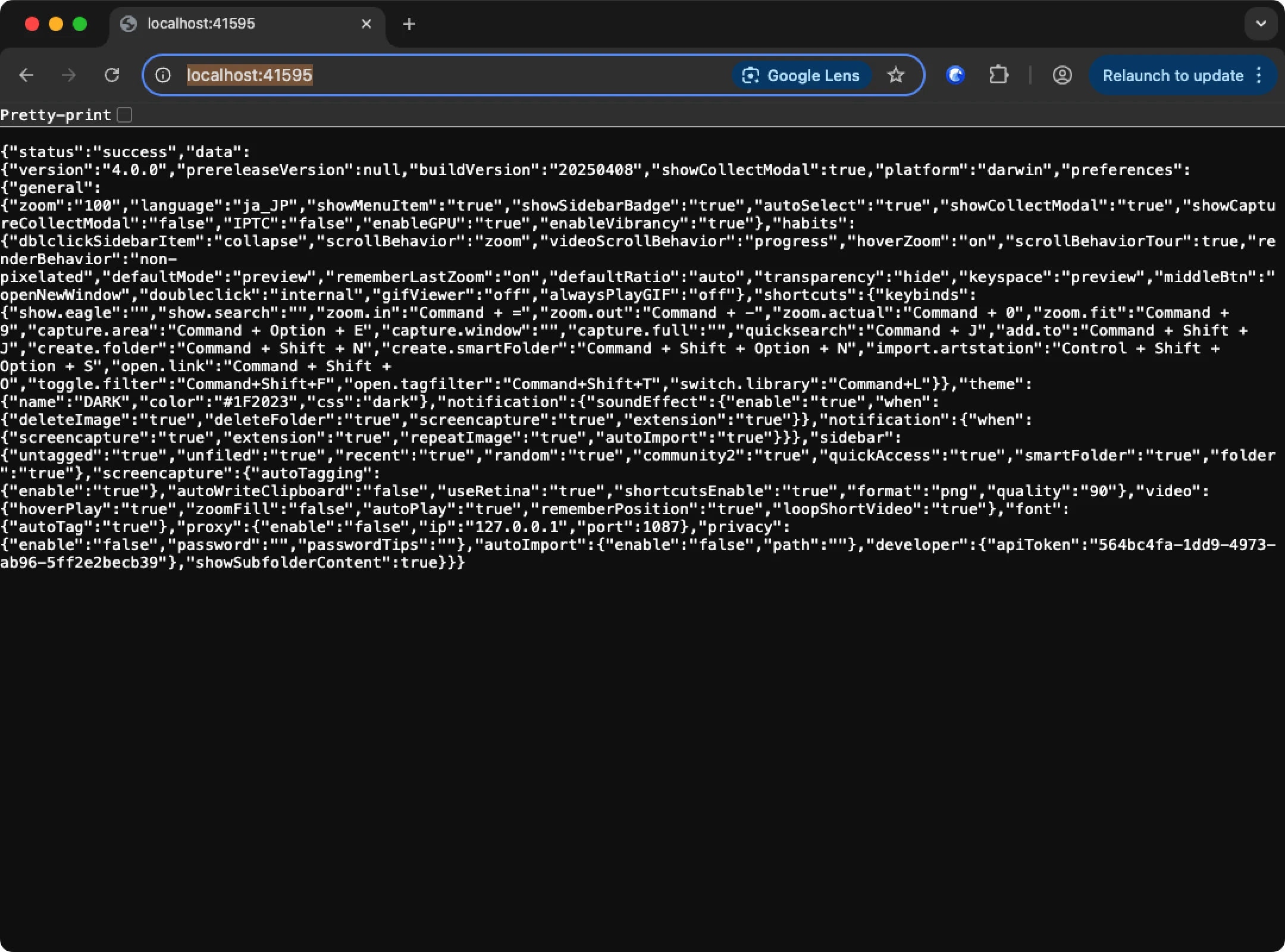
- If the browser indicates that it cannot respond, examples of possible responses include:
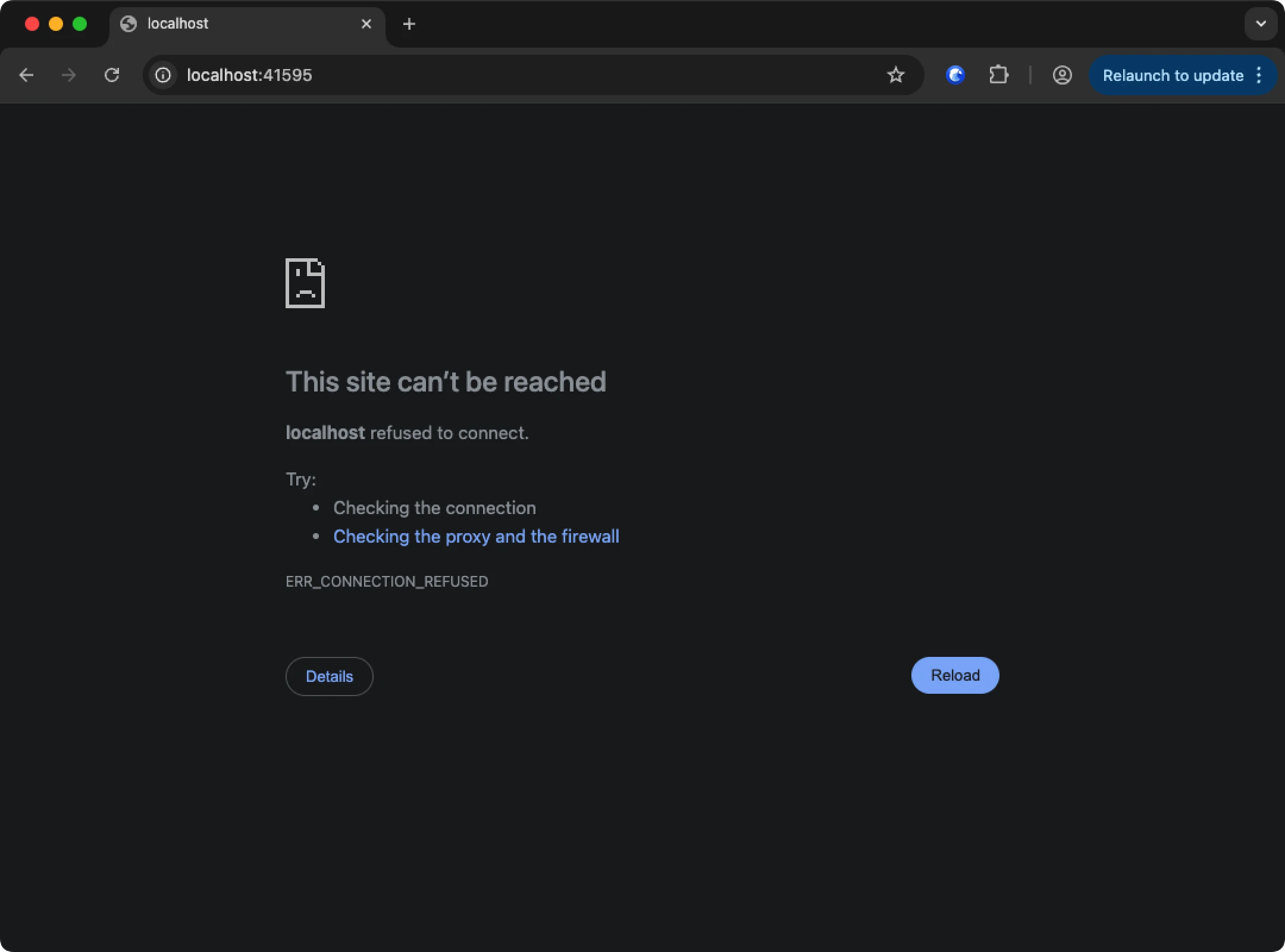
Important Notes
- If port connection tests fail, verify whether other applications are occupying these ports
- In some cases, you may need to restart the Eagle application or your computer to release occupied ports
- Firewall settings might also affect port communication; ensure you've added appropriate exception rules for Eagle