
When using Eagle software, you may encounter data anomalies such as images not displaying properly. In such cases, you need to check the actual data status on your computer to identify the root cause of the problem. This article will guide you on how to check the status of three key files: "original file," "thumbnail," and "metadata.json" file, to help pinpoint specific issues such as missing files, naming errors, or file corruption.
Checking Method
-
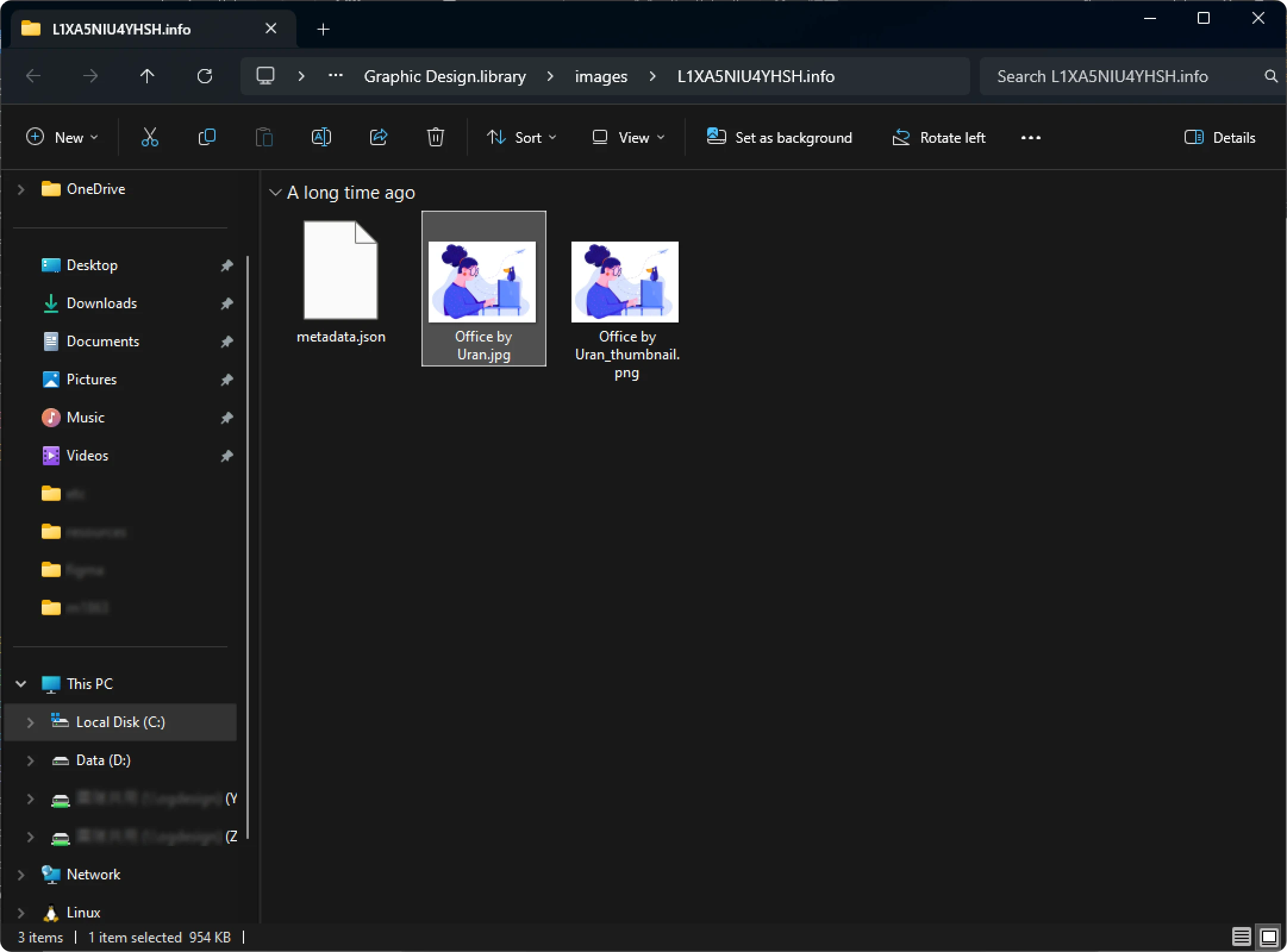
Right-click on the abnormal file > select "Open in File Explorer".

-
Switch to "Large Icon View" and check the file status:
-
Confirm whether the original file, metadata.json file, and thumbnail file exist in the folder
-
Check if the "thumbnail" and "original file name" match the naming in Eagle
-
Try to open the original file normally to view its content and confirm if the file is corrupted
-
-
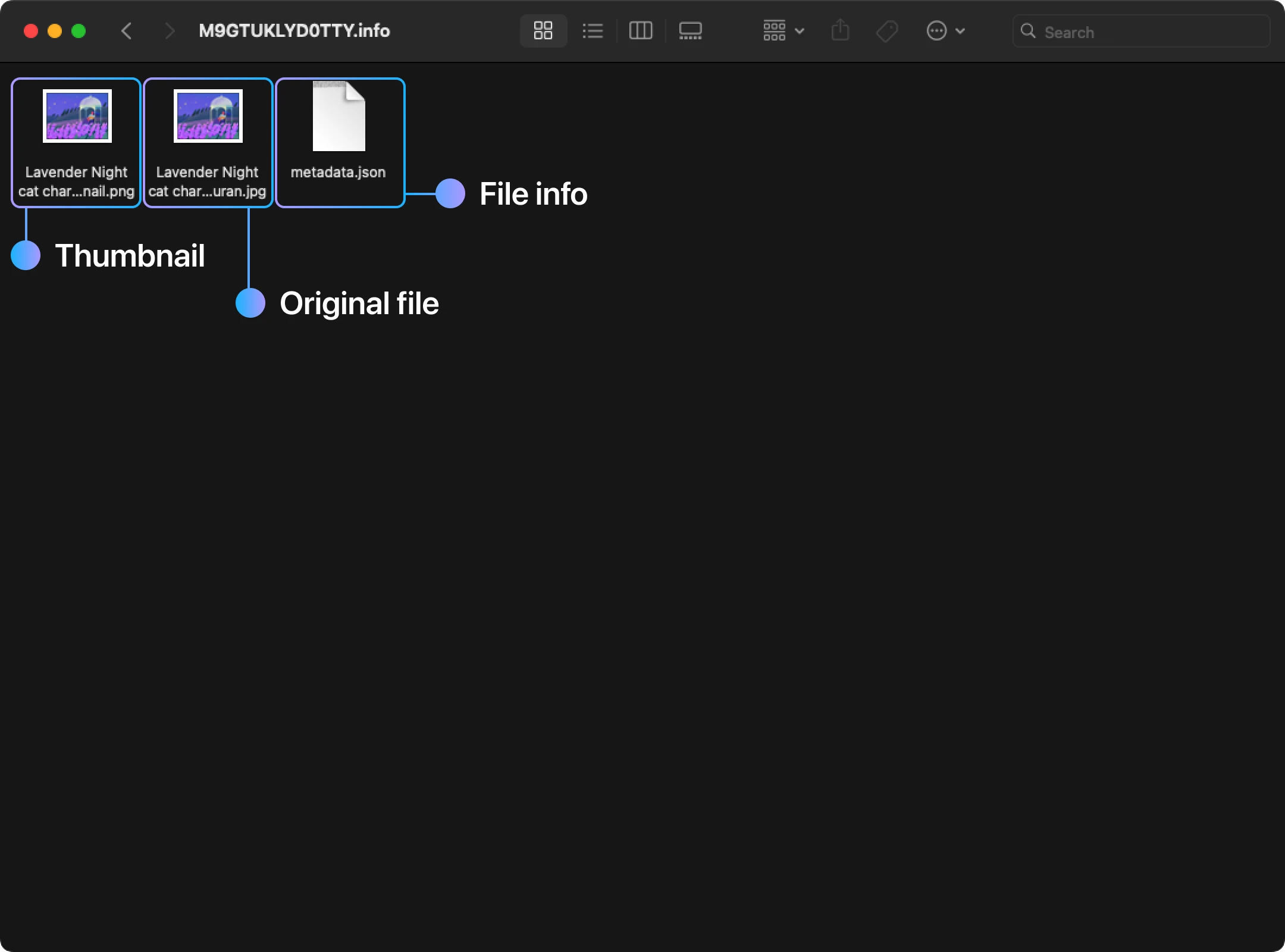
Right-click on the abnormal file > select "Reveal in Finder".

-
Switch to "Large Icon View" and check the file status:
-
Confirm whether the original file, metadata.json file, and thumbnail file exist in the folder
-
Check if the "thumbnail" and "original file name" match the naming in Eagle
-
Try to open the original file normally to view its content and confirm if the file is corrupted
-
Important Notes
- If the original file is found to be missing, you need to re-import that resource
- If the thumbnail is found to be missing, you can try right-clicking in Eagle and selecting "More" > "Refresh Thumbnail"
- If the metadata.json file is corrupted or missing, it may affect the metadata information such as tags and annotations for that resource
- When checking files, please do not randomly delete or rename files to avoid causing more problems