
In some cases, system environment variables may be accidentally changed, which can cause software that depends on these variables to fail to run properly. This article will guide you on how to check and restore the default settings of Windows environment variables, particularly the TEMP and TMP variables.
Impact of Environment Variable Anomalies
Environment variables are system variables used by the operating system to define external environment information, such as temporary file directories or system paths. When these variables are incorrectly modified, it may cause:
- Software unable to start
- Program crashes
- Functional abnormalities
- Fonts unable to display properly
Steps to Check and Restore Environment Variables
-
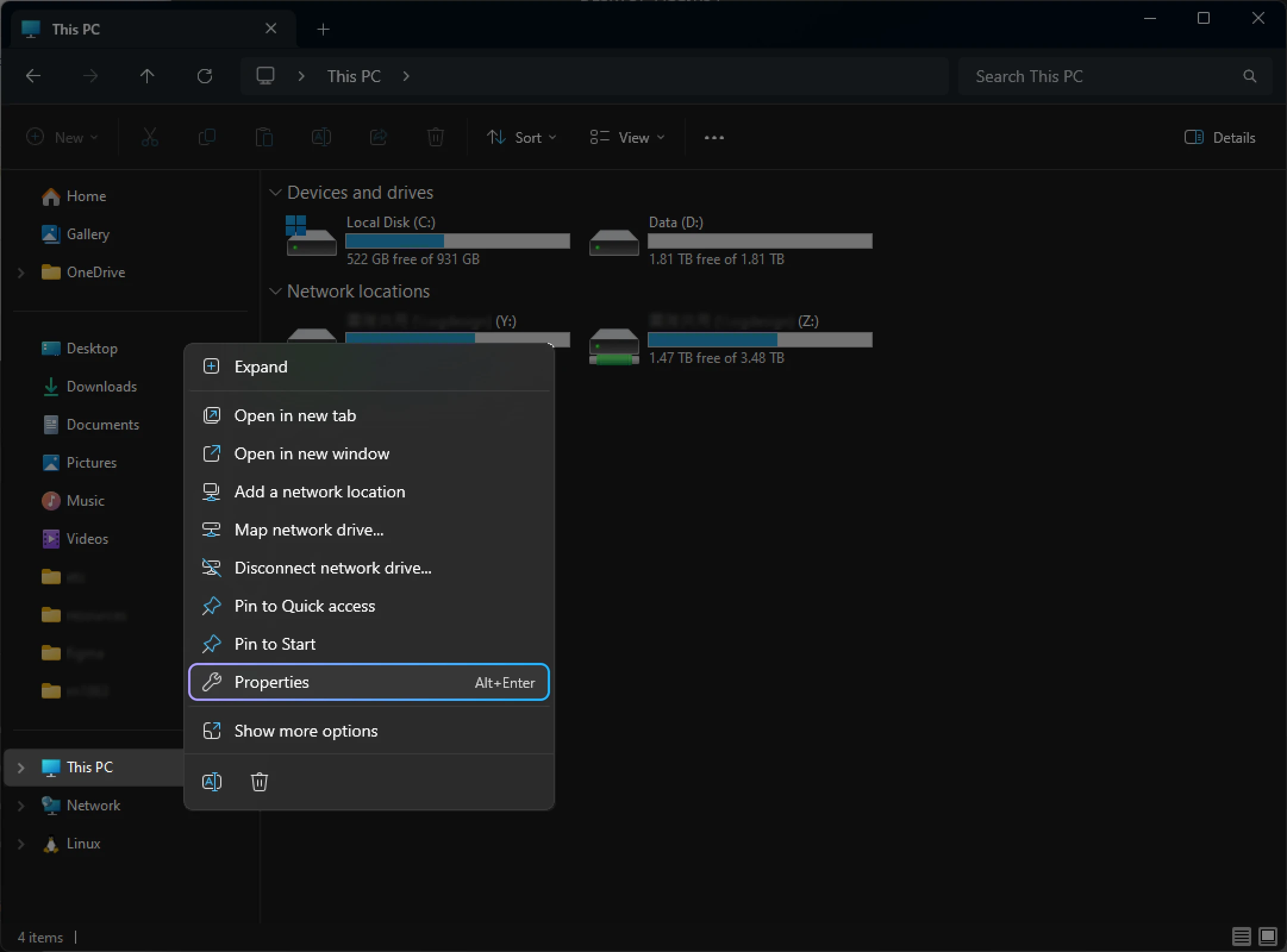
Open File Explorer, right-click on "This PC", and select "Properties".
-
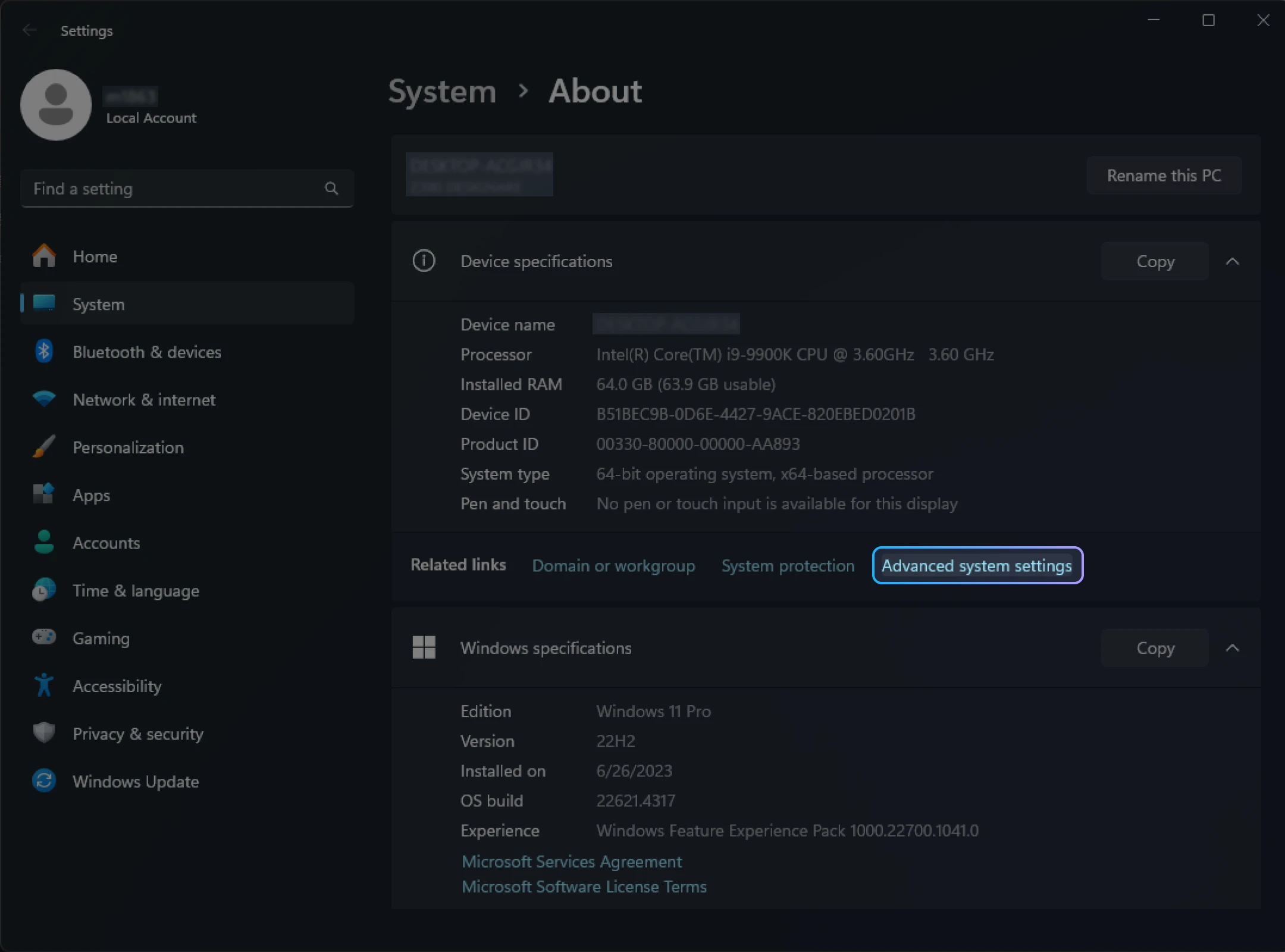
In the new window, click on "Advanced system settings" on the left side.
-
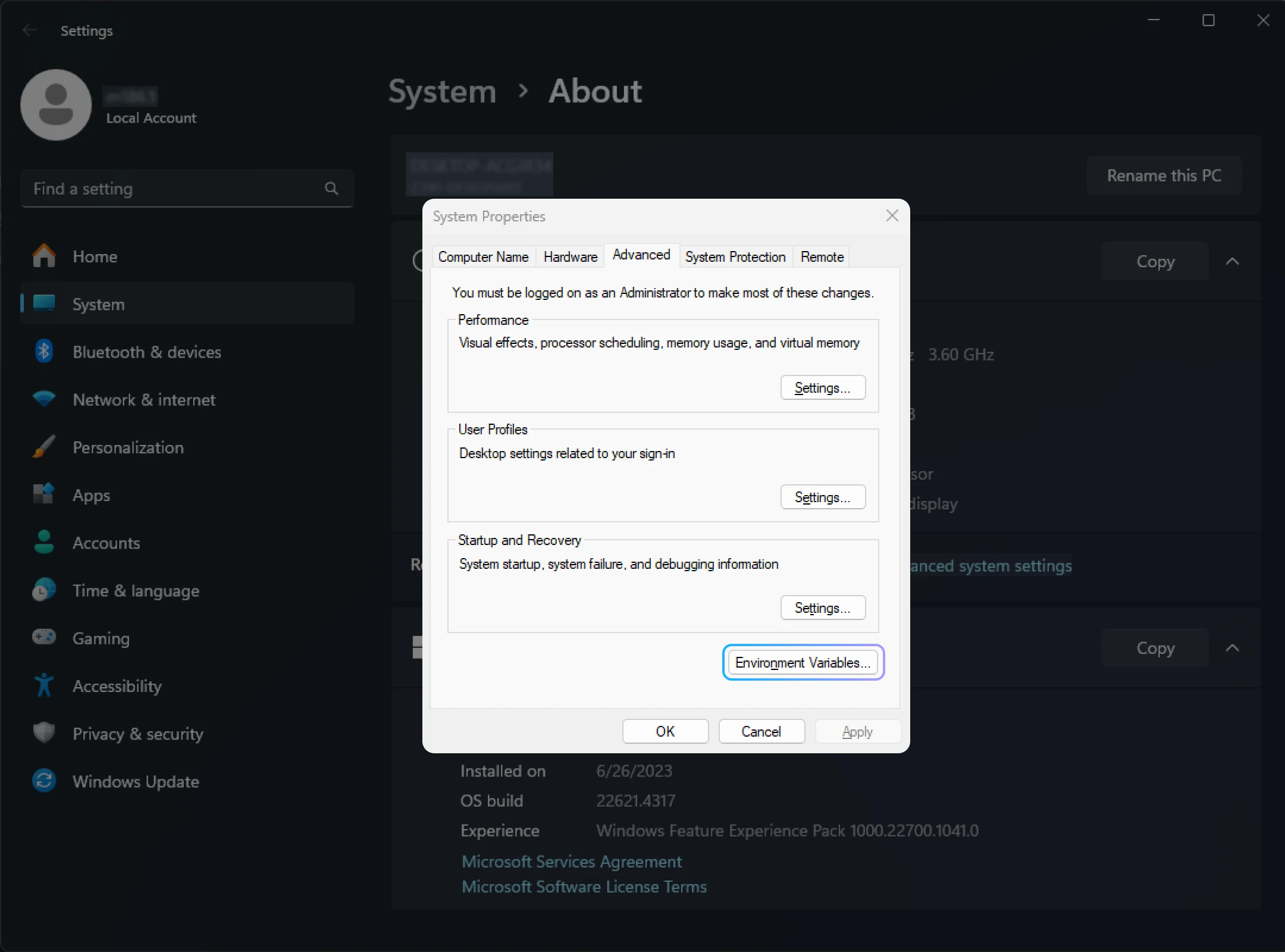
In the "System Properties" window that appears, click on "Environment Variables".
-
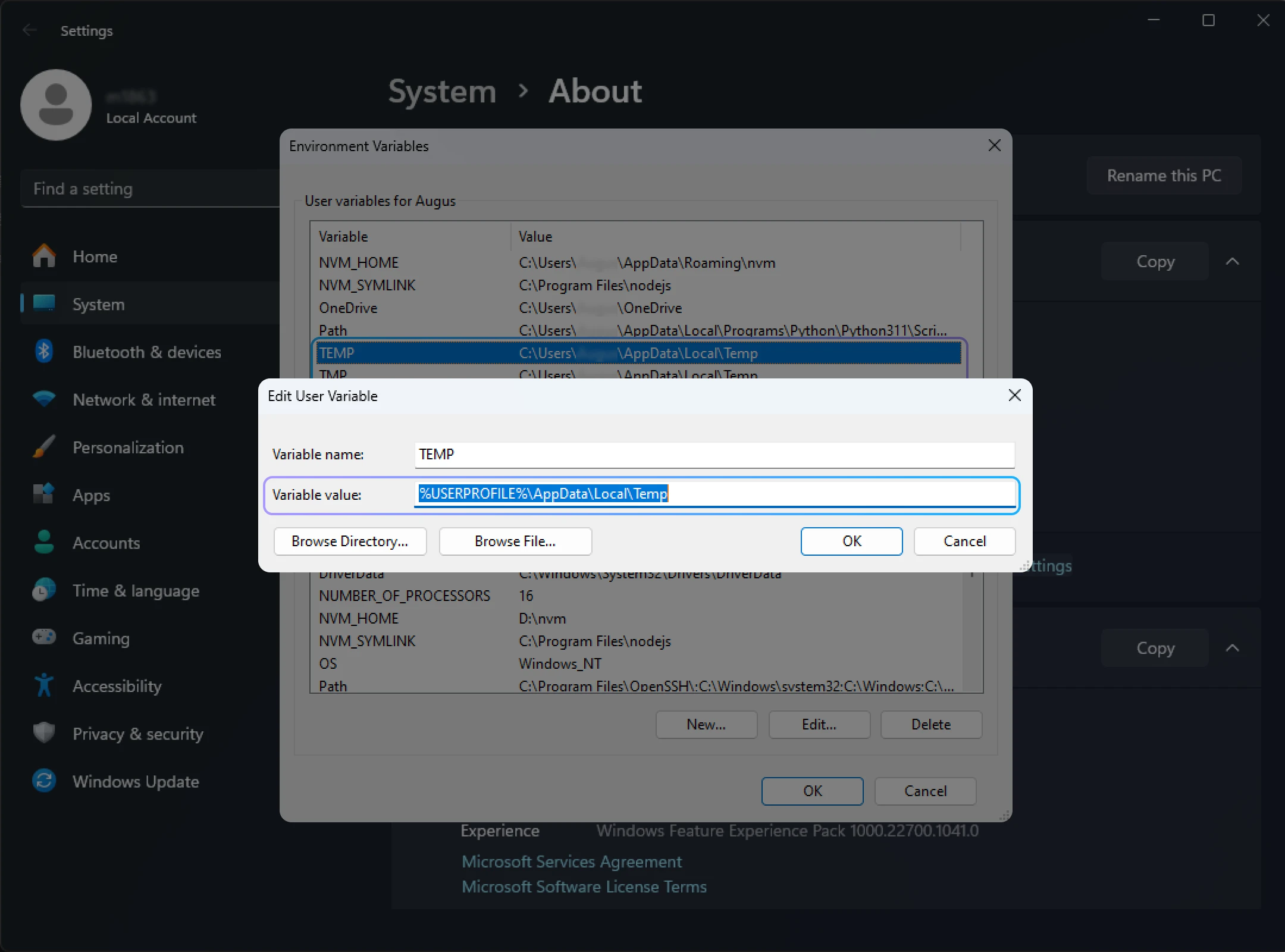
In the "Environment Variables" window, check whether "TEMP" and "TMP" in the upper user variables section are set to their default values. If you find the value is not the default, select the corresponding item and click "Edit".
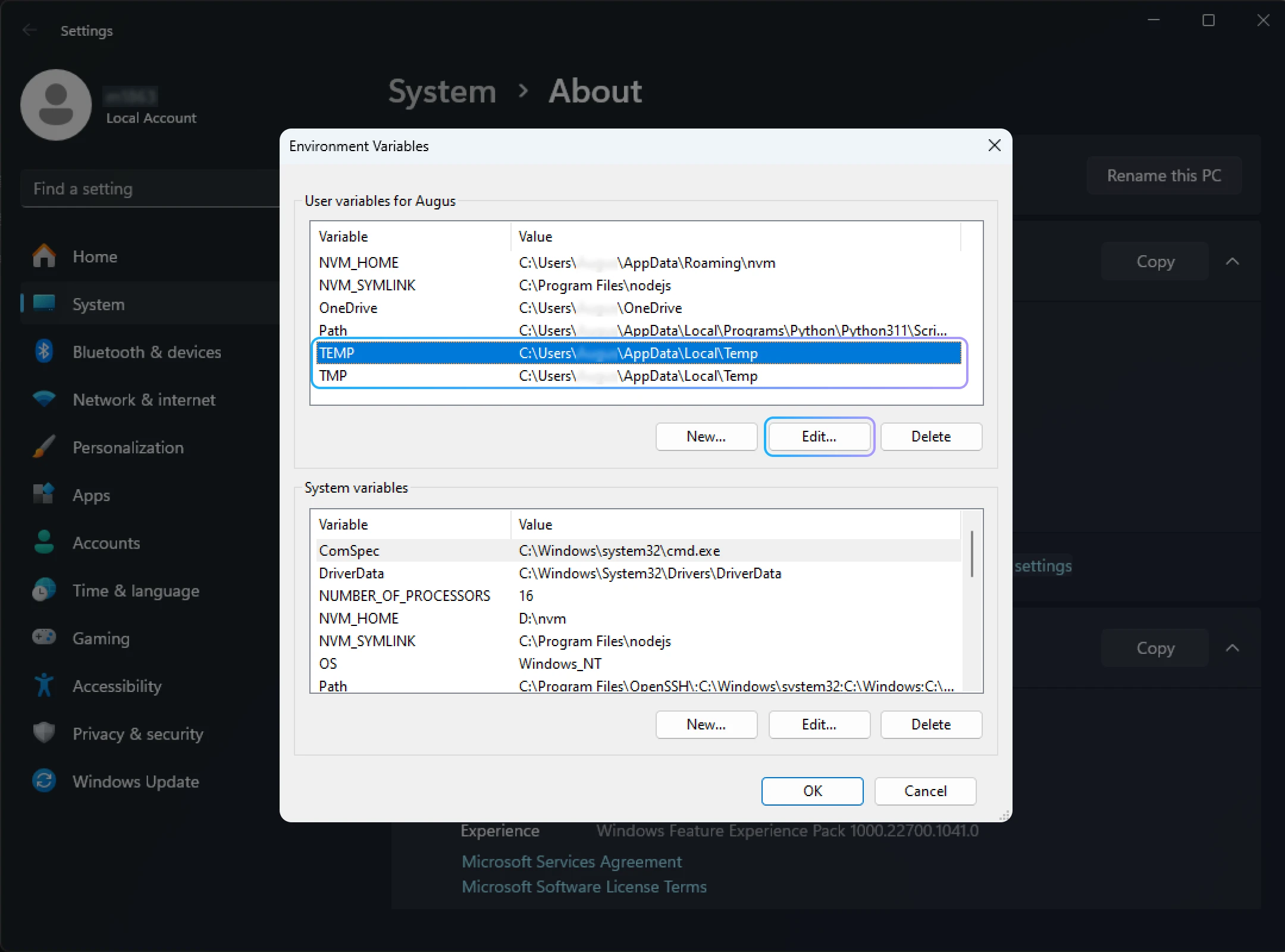
The default value should be: %USERPROFILE%\AppData\Local\Temp
- Change the variable value to "%USERPROFILE%\AppData\Local\Temp" (Note: %USERPROFILE% represents the current user's root directory).
Resolving Font Activation Issues
If you also encounter font-related issues, please check the PATH system variable:
- In the system variables section at the bottom of the environment variables window, find the "PATH" variable and ensure it contains the following paths:
C:\WindowsC:\Windows\System32C:\Windows\System32\WindowsPowerShell\v1.0\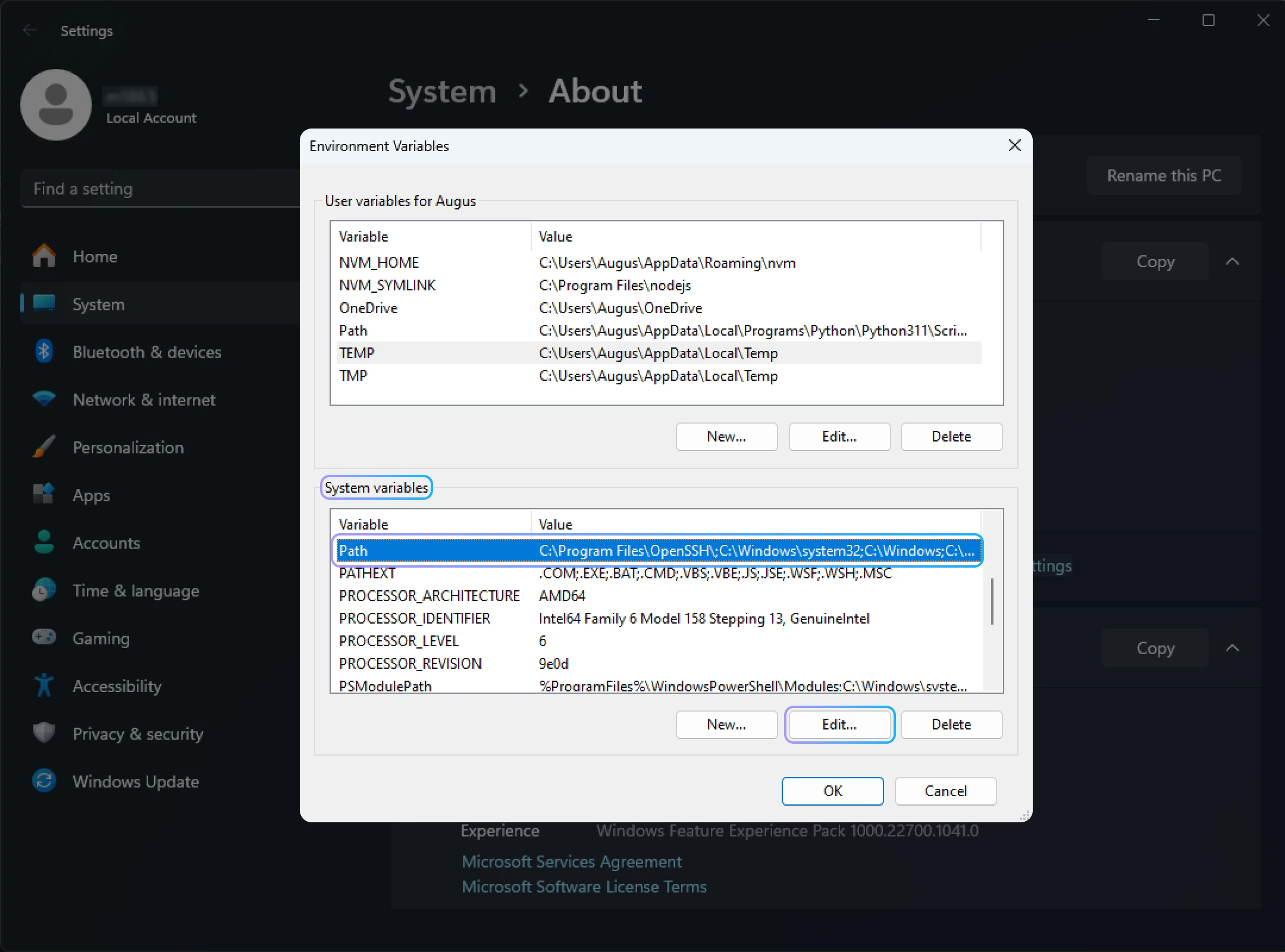
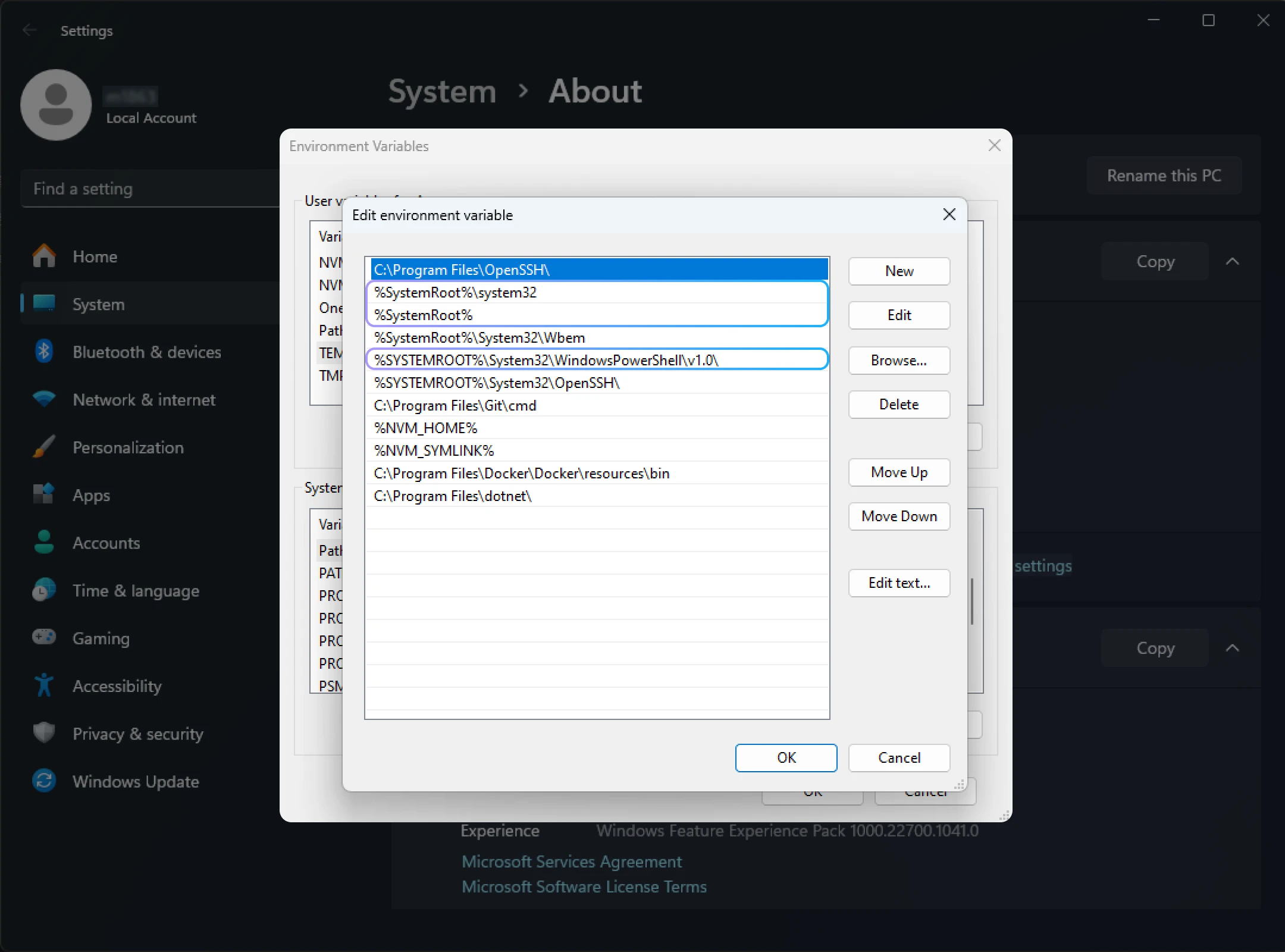
- If any of the above paths are missing, click "Edit" and add the missing paths.
Important Notes
- After completing environment variable modifications, it is recommended to restart your computer to ensure the changes take effect
- Before modifying environment variables, it is recommended to record the original values for restoration if needed
- If you are unsure about the function of a particular environment variable, do not modify it arbitrarily
- Some professional software may require specific environment variable settings; please refer to the official documentation of the relevant software