
When organizing your material library daily, you may need to move multiple subfolders simultaneously. Eagle provides a convenient method to batch select and move subfolders, helping you organize your materials more efficiently.
Methods for Batch Selecting Subfolders
- Hold the Shift key: First, press and hold the
Shiftkey on your keyboard - Select folder range: Use your mouse to click the first subfolder you want to select, then click the last subfolder
- This will automatically select all adjacent subfolders between the first and last folders
Moving Selected Subfolders
After selecting multiple subfolders, you have two ways to move them:
- Drag and drop method: Directly drag the selected subfolders to the target location
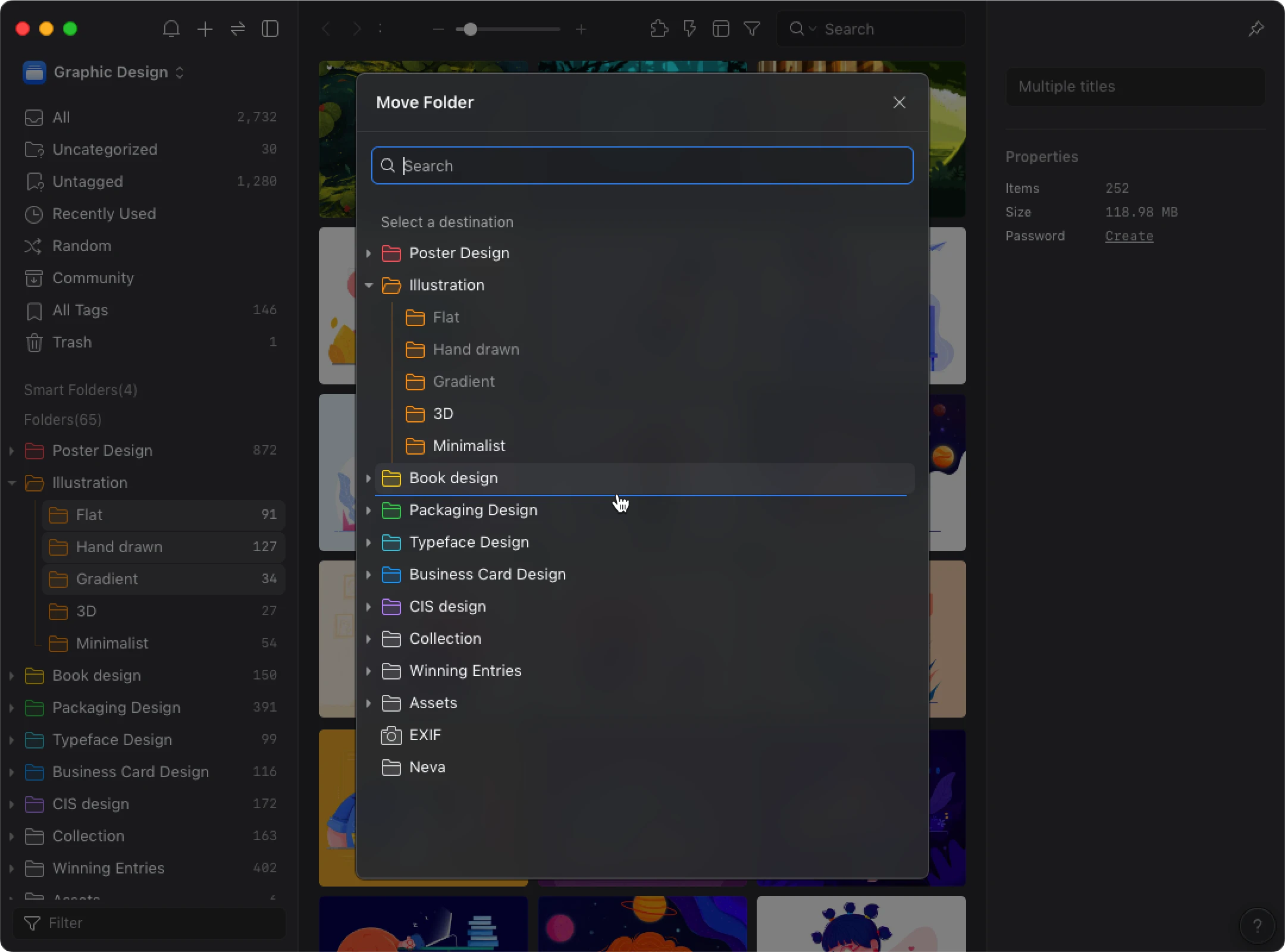
- Right-click menu method: Right-click on the selected folders and choose "Move Folder" option from the context menu

Important Notes
- This method only applies to selecting adjacent subfolders
- To select non-adjacent folders, hold the
Ctrlkey (Windows) orCommandkey (Mac) while clicking each folder - Moving folders will not affect the material content within the folders