
When managing audio files in Eagle, you can easily adjust the playback volume during preview to ensure the best listening experience.
Steps to Adjust Audio Volume
- Double-click any audio file to enter "Detail Mode"
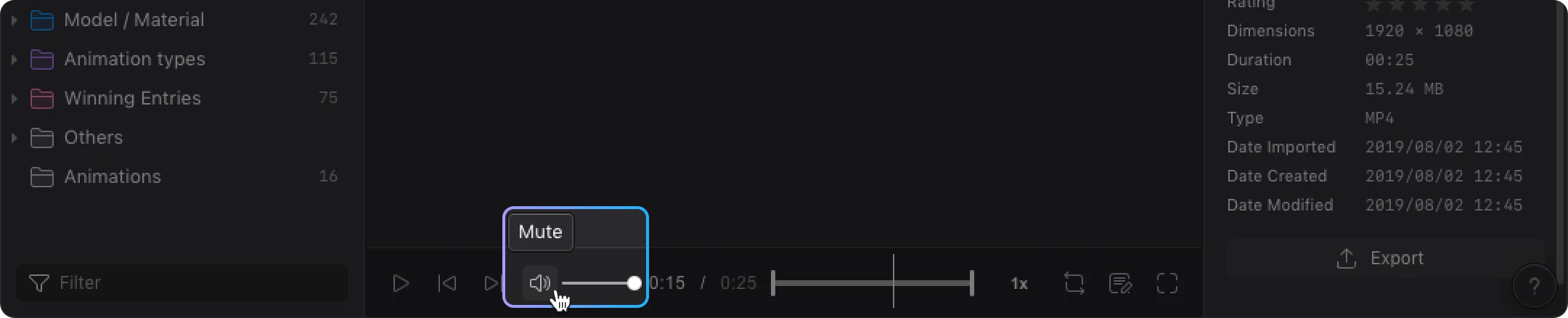
- Adjust the volume slider in the audio player
- After setting, the new volume will automatically apply to all audio files
- The adjusted volume setting will apply to all audio file previews in both "List" and "Detail Mode".
When you play any audio file next time, it will play at the new volume you set.
Important Notes
- Volume settings take effect globally within the Eagle application, no need to set individually for each audio file
- This setting does not change the volume of the original audio files, it only affects the playback volume when previewing in Eagle
- Volume settings will be retained after Eagle restarts