
Eagle supports adding subtitle functionality to videos. You can use subtitle files in SRT or VTT format. This article will introduce how to set up subtitles for your videos.
Two Methods to Add Subtitles
You can add subtitles to videos in Eagle through the following two methods:
- Load subtitles directly in the video playback interface
- Double-click the video to enter detail mode
- Right-click on the video to open the menu, select "Load Subtitles"
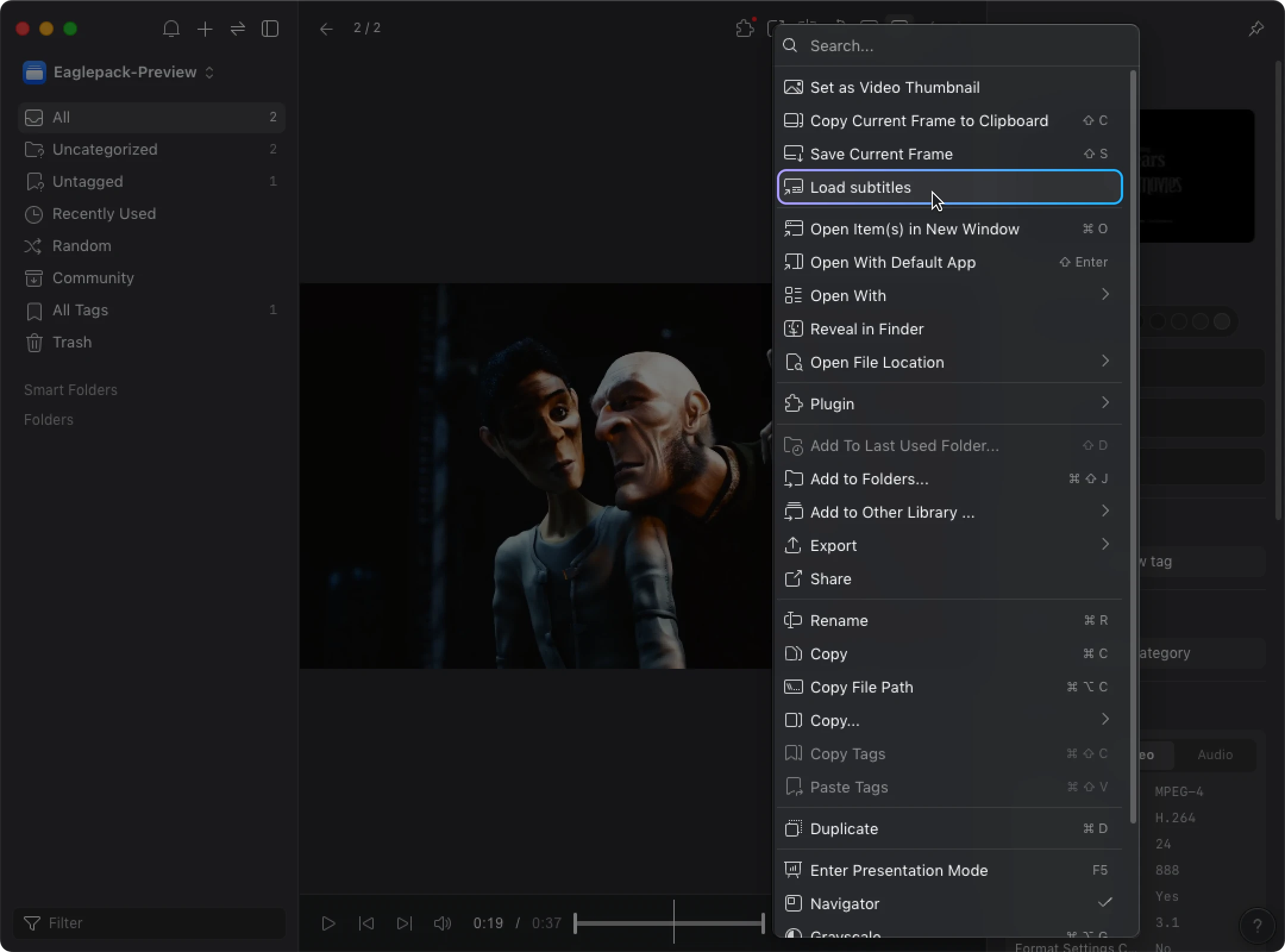
- Select your SRT or VTT format subtitle file
Note: This feature requires Eagle 4.0 Build7(20241127) or higher
- Add subtitles through the file system
- Import the video file into Eagle
- Right-click on the video, select "Open in Explorer"/"Reveal in Finder"
- In the opened folder, place the subtitle file (SRT or VTT format)
- Ensure the subtitle file name is exactly the same as the video file name
Subtitle Switching and Display
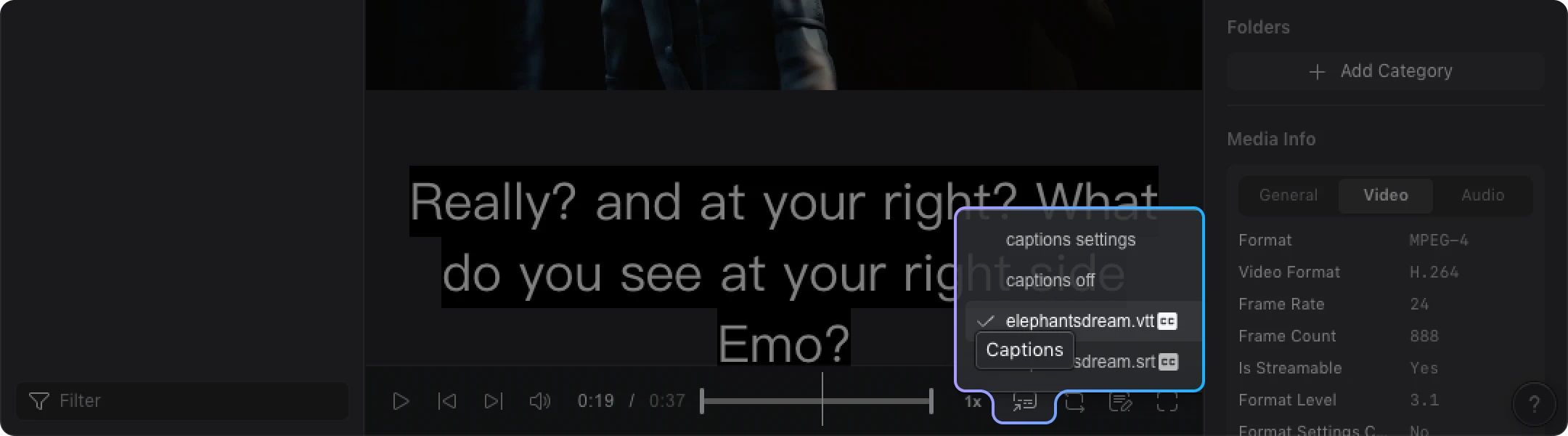
After loading subtitles, they will immediately display on the video. If you have multiple subtitle files, you can switch between different subtitle files through the "Subtitles" option in the menu below the player.
Important Notes
- Subtitle files must be in SRT or VTT format
- When adding through the file system, the subtitle file name must exactly match the video file name