
Although the Eagle extension currently does not support automatically adding images to already opened folders, you can quickly organize files when saving images through the "Image Drag Zone" and "Classification Window" features. This article will introduce two practical methods.
Usage Methods
Using Image Drag Functionality
- Drag images to the upper right side of the image drag zone and select the subfolder you want to add to
- If you have a large number of file categories, you can drag images to the "Create or Select Folder" section at the bottom of the right panel, and the system will display a complete folder list for you to choose from
Using File Classification Edit Window Feature
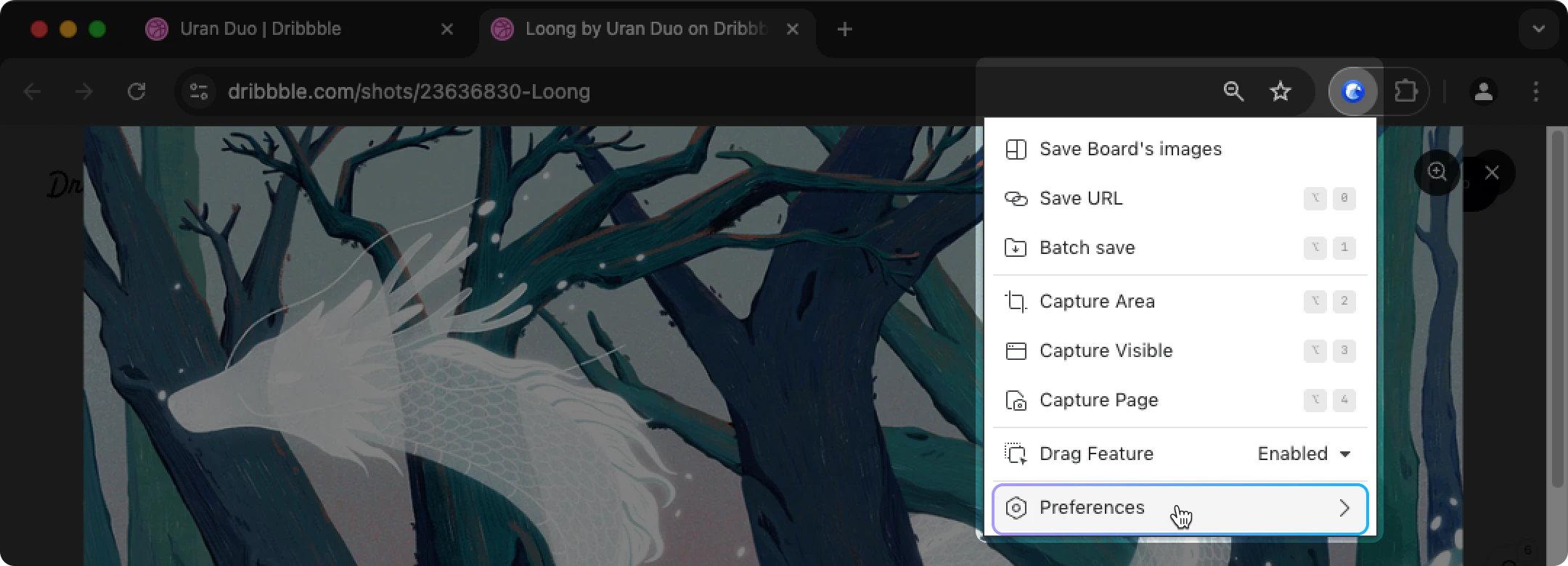
- Click the Eagle extension icon at the top of the webpage and select "Preferences"
- In [Save Settings], enable the "Show edit window for classification when saving images" option
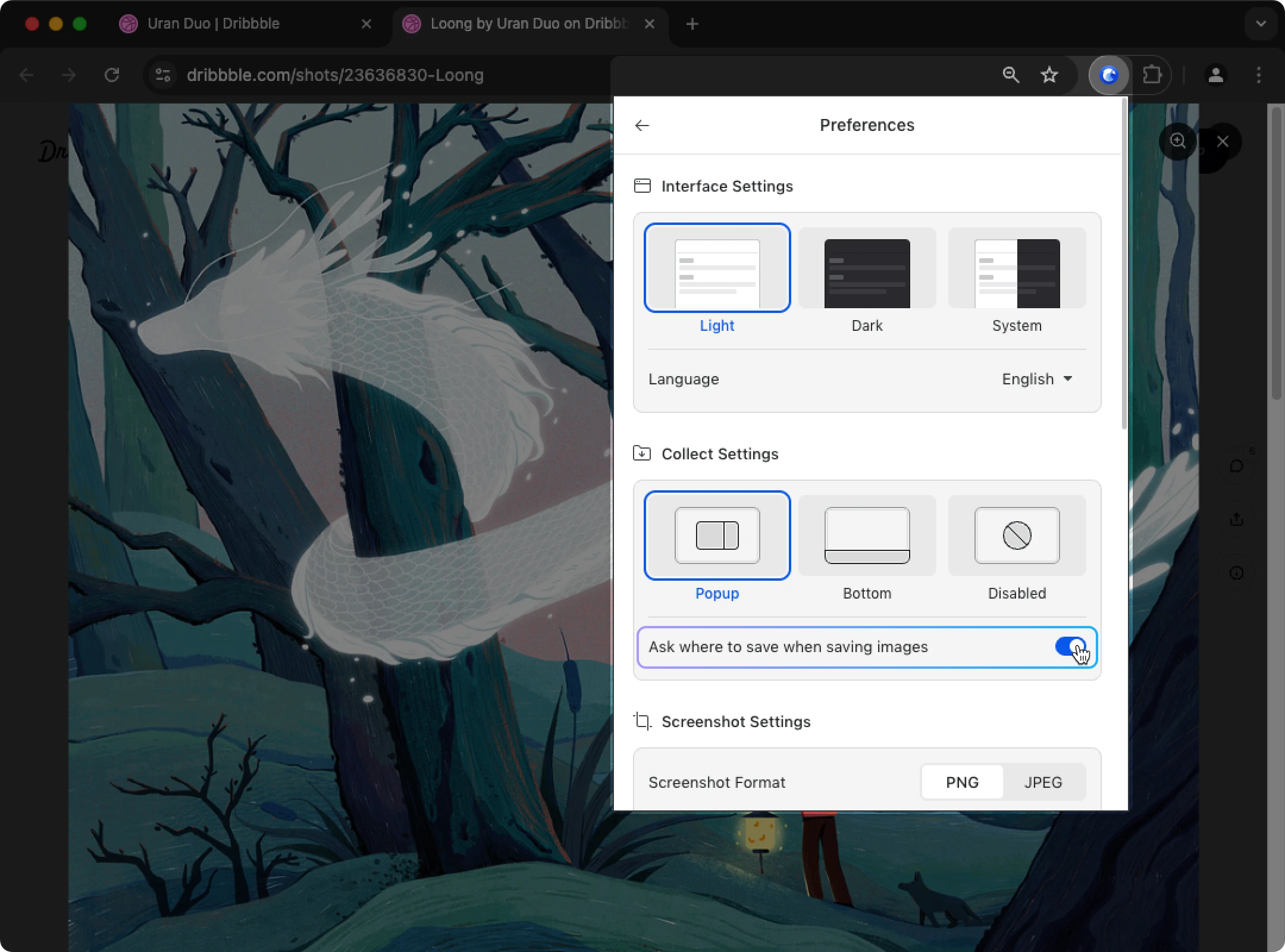
- After enabling this feature, whether using drag (dragging images to the left panel of the image drag zone), right-click menu, or Alt + right-click operations, a folder classification selection window will pop up, allowing you to edit the file's classification, tags, ratings, and comments

Notes
- The extension currently does not support automatically recognizing the currently opened folder and adding directly to it
- Using the edit window feature allows you to complete classification, add tags, and other operations while saving, improving organization efficiency