
In the list, for video, GIF, and audio files, you can instantly preview them by hovering your cursor over them. You can also switch to different time points you want to preview by moving the cursor, allowing you to quickly find the videos you need through quick preview without having to double-click to open each video.
Muted Playback
When you hover your cursor over video files or bookmarks from video platforms like YouTube, if you don't want to play the video sound, you can set the preview to mute mode through the following simple steps.
- Move your cursor to the bookmark file and click the volume icon in the bottom right corner.
- Play video sound during hover preview
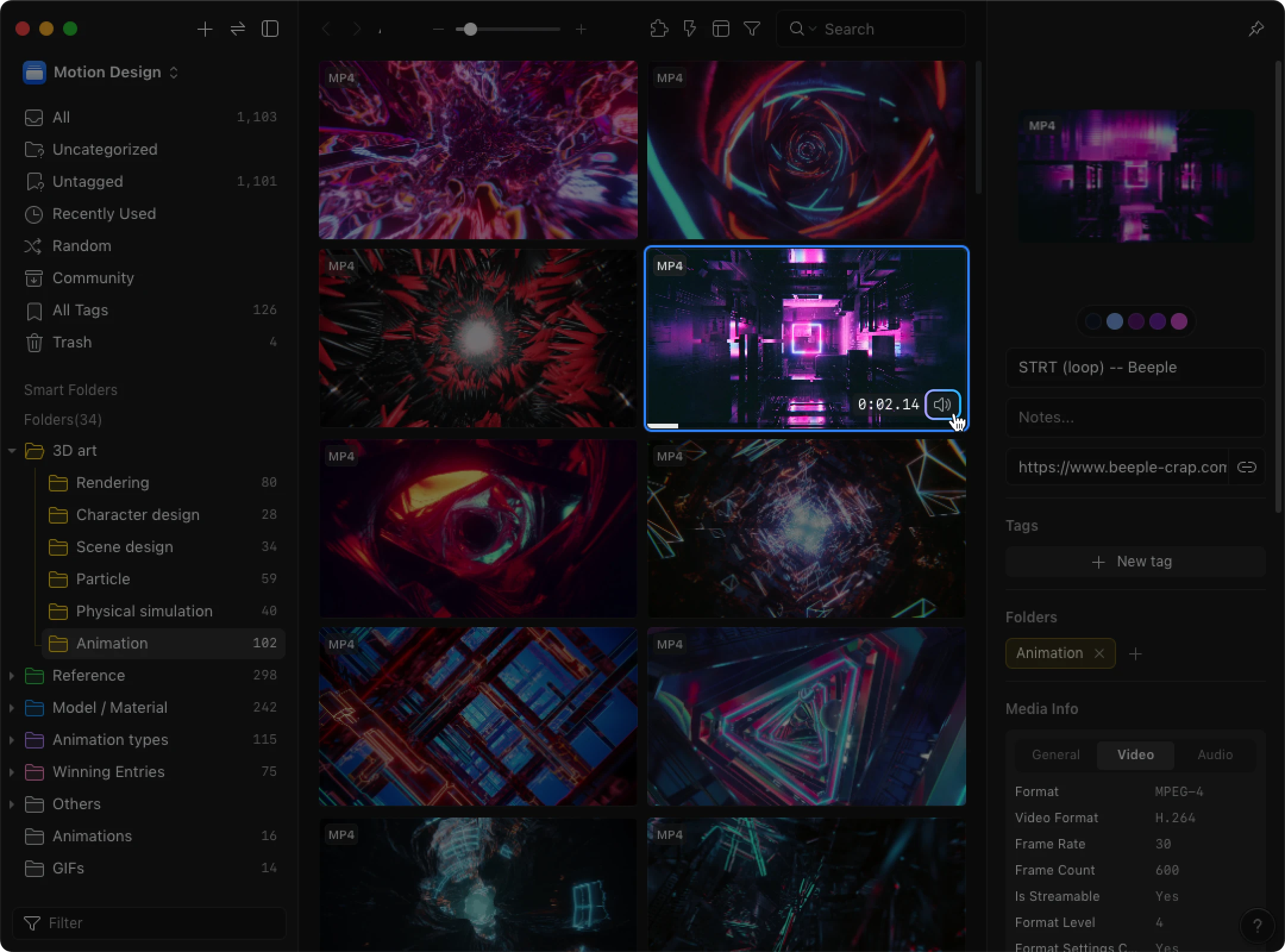
- Don't play video sound during hover preview
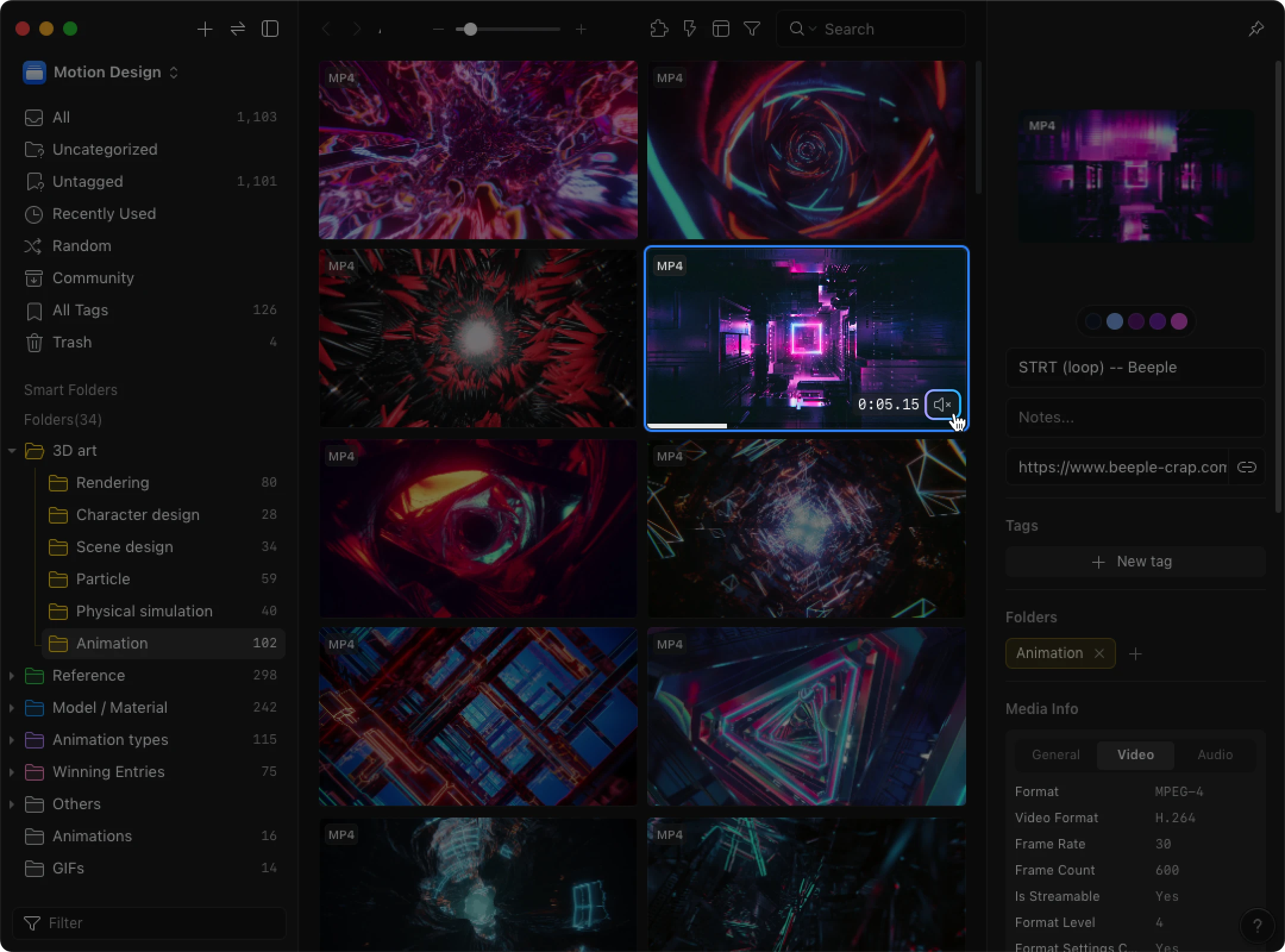
- Play video sound during hover preview
This feature cannot be set for individual files and is only used to quickly turn sound on or off when hovering to preview videos
Audio files cannot be set to muted playback