
Installing the Eagle browser extension can significantly speed up the efficiency of saving web images, especially with drag-and-drop quick collection of images. However, sometimes it's not so efficient, for example, when we need to take screenshots frequently, we need to repeatedly click the extension icon to open the extension menu and click the required function, which is very cumbersome. For these frequent operation scenarios, Eagle provides customizable shortcut keys that allow you to quickly access the functions you need.
Setting Browser Extension Shortcut Keys
Step 1: Open Eagle Extension Menu
Find the Eagle extension icon in the upper right corner of your browser, click the icon to open the extension function menu in "Preferences". Customize "Browser Shortcut Keys" for more efficient web image collection
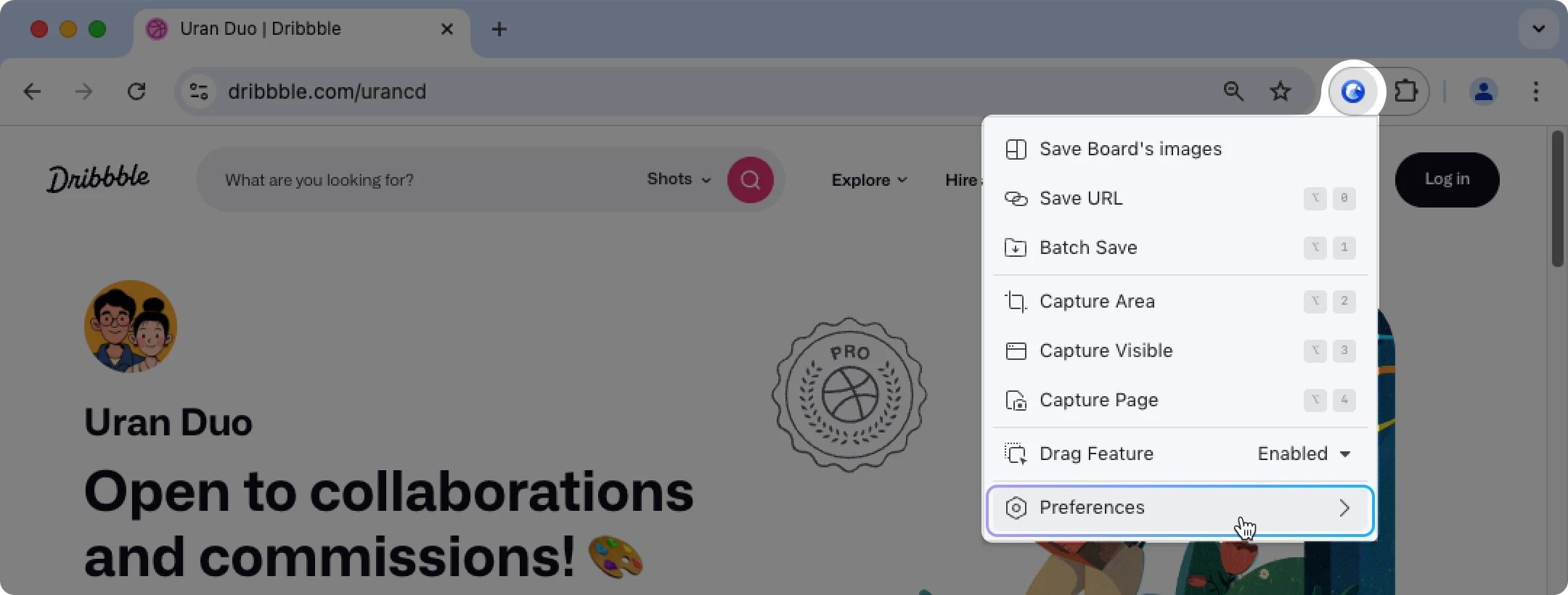
Step 2: Click "Shortcut Key Settings" Option in the Menu
Find the "Shortcut Key Settings" option in the menu and click to open the settings page.
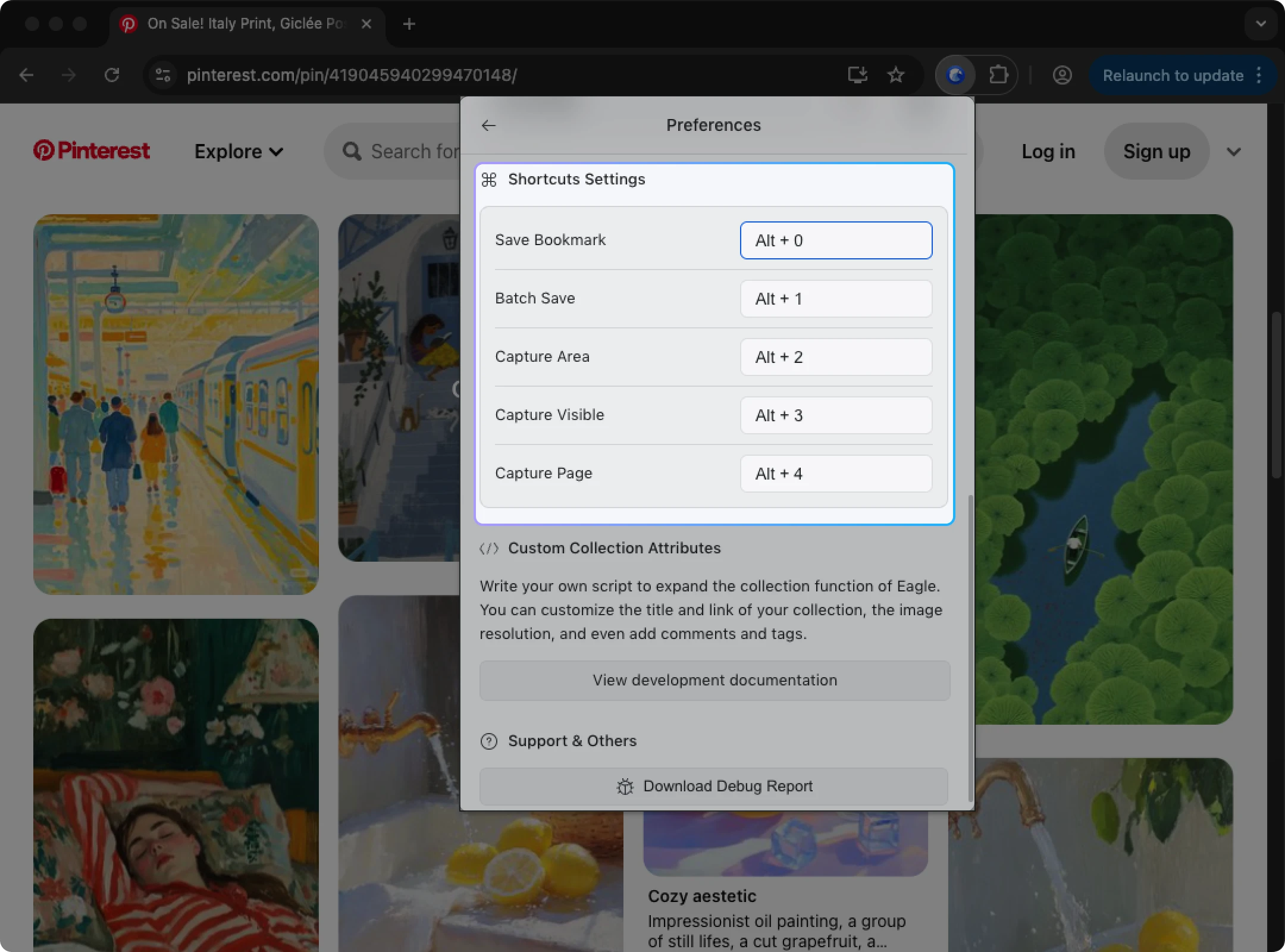
Default Browser Extension Shortcut Keys
We recommend using the Alt key as the main trigger button for shortcut keys. Corresponding to the extension function menu, we use the numbers 1 - 3 as combination keys. The following are the default settings:
- Save Bookmark
Set toAlt + 0 - Batch Save
Set toAlt + 1 - Capture Area
Set toAlt + 2 - Capture Visible
Set toAlt + 3 - Capture Page
Set toAlt + 4