
Eagle's AI Search plugin offers two ways to find assets:
- Reverse Image Search: Use a reference image to find visually similar assets
- Natural Language Search: Search the text information within your assets using intuitive descriptions
All AI processing happens locally on your computer — no internet connection required, and your assets are never uploaded to the cloud.
I. First-Time Setup
After installing the plugin for the first time, a setup wizard will appear. Follow the on-screen instructions to complete configuration.
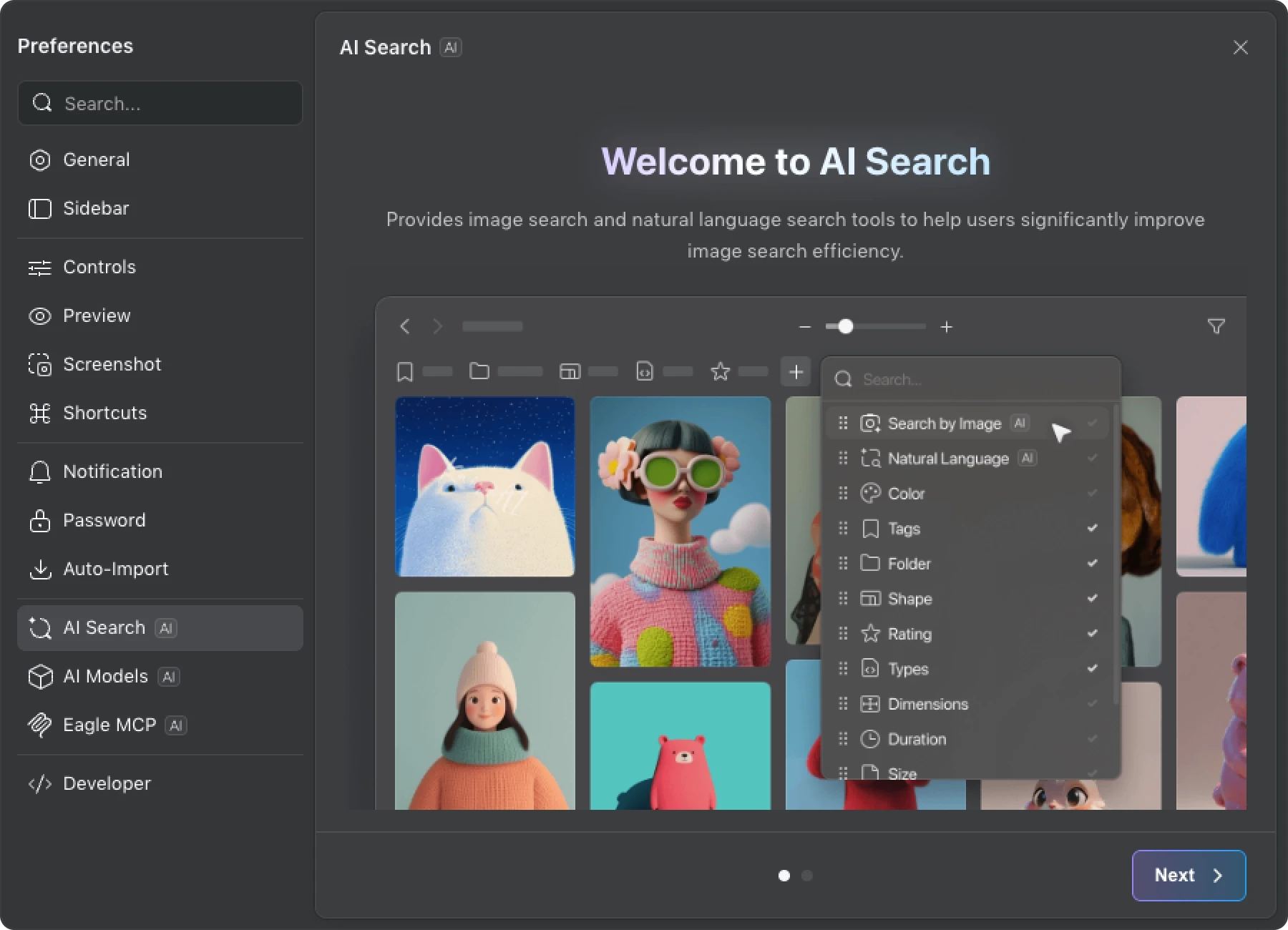
1. Plugin Introduction
The wizard begins with a brief overview of AI Search's two features: Reverse Image Search and Natural Language Search. Once you've reviewed the introduction, click "Next".
2. Download AI Models
The system automatically detects your hardware environment and selects the appropriate version.
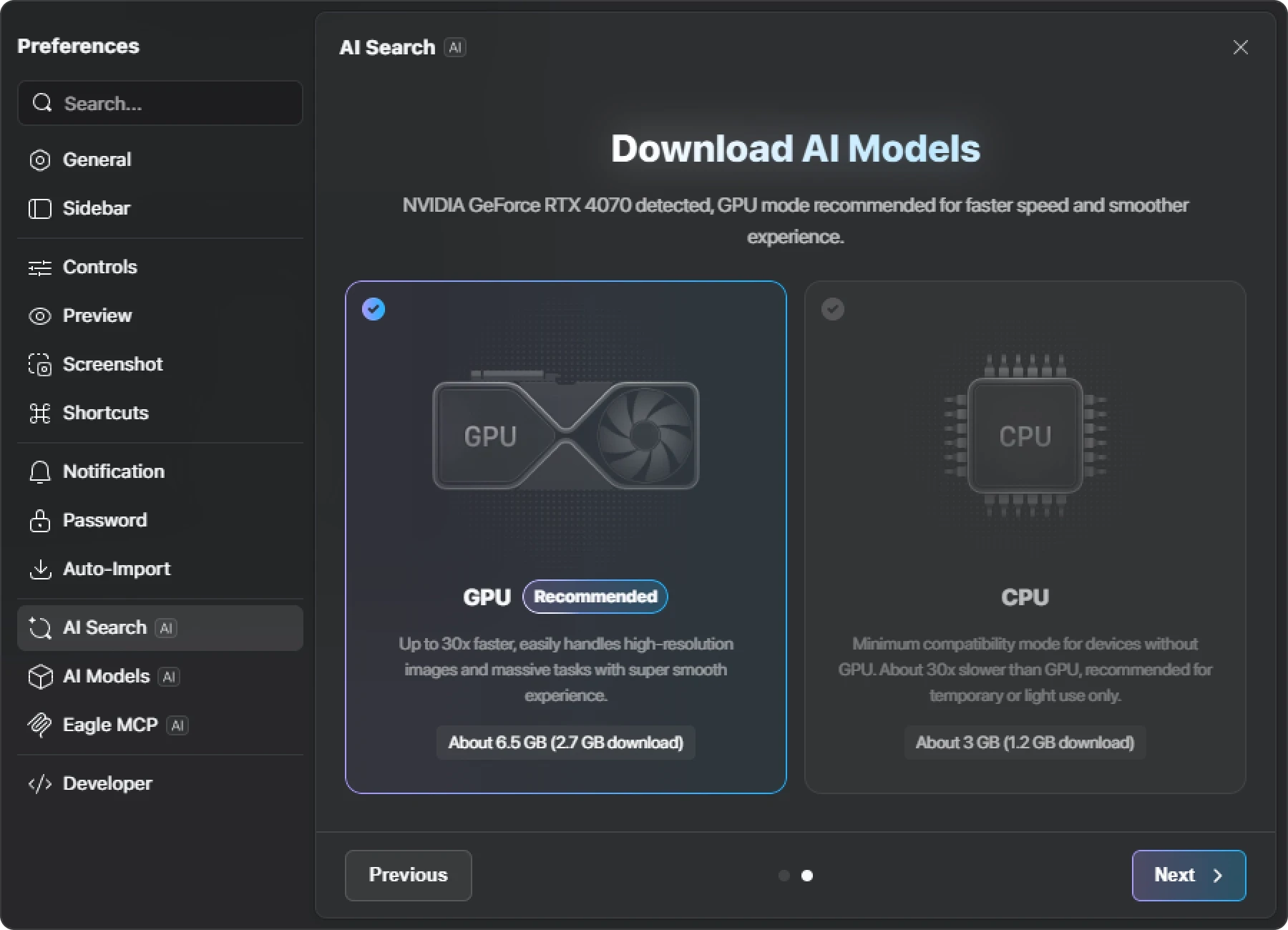
| System Environment | Description |
|---|---|
| Windows (NVIDIA GPU) | You can choose between GPU or CPU mode. GPU mode is recommended for best performance. |
| Windows (AMD / Intel GPU) | Only the CPU version is currently available. |
| Mac (Apple Silicon) | Uses the GPU-accelerated version by default. |
| Mac (Intel processor) | Only the CPU version is currently available. |
3. First Launch and Index Building
Once the download is complete, the AI service will begin initializing. The first launch may take some time — please be patient.
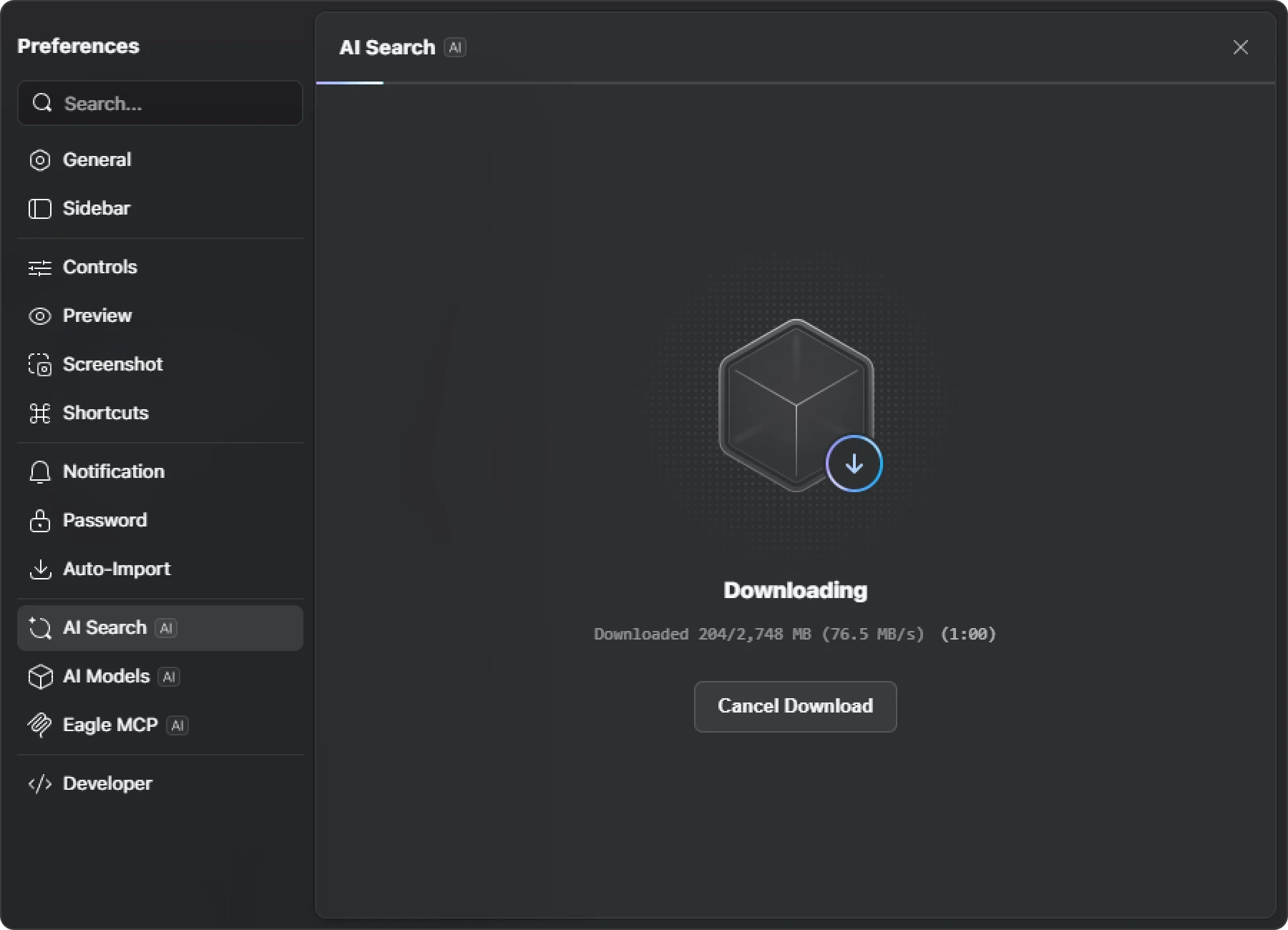
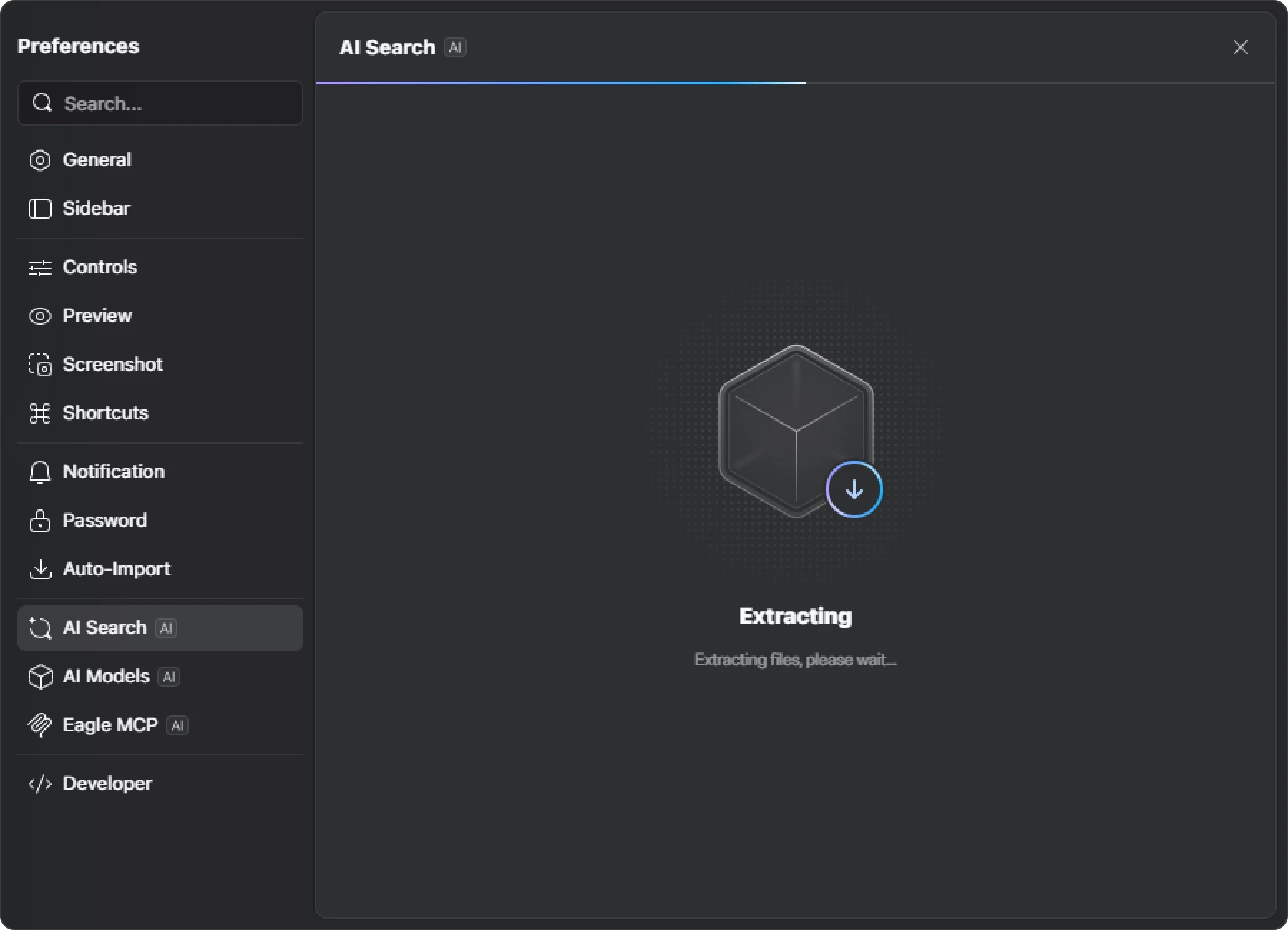
After the service starts, the plugin will begin building an index for your current library.
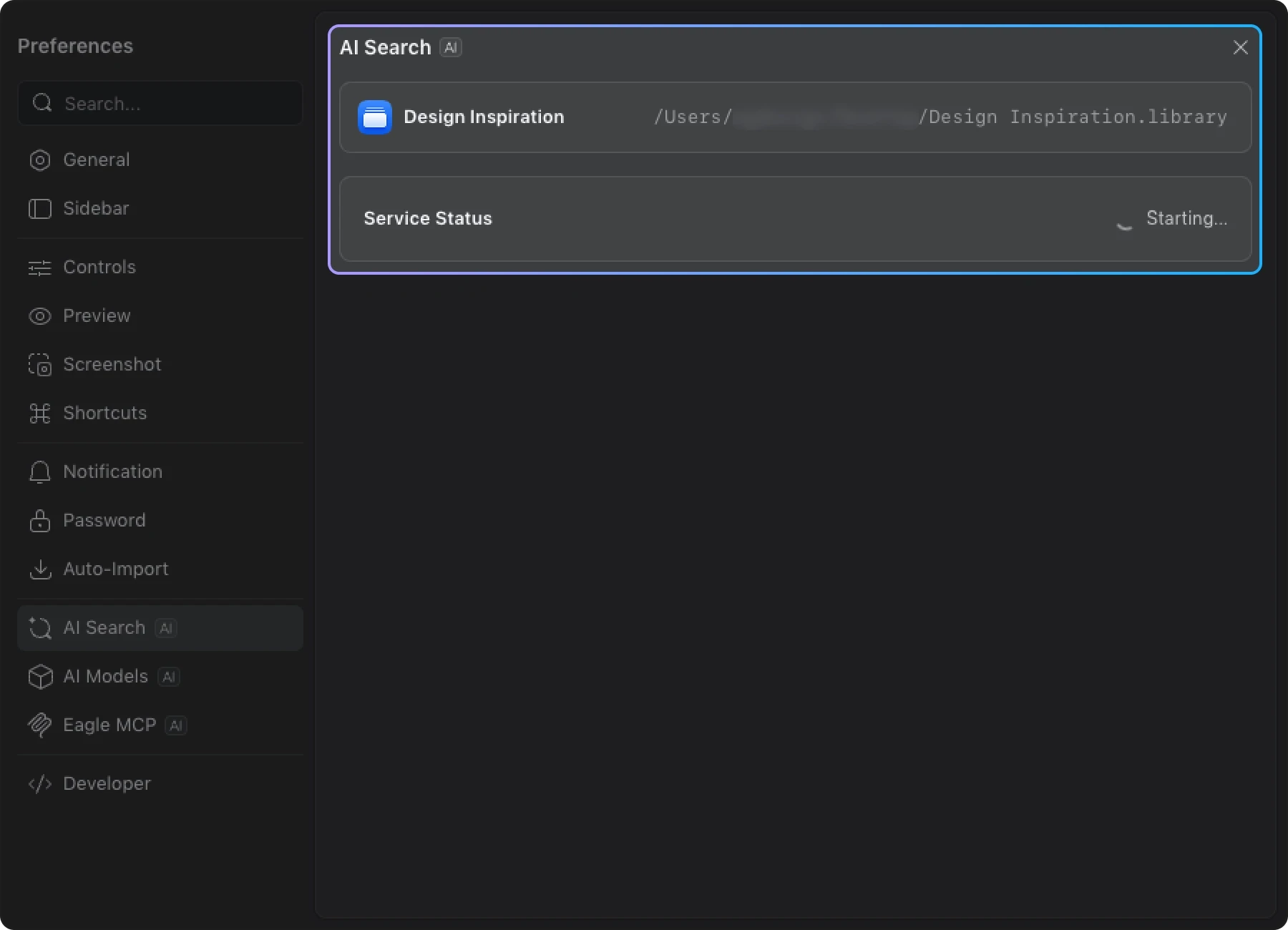
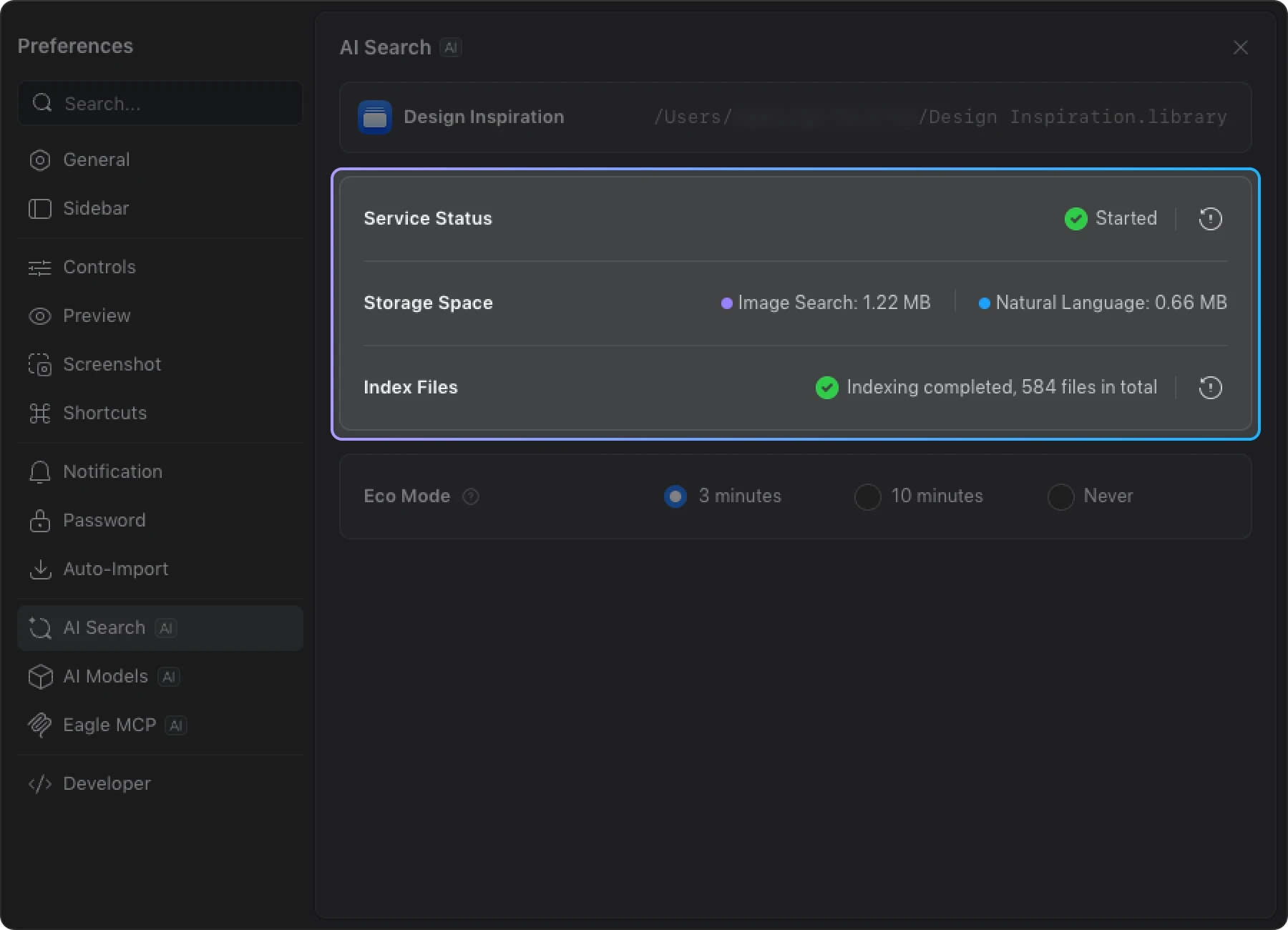
Tip: All processing is done locally — your assets are never uploaded. If your computer supports GPU acceleration, indexing speed is typically much faster than CPU mode; with large asset libraries, the difference can be as much as 30–50x.
II. Reverse Image Search
Reverse Image Search helps you quickly find visually similar images within your asset library.
It compares images based on overall visual characteristics, such as:
- Color palette
- Composition
- Style
- Subject matter and overall feel
This is especially useful when you find it hard to describe what you're looking for in words, but you have a reference image on hand.
How to Access
You can launch Reverse Image Search from the following locations:
-
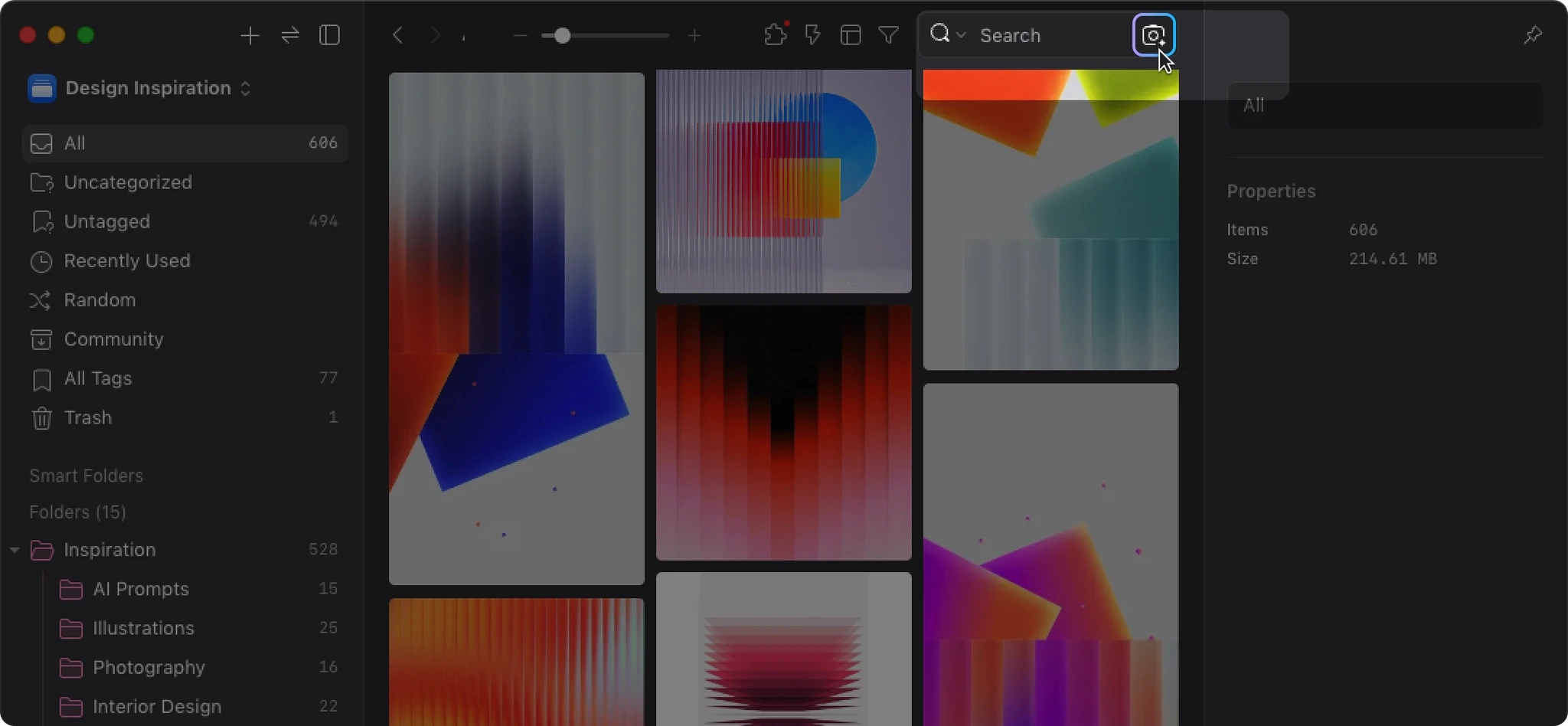
Button to the right of the search bar
Click directly to the right of the search box above the Eagle asset list.
-
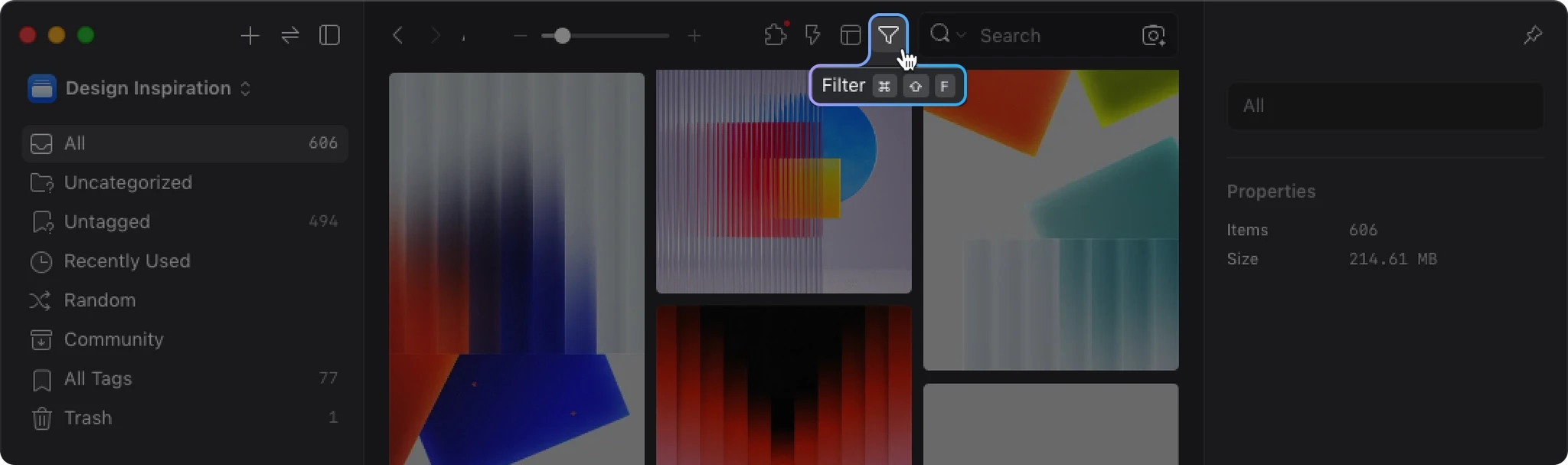
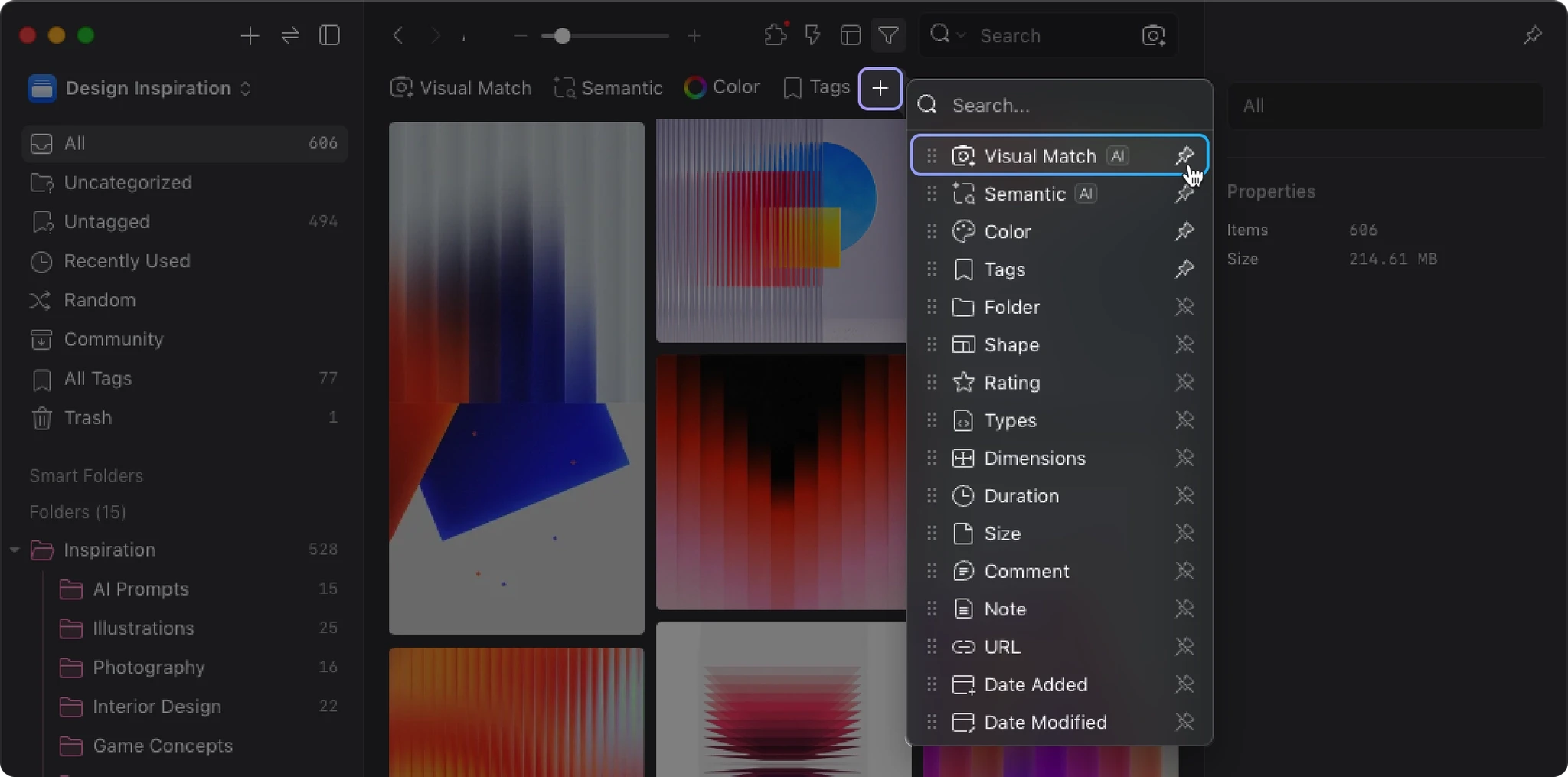
Filter toolbar
Click the "+" button on the filter toolbar and pin "Reverse Image Search" to your frequently used filters.
How to Use
Method 1: Using an Image from Eagle
Simply drag and drop any image from Eagle onto the Reverse Image Search entry point to start searching.
Method 2: Using an External Image
- Copy an image from an external application (e.g., a web browser)
- Click Reverse Image Search in Eagle
- Press
Ctrl+V(Windows) or⌘+V(Mac) to paste the image and begin searching
Tips
If you have a general idea of what you're looking for but aren't sure which specific image it is, try using a regular search or Natural Language Search to narrow down the results first. Once you find a close match, use it as a reference for a Reverse Image Search to explore further.
III. Natural Language Search
Natural Language Search lets you find assets using intuitive descriptions, but there is one important thing to understand:
AI Search's Natural Language Search works by matching against the text information already associated with your assets — it does not directly analyze or understand the visual content of images.
In other words, it performs semantic matching based on:
- File name
- Description
- Notes
- Other searchable text fields
Compared to traditional keyword search, it goes beyond exact word matching and looks for semantically similar text. This makes it more flexible when dealing with different naming conventions, varied wording, or even cross-language content.
When Is It Most Useful?
Natural Language Search works best in the following situations:
- You remember a theme or description, not an exact keyword
- Your assets already have meaningful file names, descriptions, or notes
- You want to handle synonyms, related descriptions, or cross-language text
- You want a more natural way to search a well-organized library
For example, you can search for:
warm-toned minimalist posterflat style animal illustrationクリスマスdark moody portrait
As long as the asset's existing text information contains relevant semantic content, it has a good chance of being found.
When Are Results Limited?
If an asset lacks usable text information, Natural Language Search results will be limited. Common situations include:
- File name is a random string
- File name has no meaningful content
- No Description
- No notes
- No other searchable text content
For example, if an image is named:
IMG_4821.jpg
or
Screenshot 2024-11-15 at 3.45.12 PM.png
There is very little text information for Natural Language Search to work with.
How to Use
- Click the "+" button on the filter toolbar
- Select "Natural Language Search"
- Type a description or keywords into the input field
💡 Key Points About Natural Language Search
- It performs semantic matching against existing text information
- It does not directly analyze image content visually
- The more complete your assets' file names, descriptions, and notes are, the better the search results
- It supports cross-language and semantically similar text lookups, but is not designed for complex logical query conditions
IV. Best Practices
To get the most out of Natural Language Search, focus on improving the quality of text information associated with your assets:
- Use meaningful, descriptive file names
- Add subject matter, intended use, and style information in the Description field
- Maintain a consistent way of describing your assets
- Make sure important content appears in searchable fields
Simply put: the clearer your assets' text information, the more effectively Natural Language Search can work.
V. Frequently Asked Questions
How long does indexing take?
It depends on the number of assets, your hardware, and the current mode. If GPU acceleration is available, indexing is typically much faster than CPU mode; with large asset libraries, the speed difference can reach 30–50x.
Is my data uploaded to the cloud?
No. All AI Search processing happens entirely on your local machine. Your assets are never uploaded to the cloud.
Do I need to re-index when switching libraries?
Yes. Each library has its own independent index. The first time you open a new library, the system will automatically build an index for it.
Why can't I find an image that seems like a perfect match for my description?
This usually happens because the image lacks the corresponding text information.
Natural Language Search currently does not analyze images visually. Instead, it performs semantic matching based on text content such as file names, descriptions, and notes. If an asset has none of this information, search results will be limited.
What is the difference between Reverse Image Search and Natural Language Search?
- Reverse Image Search: Finds assets based on visual similarity — ideal for finding images that look like a reference image
- Natural Language Search: Finds assets based on their existing text information — ideal for searching a well-organized library using descriptive terms