
AI Action is not a single feature -- it is a freely composable AI workflow.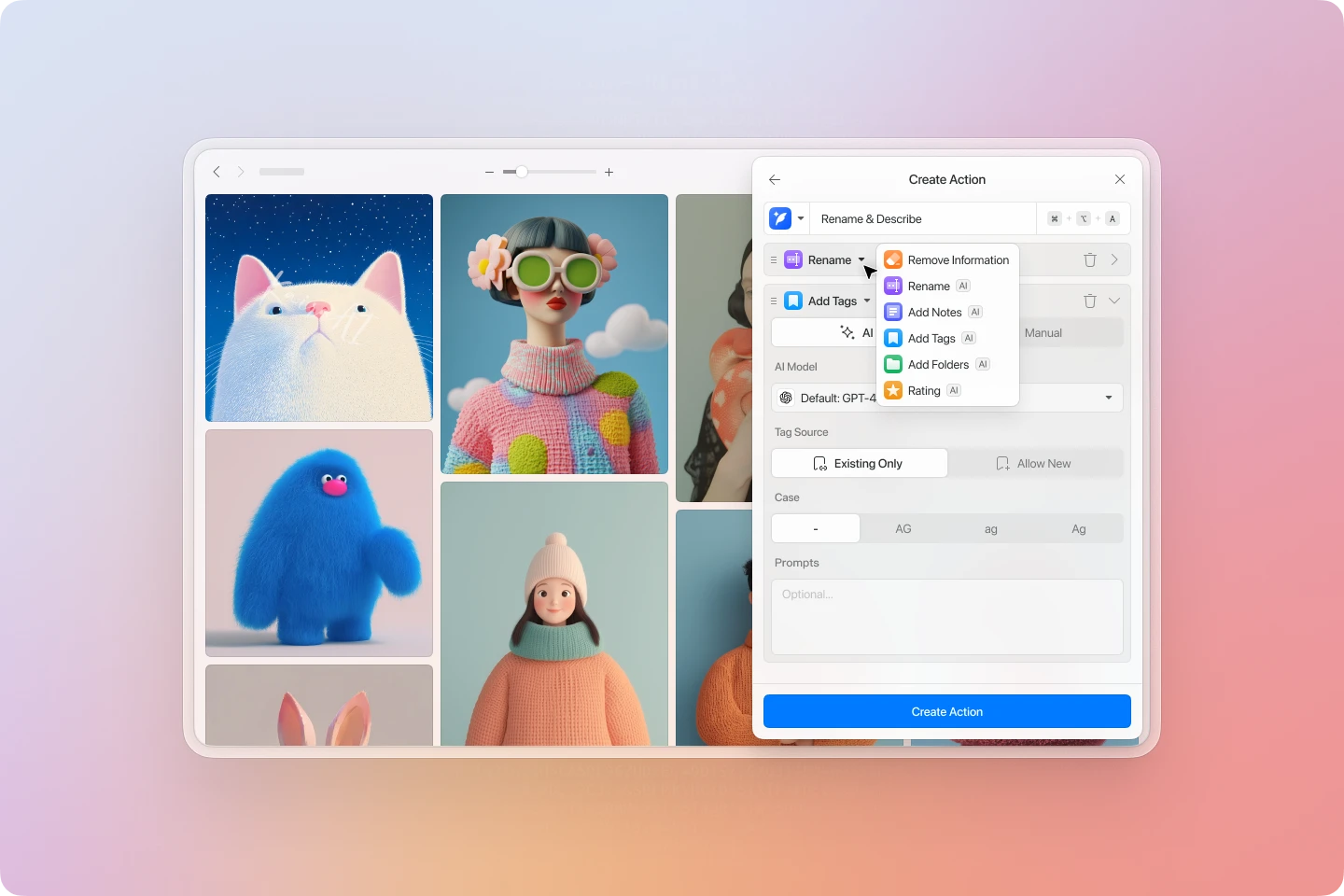
Within a single Action, you can have AI perform all of the following tasks simultaneously:
- AI Rename: Rename files based on image content
- AI Description: Analyze images and write to the description field
- AI Folders: Automatically classify images into existing folders
- AI Tags: Automatically apply tags based on existing rules
You can also enable just one of these to create an Action dedicated to a specific task.
So the real question is not which features to turn on, but how to design the right combination of operations, Custom Instructions, and data structure for your goals.
This guide walks through how to get more accurate, more consistent results from AI Action -- focused on practical settings you can actually change.
Start With These 4 Principles
Before diving in, keep these four points in mind:
-
Prioritize AI Description and AI Rename
They add real information value to your images, don't depend on fixed structures, and tend to be the most stable starting point.
-
AI Folders and AI Tags depend on how clear your structure is
If your folder hierarchy, tag groups, or naming conventions are vague, AI will struggle to make consistent decisions.
-
Custom Instructions shape results more than you'd expect
They don't just fine-tune output -- they define the perspective AI uses to understand your images.
-
Always test any new Action with a small batch first
Test with a few representative images before running on a full batch. This saves a lot of wasted effort.
1. Understanding AI Action: It Is a Workflow, Not a Single Button
Most people try AI Action for the first time by picking a model, enabling a few features, and hitting run. That works for getting a feel for it, but if you want consistent results, treat AI Action as a designable workflow.
When building an Action, the question is not "which features can I turn on together" but rather:
- What is the primary goal of this Action?
- Is it meant to enrich image information, or organize your structure?
- What perspective should AI use to understand the images?
- Which operations work well together, and which should be separated?
Avoid Trying to Build a Universal Action From the Start
A common issue among advanced users: putting too many tasks into a single Action.
For example, you might want it to simultaneously:
- Rename images
- Write detailed descriptions
- Classify into folders
- Add tags
- Assess quality
This is technically possible, but different tasks rely on different data, judgment methods, and Custom Instructions logic. When a single Action carries too many goals, it becomes harder to tune and harder to pinpoint the source of issues.
A more reliable approach:
- Create separate Actions for different purposes
- Keep each Action's tasks focused
- Keep Custom Instructions and settings centered on a single objective
2. Clarify What This Action Should Accomplish
Before enabling features, ask yourself: what do you want this Action to do?
Some Actions are best suited for enriching image information, such as renaming or describing. Others build on existing folder and tag structures to handle classification and organization. Still others exist for specific tasks, such as extracting text, analyzing UI, or identifying style and purpose.
Determine your goal first, then decide which features to combine. An Action should serve a goal, not maximize feature count.
3. Recommended Priority: Description / Rename First, Then Folders / Tags
Within AI Action, different features have different value and dependency requirements.
The recommended priority:
AI Description / AI Rename --> AI Folders / AI Tags
Renaming and description increase the information value of the images themselves. Folders and tags leverage existing structures to improve management efficiency. The former is more stable and works as a good starting point; the latter depends on prerequisites -- clear folder structures, well-defined tag groups, and consistent naming conventions.
If you haven't built a mature organizational system yet, start by making your images easier to understand, search, and identify -- that's where you get the most value.
4. AI Rename: Making Filenames Useful for Recognition and Search
AI Rename isn't just about tidying up messy filenames. It's about making filenames carry enough information to help you identify, search, and integrate images into your workflow faster.
Many people focus on filename format first -- hyphens, lowercase, consistent casing. But format is just the surface. What actually matters is whether the filename retains information that is valuable to you.
A good filename doesn't need to be long, but it should reflect the image's most important identifying features -- the subject, type, scene, purpose, or the keywords you'd actually use to search for it later.
For example, IMG_4821, final-image-02, screenshot-1 -- these names are neat but have almost no search value. By contrast, names like "dark dashboard UI", "white background bluetooth earbuds product photo", or "Nordic style living room space reference" -- even if imperfect -- are much easier to understand and find again.
When configuring AI Rename, think about:
- What information should the filename preserve?
- How will you search for this image in the future?
- Should the filename be concise, or more information-rich?
- Does it need to follow existing naming rules or team conventions?
If you have specific standards, state them directly in Custom Instructions -- specify the language, limit length, add a prefix, or require the subject and purpose to be included. The clearer your requirements, the more consistent the output.
The real value of AI Rename is making each filename an accessible entry point for identification, search, and management -- not just making filenames look nicer.
5. AI Description: The Feature Most Worth Doing First
If you can only optimize one feature first, go with AI Description.
The value of AI Description isn't about writing more text. It's about capturing information that has real search and comprehension value.
Filenames can only preserve the most essential identifying clues -- subject, type, or purpose -- useful for a quick glance. But descriptions can go further: visual details, style characteristics, composition methods, contextual information, and the language you'd actually use when searching for it later.
This is why AI Description is worth prioritizing over AI Rename. What it improves is the information density of the image itself. When descriptions are clear enough, images become not just "visible" but easier to understand, search, organize, and reuse.
Why It Is Worth Doing First
-
Keywords in descriptions are searchable
When searching for images later, you often remember the style, mood, purpose, composition, or scene -- not just the subject. This information fits better in the description field.
-
It does not depend on folder structure or a tag system
Classification and tagging quality depends on whether your existing data structure is clear. Descriptions add information directly to images without requiring a complete system.
-
Custom Instructions let you define the analysis perspective
You can instruct AI to analyze images from a UI, photography, branding, e-commerce, architecture, or other professional perspective, making descriptions more relevant to your actual work.
-
It can reflect your working language and thinking style
What matters is not what AI sees, but whether it describes the image the way you would naturally express it.
The most important point:
How you will search for images in the future should match how AI describes images now -- the same language, the same words.
If the words you use when searching naturally appear in descriptions, you'll find what you're looking for far more often than with generic descriptions.
The real payoff of AI Description is building a semantic index that matches how you'll actually search in the future.
Custom Instructions Examples
UI Designer
Describe the interface type, main components, layout structure, color style, and possible usage scenarios.
Photographer
Describe the composition method, lighting direction, color tone and mood, and the relationship between the subject and background.
Brand Designer
Describe the brand tone, emotional impression, and what types of proposals or presentation scenarios it would be suitable for.
E-commerce Assets
Describe the product type, shooting angle, background style, and the appropriate listing category or marketing asset classification.
Best Practices
Don't think of AI Description as "write a few sentences for me." The better approach is to make description content directly serve your future searching, decision-making, and organization.
When designing Custom Instructions, beyond "what should it write," also consider:
- How will you search for this image later?
- What words do you normally use to describe it?
- What information is most useful to you?
- What information is actually unimportant?
When description content aligns with your search habits and work logic, images become genuinely understandable, searchable, and reusable.
6. AI Folders: Your Folders Need to Be Well-Organized First
AI Folders is only as good as your folder structure. It's not a magic classifier -- it makes decisions based on the structure you've already built.
Before You Start, Check These Three Things
1. Are folder names specific?
Avoid overly vague names, such as:
- Assets
- Other
- Favorites
- Inspiration
- Temporary
These names have wide room for interpretation even for humans. AI won't do better.
By contrast, these names are much clearer:
- UI Component Screenshots
- Brand Visual References
- Typography Examples
- Product Photography
- Commercial Portrait Photography
2. Have you written descriptions for your folders?
This is one of the biggest factors affecting accuracy.
When AI decides which folder to place an image in, it considers not only the name but also the description. If there is no description, AI has much less context to work with.
A good folder description should at least cover:
- What content this folder collects
- What typical examples look like
- What should not be placed here
For example:
Insufficient description
Design references
Better description
Screenshots of UI components and interface details, including buttons, forms, cards, navigation, modals, etc. Does not include brand posters or general photography.
3. Are category boundaries clear?
If the differences between multiple folders are inherently vague, AI will struggle to distinguish them consistently.
| Not recommended | Recommended |
|---|---|
| Assets / Inspiration / Favorites / References | UI Component Screenshots / Brand Visual References / Color Palette Inspiration / Typography Examples |
| Nice-looking / Useful | Commercial Photography - Product / Commercial Photography - Portrait |
Best Practices
AI Folders works best when objective boundaries are clear -- animal categories, asset types, design styles, usage scenarios, or project purposes.
If your classification logic is subjective -- "things I like," "might be useful later," "nice style" -- even humans can't maintain consistent standards. AI won't either.
7. AI Tags: Quality Depends on Your Tag System, Not the Model
AI Tags makes judgments within your existing tag system. If the tags and tag groups in your library are unorganized or poorly defined, AI Tags won't fix that -- it may even make things messier. To learn more about how AI Tags works and common pitfalls, see Why AI Tags Can Get Messier the More You Use Them.
What drives execution quality is not the model's intelligence, but:
- Whether your tag groups are reasonable
- Whether the boundaries of each group are clear
- Whether existing tags are representative
- Whether Custom Instructions tell AI which dimensions to focus on
Before You Start, Prepare These Things
1. Build clear tag groups
Don't mix all tags together. Group by dimension:
- Color
- Style
- Subject
- Mood
- Purpose
- Composition
- Medium
This way, AI can more easily understand the purpose of each tag group.
2. Write a description for each group
Group descriptions help AI understand:
- What this set of tags is used to indicate
- What aspects should be analyzed
- What content does not belong in this group
For example:
Insufficient description
Color tags
Better description
Used to mark the dominant color tone and overall color palette tendency of images. Suitable for describing the most prominent color impression in the image. Do not tag minor or incidental colors.
3. Provide representative existing tags
The system references existing tag samples within each group, so your tag system should contain sufficiently representative content -- not just a few scattered words.
4. Don't let tag objectives become too broad
If you simultaneously ask AI to analyze color, style, mood, purpose, composition, technique, and visual details -- you'll end up with many tags that look correct on the surface but have low search value in practice.
Custom Instructions Examples
Standardize language
All tags should be in lowercase English.
Focus the analysis
Only analyze color palette, composition method, and emotional atmosphere. Ignore file format and technical information.
Control quantity
Maximum 5 tags per image. Only keep the most essential results with the highest search value.
Best Practices
The two most common issues with AI Tags: disorganized structure and trying to do too much at once.
If you want tags to be useful, start by defining:
- What are the tags for?
- Which dimensions are worth tagging?
- Which dimensions are unnecessary?
A good tag system isn't about having more tags. It's about better supporting search and filtering.
8. Custom Instructions: How AI Decides What to See in Your Images
For advanced users, Custom Instructions are not optional -- they are the single most important control in AI Action.
What they determine is not the surface form of results, but:
What perspective AI should use to understand images, what information to prioritize, and what information to ignore.
This is why the same image and same model can produce completely different results under different Custom Instructions.
Basic Principles for Writing Custom Instructions
1. Specific is better than vague
Instead of:
Output in English
Better:
Output in American English
Instead of:
Analyze the image for me
Better:
Analyze the composition, subject, color style, and suitable proposal scenarios of the image.
2. Positive instructions work better than negative ones
Instead of:
Don't include irrelevant details
Better:
Focus on the subject, color palette, and composition. Skip technical metadata.
Instead of:
Don't be too vague
Better:
Prioritize describing specific, searchable visual elements and usage scenarios.
3. Give direction, but don't over-specify every detail
Custom Instructions that are too vague lead to unfocused results. But packing in too many constraints can also create conflicts and make results inconsistent.
Good Custom Instructions have:
- A clear goal
- Clear priorities
- Clear output preferences
- Enough flexibility for AI to adapt to different image content
4. Write Custom Instructions in your own working language
This is the most overlooked point.
Whatever words you use when searching for images, try to have AI use those same words when analyzing them.
If your typical image search thoughts include:
- What type of UI is this?
- What components are present?
- Is the tone cool or warm?
- What proposal would this suit?
Then your Custom Instructions should be designed around these questions.
9. Custom Instructions Examples by Feature
AI Rename
| Scenario | Custom Instructions |
|---|---|
| Specify language and style | Name in English. The filename should include the main subject and overall color tone visible in the image. Keep names concise and clear. Avoid generic words like "image" or "asset." |
| Rule constraints | All filenames must start with REF_. Keep length under 20 characters. Output only 1 result. Do not add numbering, quotes, or multiple candidate names. |
| Professional perspective | Name from a photographer's perspective. Include the subject and composition method, such as close-up, overhead, symmetrical, or negative space. If the composition is unclear, prioritize describing the subject. Do not guess uncertain information. |
AI Description
| Scenario | Custom Instructions |
|---|---|
| UI Designer | Describe this image from a UI designer's perspective. Cover the interface type, main components, layout structure, color style, and possible usage scenarios. Only describe what is directly observable in the image. |
| Photographer | Describe this image from a photographer's perspective. Include the composition method, lighting direction, color tone and mood, and the relationship between the subject and background. Organize it into a natural, visually evocative paragraph. |
| Brand Designer | Describe this image from a brand designer's perspective. Analyze the overall brand tone, emotional impression, visual style, and what types of proposals, presentations, or brand communication scenarios it would be suitable for. |
| E-commerce Assets | Describe this image from an e-commerce perspective. Cover the product type, shooting angle, background style, visual focal points, and what types of product listings or marketing asset categories it would be suitable for. |
AI Tags
| Scenario | Custom Instructions |
|---|---|
| Standardize language | All tags should be in lowercase English, using single words or short phrases. Do not output full sentences, numbering, or explanations. |
| Focused analysis | Only analyze this image's color palette, composition method, and emotional atmosphere. Ignore file format, dimensions, resolution, and other technical information. |
10. Advanced Usage: Treating AI Action as a Specialized Tool
AI Action isn't limited to organizing images. You can repurpose it for information extraction and analysis in specific domains.
OCR Text Extraction
Using AI Description, you can write Custom Instructions like:
Do not describe the image content. Extract all text that appears in the image and output it in reading order.
Architectural Style Analysis
Using AI Description, you can write Custom Instructions like:
Analyze the image from an architectural design perspective. Describe the architectural style, structural features, sense of era, materials, and spatial language.
UI Structure Analysis
Using AI Description, you can write Custom Instructions like:
Analyze the image from a product design perspective. Describe the information architecture, main interactive components, layout approach, and possible user tasks.
Mood and Atmosphere Tagging
Using AI Tags with a dedicated mood tag group, you can write Custom Instructions like:
Only analyze the mood and atmosphere conveyed by the image. Do not analyze subject, purpose, or technical information.
11. Choosing a Model: Match the Model to the Task
Model selection directly affects the quality of naming, description, classification, and tagging results.
Not every task needs the most powerful model, and not every task can be handled by a cheap one. Match the model to the task difficulty.
When a basic model is enough
- Simple renaming
- General scene descriptions
- Classification with clear category boundaries
- Tagging tasks with simple structure and few candidates
When you should use a more capable model
- Tasks involving specialized domain knowledge
- Tasks requiring nuanced semantic understanding
- High-quality multilingual output requirements
- Many candidate folders or tags that are very similar to each other
- Custom Instructions that rely on abstract judgment or specialized terminology
Best Practices
Don't dismiss the feature because the first result wasn't ideal. Check three things first:
- Are the Custom Instructions clear?
- Is the structure reasonable?
- Is the model capable enough for this task?
In many cases, the issue is not AI Action itself but settings that haven't been properly aligned.
12. Always Test Any New Action With a Small Batch First
After creating a new Action or modifying Custom Instructions, don't immediately run it on a large set of images. Here's a better process:
1. Select a few representative images
Ideally including:
- Different types
- Different complexity levels
- Easily confused cases
- The actual usage scenarios you care about most
2. Run once and observe the results
Don't just check whether it succeeded. Look at:
- Whether results match your usual judgment logic
- Whether the output vocabulary matches your search habits
- Whether the classification and tags are actually useful
- Where things look correct but aren't precise enough
3. Change only one major variable at a time
For example:
- First, only modify the Custom Instructions
- Or first, only update folder descriptions
- Or first, only switch the model
Don't change many things at once -- otherwise you won't know which adjustment made the difference.
4. Confirm before running a full batch
This saves time and cost, and prevents discovering that your settings were off only after processing an entire batch.
13. When Results Are Not as Expected, What Should You Check First?
If AI Action results aren't ideal, don't rush to dismiss the feature. First figure out which layer the problem is in.
| Symptom | Check first |
|---|---|
| AI Folders frequently misclassifies | Are folder names clear? Do they have descriptions? Are category boundaries overlapping? |
| AI Tags are messy or impractical | Are tag groups reasonable? Are group descriptions clear? Are you requesting too many analysis dimensions? |
| AI Description is too generic | Are Custom Instructions specific? Is there a clear analysis perspective? Is the model capable enough? |
| AI Rename does not match your conventions | Are language, format, length, and naming perspective clearly specified? |
| Results are inconsistent across the same batch | Are you asking for too many things at once? Is there insufficient data structure support? Do you need a more suitable model? |
Recommended Troubleshooting Order
When results aren't ideal, check in this order:
-
Is the goal clear?
What exactly do you want this Action to do?
-
Are Custom Instructions specific?
Does AI actually know what to look at, what to write, and what to ignore?
-
Is the data structure clear?
If classifying or tagging, are the folder and tag systems themselves reasonable?
-
Is the model appropriate for this task?
When tasks are complex, insufficient model capability will noticeably affect results.
Summary
Getting the most out of AI Action comes down to aligning three things:
- Is the goal clear?
- Do Custom Instructions reflect your work logic?
- Is the data structure sufficient to support AI judgment?
Remember:
The value of AI Action is not whether it can automate tasks, but whether you can configure it into a tool that fits your workflow.
A good Action isn't the one with the most features. It's the one that is focused, well-structured, and reliably reusable.