
Introducing AI Search — Visual Search & Natural Language Search, Fully Offline
Today, we're officially launching AI Search, an Eagle plugin built for a smarter way to find your assets.
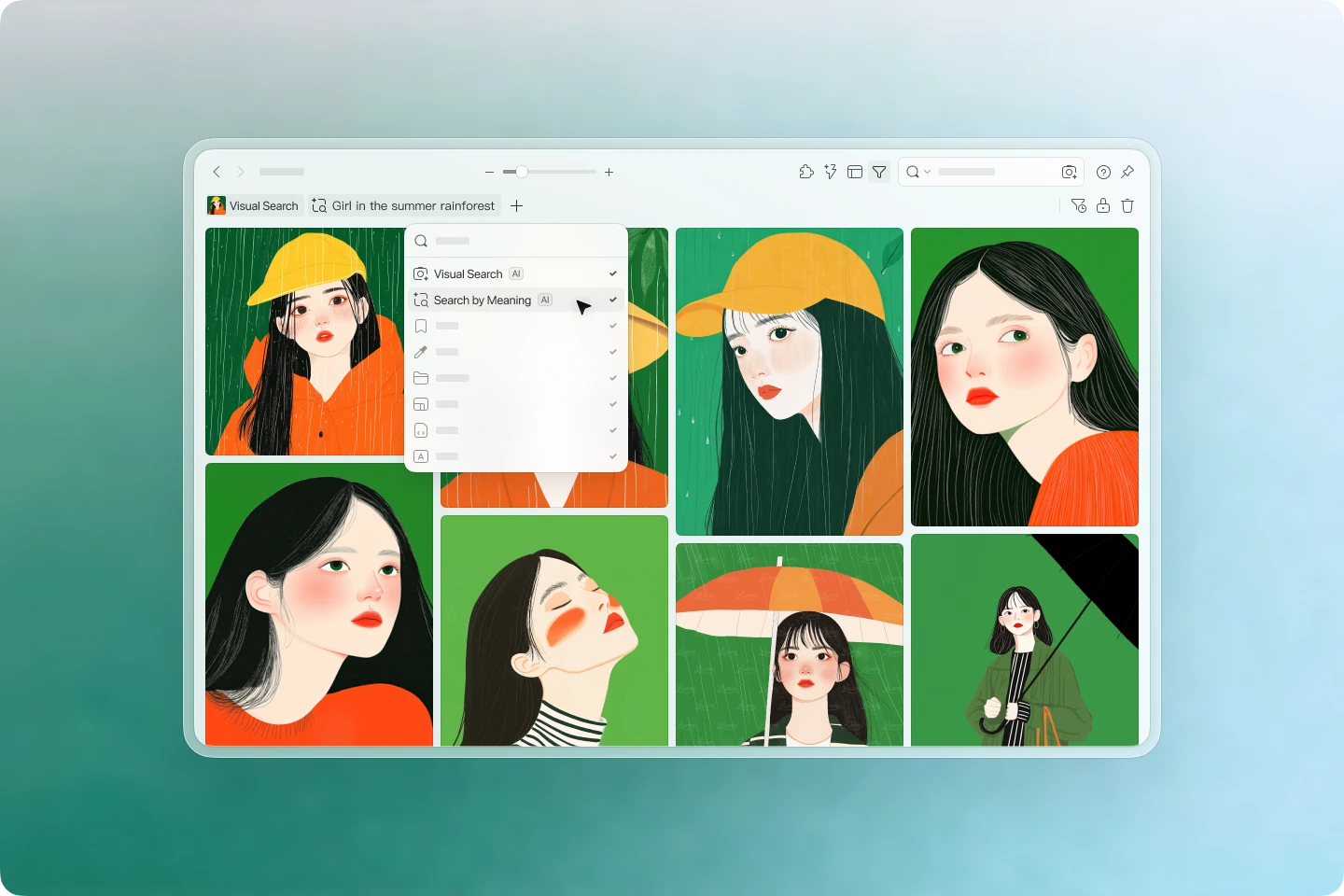
With this release, AI Search brings two new ways to find assets in Eagle:
- Reverse Image Search: Find visually similar assets using a reference image
- Natural Language Search: Search through your assets' text information using plain descriptions
- Fully Local: No internet connection required, no uploads — works completely offline
For anyone who has built up a large asset library, AI Search isn't just a new feature — it's a fundamentally more intuitive way to find what you're looking for. Whether you start with a reference image or type out a description, it gets you closer to how you actually think about and recall your assets.
Why We Built AI Search
Once your library grows into the tens of thousands of images — or even hundreds of thousands — folders, filenames, and tags can only take you so far.
You've probably run into situations like these:
- You remember saving an image, but the filename is long gone from memory
- You have a reference image and want to find assets with a similar look or feel
- You're searching for a certain type of subject, but can't think of the right keywords
- Your library keeps growing, and traditional search just isn't keeping up
AI Search was built specifically to address these pain points.
It's not meant to replace folders, tags, or keyword search — it's meant to complement them with two more intuitive modes: reverse image search and natural language search.
Reverse Image Search: Find Similar Assets with a Reference Image
With reverse image search, you can drag in any image and let AI Search find visually similar results from your library.
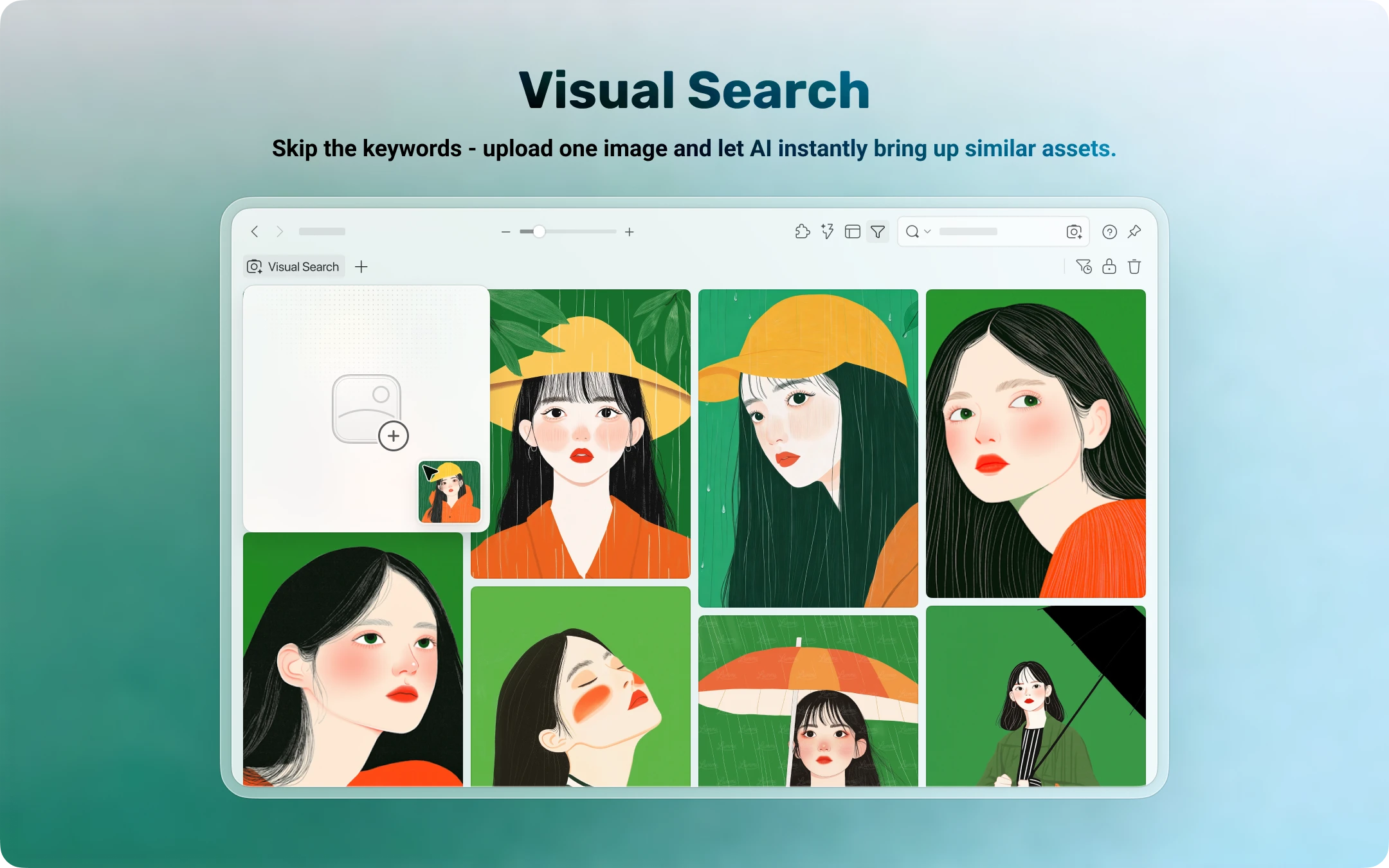
Search results are based on the image's overall visual characteristics, including:
- Color palette and tones
- Composition and layout
- Visual style
- Subject matter and overall feel
This type of search is especially useful for things that are hard to put into words. A subtle color mood, a particular layout rhythm, or the overall atmosphere of an image — these are difficult to capture in a few keywords, but a reference image can get you there much faster.
How to Use It
There are two ways to start a reverse image search:
-
Using an image already in Eagle
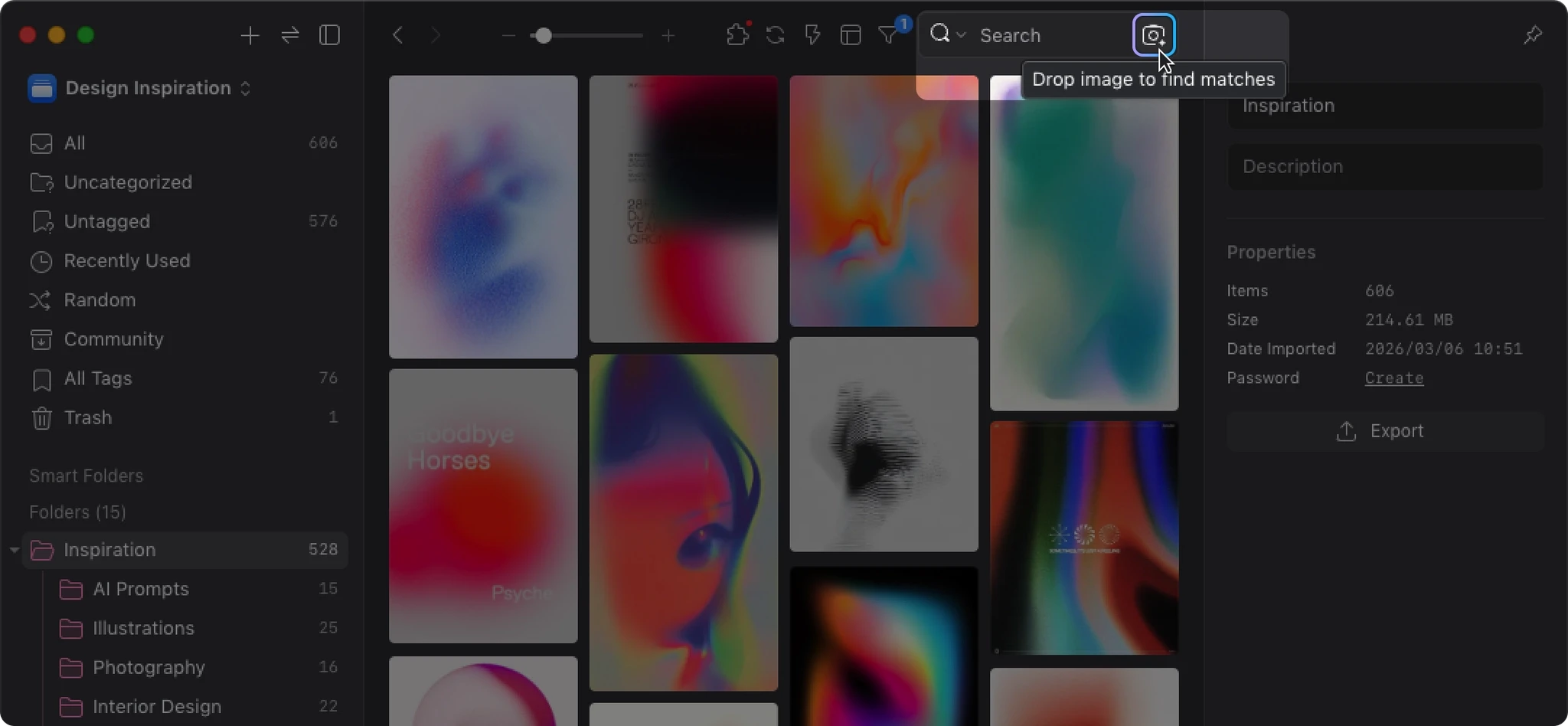
Drag any image from the file list directly onto the reverse image search button next to the search bar, then release to begin searching.
-
Using an external image
Copy an image to your clipboard, then click the reverse image search button and paste — it'll use that external image as your reference.
Where to Find It
You can access reverse image search from the following locations:
-
To the right of the search bar
-
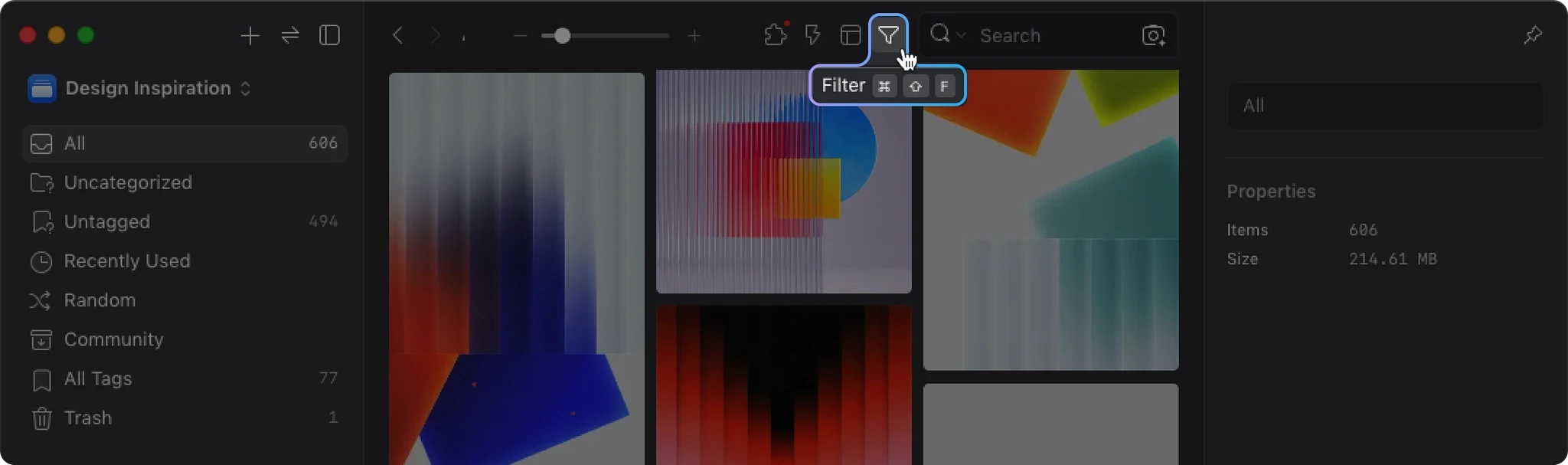
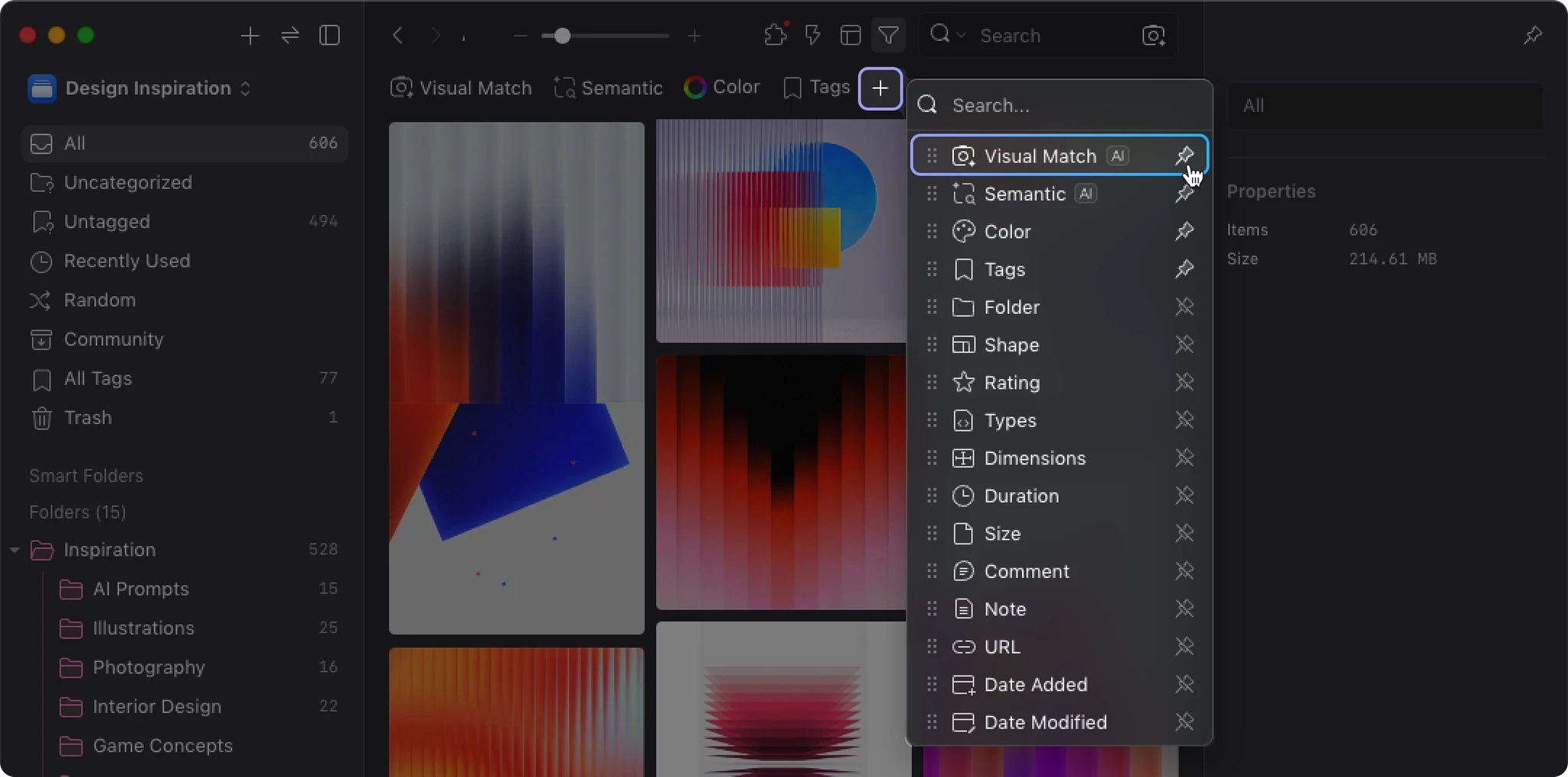
Pinned to your filter bar
Click the "+" in the filter bar to add reverse image search to your quick-access area.
Tips for Best Results
If you have a general sense of what you're looking for but aren't sure which specific image, try starting with a keyword or natural language search to narrow things down. Once you find something close, use that as your reference image to expand the search from there.
This "find one, then branch out" approach tends to be significantly more efficient when working with large libraries.
Natural Language Search: A More Flexible Way to Search Your Text Metadata
In addition to reverse image search, AI Search also supports natural language search.
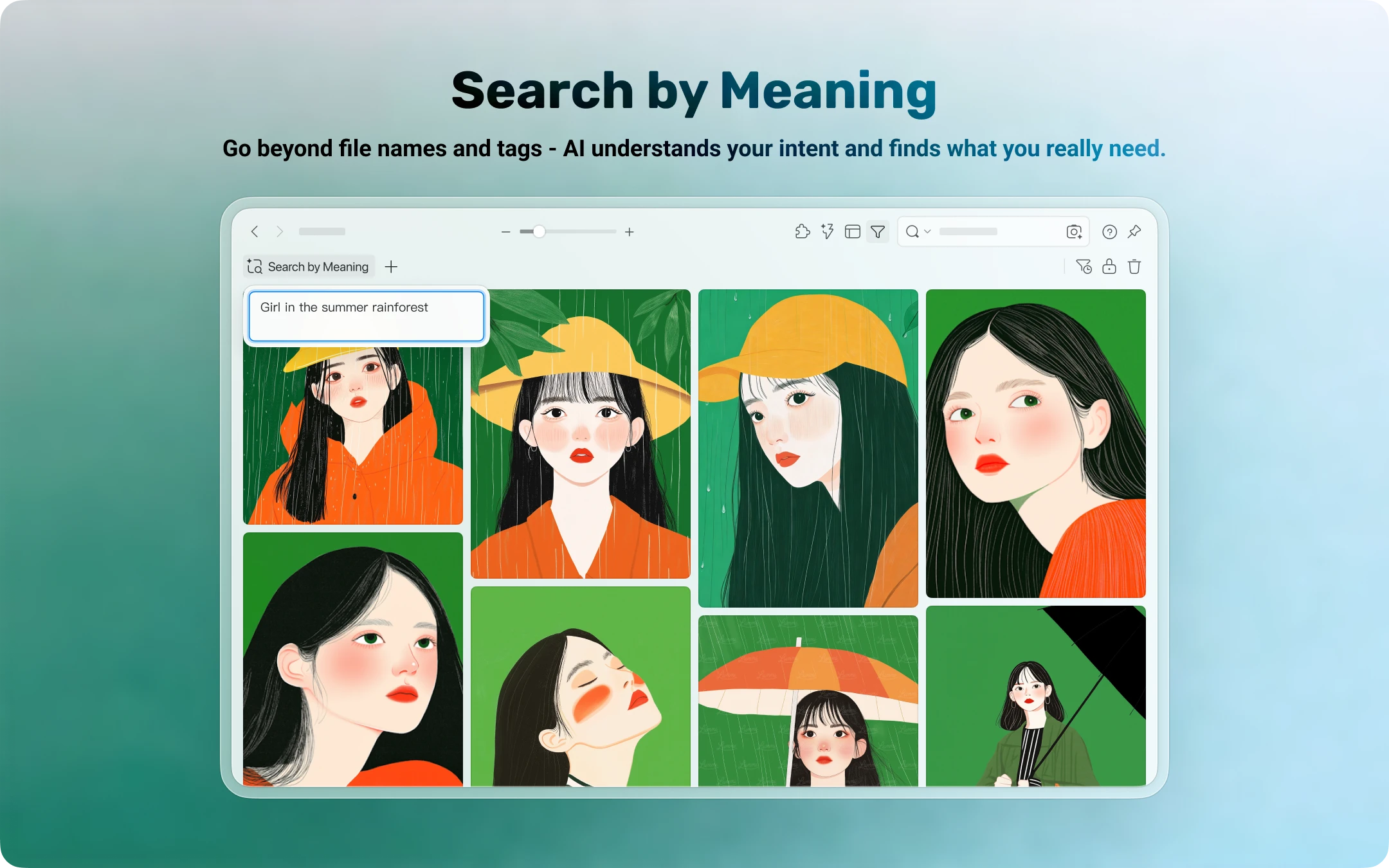
This feature currently works by performing semantic matching against the text information already associated with your assets, such as:
- Filenames
- Descriptions
- Notes
- Other searchable text fields
Think of it as semantic text search: a more flexible way to match against filenames, descriptions, and notes — rather than analyzing image content directly through visual understanding.
Unlike traditional keyword search, which matches text literally, natural language search attempts to understand semantic proximity. So even if the words you type don't exactly match how an asset was originally named or described, results with a close enough meaning can still surface.
For example, if your assets have reasonably clear names or descriptions, you can search with phrases like:
- warm-toned minimalist poster
- flat style animal illustration
- クリスマス
- dark moody portrait
and find matching content.
Natural language search works especially well when:
- You remember a theme or concept, not an exact keyword
- Your assets already have filenames, descriptions, or notes
- You want a more intuitive way to search through a well-organized library
- You need to search across multiple languages within your existing text metadata
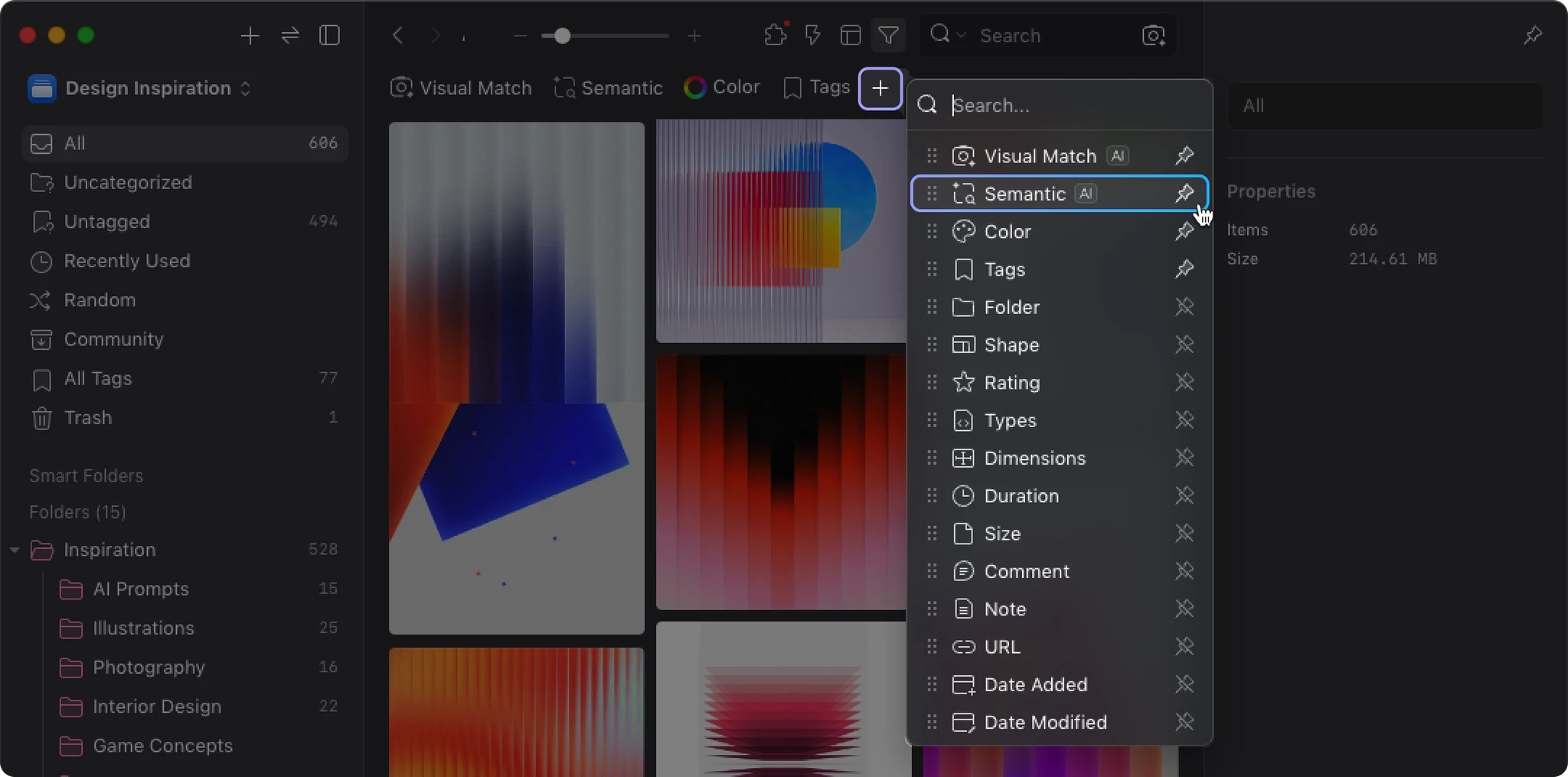
How to Enable It
- Click the "+" in the filter bar
- Select "Natural Language Search"
- Type your description or keyword in the input field
You can also pin it to your quick-access area for easy access later.
Before You Start: Where AI Search Works Best
We want to be upfront about how each search mode works.
The two search modes in AI Search are built on fundamentally different foundations:
- Reverse Image Search: Based on visual similarity between images
- Natural Language Search: Based on the text information already attached to your assets
This means natural language search tends to shine in situations like:
- Filenames are meaningful and descriptive
- Descriptions or notes are filled in clearly
- Your library already follows consistent organizational habits
- You need to handle synonyms, cross-language queries, or varied ways of describing the same thing
On the other hand, if an image has no meaningful text associated with it — a random filename, no description, no notes — there's simply less for natural language search to work with, and results will reflect that.
This isn't a limitation of the search engine itself. Even the most powerful search needs something meaningful to match against.
Fully Local — No Internet, No Uploads
Every step of AI Search's analysis and retrieval happens on your own machine.
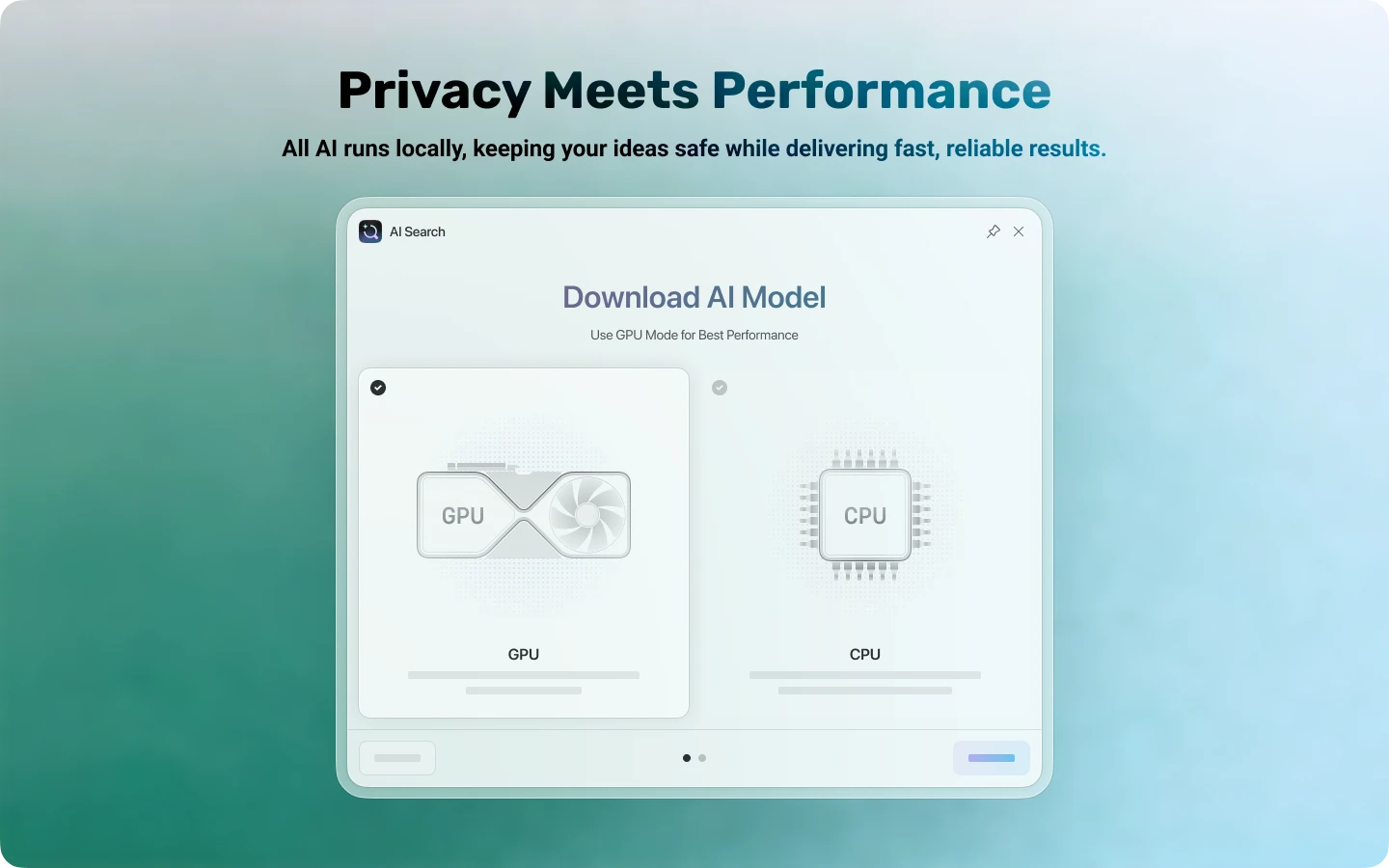
That means:
- Your images are never uploaded to the cloud
- No external servers involved in the analysis
- Works even when you're offline
- Your assets never leave your device
| Feature | Other AI Search Tools | Eagle AI Search |
|---|---|---|
| How it works | Upload to cloud → Analyze → Return results | Analyze locally → Search locally |
| Privacy | Assets pass through third-party servers | Assets stay on your device |
| Cost | Usage-based billing / subscription | Free to use after installing the plugin |
| Offline use | Requires internet connection | Fully offline capable |
For anyone managing client design files, a personal portfolio, or an internal reference library, this local-first approach fits more naturally into existing workflows and is much easier to sustain long-term.
GPU Acceleration for Large-Scale Processing
AI Search supports GPU acceleration. On compatible hardware, overall processing speed can be up to 30–50x faster than CPU-only mode.
| Environment | Support |
|---|---|
| Windows + NVIDIA GPU | Supports both GPU and CPU modes — GPU recommended |
| Windows + AMD / Intel GPU | CPU mode only (currently) |
| Mac (Apple Silicon) | GPU acceleration supported (enabled by default) |
| Mac (Intel) | CPU mode only |
If you have a large library, or frequently run indexing, batch analysis, or repeated searches, the difference with GPU acceleration will be very noticeable.
If you're limited to CPU mode, AI Search will still run — but initial indexing of large libraries or batch image analysis will take considerably longer.
The setup wizard automatically detects your hardware and recommends the right version. No manual configuration needed.
Who Is AI Search For?
AI Search is particularly well-suited for users who:
- Have built up a large library and need more efficient ways to find things
- Remember assets visually rather than by filename
- Already have consistent naming conventions, descriptions, or notes in their library
- Want to pair it with AI Action in the future, creating a complete organize-and-search workflow
The larger your library, the more significant the difference AI Search tends to make.
What's Next: AI Action
AI Search addresses the question of how to find your assets.
Our next AI plugin feature, AI Action, tackles the complementary question: how to make your assets easier to find in the first place.
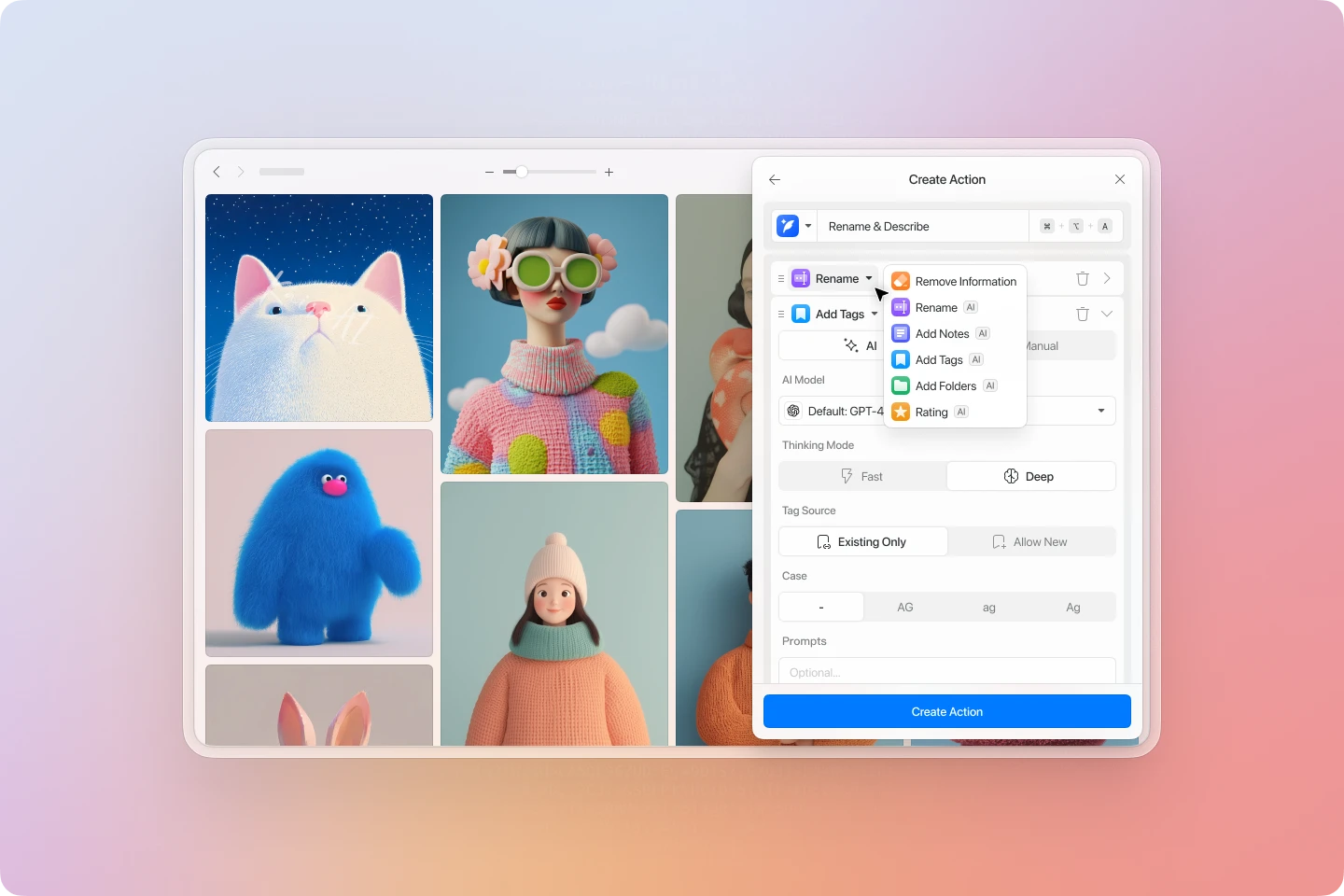
AI Action focuses on batch organization tasks, such as:
- Auto-naming
- Auto-generating image descriptions
- Auto-tagging
- Auto-categorizing
For us, the value isn't just generating generic captions. It's about letting you define your own organizational logic — how assets should be named, described, and categorized — and then having AI execute that at scale.
That's what makes AI Search and AI Action so powerful together:
-
Use AI Action to enrich your assets' text metadata
Build clearer names, descriptions, and tags across your library
-
Then use AI Search to find them
Whether you're searching by description or branching out from a reference image, everything becomes more efficient
AI Action is currently in its final testing phase. We'll share a dedicated introduction soon.
A Note on Eagle 5.0
Sharp-eyed users may have noticed that we haven't bundled any of these new features under the Eagle 5.0 banner. That was a deliberate decision made after reassessing our approach.
We had originally planned to ship these capabilities as part of an Eagle 5.0 Beta. But we came to believe that requiring users to upgrade to a major new version — with all the underlying changes that entails — just to access these features wasn't the right call. Instead, we chose to deliver them on the stable foundation of Eagle 4.0, so more people can benefit right away.
The reasoning is straightforward: we didn't want users to have to absorb the compatibility, stability, and migration risks of a major version upgrade just to try out AI Search and AI Action. Getting new features into users' hands in a stable, accessible way matters more to us than advancing the version number.
That said, Eagle 5.0 is genuinely in development. For us, 5.0 isn't just about adding new features — it's about upgrading Eagle itself: core runtime updates, UI improvements, performance optimizations, and fixes for issues that have been difficult to address. We expect 5.0 to bring meaningful performance gains across the board.
One concrete example: after the underlying runtime is updated, Eagle 5.0 will require macOS 12 or later as the minimum supported version. That's exactly why we didn't want to tie new features to that transition — we didn't want users still on older hardware or older operating systems to be shut out before they're ready.
In the near term, Eagle 4.0 will continue to be maintained, with features we've committed to being rolled out progressively via plugins. Looking further ahead, Eagle 5.0 remains our primary development focus — a more comprehensive upgrade to the application itself.
Looking Further Ahead: Eagle Agent
Beyond search and organization, we're also thinking about more natural ways to interact with AI directly inside Eagle.
We recently launched Eagle MCP/Skill, which lets external AI assistants collaborate with Eagle. Our next area of exploration is a step further: Eagle Agent.
Our goal is to bring conversational AI natively into Eagle — so users can work with AI naturally, without needing to set up external tools, and accomplish more within the asset management workflow itself.
This direction is still in early stages, but we're genuinely excited about where it could go.
Get Started Today
Open Eagle, head to the Plugin Center, and search for AI Search to install it.
If you regularly deal with large asset libraries, reference image collections, or inspiration searches, we'd love for you to give it a try. For us, this isn't just a new feature release — it's a meaningful step forward in how Eagle helps you find what you're looking for. We're genuinely curious to hear whether it makes a difference for you.
Related Posts